72.2.2.70 Relationships
HIERARCHICAL ASSETS STRUCTURE
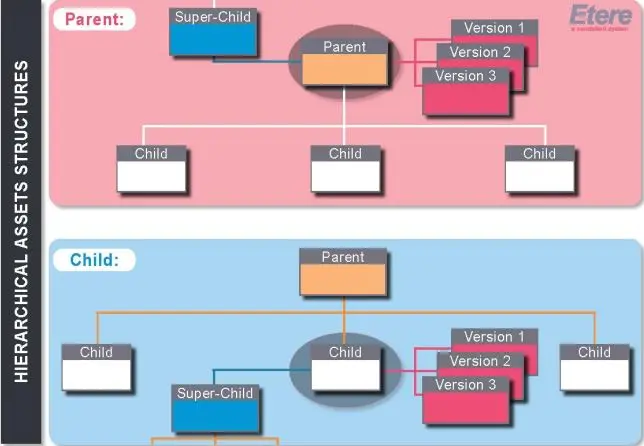
Etere allows managing assets under a hierarchical assets structure based on Parent-Child relationships, allowing furthermore to handle alternative versions of a same asset. All relationships between assets are bidirectional, so once added from an asset form, they will be automatically added to the linked asset form.
The diagram below show the type of relationships managed between assets:
Parent
Function: Anon-child asset (e.g. source) which is superior to at least one child asset.
Relation: Parent assets can have an unlimited number of children.
Color: Highlighted with a pale green background color.
Child
Function: An unlinked asset which is subordinated only to one parent asset, to for example, be its derivative.
Relation: Child assets can have only one parent.
Color: Highlighted with a white background color.
Super-child
Function: Achild asset (e.g. source) which is superior to a parent asset.
Relation: Parent assets can have only one super-child asset.
Color: Highlighted with a pale blue background color.
Sub-parent
Function: Aparent asset (e.g. derivative) which is subordinate to only one child asset.
Relation: Child assets can have an unlimited number of sub-parent assets.
Color: Highlighted with a pale blue background color.
Version
Function: An alternative version of another asset (whether a parent or child).
Relation: An parent/child asset can have an unlimited number of versions.
Color: Highlighted with a pale red background color.
NB: Please note that in case the asset is an episode of a tv series which counts with promotional assets (i.e.: trailers), this trailers will be displayed in the Relationships tab of all this and all the rest of episodes belonging to that tv series, the color of the link will be yellow.
hirarchical_asset_structure
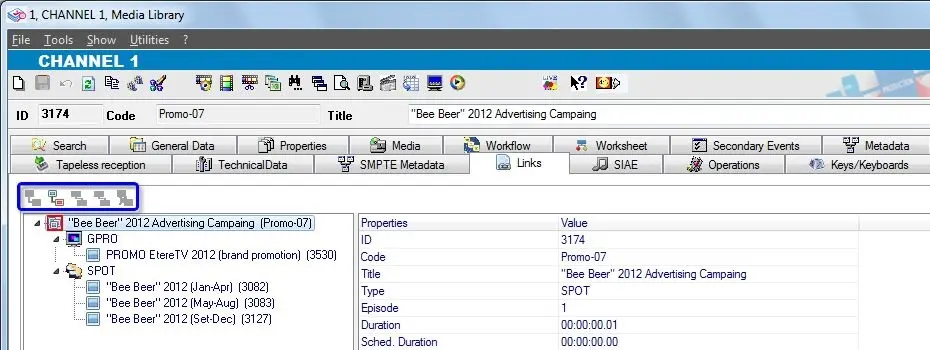
The Relationships tab allows managing relationships between assets through the use of hierarchical relationships; as shown in the figure below, the interface that allows this is made up by a single interface formed by the following areas:
· Top toolbar where supported functions are available;
· Left items tree where linked assets are displayed (classified according to their type);
· Right metadata panel where data related to the selected item is displayed. If there is media file linked to the selected asset, the preview of media file would be displayed on the extreme right panel.
Moreover, it's worth mentioning that, as shown in the figure above, the currently open item will be remarked within a red square.
hierarchical_relationships
AVAILABLE FUNCTIONS
Among the functions available in the "Links" section the following are described:
Add link to parent: In case the currently open asset is not a parent, this function will allow to link an asset without relationships to it as a "parent" (i.e. source asset);
Add link to child: In case the currently open asset is unlinked (i.e. not a child nor a parent), this function will allow to link an asset without links to it as a "child" (i.e. derivative asset).
Add link to super-child: In case the currently open asset is a parent, this function will allow to link a child asset to it as a "super-child" (i.e. parent of a parent).
NB: When a super-child asset is added, its parent asset is automatically inherited.
Add link to sub-parent: In case the currently open asset is a child, this function will allow to link a parent asset to it as a "sub-parent" (i.e. child of a child).
NB: When a sub-parent asset is added, all its child assets are automatically inherited.
Delete link: Removes the link between the currently open asset and the selected asset.
NB: This function is not available if they are presence of different versions of same asset, you must first delete those different versions of asset before you can delete the linked asset.
View: making click on a certain item w ill show all its main info in the right panel.
Open: Making right-click on an item and selecting the open option w ill load the related asset form positioned on its "Links" tab.
Jump: Press [F8] to load the previous version (if available) of the current asset. Press [F9] to load the next version (if available) of the current asset.
Moreover, it possible to summarize all the possible scenarios when adding relationships into the following cases:
Unlinked asset: If the asset is not yet neither a parent nor a child, it will be possible to add either one parent or multiple children;
Parent assets: If the asset is already a parent of another asset(s), it will be possible to add more children and/or one super-child;
Child assets: If the asset is already a child of another asset : It will be possible to add multiple sub-parents;
Parents assets: It cannot be linked to other parent assets, nor child assets can be to other child assets.
 hirarchical_asset_structure
 hierarchical_relationships