72.2.1.6 Searching asset - Search Results
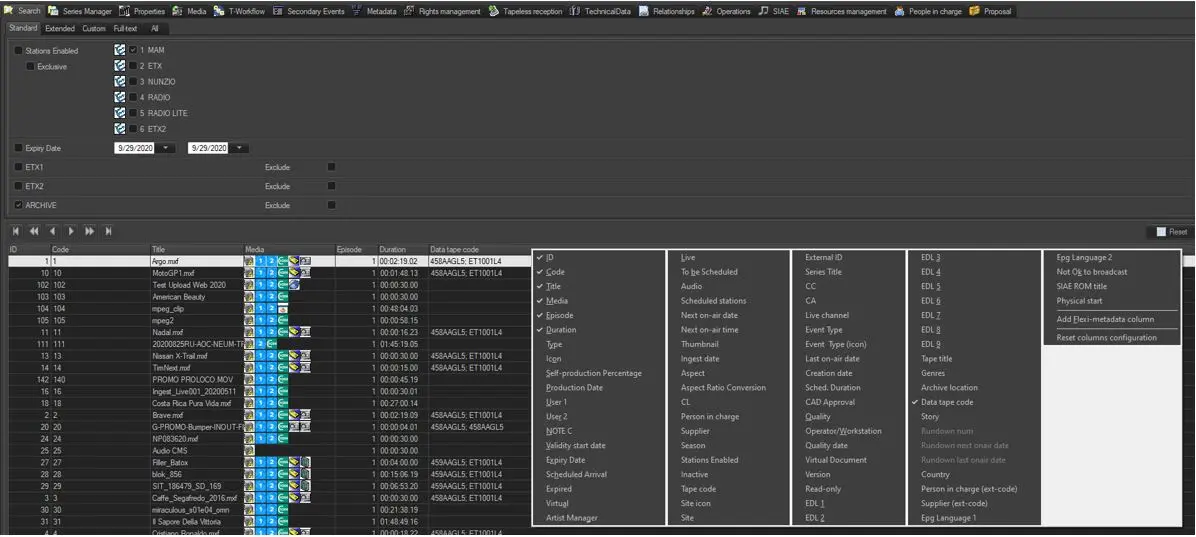
Search results are displayed in the bottom panel of the Search tab, it listed all the assets matched the search parameters, each line contains an asset and display it properties along various columns (properties).
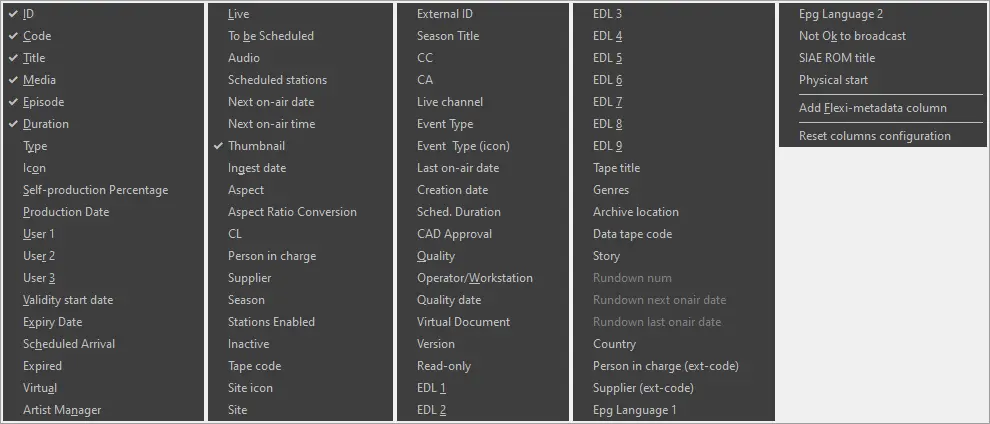
Columns can be moved by drag-and-drop, by clicking on one of the asset, results will be sorted according to the property contained in selected column (e.g. type, thumbnail, season, etc). Moreover, display columns can be added by right-click on the column's title and selecting the additional columns (with a "√ ") to be displayed. After added the columns to the Search form, you can resize the columns to view the full description.
4238_Columns
Search tab
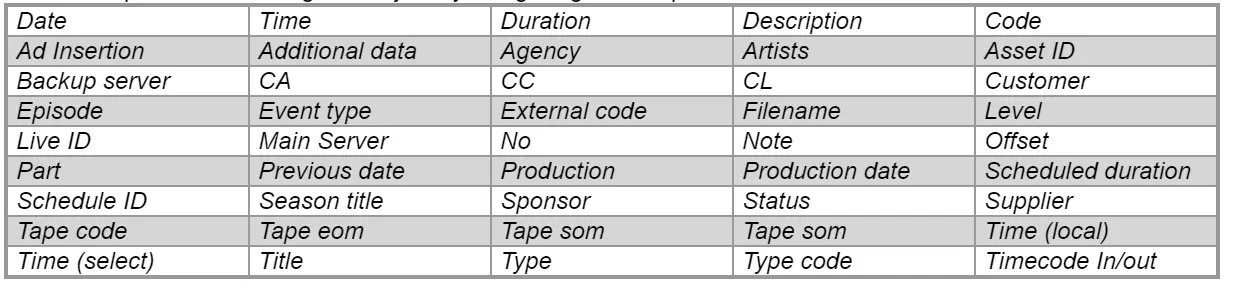
The available columns includes:
In the search results form, the threshold to export all filtered assets is set at 1000 records. To overcome the limitation, you can use the Print function to manage the assets in pages to be exported.
(*) By default, station icons are displayed only for those assets scheduled in the next upcoming 100 days, however, in case of using the "scheduling date" filter, station icons will be displayed for those assets scheduled within the given scheduling period.
Note: When searching assets on single station, except user with Supervisor rights, the search function would retrieve the assets exclusively to the station enabled for the login user.
Note: If the etere right for a cloud-device or a codec is denied for a group of users, the related cloud-device or codec icon will not be visible in the search results, if the search is performed by a user belonging to the said group.
Grouping Results
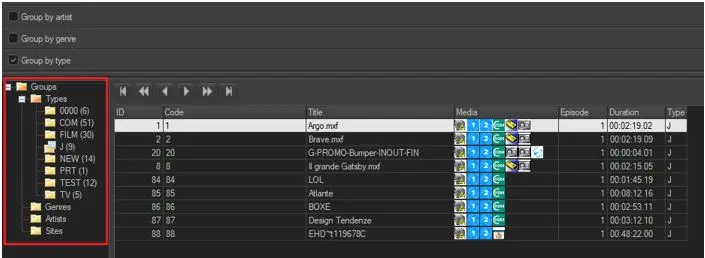
In order to group retrieved assets according to their type, genre or artist, enable the 'group by type', 'group by artist' or 'group by genre' search filters located in the filters panels. As a result, you will see in the bottom left a section containing the selected filters, click on one item in the list would display only the assets which matched the selected filter:
Grouping Results
Extra information
In case the number of retrieved assets exceeds the maximum number of assets per page, the assets would be distributed to various pages.
Execution time - Indicates the execution time of the search
Page - Currently displayed and total pages
Records - Currently displayed and total assets
Sorted by - The sort criteria used for ordering displayed assets
Duration - Duration of assets displayed in the current page and in all pages
You can navigate between pages by using the control keys located above the list of search results
 Columns
 Grouping_Results
 Search_tab
 Columns