9.2.4.4 Upload / Link
When a user accesses EtereWeb with a compatible browser, the user is allowed to upload a media file to the Web server via an FTP Server or link file from a specific path.
UPLOAD VIA FTP SERVER
This feature uploads a file to FTP Server.
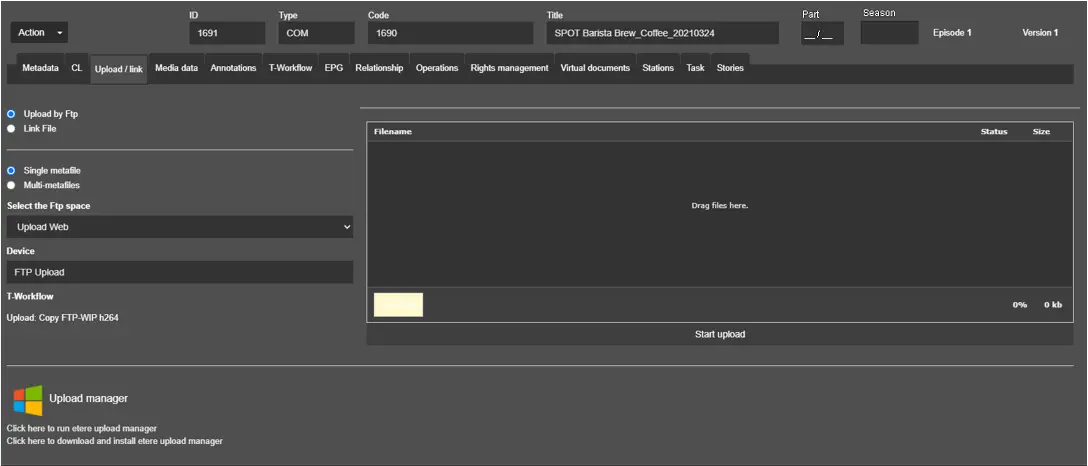
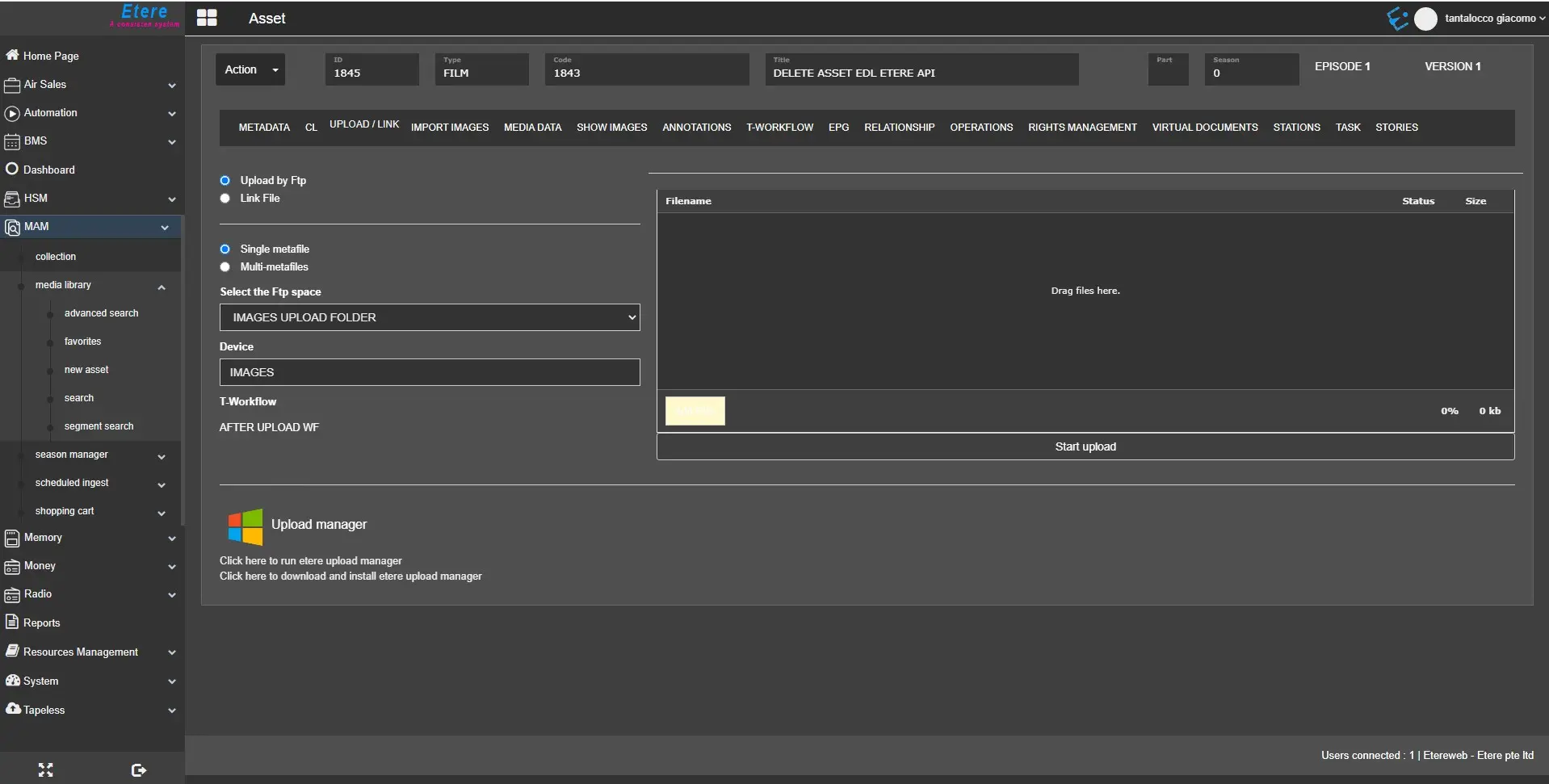
upload_link_tab
- Select the FTP space: Select the FTP space where the media file would be stored. TheConfiguration > Settings > Basic > Media Foldersection sets the FTP spaces.
The elements of this list correspond to the value in the "Name" column of the media folder intended to be used as the destination for the upload;
- Single metafile / Multi-metafiles: You can import the single file into Media Library or enable the "Multi-metafiles"option to import more than one metafile;
- Device: Indicate the cloud device related to the selected FTP space. A list of cloud devices corresponding to the designated FTP space was displayed for selection. In Configuration Editor, you can set the default cloud-device path to restrict user access only to the dedicated path.
WARNING:The specific cloud devices under "Cloud-Devices for WEB users" must be set to "Allowed" in the Etere Rights Management module to view the available cloud devices;
- Workflow: Select the T-workflow to be launched when the upload is completed. The options are:
- User-specific - Set in the Personal Data > Web and rights of the logged-in user under the "Post-upload workflow" section.
- Global default - Use the default T-workflow if a user-specific T-workflow is not found. The default T-workflow is set in Configuration > Configuration Editor > T-workflow > Default T-workflow.
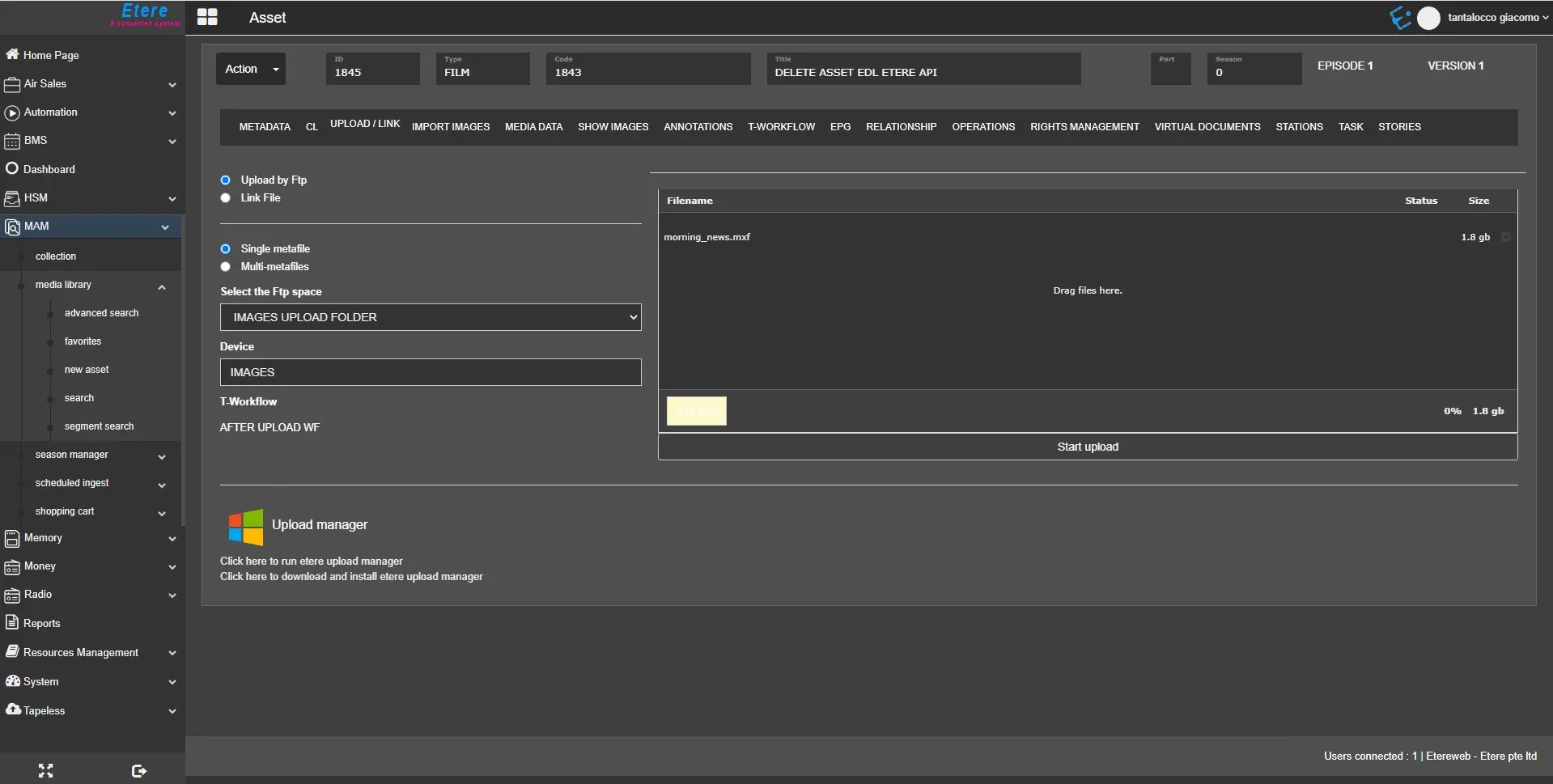
Click the <Add Files> button to launch the File Explorer window, select a file from the designated folder, and click <Open> to upload the file in the queue.
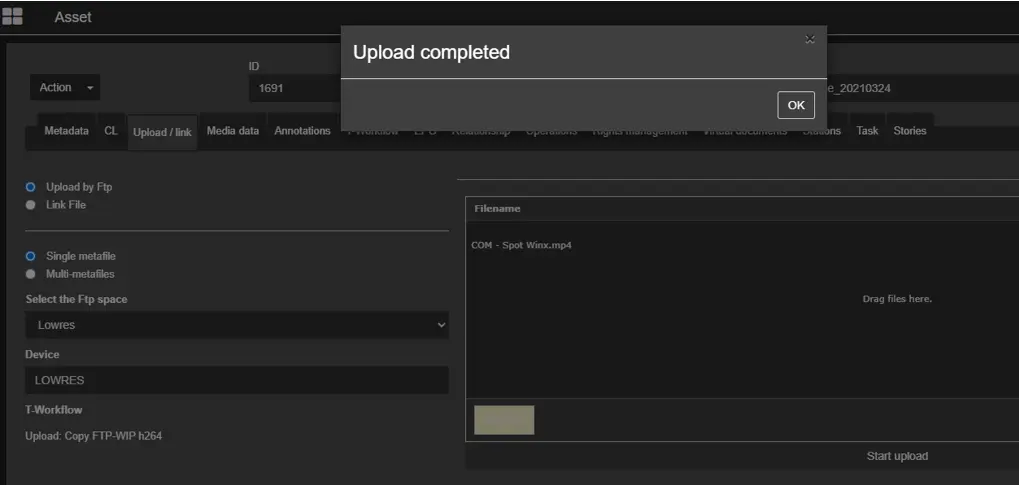
Next, click the <Start upload> bar at the bottom to upload the file to FTP Server. You will receive a message informing you that the upload has been completed successfully.
You should avoid uploading the same file from another browser or trigger another file upload from the same workstation; the upload should be carried out one after another to prevent interruption or appending to the same file you had previously uploaded.
WARNING: When uploading the file, there is no option to select the codec for the uploaded file. The uploaded file would be assigned with the "UNK" (unknown) codec by default.
Upload_completed
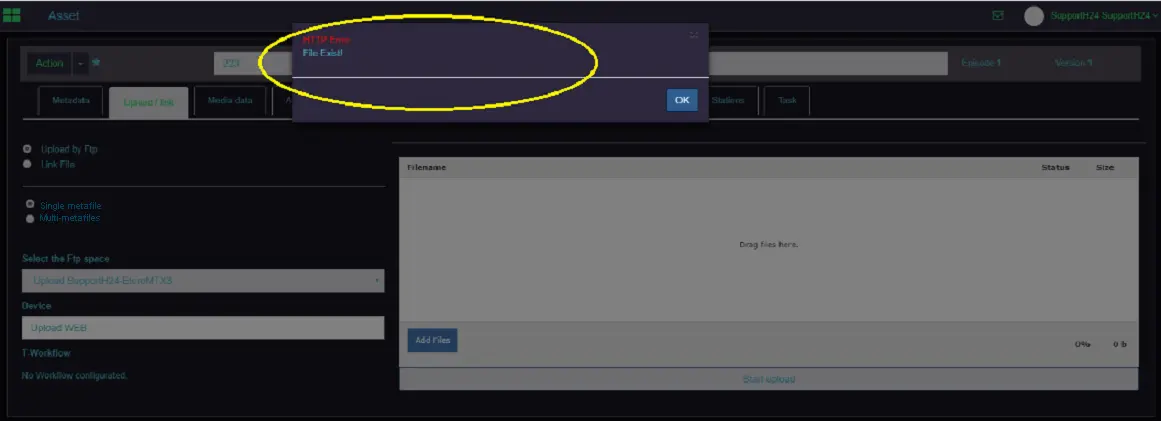
The upload function would check the file name, path, and asset repository (for metafile) before uploading the file; if you attempt to upload the same file, an error message would be prompted and uploading would be denied.
uploading_would_be_denied
If file uploading failed due to file corruption or other circumstances, the customer would be notified with an error message on the screen and the corrupted file would be removed from the destination folder.
When a media file is uploaded successfully, the media file will be reflected as "Ingested" in the asset material sheet on the Media Library desktop.
Besides FTP Server, file uploading can be fulfilled using ASPERA Integration T-workflow in Data Mover to manage the uploading process.
To prevent request timeout during file upload, you can modify the Transfer Timeout settings in FTP Server to accomplish the file transfer.
Important Note: files containing the following reserved characters are not allowed (for Windows and Apple).
< (less than), > (greater than), : (colon), " (double quote), / (forward slash), \ (backslash), | (vertical bar or pipe), ? (question mark) and * (asterisk)
Attempting to upload files with these characters will trigger a warning, and the START UPLOAD button will be disabled and cannot be bypassed.
LINK FILE
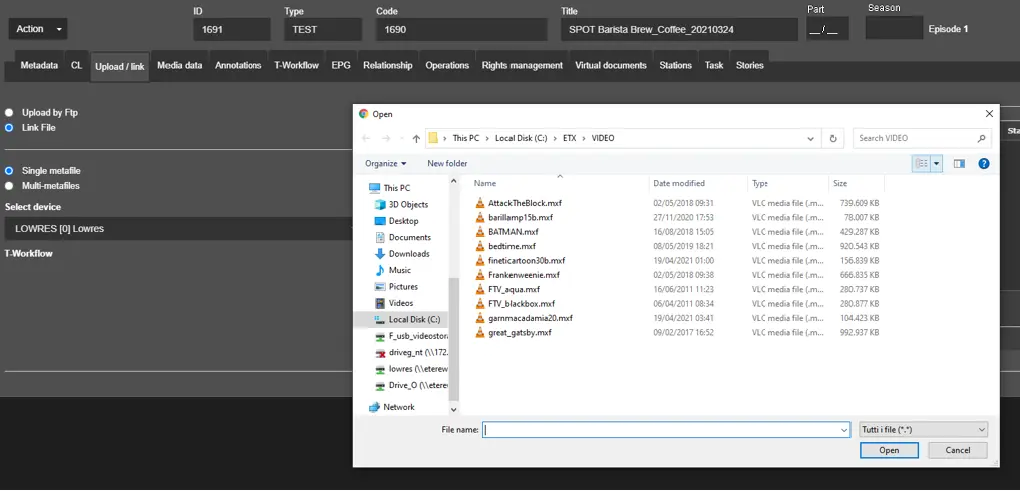
First, click the <Add Files> button to open File Explorer windows, and select a file to link to the asset.
Link_File
The selected file is ready to be linked to the asset.
upload_file
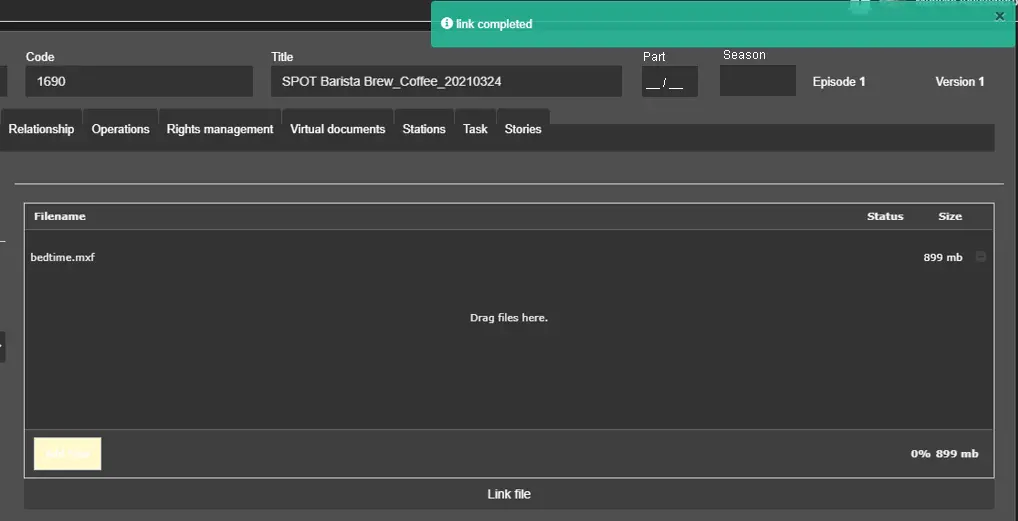
Next, click the <Link File> bar at the bottom to link the file. You will receive a message informing you that the link has been completed successfully.
link_has_been_completed
WARNING:The "Upload / Link" functions coexist in EtereWeb. Unlike desktop applications, where different workflows are configured for dedicated tasks, both features use the same default workflow to trigger the request.
ETEREWEB LEGACY
From Etere version 29.1 and onwards, depending on the Browser used for accessing to EtereWeb, the Java applet would be available for upload for any of the browsers listed below:
- Windows IE
- Safari (on MAC PC only)
- Mozilla
- Chrome
WARNING: EtereWeb version 27 relies on a Java applet to upload the content to the Web server, but the Java applet has been eased support by Chrome and other modern internet browsers. EtereWeb version 28 uses jQuery to manage file upload.
WARNING: To expedite the upload process, you can set the following relative keys in the "Web. config" file:
<add key="PACKAGES_UPLOAD" value="32768"/> (equivalent to 32MB)
<add key="SCRIPT_PACKAGES_UPLOAD" value="32mb"/>
 link_has_been_completed
 Upload_via_FTP_Server
 Upload_completed
 uploading_would_be_denied
 Link_File
 upload_link_tab
 upload_file