51.1.2.1 Cloud-device paths
This list allows you to add (right-click -> new), edit (right-click -> edit), or remove (right-click -> delete) the paths on which video files are stored. Here below there's a list of all the path-specific parameters that can be set.
NB: Before selecting the cloud device, you must be granted "Allowed" access to the devices Cloud-devices for Web users and the related media folder must be enabled.
Edit_path
Path: Select a directory from the meta devices list. The sub-folders in the directory would not be scanned. It would be best if you were granted access rights in Etere Configuration> Configuration Editor> User> Permissions> Cloud Device for Web User to view the cloud-device paths.
NB: Metadevices are set in Configuration > Resources Editor > Tools >Configure > Cloud-device.
NB: Cloud-device path with "id_path" = 0 is not allowed in the cloud-device list.
Codec: Specify the codec (e.g. MPG, WMV, etc.) to be assigned to files found in the path.
Alternatively, by choosing the "extension_based" option, the codec will be automatically retrieved from the filename extension and assigned to the file found (the codec must exist in the Codec table to be set. Otherwise, an error message will indicate that the codec was not found).
Filters of files to exclude: Enter the names of files to ignore when synchronizing files from this cloud device.
Multiple filters can be specified separated by semicolons: *.MOV; *.AVI
NB: Filters can also be entered for all metadevice paths, as previously explained.
T-Workflow to launch when a media is associated with an asset: Select the workflow to launch every time Active Sync links a file to an asset from this specific path.
Synchronize zipped file
If you are synchronizing a zipped file into Media Library, select "ZIP" from the codec list (the "ZIP" codec must be first defined in Configuration > Settings > Devices Settings > Codec section), enable the "Bundle Assets Mode" option and specify a folder name in "Eventual subfolder of the path, where to look for to unpack .zip" parameter as destination path where the zipped file would be located.
Create new assets
If enabled, a new asset will be automatically created for found files unrelated to an asset (i.e. whose name doesn't match any asset code). The following options will become available:
__________________________________________________________________________________________________
Rename files based on their asset ID: The new asset will be created with an automatic asset ID. The file will be renamed into this ID before linking it to the asset.
Example: It's found a file named "Mister_Simon_Diamond_stole_your_soul.MPG", a new asset is created with ID=5370, the file is renamed as "5370.MPG" before being linked.
Not search in Original filename: If enabled, it bypasses the search of the original filename during synchronization. Combining the "Rename file based on their asset ID" option allows you to create new assets with duplicated file names in the target system. This option is disabled by default.
Rename files based on asset ID (VTVSpecial): Files will be renamed based on the asset ID. Files must be named as StationID_ProgramType_Title.MXF, so the asset code will be StationID_ProgramType_DDMMYY_EtereID.
Conditions:
Files are imported only if these conditions are met:
▪Files must have an MXF extension; otherwise, they will be ignored
▪The STATIONED and PROGRAMTYPE must be present in the filename. If one is missing, the file will be renamed with the extension.BAD (files won't be imported, and an error will be displayed)
▪The STATIONED must correspond to one of the customer's licensed stations (e.g. VTVCab1, VTVCab2); otherwise, if the station is different (e.g. MimoTV), the file will be ignored
Example: It's found a file named VTVCAB1_FILM_BEN-UR.MXF, a new asset will be created (e.g. ID=10000) with type=FILM, TITLE=BEN-UR, CODE= VTVCAB1_FILM_100414_10000 and the video file will be renamed as the ID (e.g. 10000.MXF).
Rename files based on: the first 32 chars.: If the name of files (without extension) is greater than 32 characters, the new asset will be created with an automatic ID and a CODE generated with the leading 32 characters of the filename; in case the CODE already exists, a new one will be developed with the leading 17 characters plus a '000' suffix. If the new code also exists, the numeric suffix will be increased (001, 002...) until a non-existing code is found. The file will be renamed into this CODE before linking it to the asset.
Example: It's found a file named Mister_Simon_Diamond_stole_your_soul.MPG, a new asset is created (e.g. ID=5370 & CODE=Mister_Simon_Diamond), the file is renamed with the asset CODE (e.g. Mister_Simon_Diamond.MPG) before being linked.
NB: The above feature is only possible if the "Filenames = Code" is defined in the Ingest Section in Etere's Configuration module.
Rename files based on a unique name: The new asset will be created with an automatic UNIQUE ID (used as the asset's CODE). The file will be renamed with a UNIQUE ID randomly generated with a fixed length of 20 characters, before linking it to said asset. Example: It's found a file named Mister_Simon_Diamond_stole_your_soul.MPG. A new asset is created using a UNIQUE ID as code (e.g. ID=5370 & CODE=02BD000000000000014B), and the file is renamed with the asset CODE (e.g. 02BD000000000000014B.MPG) before being linked.
Keep the original copy: If any of the renaming options is selected, the renamed file will be a copy of the original file kept in the meta device. For example, this option is helpful to avoid errors with meta devices used by other applications/systems different from ActiveSync.
NB: Keeping original and renamed files make the storage space double occupied.
Asset code creation: If any of the renaming options is selected, indicate if the code of the new asset should be created either as unique names or following Etere rules.
Search on sub-folders, considering that each sub-folder contains asset files: If enabled, ActiveSync will search on sub-folders, considering that each sub-folder has assets, this, according to the selected mode:
▪ Discovery mode
▪ Bundle assets mode
NB: In the case of enabling one of these modes, renaming options will be automatically disabled, as well as their related options (code creation and copy keeping).
See chapter Bundle asset mode for more information about this option.
Default new asset type: Enter the type code (e.g. SPOT, FILM, etc.) to be assigned to new assets.
Note: Codes can have a maximum of 4 chars.
NB1: If the "create new asset" parameter is disabled, it will be synchronised only files with names matching the code of an existing asset.
NB2: As renaming options are SENSITIVE operations, the user will be prompted to enter "ETERE" to confirm the process.
__________________________________________________________________________________________________
Do not process files older than this number of days: Set the maximum past days from the date video files must be synchronized. To process all video files without checking the date, set this value to '0'.
Process the video file only if the descriptive file (.xml) exists: If enabled, video files found by Etere ActiveSync will be synchronised into the Etere system only if they are accompanied by descriptive files, which data will be imported into Etere's related assets (e.g. mark in, duration, description, etc.). When the import is completed successfully, the extension of the descriptive file will be renamed to ".done001".
NB: If the duration is retrieved from descriptive files, enabling the "do not calculate the physical duration of files" option is advised to speed up the Sync.
Always launch the workflow if the descriptive file exists, also when updating: If enabled, the post-association workflow will be launched, besides when a new media is associated, also when an existing media (i.e. already linked to the asset) is updated with the information retrieved from the descriptive file (.xml). If disabled, the T-workflow will be launched only when a new media is associated.
Use the descriptive file only to read the ASSET CODE without importing data: If enabled, ActiveSync will use the descriptive file only to read the ASSET CODE without importing data.
When linking files, do not consider the following suffix: When connecting the file to an asset, this parameter allows you to bypass the suffix in the file name by specifying the suffix to be ignored. For example, if "HD" is entered in this parameter, a file named "123456HD.mp4" would be searched and linked as "123456.mp4" without considering the suffix "HD" in the file. By default, this parameter contains no value.
VTV Asset XML (custom import): If enabled, descriptive files provided with video files will be imported into the Etere database through the VTV Asset XML import.
NB: If using this import, the parameter "Process the video file only if the descriptive file (.xml) exists" must be enabled, and the parameter "Create new assets" must be disabled.
EDL version for TNCOLOR import: Specify the version of the EDL to import. This option is dedicated to managing Technicolor .csv files which contain the EDLs of the video file having the same file name.
Note:
•To be compatible with Foxtel XML export EOM and Etere EDL field, the EOM for each segment has been reduced by one frame in CSV.
•The version of EDL is not based on 0. It starts from EDL1.
•If the EDL version exceeds 1, the related fields in "FEDLDESCRIPTION" (EDL-Asset Relationships) will also be updated.
Create the Asset Code based on the first n characters of the file: This parameter allows to calculate the asset code attributed to the new asset based on the first "n" number of characters of the filename. The remaining part, separated by an underscore ('_') which will be ignored, will be used to set the asset title.
• The value entered must exceed nine characters.
• Enter the value "0" to ignore this parameter.
• If the asset already exists, the file would be linked to the same asset.
• If the asset file name is shorter than the characters set in this parameter, the file will be skipped.
NB: If the Asset Code based on the first n chars of the file option is enabled, the option Insert code name in the asset form's description field in the General tab must be disabled to achieve expected results.
Link the video file to the asset based on the content of the following flexy-metadata: In this parameter, insert the flexy metadata to search the asset's file name and link the file to the asset. The file would be skipped if no asset matched the input flexi-metadata. If the parameter is left blank, no related action will be performed.
Import Custom ABS-CBN DALET MAM: Enable this option to extract the exported XML file from the export path specified in Export Custom DALET ABS-CBN XML. Ensure the "Process the video file only if the descriptive file (.xml) exists" option is enabled.
During import, ActiveSync would read the XML file generated from the above Export process and update the data field "FILMATI.DATA_DIGIT" (last video server ingest date) in the database when imported files are linked to assets. The updating process would be repeated for subsequent import whenever the XML file is revised.
The imported file would be renamed to ".done" (if the import is successful) or ".err" (if the import failed). If the rename failed, no report would be available.
In addition, the import process would update the scheduled duration of the assets based on the asset's field in the XML file, including assets already created before the export and assets made during ActiveSync.
NB: When the Export is launched, and assets already exist, the assets would be exported based on Scenario 1 and 2 conditions.
NB: For ActiveSync to process, an XML file with a valid structure must be in place. Only one top-level element ( tab) is allowed in the XML file. If the component is missing, the synchronize process will be aborted.
Import Custom Mediaset STL: If enabled, the following additional parameters will show up:
• Search in following days: Number of future days where the assets to be scanned by Active Sync are scheduled.
• Extension files to process: Extension of the files to be managed (e.g., STL) written without the dot ('.').
• Path of the broadcast files: Path where the files to be sent on air are stored.
Active Sync's behaviour will be this:
All the assets on the specified scheduled days will be scanned (only the schedules belonging to the current station).
The asset will be skipped if there's no video file (with .mp4 or .mxf extensions) linked from the broadcasting path specified. Otherwise, Active Sync will search for the .STL file in the cloud-device path (the one specified in the "Path" field), named as the video file, and proceed according to these cases:
• The STL file is linked, but no physical file is found -> The link to the asset is removed.
• The STL file is not linked, but the physical file is found -> The link to the asset is created.
NB: To avoid changing the codec of metafiles to be broadcasted, the check ARCHIVE->FILES is skipped when the Import Custom Mediaset STL flag is enabled.
Manage the growing files: If enabled, allows to link files not fully copied in the path that are still growing in size. The asset will have a fake duration of 1 frame and the configured workflow will be launched once the copy is completed.
Manage files Metadata: If enabled, this option allows to import the file's metadata in Etere DB's fields. Metadata is managed only in case a new asset is created and only if the file is an MP3 audio file. This function imports the following metadata:
Title - Imported in the asset title.
Album - Imported in the flexy-metadata "RL_Album"
Performer - Imported in the artist's role 'Performer'. If the artist does not exist, it will be created. If the role does not exist, it will be created.
Composer - Imported in the artist's role 'Composer'. If the artist does not exist, it will be created. If the role does not exist, it will be created.
Publisher - Imported in the artist's role 'Publisher'. If the artist does not exist, it will be created. If the role does not exist, it will be created.
Genre - Imported in the asset field General data > Genre. If the genre does not exist, it will be created.
Year - Imported in the asset field General data > Production date. If this metadata has no information about the exact month and day, the date written in the field will be set to the 1st of January as default.
Import the descriptive xml file into DOMA: once checked, it lets you import the descriptive file into DOMA instead of renaming it in .done001.
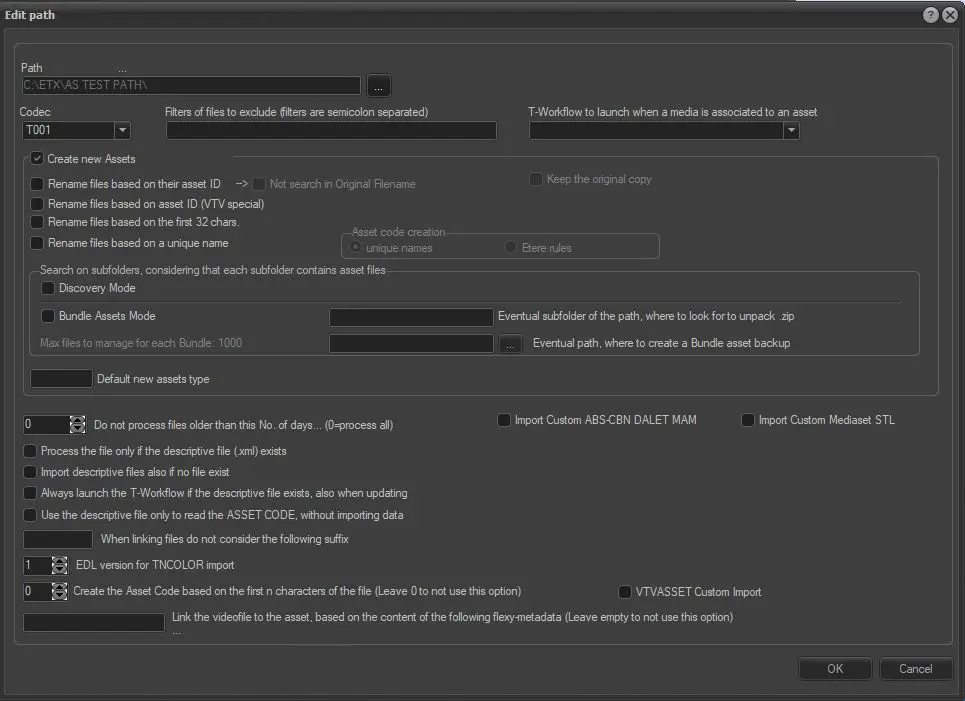 Edit_path