HOW TO USE ETERE STUDIO PLAYER
This chapter describes all functions available in all Etere Studio Player's sections.
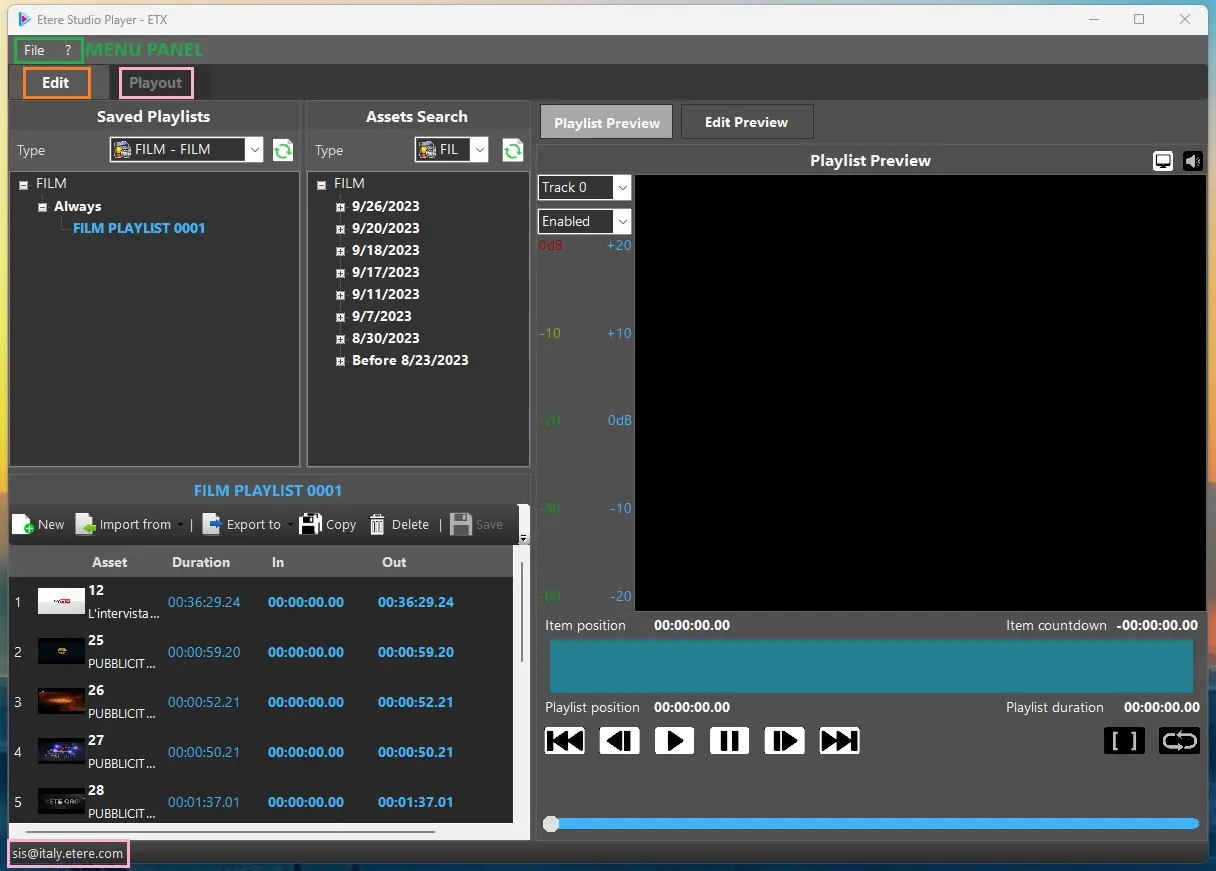
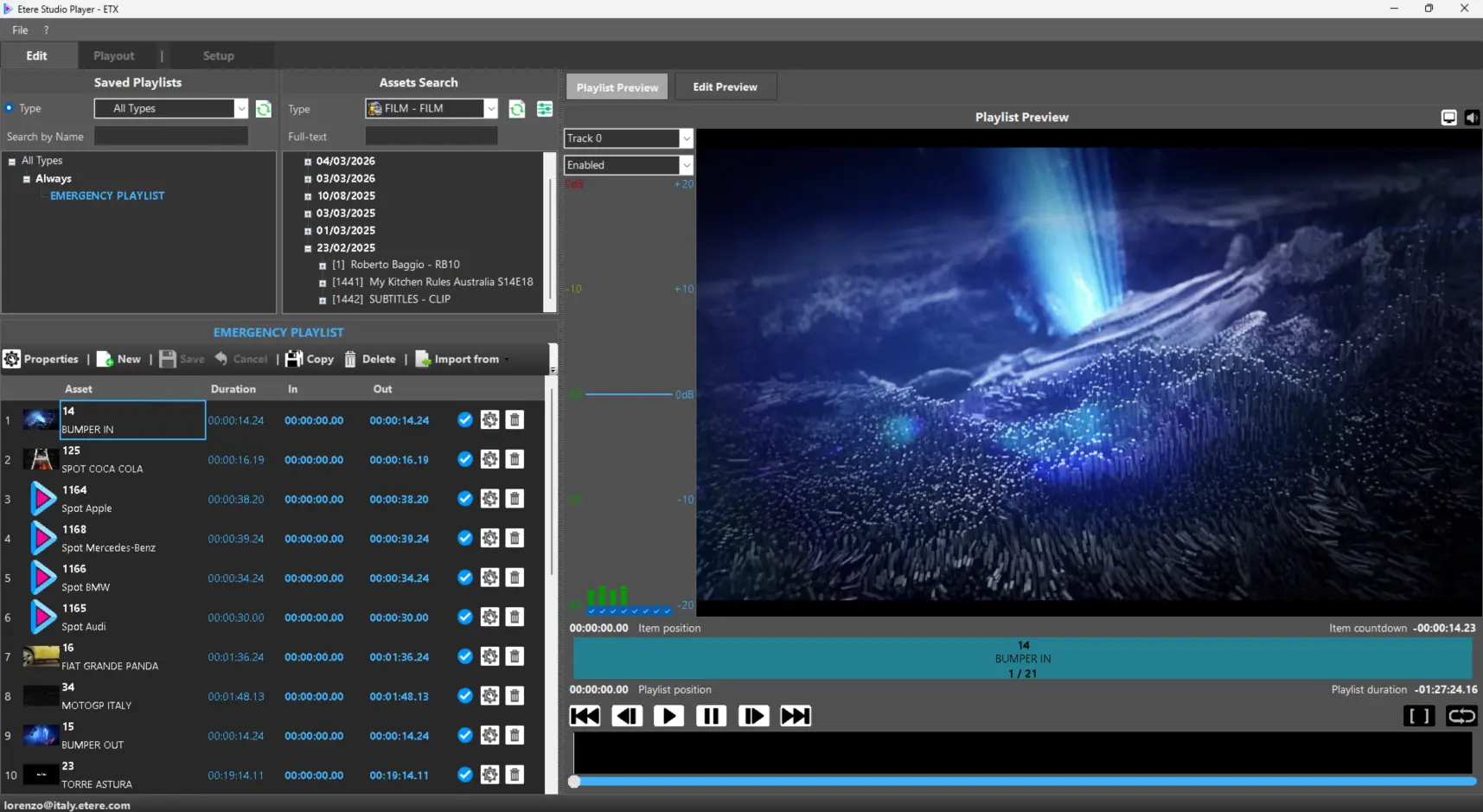
The module's interface can be divided in 3 work areas:
MENU: File - ?
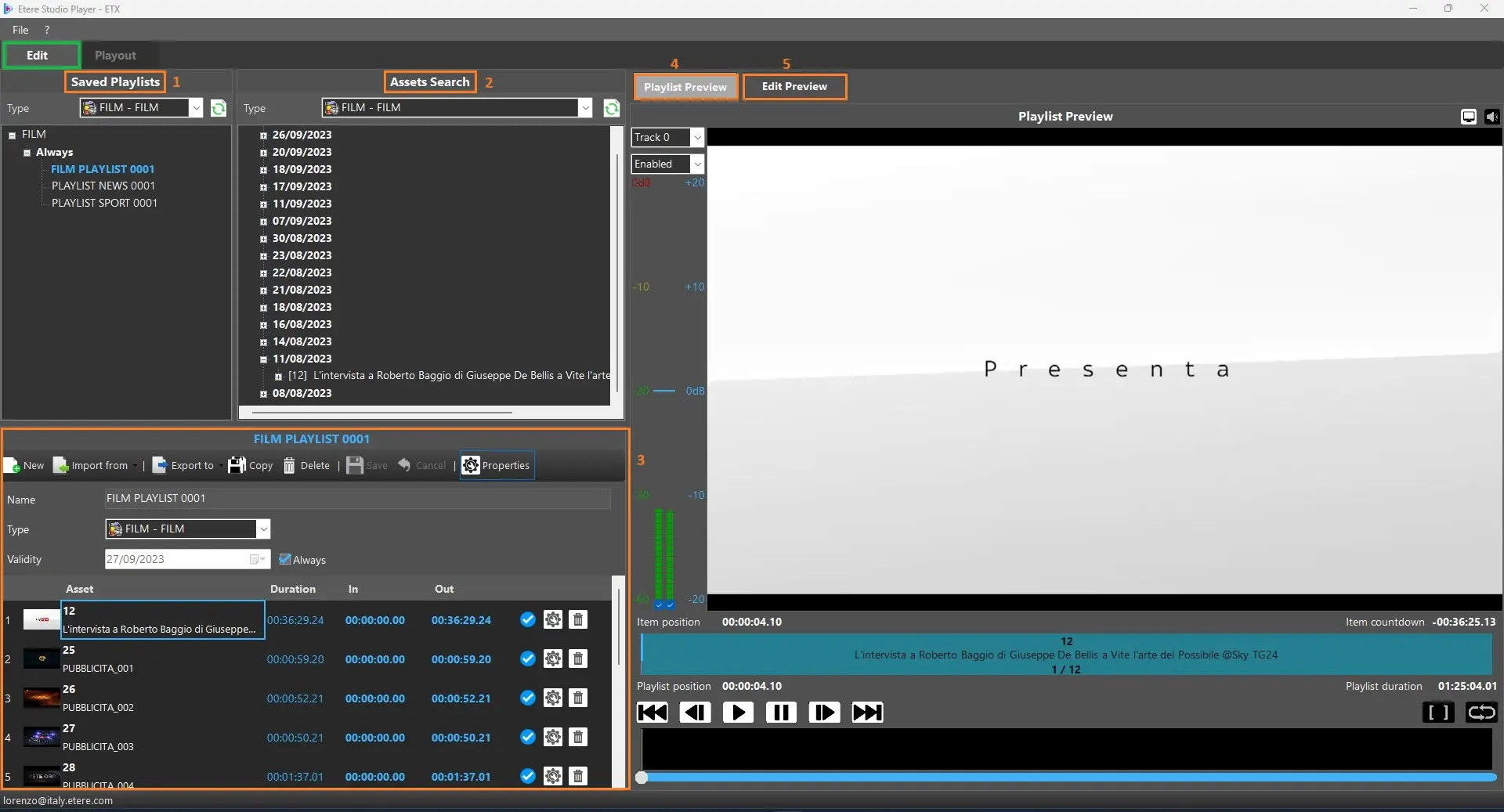
EDIT TAB: Saved Playlists - Assets Search - Playlist - Playlist Preview - Edit Preview)
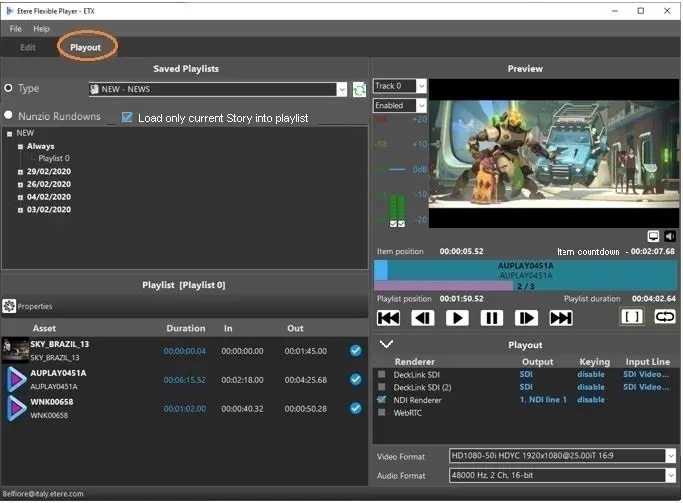
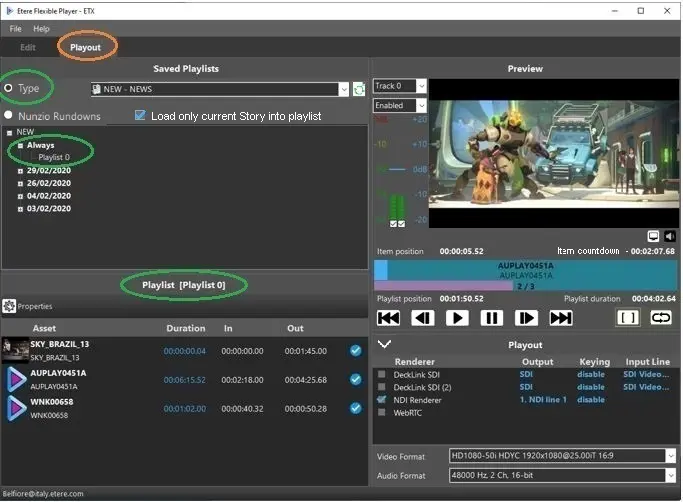
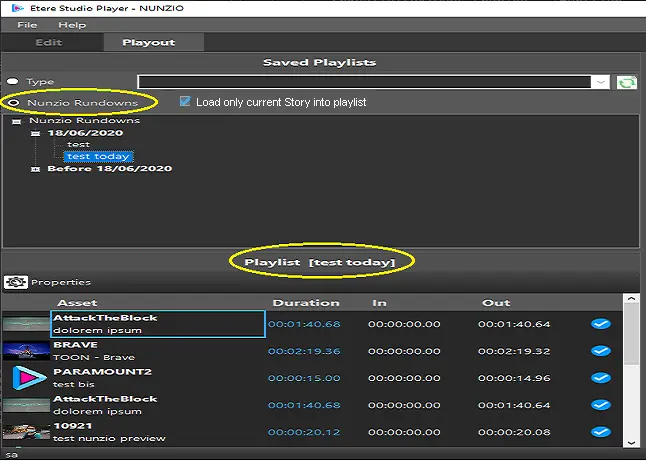
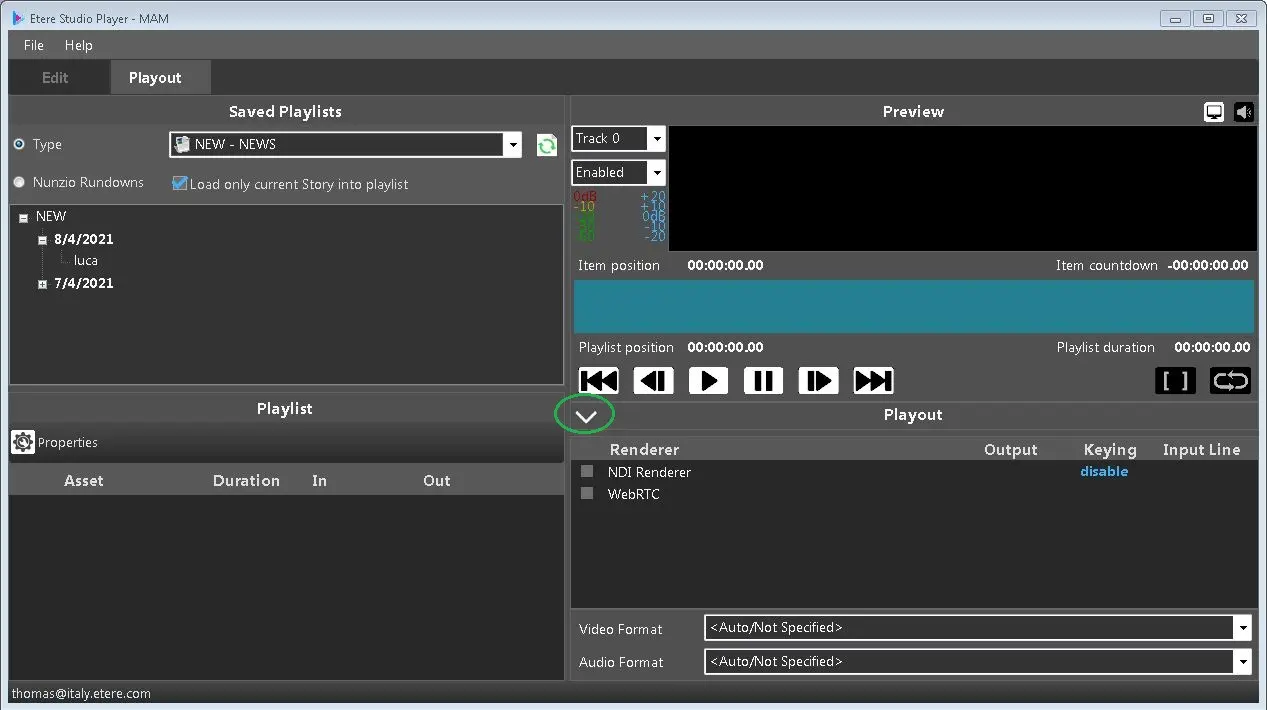
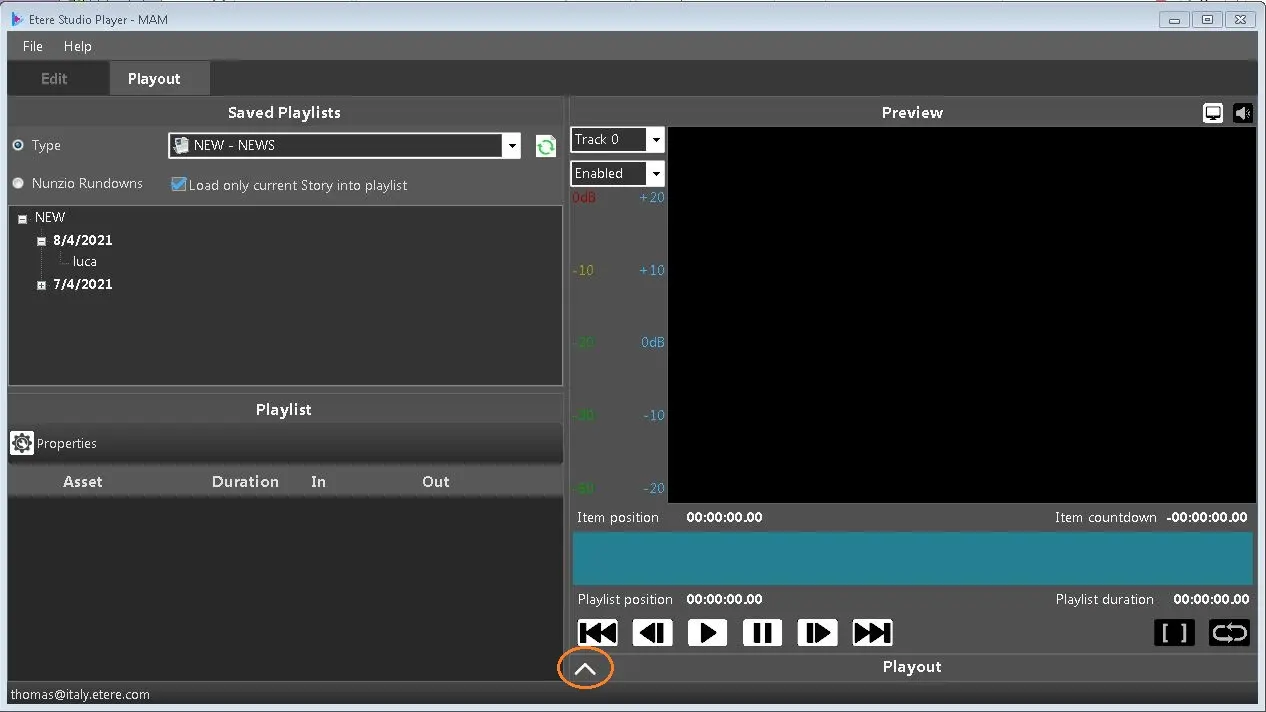
PLAYOUT TAB: Saved Playlists - Playlist - Playout Preview - Playout)
StudioPlayer_Panels
Note: in the lower right part is indicated the user who launched the application.
--->>> MENU
File: In this menu only EXIT is available, which can be used to close ETERE STUDIO PLAYER.
?: In this menu there are two options "OPEN FOLDERS" and "SAVE LOGS". With the first one, the system automatically can open the LOG FOLDER, to see and analyze the logs in real time, or the DATA FOLDER, to see the resources' configuration files saved locally. Selecting the other option, it's possible to save, compress and send to Etere the application logs, for the analysis of an issue. To know more information about how to save the logs and their structure, see chapter 204.3.1 Save Logs.
--->>> EDIT TAB
Here are described the panels available in the Edit tab, where you can manage\create\delete your PLAYLISTs.
StudioPlayer_Edit_Panel
■ SAVED PLAYLIST
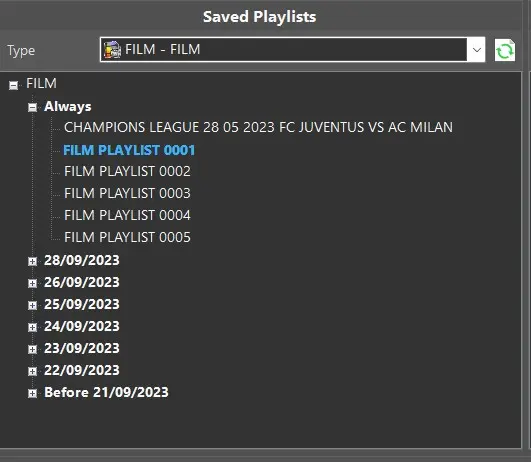
In this panel all the playlists created will be displayed and to find them you can use the following filters:
TYPE: To each playlist is associated a type and this filter can narrow the search to the ones belonging to a specific type.
SEARCH BY NAME: It's also possible to search by the name of the playlist or part of it.
The results will be sorted by validity date in a tree structure.
In the Always node you will be able to see all the Playlists with the unlimited validity date set while the others will be sorted based on their validity in the correct node.
Double-clicking on a playlist you can open it and see its assets in the Playlist panel (the selected one will be highlighted in blue for easy reference).
StudioPlayer_Saved_Playlists
■ ASSETS SEARCH
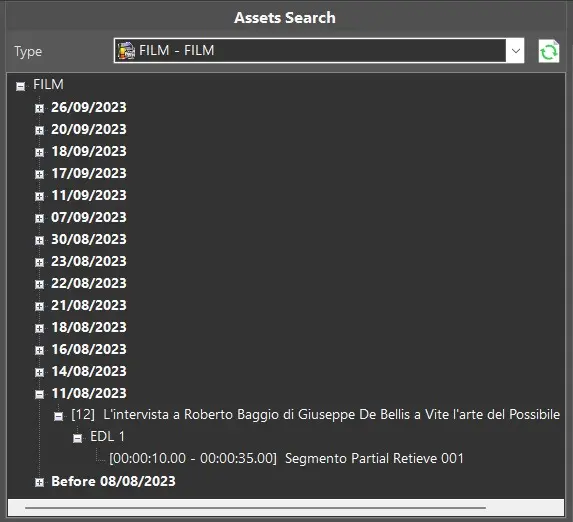
In this panel you can look for the assets to add in your selected playlist. These are the filters available for the asset search:
TYPE: Narrow the search to the assets belonging to a specific type.
FULL-TEXT: Filter by a specific text to be contained in the asset code or title.
SEARCH ALSO EXPIRED ASSETS: Located in the button at the right of the panel, beside the refresh button, it allows to include also expired assets in the search results.
NOT OK TO BROADCAST: Located in the button at the right of the panel, beside the refresh button, it allows to include also assets marked as "Not ok to be broadcasted" in the search results.
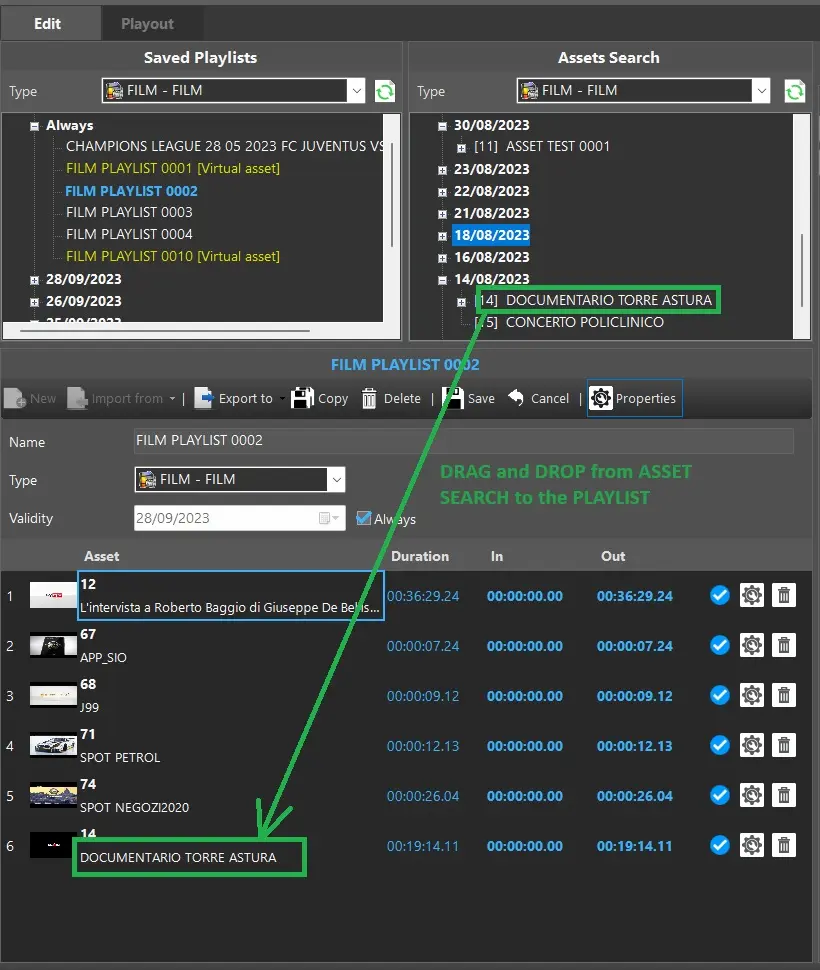
The results are displayed in a tree structure, sorted by their creation date. The retrieved assets can be dragged and dropped into the Playlist panel, once a playlist has been selected.
StudioPlayer_Assets_Search
Note: if an asset has visible segments in its EDL, they are listed under the asset node, by exploding it. So, using the drag and drop, you can add only the selected segment (file som-eom) and not the whole asset. This is valid also for images if the asset type has the "Thumbnail" property.
Note: Multi-selection is not possible.
StudioPlayer_D&D_Segments
■ PLAYLIST
Under the PLAYLIST area we have the follow commands:
StudioPlayer_Playlist_Commands
PROPERTIES: This function displays/hides the properties panel of the playlist.
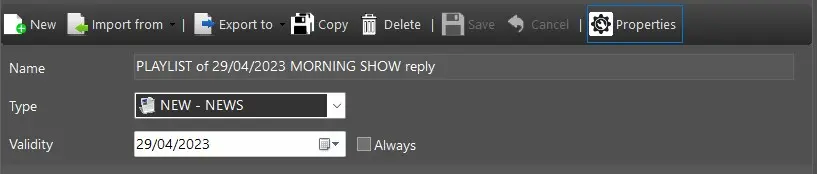
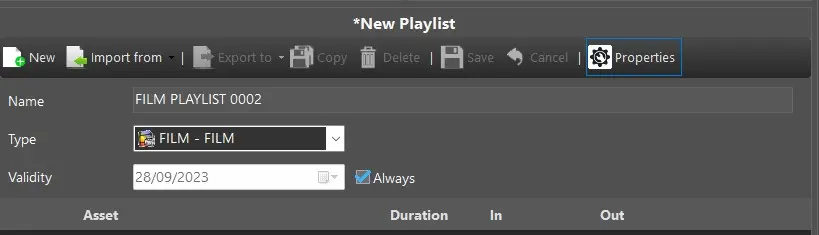
NEW: This button is used to create a new playlist. When you click on it you have to insert these mandatory information: NAME - TYPE - Validity (you can set a validity start date or select always, it is the default value. If you set a validity day the playlist is usable only from that day on).
StudioPlayer_Example_New_Playlist
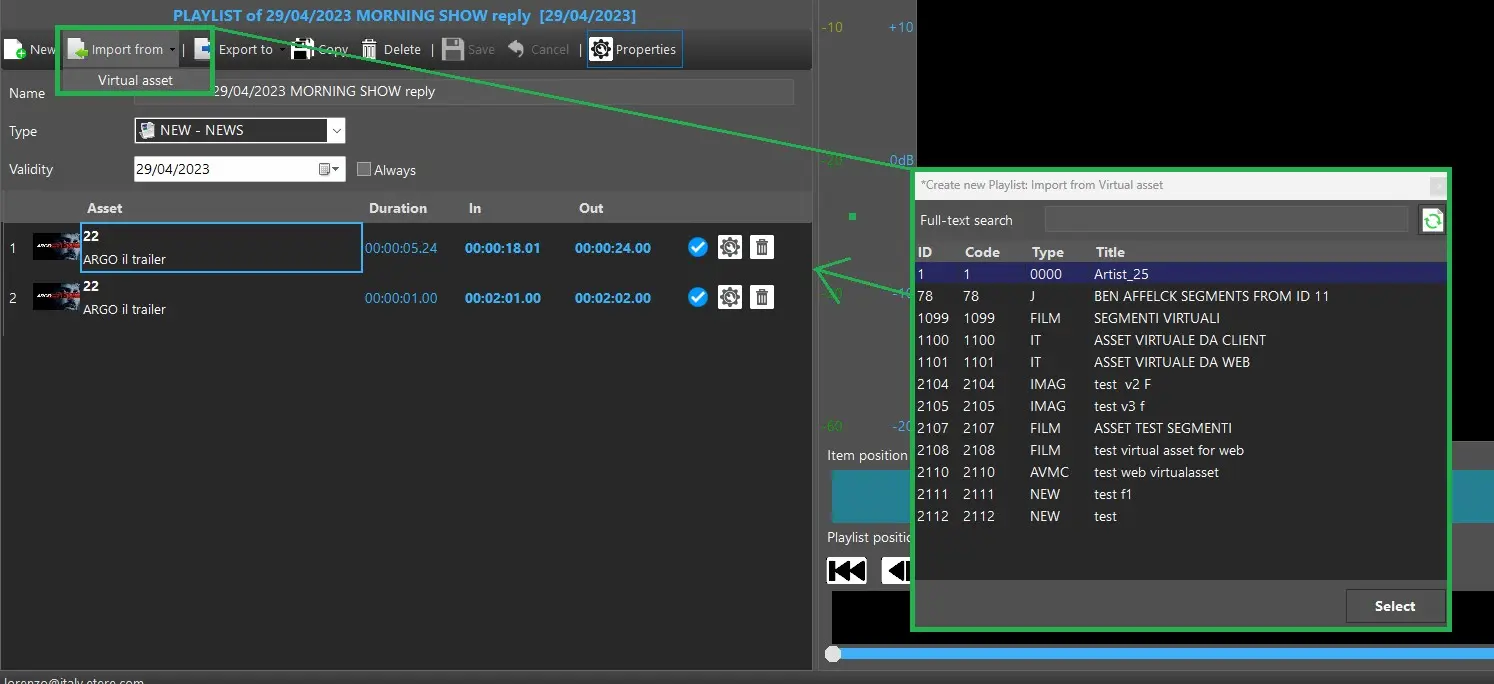
IMPORT FROM: This button is used to import the segments from a virtual asset to your playlist. Once clicked on "Import from"->"Virtual Asset" a new form is opened and from this you can find all virtual assets present in the database. With a double-click on a result, the segments of the selected asset will be imported in a new playlist.
StudioPlayer_Import_From_VirtualAsset
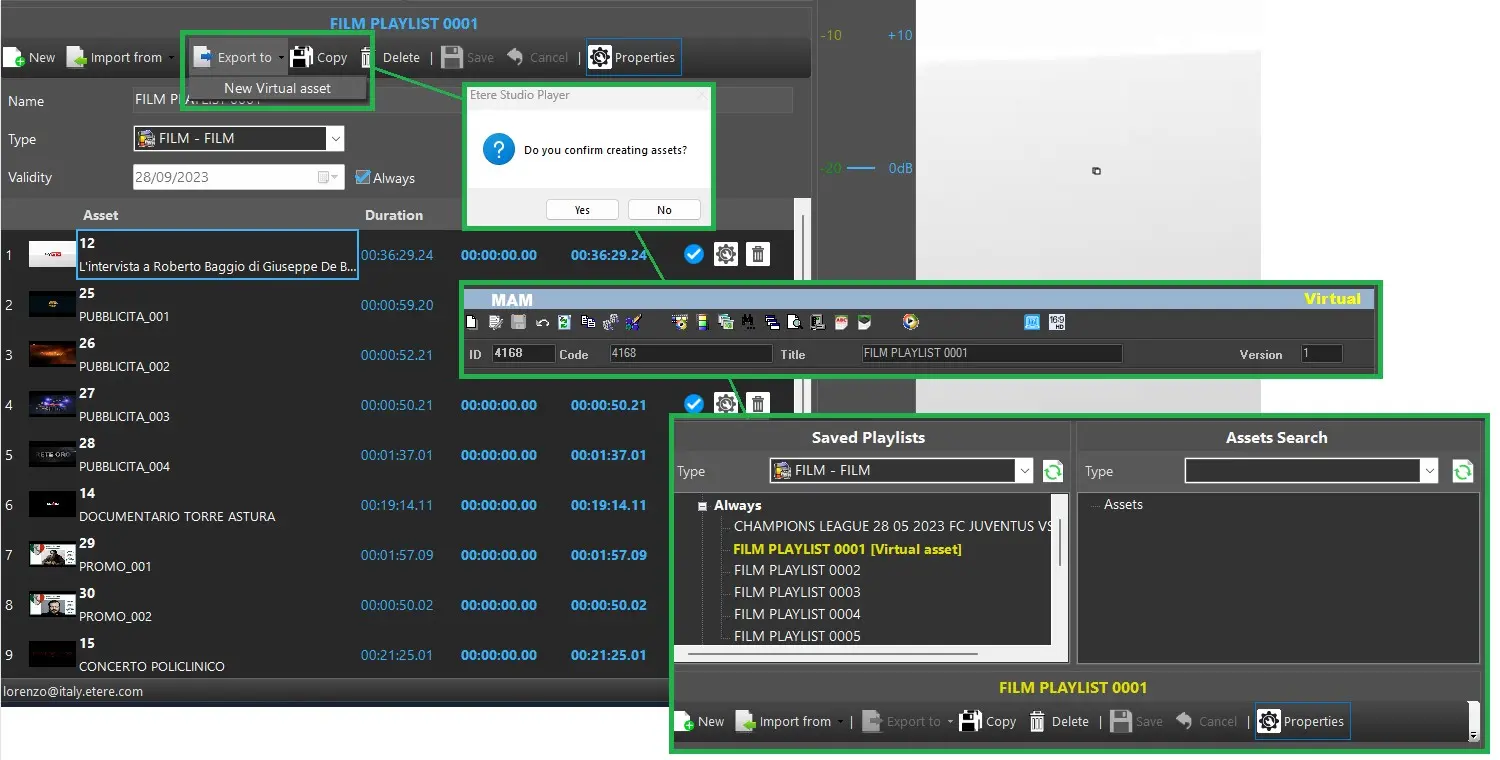
EXPORT TO: This button is used to create a new virtual asset from the current playlist. Once you click on it (export to->virtual asset) the system shows you a popup message to confirm or not your action.
StudioPlayer_Export_To_Virtual_Asset
COPY: This function copies a current playlist to a new one. If copying from a virtual asset playlist, it will create also a new virtual asset with the same clips linked. Before completing the operation, the system asks you to enter the name of the new object.
StudioPlayer_Copy_Action
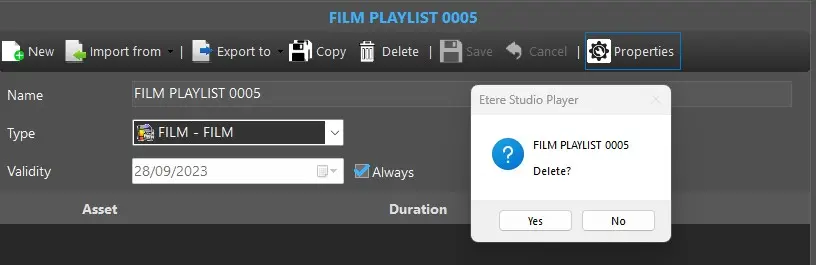
DELETE: Deletes the current playlist. If playlists from virtual assets are deleted, the virtual assets used still remain in database.
StudioPlayer_Delete_Playlist
SAVE: Saves the changes made to the current playlist.
CANCEL: Cancels the changes made to current playlist and returns to the previous state.
StudioPlayer_Load_In_Progress
■ HOW TO ADD or REMOVE or MODIFY an item into a PLAYLIST
ADD: As written above, to add an asset into a playlist, simply select an existing playlist with double-click, drag the asset from the search results and drop it in the playlist panel.
StudioPlayer_Add_Item
REMOVE: To remove an item from the playlist you have to select the item to delete then click on the DELETE button. Click then the SAVE button to apply the modification.
StudioPlayer_Remove_Item
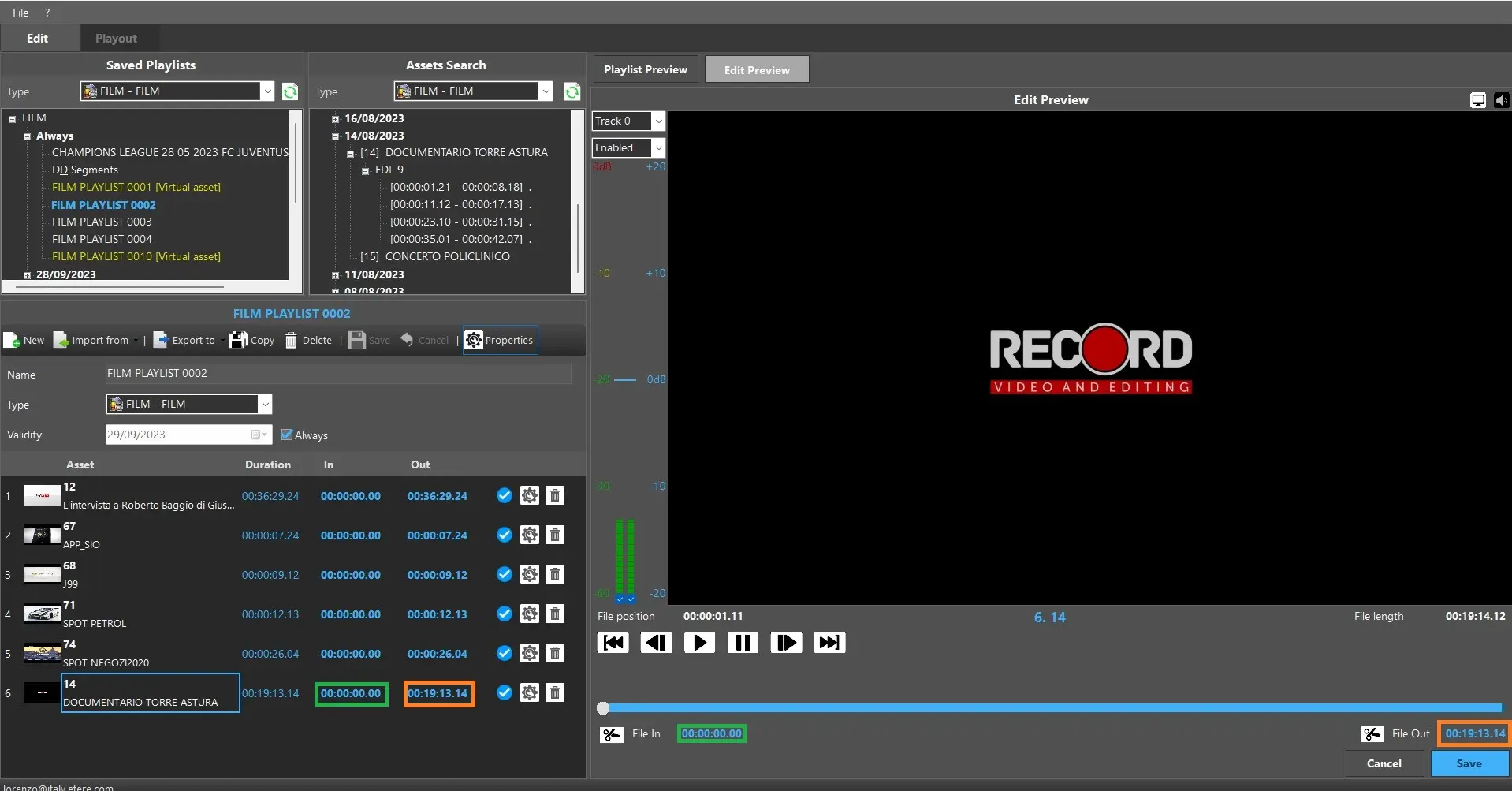
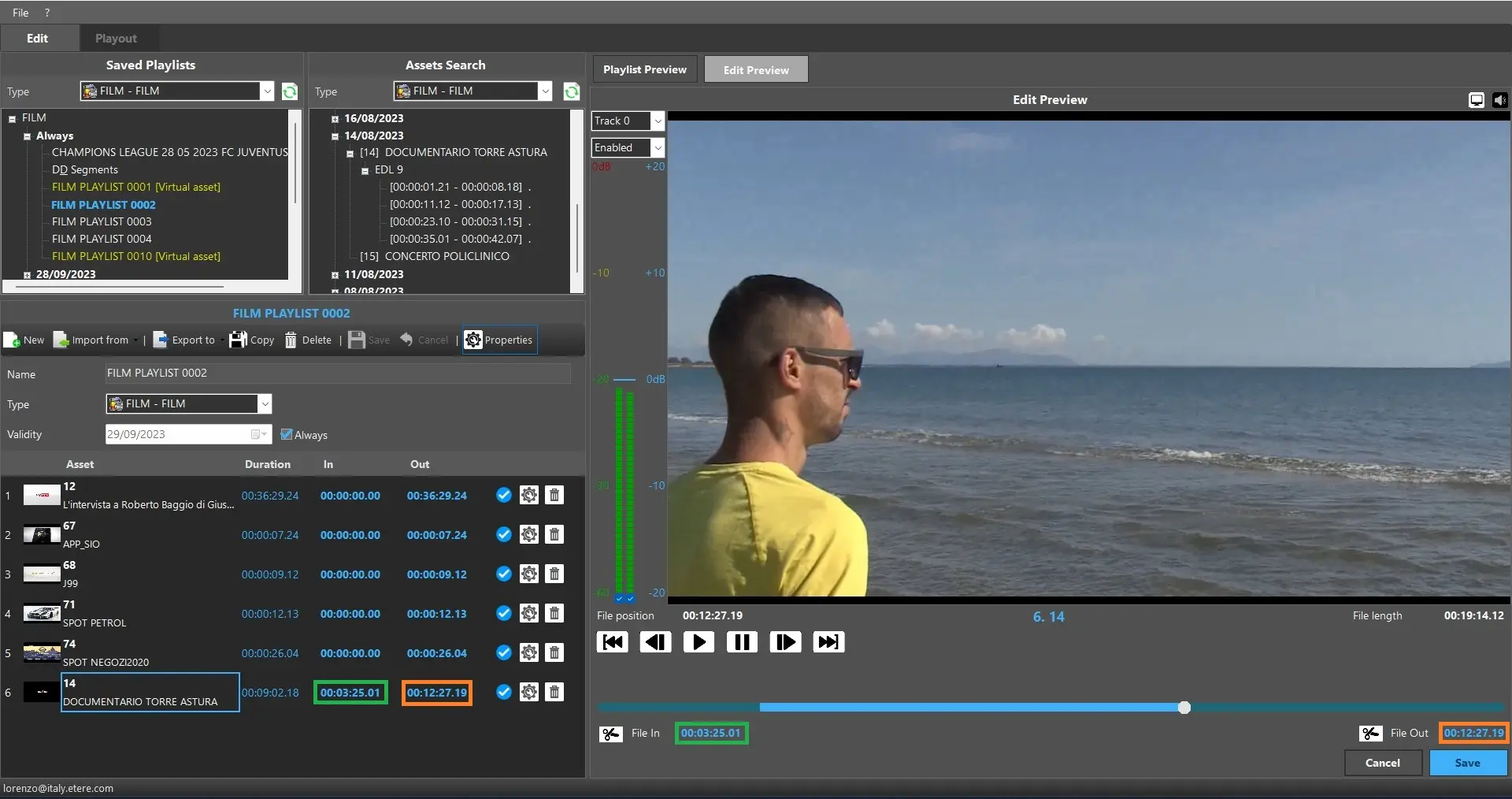
MODIFY: To edit an item inserted into the playlist, click on the EDIT button. The asset will be loaded in the Edit preview panel, on the right side of the window, that will allow to preview it and set its SOM and EOM values. It's also possible to write SOM and EOM timecodes, directly in the playlist panel, as explained below.
StudioPlayer_Edit_Item
In the Playlist panel, you can view the asset information as below:
Thumbnail: It displays the thumbnail of the asset.
Asset: It displays asset code and asset description.
Duration: The duration of the asset, as indicated in Media Library.
In: It indicates the starting point (SOM) where the asset would be played. You can click on the timecode to edit the SOM. Upon modified, the SOM would be updated to the asset in playlist, but the changes would not be written also in the asset in Media Library.
Out: It indicates the ending point (EOM) of the asset in playlist. You can click on the timecode to edit the EOM. Upon modified, the EOM would be updated to the asset in playlist, but the changes would not be written also in the asset in Media Library.
Valid: This icon indicates a valid file in the resource. If you hover over it with the mouse arrow, a tooltip will show you the path where the file comes from.
StudioPlayer_Columns_Playlist
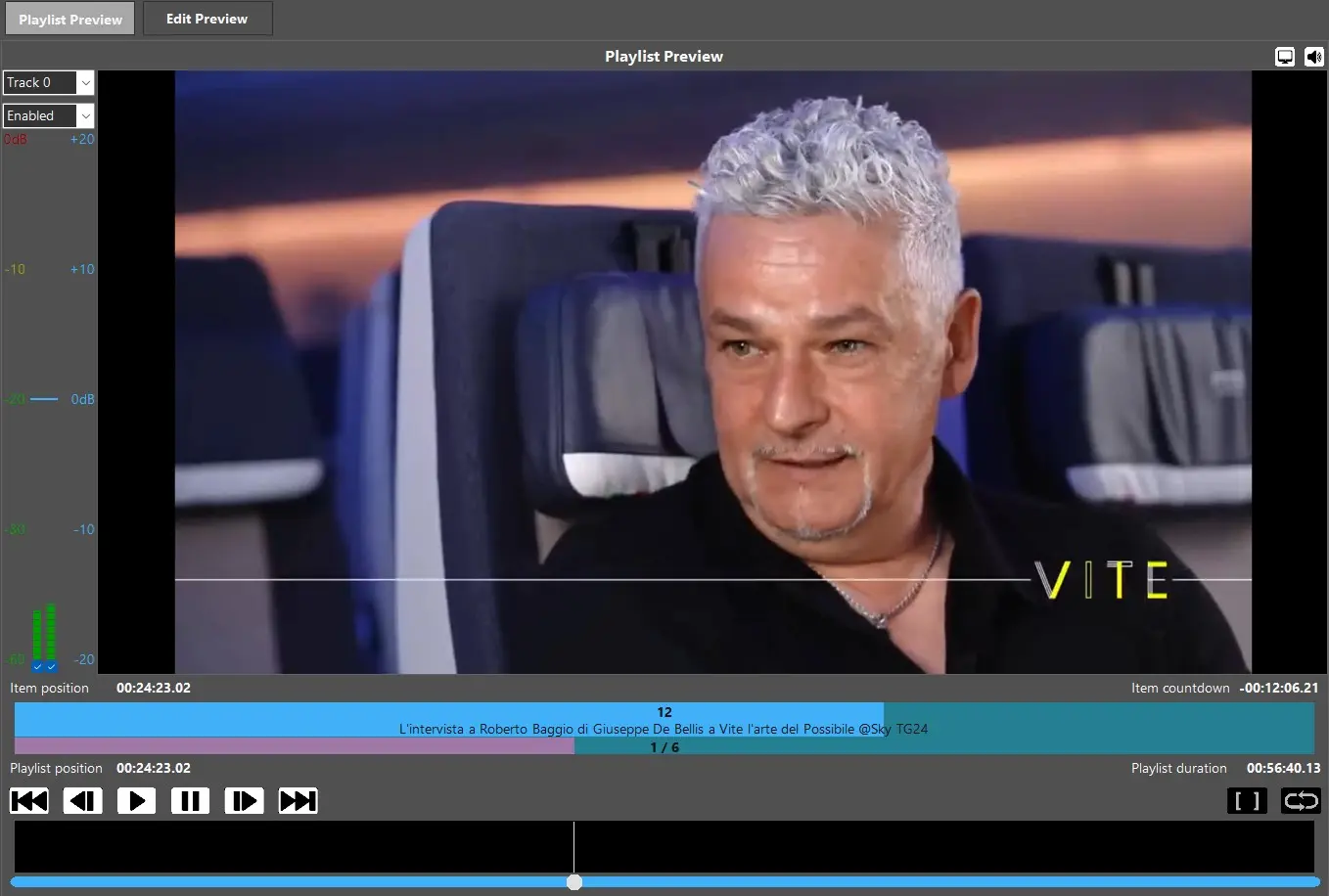
■ PLAYLIST PREVIEW
The Preview panel allows you to preview playlist during its creation.
The available control functions includes:
At the left side the audio track and channels volume:
• You can enable/disable the audio track using the combobox at the top.
• You can enable/disable the audio channel using the bottom checkbox.
• You can set the audio gain for each channel by moving the cursor.
Note: The number of available channels are defined in the playlist. When more channels are available, only 2 channels would be automatically displayed. You can manually select more channels to be shown during playout.
At the center there is the Video Preview of your playlist.
At the top-right side there are:
Video Preview: Enable/Disable the video preview.
Audio Preview: Enable/Disable audio preview.
At the middle side we have:
Item position: It shows the current timecode of the currently playing item. You also have the blue bar where the progress of the PLAY is updated in real time and asset code and title are written inside the bar.
Item countdown: It shows the countdown of the current playing item in the playlist.
Playlist position: The timecode of the current playing item in the playlist. You also have the pink bar where the progress of the PLAY is updated in real time and it is indicating which item of the total ones is currently in play.
Playlist duration: The countdown of the total duration of all items in the playlist.
At the bottom side you have the control panel buttons:
Play: Play the playlist. Shortcut key: Enter
Pause: Pause the playlist. Shortcut key: Spacebar
Previous Frame: Back to previous frame. Shortcut key: Left arrow
Next Frame: Go to next frame. Shortcut key: Right arrow
Previous File: Go to previous item in the playlist. Shortcut key: Ctrl + Left arrow
Next File: Go to next item in the playlist. Shortcut key: Ctrl + Right arrow
Single File: Switch on/off to play a single file in the playlist.
Loop: Set on/off the looping of playlist.
At the left side the audio track and channels volume:
• You can enable/disable the audio track using the top checkbox.
• You can enable/disable the audio channel using the bottom checkbox.
• You can set the audio gain for each channel by moving the cursor.
Note: The number of available channels are defined in the playlist. When more channels are available, only 2 channels would be automatically displayed. You can manually select more channels to be shown during playout.
Video Preview: Enable/Disable the video preview.
Audio Preview: Enable/Disable audio preview.
File Position: Shows the timecode of the currently playing item.
Number Row + Asset Code: Shows the row number inside the playlist and the asset code of the item selected.
File Length: Shows the duration of the item selected.
Play: Play the playlist. Shortcut key: Enter
Pause: Pause the playlist. Shortcut key: Spacebar
Previous Frame: Back to previous frame. Shortcut key: Left arrow
Next Frame: Go to next frame. Shortcut key: Right arrow
Previous File: Go to previous item in the playlist. Shortcut key: Ctrl + Left arrow
Next File: Go to next item in the playlist. Shortcut key: Ctrl + Right arrow
Set SOM: You can set the SOM of the item selected.
Set EOM: You can set the EOM of the item selected.
Cancel: Use it to discard your modifications on the item.
Save: Apply\save your modification into the playlist.