73.3.9 Audio Check
The "Audio Check" tab enable configuration of loudness volume and display audience composition while the video is in play.
Loudness Computing
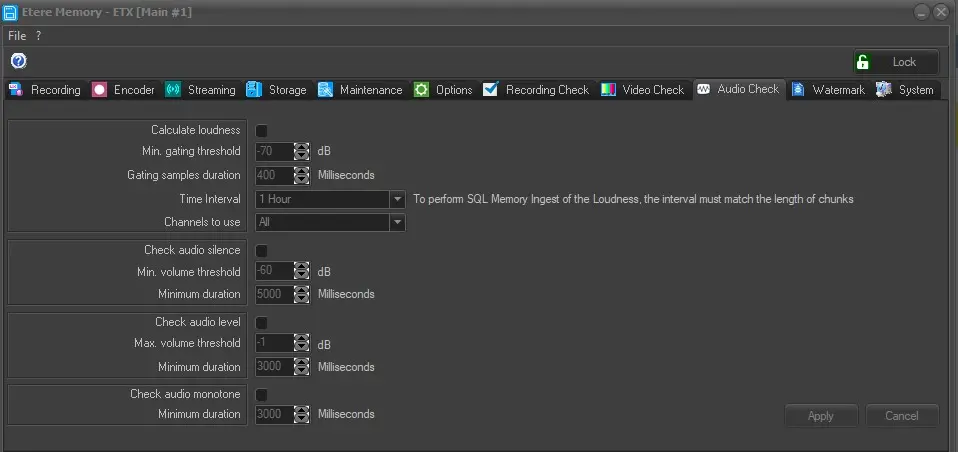
The configuration below displayed the loudness computing setup and the descriptions of the parameters:
Memory_AudioCheck
Loudness Calculation parameters:
Calculate Loudness: Enabled this option to allow the rest of parameters to be used when computing loudness. The calculation is based on the value set in the following parameters and interval parameter to calculate the loudness for every interval. As a results, every interval has its own loudness volume defined.
Min. Gating threshold: Set the minimum threshold for audio gating, use this to eliminate the background sounds to keep the sounding clearer. The audio gate is closed if the sound is below the defined threshold.
Gating Samples Duration: Set the time duration (in millisecond) for the gate to close when the sound signal is below the threshold set in the "Min. Gating Threshold" parameter.
Time Interval: Set the interval time for each loudness computation, the loudness volume in different interval can be set independently to suit individual needs.
Channels to use: Set the adequate number of audio channels to be used to compute the loudness of the input signal. The options are 1, 2, or 5 channels, or all available channels.
Check Audio Silence parameters:
Check audio silence: If enabled, when segments containing “silent audio signal” are detected during recording, it would be marked in the audio/video faults EDL.
Min. volume threshold: Specify the minimum audio volume level (dB) to determine the audio silence, audio signals with volume lower than the specified value would be marked as defective.
Minimum duration: Define the minimum duration (in milliseconds) that the detected lower audio signal must last in order to mark as “silence audio”
Check Audio Level parameters:
Check audio level: If enabled, when segments containing “loud audio signals” exceeding the maximum threshold are detected during recording, it would be marked in the audio/video faults EDL.
Max. volume threshold: Specify the maximum audio volume level (dB) to determine the audio loudness, audio signals with volume louder than the specified value would be marked as defective.
Minimum duration: Define the minimum duration (in milliseconds) that the detected audio loudness signal must last in order to mark as “loud audio”
Check Audio Monotone parameters:
Check audio monotone: Enable this option to check if the audio is uttered in single tone or unvaried tone.
Minimum duration: Define the minimum duration (in milliseconds) if the detected audio tone signal must last in order to mark as “monotone audio”
Display Loudness Graph
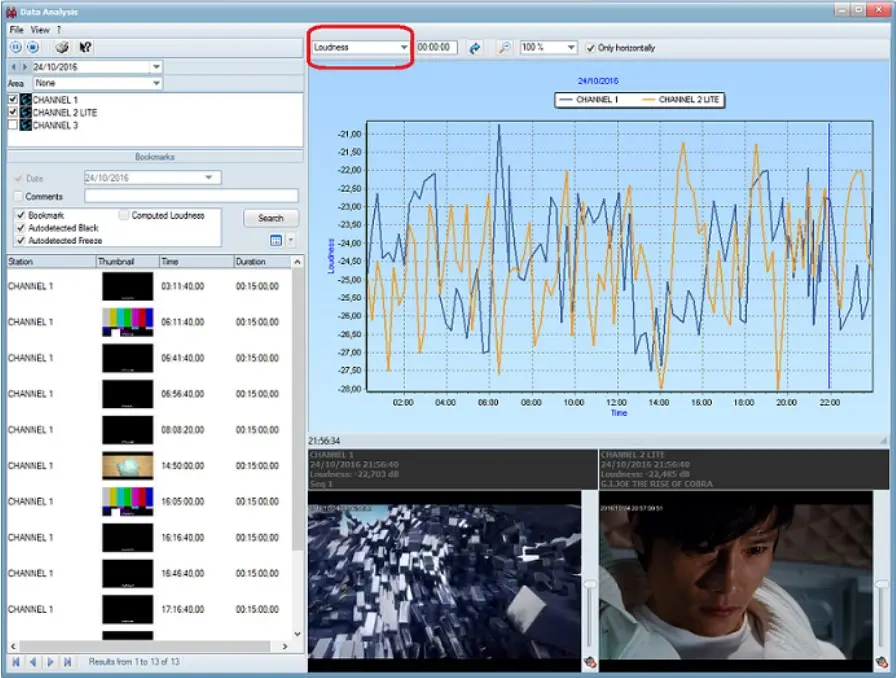
The Audio Configuration allows you to display the loudness graph by selecting the "Loudness" from the combo-box, the loudness graph is displayed below:
Display_Loudness
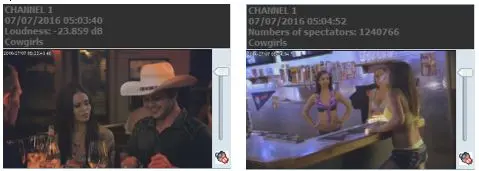
While video are in play, the loudness value is displayed in the header of the player with Audience.
Loudness value
NB: Loudness data are stored in database but not for specific asset, since the loudness value is read from the input signal rather than from the asset file. Hence there is no loudness data in Media Library.
Display Loudness for Memory Instances
If more than one Encoder is configured in Memory all loudness data for each Encoder are collected and available for to be displayed in the loudness graph.
In [membookmarks] database table, the Memory instances are recorded in the [instance] field when collecting loudness data, where Memory instances are indicated in following value:
•'M' indicate Main Encoder
•'N' indicate second Main encoder
•'B' indicate Backup encoder
•'C' indicate second Backup encoder
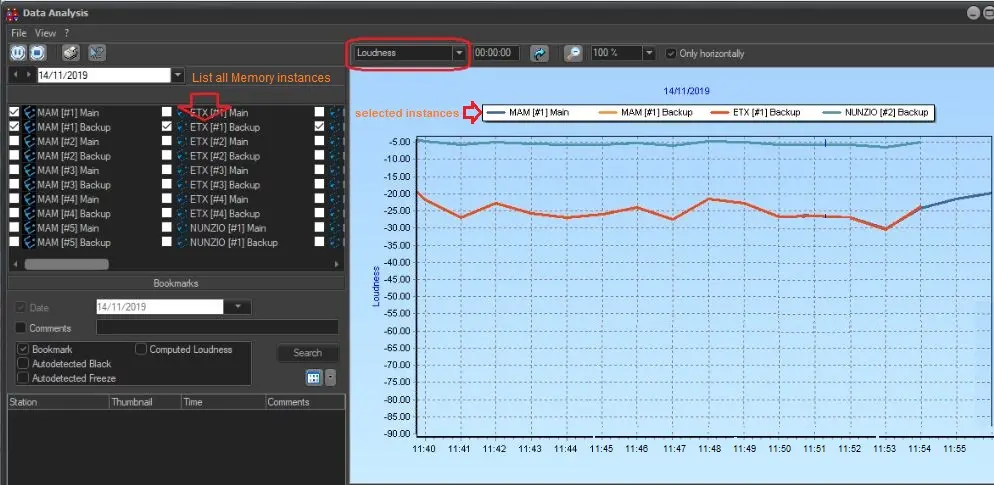
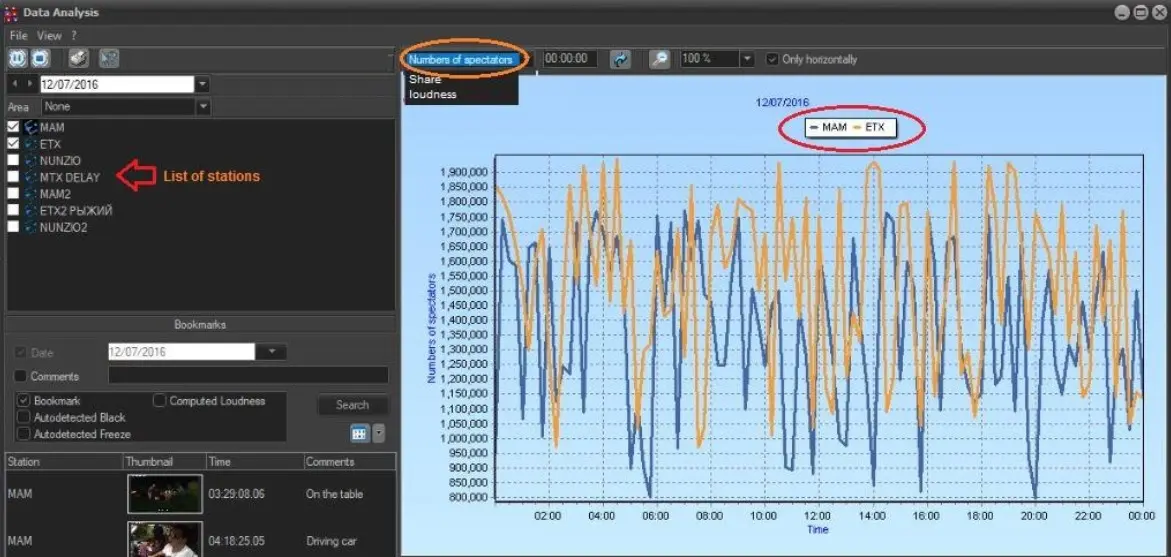
As mentioned in previous topic, all Memory instances are listed in the left panel, the loudness of each selected Memory instances would be displayed in the Loudness Graph as indicated below.
Memory instances
When you switch from “Loudness” to “Numbers of spectators” in the drop down list, the collected loudness data for selected instances would be displayed. It support up to 5 instances of Memory main or 5 instances of Memory backup.
Numbers of spectators
Add Bookmarks
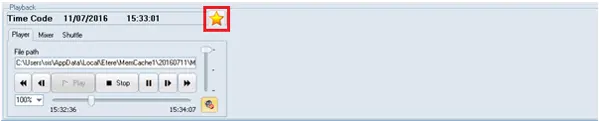
A "BookMark" component is added on the left pane, by right click on the lines of the loudness graph it allow you to add comments related to the line. Once added, the comments would be displayed in the left pane.
Book Mark
As shown in the above figure, Etere Player are used for playing files recorder by Memory, one player per station. As illustrated above, there were 3 lines in the loudness graph, representing 3 Etere Players in 3 stations, with display respective number of audience in each station.
Apply: can be used to confirm the changes made.
Cancel: can be used to discard the changes made.
 Memory_AudioCheck
 Display_Loudness
 Loudness_value
 Memory_instances
 NumberOfSpectators
 BookMark