201.13.1 Getting started
REQUIRED SETTINGS
Refer to the "Settings" chapter for detailed information on how to configure all required settings before start using Delivery Orders
Once the required settings are configured, access Delivery Orders from the main menu of Etere BMS:
Bms_ott_menu
Once the Delivery Orders module is launched, its main interface includes the following sections:
Bms_ott_gui
Menus - Located in the top part of the window, the main and toolbar menus allows viewing and configuring the global parameters used across Delivery Orders. Available functions are described in the Available functions chapter, they includes the following:
Bms_toolbar_main_05
Tabs - Located below the menu bar, the tabs allows managing of Delivery Orders, from their initial search, to their general data entry, XML data loading and Lines definition.
Search
General
XML Data
Lines
To start managing Delivery Orders:
Create a new order
Press the [New] button to create a new order and compile all information using the General tab.
Open an existing order
Use the Search tab and define the filters to retrieve the existing order, press the [Search] button to locate the order and double-click on the desired order, the information previously compiled in the General tab would be loaded automatically.
Create a duplicated order
From the existing order, select "File > Duplicate" from the menu to duplicate the Entire order (e.g. general data plus lines) or Only the order's header (i.e. only general data).
The new order will be duplicated and its information complied in General tab would be loaded automatically.
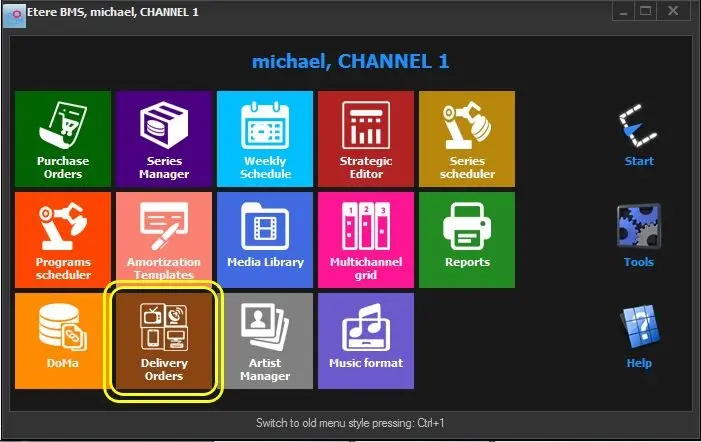 Bms_ott_menu
 Bms_ott_gui