59.2.40.18 Advanced Settings
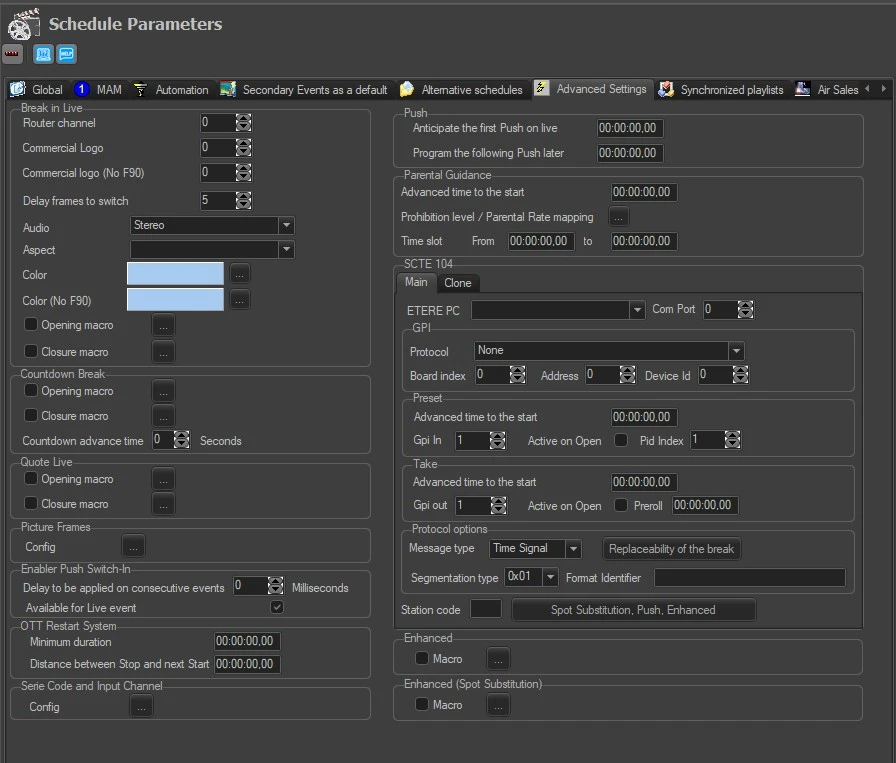
The Advanced Settings tab allows to configure some parameters exclusively related to live events, including the following ones:
Advance_Settings
Break-in Live
• Router channel: Set the channel through which overlay will be executed.
• Commercial logo: Indicates the logo number to view for the written commercial.
• Commercial logo (No F90): Indicates the logo number to view the written commercial in the case where intent to do a break in live which is not exportable to F90.
• Delay frames to switch: Enter the delayed frames to add to the last commercial of the break. This delay serves to make up for the switching times.
• Audio: Set the audio type to assign to all the events so that an A/B switch is not carried out while the break-in live is on air.
• Color: Indicate the colour to be displayed in the schedule for the events that have the break enabled in live.
• Color (No F90): Indicate the colour to be displayed in the scheduled for the events that have the break enabled in live and must not be exported to F90.
• Opening macro: Click the browse button to select the macro as the opening macro for Break-in Live.
• Closure macro: Click the browse button to select the macro as closure macro for Break-in Live.
• Opening macro: Enable the option and click the browse button to specify a macro to identify as an opening macro.
• Closure macro: Enable the option and click the browse button to specify a macro to identify closure macro.
• Countdown advance time: Specify the time (seconds) in advance to trigger the countdown.
Quote Live
• Opening macro: Click the browse button to select the macro as the opening macro for Live Quotes.
• Closure macro: Click the browse button to select the macro as closure macro for Live Quotes.
Picture Frames
You can click on the "Config" icon to open a times table where all the picture frames are available, e.g. PF000001, PF000002, PF000003, etc. You can select the Opening macros and Closure macros for the DVE effect for each frame.
Note: In order to open this form, the custom file ImpMed.dll must be installed.
Enabler Push Switch-in
• Delay being applied on consecutive events: Specify the time delay (in milliseconds) applied to the consecutive events when two windows are activated to insert events.
• Available for Live event: By enabling this option, you can activate the "Enabler Push Switch-in" feature to insert a "Live" event into the schedule. If the event is divided into parts, only the primary event would be managed. For example, if the event consists of "F012345678901234" and "F012345678901234-001", only event part "F012345678901234" would be managed.
OTT Restart System
• Minimum duration: Specify the minimum duration the events must have (e.g. 3 minutes) to be sent to the System. The event below the specific duration would not be sent.
• Distance between Stop and next Start: The Stop command to be sent for the last start event and the Start command to start the next event are always sent in pair; the settings allow you to set the interval between these two commands.
You must define the "Theme Bellows" property in Configuration > Type Editor to start the opening theme and group programs with the same season into a single program.
Note: A block consists of consecutive events with the same product code with a duration exceeding 3 minutes. The duration is calculated by summing up all the consecutive events with the same product code. A Start command must be sent only at the beginning of a block and must not be shipped again. Before sending the Start command, the relative Stop command to the last Start command must be sent.
Serie code and Input Channel
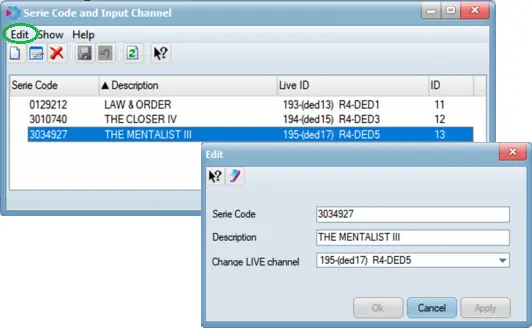
Before importing the program schedule, you can click on the browse button to view and edit the router configuration to associate the season code to the input channel. Add a new channel (e.g., associate the title code and input alias for the Live event), or delete an existing channel. For each station, the input channel configuration can be different.
Season_code_and_Input_Channel
Notes: The change of channel input alias is only applicable for LIVE events. In order to open this form, the custom file ImpMed.dll must be installed.
Push
• Anticipate the first Push on Live: Specify the start time to position the first "Push" command at the top of the Live Block to transmit the secondary event. If no value ("00:00:00:00") is specified, the default value of 90 seconds ("00:01:30:00") would be applied.
• Program the following Push later: For subsequent "Push" on the same block, specify the time to position the "Push" according to the criteria. If no value ("00:00:00:00") is specified, the default value of 60 seconds ("00:01:00:00") would be applied.
Note: If the first "Push" is skipped, subsequent "Push" would not be transmitted. The default interval between 2 "Push" is set to 30 seconds.
Parental Guidance
• Advanced time to the start: Specify the time in advance to air the parental rating event.
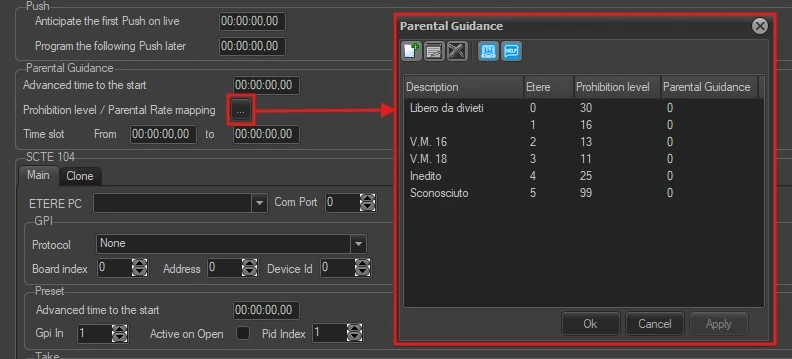
• Prohibition level / Parental Rate mapping:
Parental_Rate_mapping
You can configure the prohibition level and/or parental rating by clicking on the browse button (indicated above) to display the current Parental Guidance configuration.
NB: You must be granted access rights to the "Executive Editor\Parental Rate" function in Rights Management to configure the prohibition levels.
Functions provided in the dialogue include:
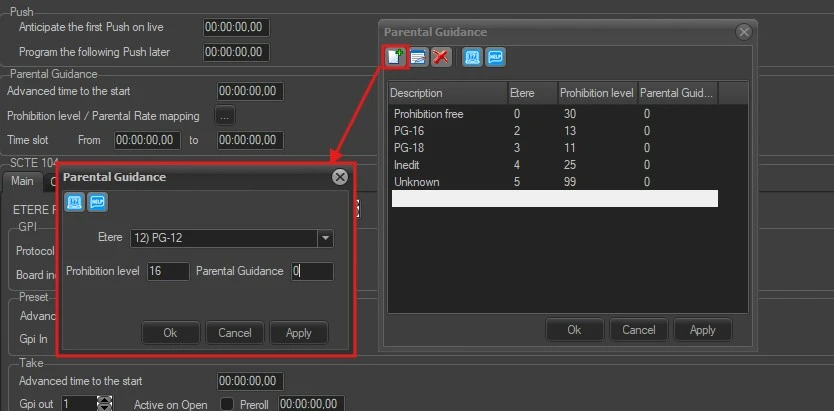
New (Ctrl + N): Click this icon to create new parental guidance.
create_a_new_parental_guidance
• Enter a short description to identify the new parental guidance.
• Enter a prohibition level
• Enter a parental guidance level
Click <Apply> and <OK> to confirm the creation of new parental guidance.
Edit (Ctrl + E): To edit existing parental guidance, select the parental guidance and click the Edit function.
Delete (Del): Simply select the parental guidance and remove it from the settings. The deletion can only be performed one at a time.
Help (F1): This function open the link to the Etere online help web page.
• Time Slot: Set a time code range to affect parental guidance. The following restrictions applied when entering the time code:
The "From" and "To" parameters must be set increasingly; the "To" cannot be set later than "From".
Set the "To" parameter as "00:00:00:00" to indicate the end of the day.
SCTE 104
This section allows you to define the settings for commercial break inserted with the SCTE104 insertion standard device, e.g. the "Grass Valley XVP-3901-DPI" digital program inserter. You can define the parameters settings for both Main and Clone servers.
• ETERE PC: Specify an Etere PC where the GPI and Acquisition card are connected to manage the break.
• Com Port: The Serial port number connected to the inserter device.
• Protocol: Select the GPI card connected to the system.
• Board index, Address, Device ID: This information can be retrieved from the configuration software of the GPI board.
• Advanced time to the start (Preset): Set the time to send the Preset before the break.
E.g.: if the Break starts at "10:00:00:00" and this value is set as "00:00:05:00", the Preset would begin with "09:59:55:00" (5 seconds before the Break).
• GPI in (Preset): Select the GPI In corresponding to the PIN on the GPI board (see "Picture 1" image).
• Advanced time to the start (Take): Set the time to send the Take before the Break starts.
In the example in "Advanced time to the start (Preset)", the Take command would start right after the Preset. For example, set the advanced time at "00:00:04:00" so that the "Take" command would take place at "09:59:56:00" right after the "Preset".
Note: If the "Preset" and "Take" are configured incorrectly, the program would trigger the "Preset" in force one second before the "Take" command is triggered.
• GPI out (Take): Select the GPI Out that would trigger the GPI circuit and send the command to the inserter (see "Picture 1" image).
• Active on Open (Preset and Take): Enable this option to activate the check when the GPI circuit is normally closed.
SCTE-104 commands have a timestamp to define when the command is inserted into the video. This timestamp can be a time or a GPI signal.
When using GPI as a timestamp, it must be specified if the GPI signal is given by a normally opened GPI closing (Active on open=false) or by a normally closed GPI opening (Active on open=true).
Note: You must avoid the execution of two consecutive Preset and two consecutive Take to prevent stoppages in the schedule.
• Preroll: Use this parameter to delay the Take command.
Normally, an SCTE 104 command is inserted into a video by the inserter after a certain delay. Preroll informs the inserter that it must insert SCTE 104 data into the video after a known time from the instant the command is triggered by its timestamp. SCTE 104 protocol suggests a minimum preroll of 4 seconds ("00:00:04:00") be applied.
• Protocol options:
Message type: Specify the insertion method (Time Signal / Splice Insert) for sending a Splice message.
Segmentation type: Select the segment type ID (0x01 / 0x0c) for the Start-Break and End-Break.
Format Identifier: Enter the 4 bytes ASCII characters identifier inserted on the command, e.g. "ABCD", "MDSN", etc. This parameter is used in the segmentation type is set to "0x0c".
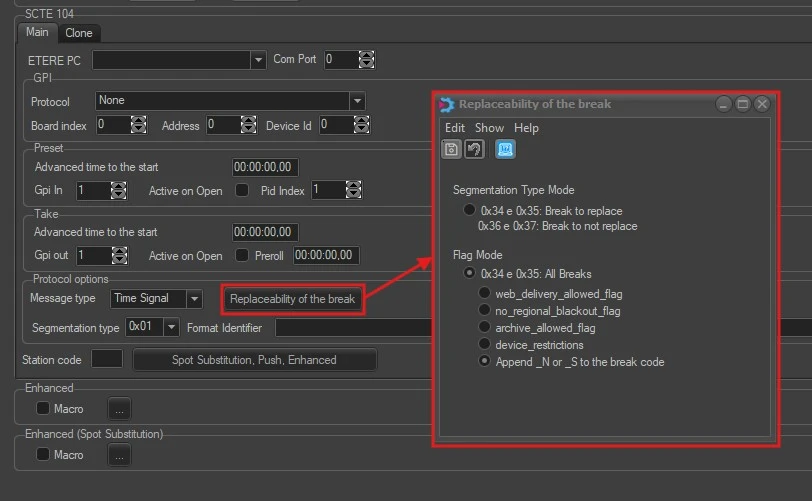
Replaceability of the break: This function allows you to notify the substitution of the break. Click on the function button to launch the dialogue and select ONE of the following operation modes to manage the break in the program:
Replaceability_of_the_break
Segmentation Type Mode
0x34 and 0x35: Break to replace / 0x36 and 0x37: Break to not replace: Select this mode to replace the break for segment types ID 0x34 and 0x35. The break would not be replaced for segment types ID 0x36 and 0x37.
When the SCTE protocol is read and processed correctly, an SCTE icon in Executive Editor would indicate the successful transitions. If the reconciliation control is inadequate, a red "x" would be appended to the SCTE icon.
SCTE_icon_displayed_in_Executive_Editor
Flag Mode
0x34 and 0x35: All Breaks: Enable this mode to replace all breaks in the program for segment type ID 0x34 and 0x35, by selecting ONE of the following flag returned from the inserter:
• Web-delivery_allowed_flag: Where “0 = false”, “1 = true”
• No_regional_blackout_flag: Where “0 = false”, “1 = true”
• Archive_allowed_flag: Where “0 = false”, “1 = true”
• Device_restrictions: Where “0 = group 0”, “3 = no restrictions”
• Append _N or _S to the break code: Enable this option to append “_N” or “_S” to the break code.
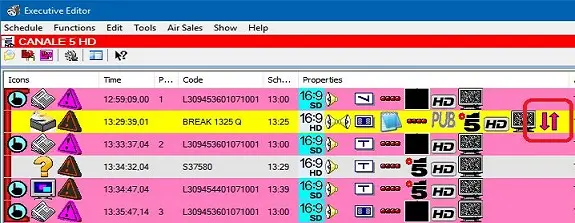
When a replaceability of break is present in the schedule, the replaceable break is indicated with an event icon in the Properties column of the schedule view in Executive Editor.
Properties_column
The said event icon is visible only when the break is "closed". When the break is displayed as exploded spots, the event icon would be invisible.
Note: In the above Flag Mode settings, the "DeliveryNotRestrictedFlag" mode would be set to "0" (disabled) if any of the four flag modes is set to enabled.
Spot Substitution
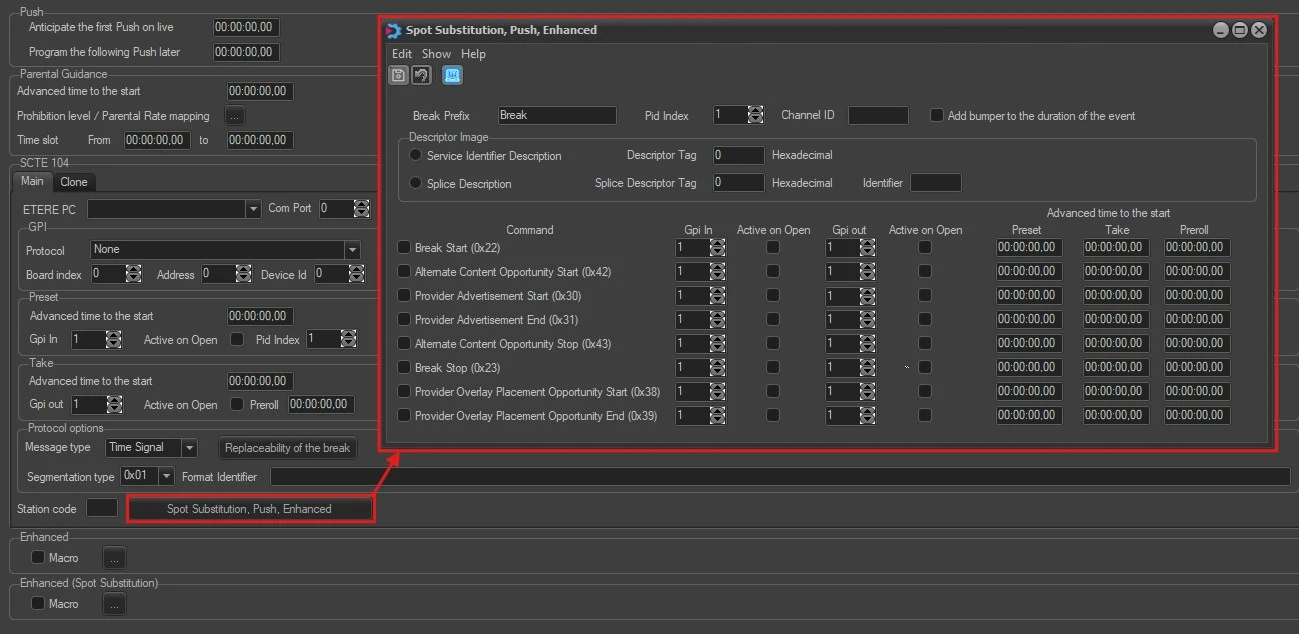
This feature enables to define of the SCTE 104 signalling for DVB-TA (Target Advertisement system).
Spot_Substitution
In the Spot Substitution dialogue box, these are the settings available:
• Break Prefix: Provide the break name starting with the prefix "BREAK_".
• Pid Index: Set the index of the package identifier.
• Channel ID: Enter the ASCII characters identifier to be inserted in the command.
• Command: Check the commands to be sent.
• Gpi In: Select the GPI In that corresponds to the GPI board pin.
• Gpi Out: Select the GPI Out corresponding to the GPI board pin.
• Active on Open: Enable this option to check and activate the GPI circuit.
• Advanced time to the start: Set the advanced time to send the preset and take for the selected command before the Break starts.
• Preroll: Set the time to delay the command.
When all parameters are defined, click the Save icon to save the settings.
When the SCTE 104 command is sent to Executive Editor, it is marked with an "X" sign in the Enhanced column in Executive Editor. You can also view the Break ID (Break Prefix) in the Name field in Show > Secondary Events > Secondary Object in Executive Editor.
Note: For Spot Substitution to function properly, the Macro option in the Enhanced (Spot Substitution) section must be unchecked.
Enhanced
• Macro: Enable this option and select a macro to enhance the secondary event.
Enhanced (Spot Substitution)
• Macro: Enable this option and select a macro to enhance the secondary event for spot substitution.
A split-screen will be created for a commercial during a live event broadcast but in a separate window, allowing the user to continue broadcasting the live event while having a commercial space.
Note: The SCTE 104 should be enabled to generate the input signal simultaneously from both Main and Clone servers, as the signs can be placed into two independent chains to cater for switching between the chains.
 advance_settings
 Season_code_and_Input_Channel
 parental_rate_mapping
 create_a_new_parental_guidance
 replaceability_of_the_break
 SCTE_icon_displayed_in_Executive_Editor
 Properties_column
 spot_substitution