Shopping Cart
9.5.3 View Completed Tickets
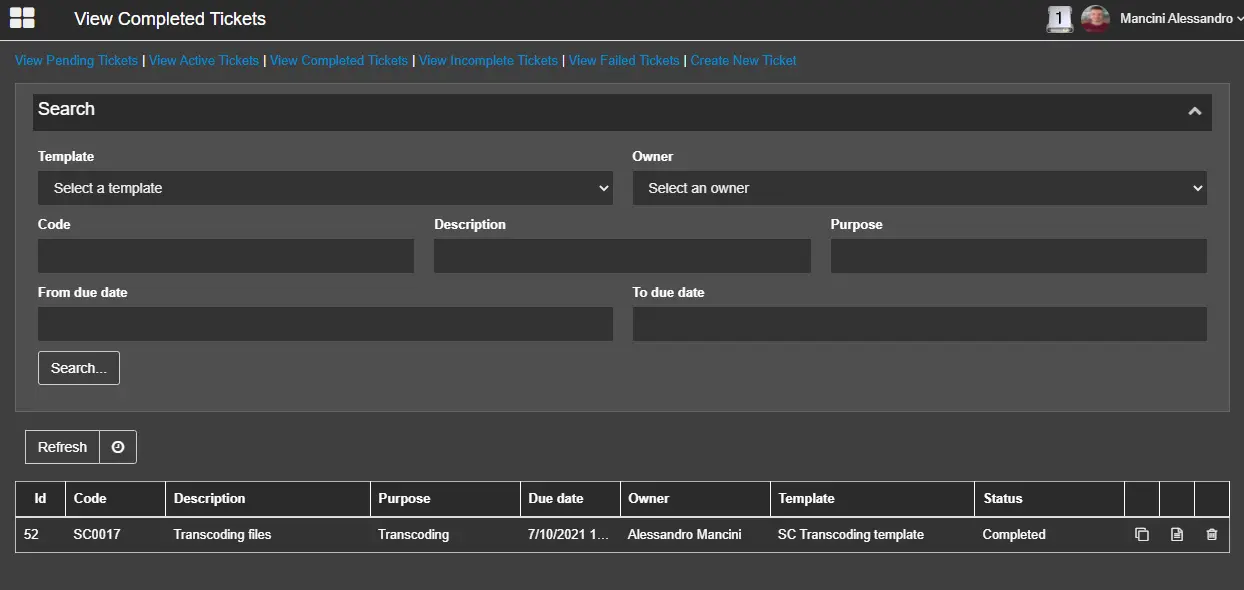
This page allows you to extract the request tickets that completed the process.
View_Completed_Tickets
Provide the search criteria to extract the completed tickets.
- Template: Select a predefined template that links to the ticket during the creation of the ticket;
- Owner: Enter the name of the user or user code who has created the request ticket;
- Code: Specify the code assigned to the ticket;
- Description: Search the tickets by their descriptions.
- Purpose: Search the tickets by filtering the text description entered in the Purpose field;
- From due date - To due date: Search the database for tickets created within the specified date range;
Click the <Search> button to filter tickets matching the criteria.
You can click the <Refresh> icon to activate the auto-refresh to receive the updates.
In each Completed ticket, you can view the detailed information with the following icons:
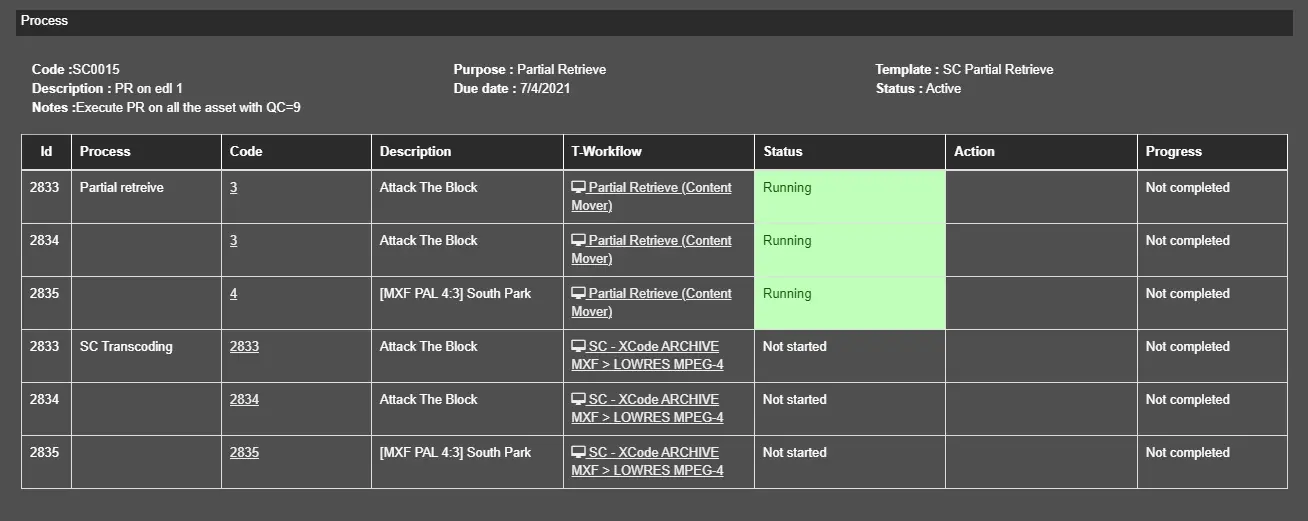
- Open Details: This icon displays the details of the selected ticket and the status of the processes for the chosen assets.
Open_Details
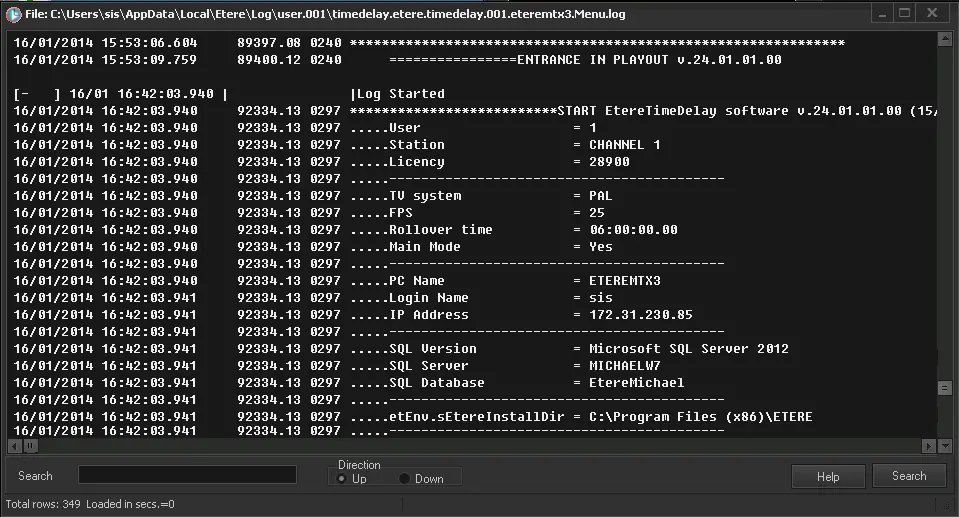
- Log: The Log icon captures the operations performed by the whole process, e.g. the T-workflows launched, the assets automatically created, etc.
Log
- Delete Ticket: This icon deletes the selected ticket from the database.
 View_Completed_Tickets
 Open_Details
 Log
Log