User Interface
56.2.1.6 Events Grid
The Events grid window comprises the same number of rows as the number of events composing the broadcast schedule. Each column shows different properties and data about each event. The description of each column (from left to right) are:
Events_grid
Events_grid
Status
Displays the status of events
-Pre-loaded / cued event
-Paused event
-Running event
-Interrupted event
-Successfully broadcast event
-The live emergency has been activated during the broadcast of this event
-The Automation has not been On-Air during the broadcast of this event. The Automation played in Clone mode.
-The event could not be broadcasted. An Emergency event will replace it.
Difference
Displays time differences between the adequate On-air time and the scheduled time.
-Automation is playing the event earlier than the scheduled time.
-Automation is synchronized with the scheduled time of the event.
-Automation is playing the event late, considering the scheduled time.
Tx Time Column
Displays the effective On-air time
-Event on the currently broadcast schedule
-Event on the following day's schedule
Description
Displays the icon representing the event's type and its description
Media
Displays the icon and the clip name characterizing the broadcast device (video server or tape)
Properties
Displays event's properties (Type of Event, In/Out Timeouts, Streaming Event, Variable Event, Type of Transaction). Every property has its icon, which can be seen in Etere Scheduling while creating/editing schedules. Type of events are:
-Manual: the length of the event is decided by the operator.
-Variable: the length of the event is variable. It should be broadcasted before a fixed event.
-Timecode: event going ON-air from its MarkIn and MarkOut (default).
-Fixed: event starting at the scheduled time without delays/anticipation.
-Fixed/manual: an event with a fixed start that has to be manually stopped by an operator.
-Variable/manual: event with a variable length which has to be stopped manually by an operator
Devices
A corresponding icon will be displayed if an external device scheduling is set (Logo, Titler, GPI, Overlaps, RDS). Each device has its icon, which can be seen in Etere Scheduling while creating/editing schedules.
VTR
Information related to the status of a VTR, which has an assigned event, is displayed. The warning icon will be displayed if the event isn't programmed on any VTR. A tape icon would be displayed if the event tape was recorded on the VTR.
Splits
Displays information regarding split commands attached to scheduled events:
-Shows the date and time of the split that will be performed
-Indicates that the split event has an invalid command and, therefore, it will be ignored. If there are two consecutive split events, Etere Automation will ignore the split of the second event.
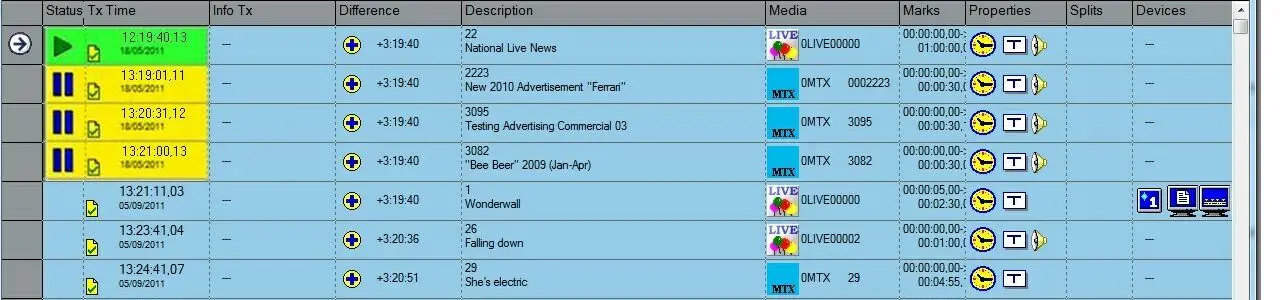 Events_grid