72.5.2 Creating Segments
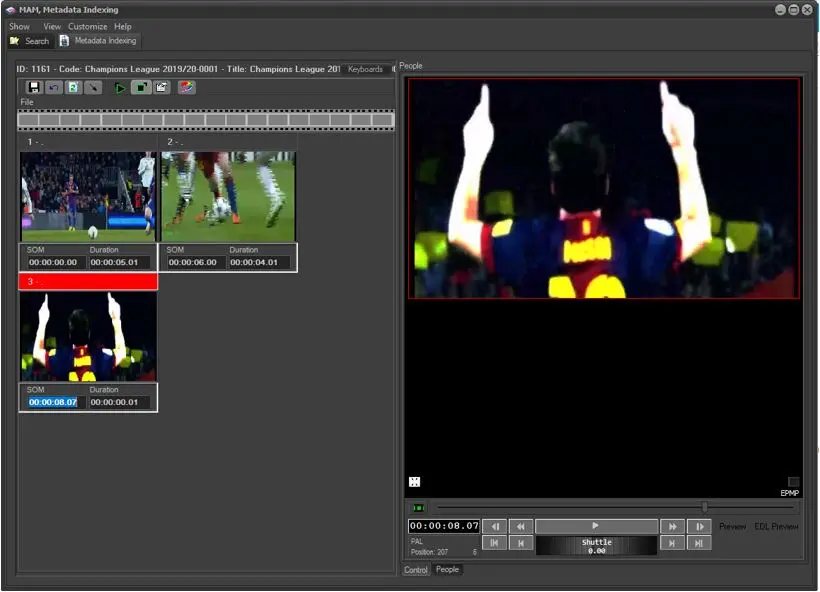
The Metadata Indexing section is where all metadata is inserted, it is mainly divided in three areas for allowing an easiest insertion of captions: the Segments Area (show all segments created for the current asset), the View Area (allows to manage a single segment), and the Metadata Area (show all metadata inserted for the current asset):
Metadata Indexing
The Metadata Indexing module, allows to insert segments in two different ways, they are:
During previewing - To create a new segment, you have to preview and find in the Control tab the frame where you want to start the new segment (SOM), click on the 'Start event' button (or just press F3) to create the new segment; after then, always on the Control tab, preview and find the point at which you want the current segment to finish (EOM) and click on the 'End Event' button.
оr
Manual insertion - If you already have a list of mark points, you can create new segments by inserting them by using the 'Manual Inserting' function located in the toolbar. Once inserted, by using the 'rebuilt image' button, all segment's previews will be retrieved from a linked proxy file (if available).
Once a segment has been created, independently of how it has been inserted (either previewing or manually), you can enrich it by compiling the metadata-sections mentioned before, that is, 'People', 'Keyboards', and 'Flexi-metadata'. You can display this sections by clicking on the 'VIEW' menu and choosing those elements you want to be shown:
Available areas
Control - Preview the asset's proxy video, and navigate to specific points of its timeline using the jog & shuttle provided features
General Data - View the Name, SOM, EOM and Duration of the current segment. You can change the current SOM/EOM values by using the 'Read position of SOM/EOM' function, and also position the preview to current SOM/EOM by using the 'Move device to SOM/EOM'.
People - View and insert data on people featured in the segment
Keyboards - Add keys and keyboards to facilitate future search and retrieval
Flexi-metadata - View and insert Flexi-metadata
Autosave - This function enable you to automatically save the changes made in the segments. No confirmation is required when you exist from indexing.
With this setting enabled, you can switch between segments during editing without intervention, the changes made to previous segment would be automatically saved while you are editing current segment. The "Autosave" settings would be written in registry, the saved settings would be present when indexing is reactivated.
Once you have finished, you can <Save> the new segment, and continue creating new segments or modifying created ones.
NB: Modification made to flexi-metadata by using the <Edit> key are not updated to database immediately, the updates take effect only when user press the <Save> button. The details of modification to flexi metadata are logged in the session log (*if it has been enabled). To session logs are presented when user press the “Operations” tab from the tools bar after launched the Media Library module.
Refer to Configuration module on “How to enable session logs”.
Note
Segments are marked in the EDL version set in Etere Configuration > Settings > Media asset Management > MAM section.
Asset Toolbar functions
Under the Segments Area, there is located a toolbar containing some useful functions for the insertion of captions including:
Function - Save (Shift+F12)
Description : Stores on the database all changes performed on the current asset.
Function - Cancel (CTRL+Z)
Description : Undo the last effected modification.
Function - Refresh (F5)
Description : Updates all fields according to changes performed.
Function - Start event (F3)
Description : CREATES a new segment which SOM will be the current position of the clip (in the Control tab), with a duration of one frame.
Function - End Event (F4)
Description : Set the EOM of the current selected segment at the current position of the clip (in the Control tab).
Function - Manual Inserting
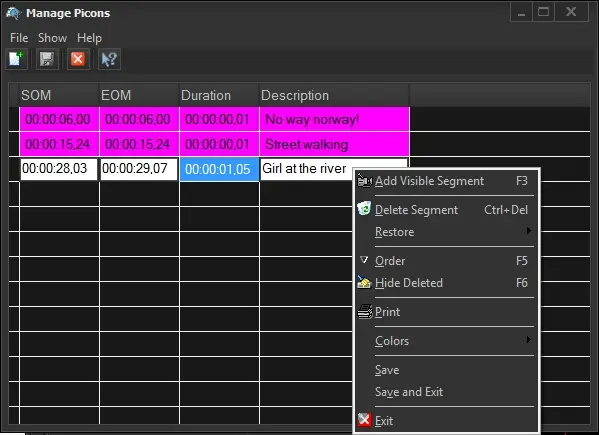
Description : Opens the "Manage icons" tool which allows to manually insert/delete/modify the SOM, EOM, duration and description of segments. Available functions are some of the ones available in the Media Library for the EDL management:
Manage icons
Function - Rebuild images (F10)
Description : This function will update all segments' thumbnails (Picons) by extracting them from the asset's proxy video file (if available).
Segments Contextual functions
Additionally, by making right-click on a certain segment it will be possible to perform the following actions:
Function - Stretch image
Description : Either stretches or fit the thumbnail image to the preview square.
Function - Assign image
Description : Reads the image from the proxy video and set it as the segment thumbnail.
Function - Delete
Description : Mark the segment as "to be removed" so when the [Save] button is pressed all marked segments will be deleted.
When segment is deleted from database, the thumbnail generated with the segment during creation of segment would also be deleted from the database.
Function - Restore
Description : Cancels a "deletion mark" previously added to the segment.
Function - Go to position
Description : Places the "Control" preview panel at the segment's SOM.
Function - Preview
Description : Puts the "Control" preview panel in play to start previewing the selected segment.
Function - Copy metadata
Description : Puts all the metadata information (i.e. keyboards, flexi-metadata) set for the selected segment into the clipboard.
Function - Append metadata
Description : Pastes all the metadata information (i.e. keyboards, flexi-metadata) available on the clipboard into the selected segment.
Function - Workflows
Description : Manage all T-workflow operations launched for the current segment:
▪Workflow info: Opens the Workflow manager to view and manage all "partial restore" T-workflows launched for the selected segment(s).
▪Partial retrieve: Launches the default "partial retrieve" T-workflow (set in Etere Configuration) for generating a video file containing the selected segment(s).
 Metadata_Indexing
 Manage_icons