91.4.4 Player
Etere Radio Live Playout, offers also the possibility to preview assets before they're broadcasted.
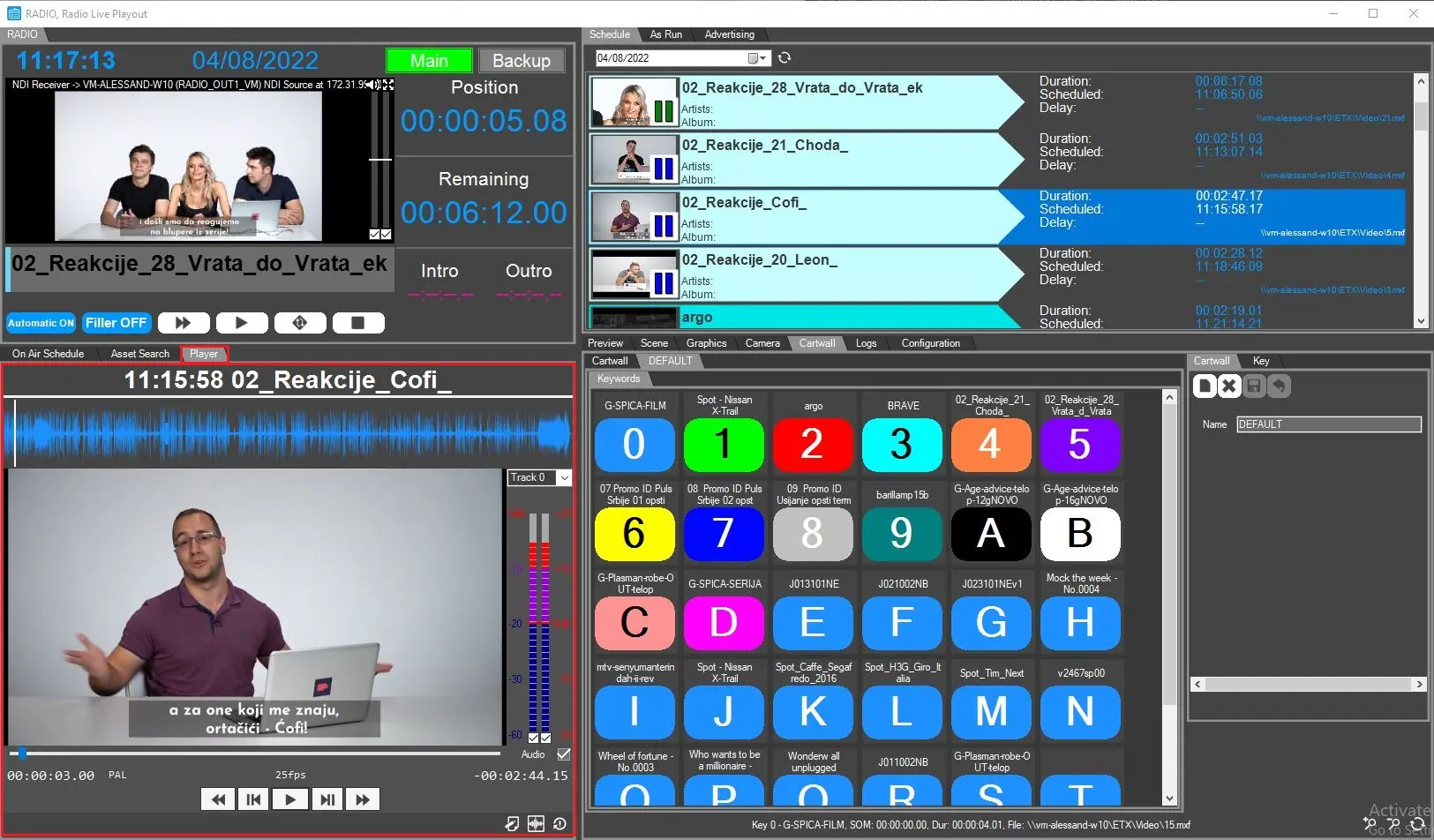
The player is located by default in the bottom-left square of the Radio Live Playout GUI and it's capable of previewing assets from the schedule, from assets search or from the cartwall's buttons.
RL_player
Preview from Schedule tab and Asset search tab
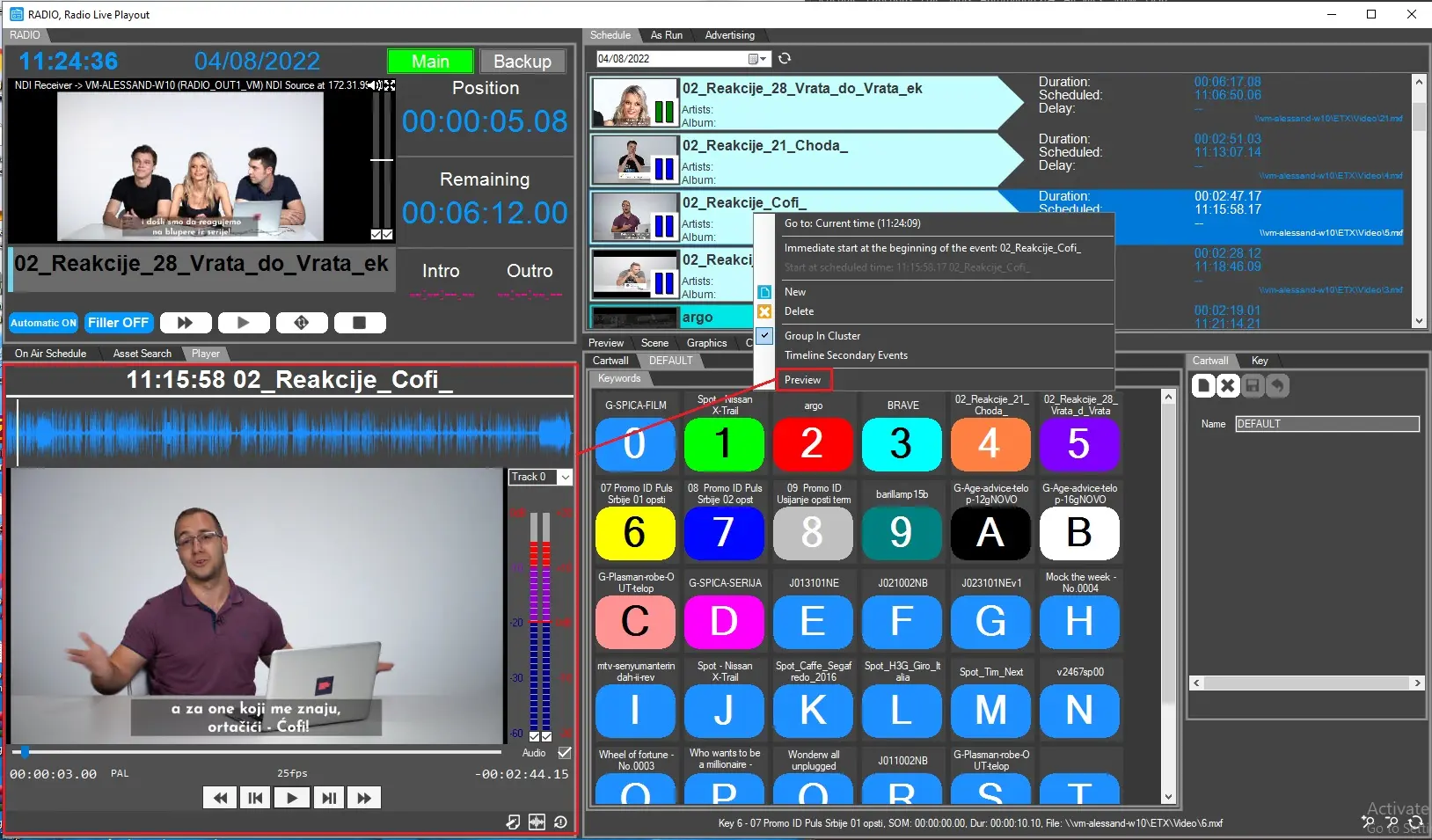
One of the ways assets can be previewed is from Schedule tab on the upper side of the Radio Playout form.
User can simply select the asset in playlist, right-click on it and select [Preview].
preview_schedule
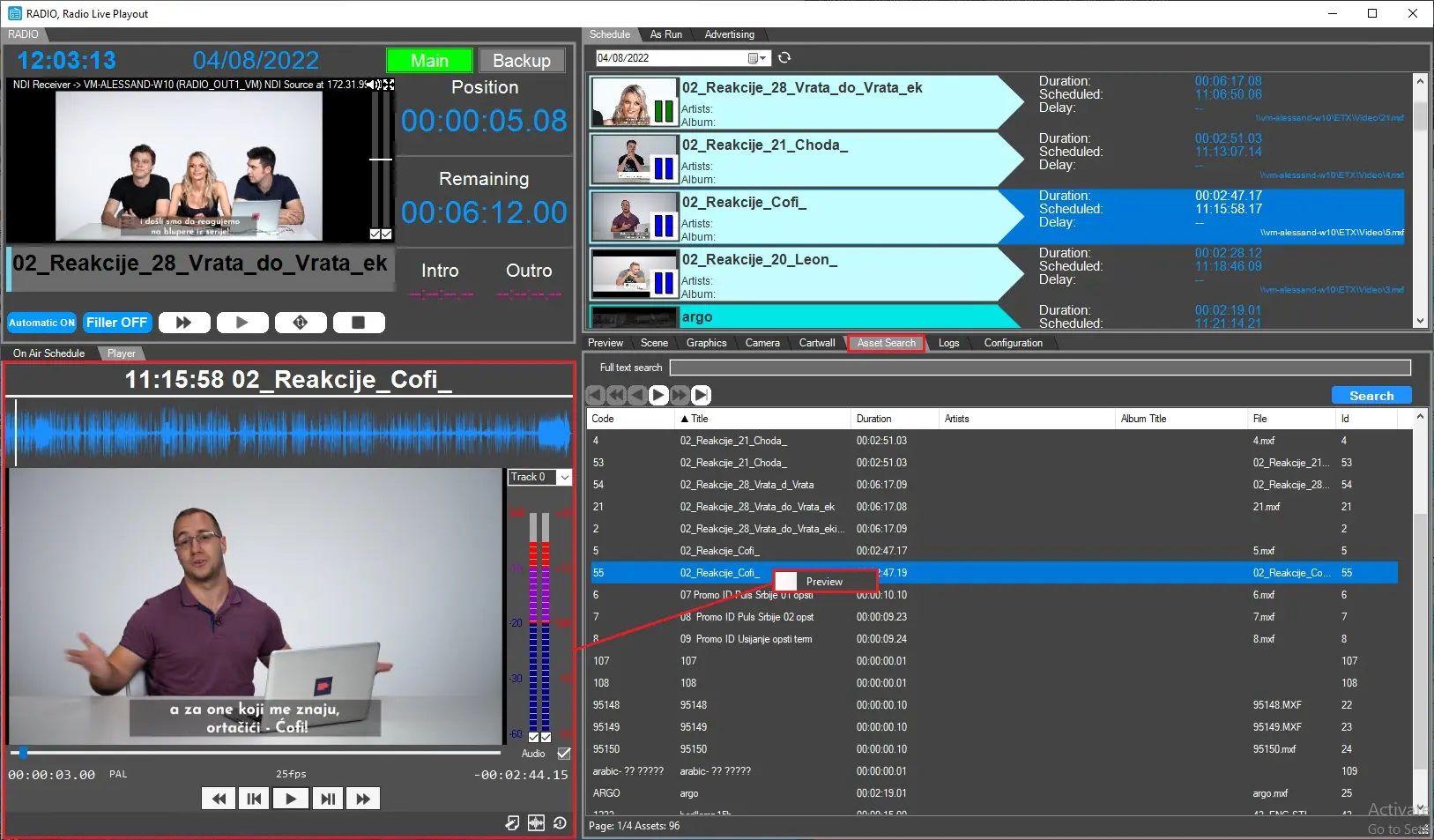
In the same way, assets can be previewed from the search results as shown in the image below:
preview_assetsearch
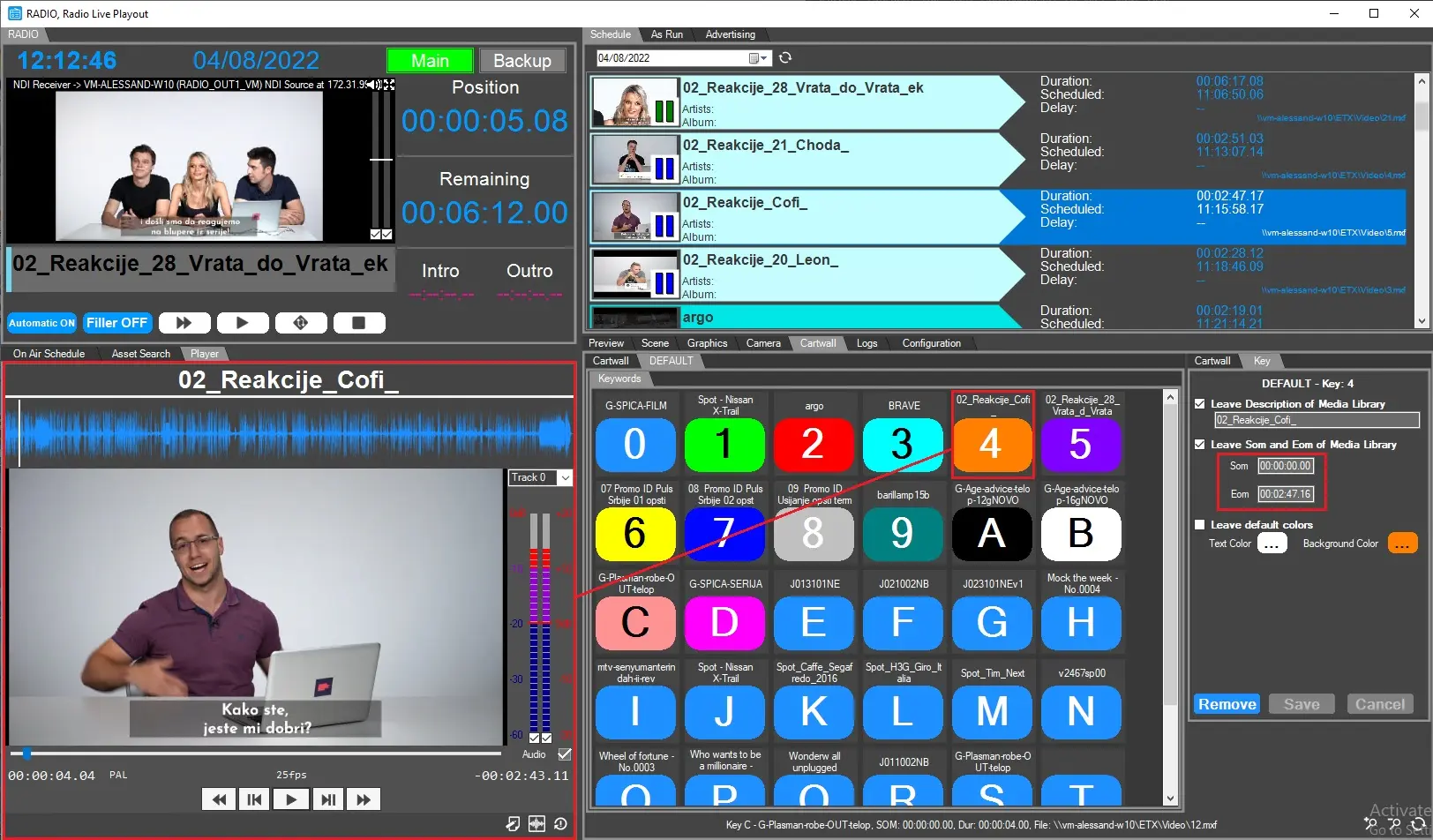
Preview from Cartwall
As explained in Cartwall chapter, user needs first to link the assets by drag&drop from asset search tab. Once done, it's possible to customize the part of the file to play setting SOM and EOM in the Key tab, then clicking on the button, Radio live Playout will look for the physical file and play it.
preview_cartwall
Other functions
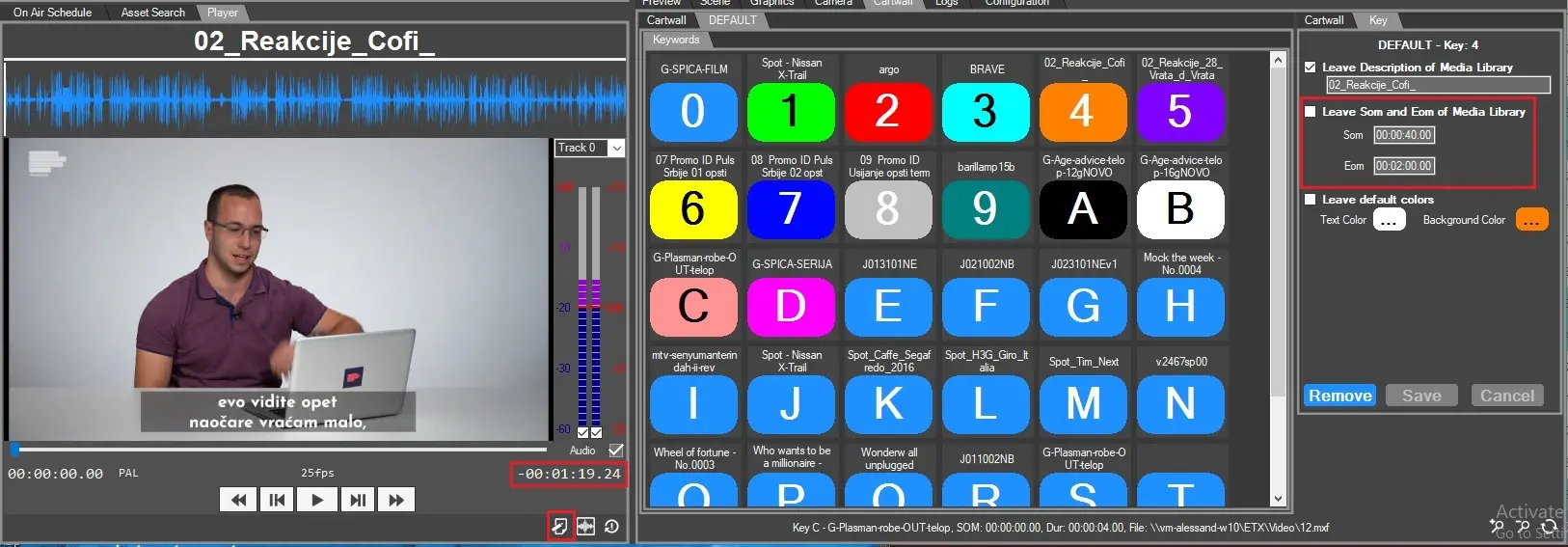
Edit - This function allow to play the file according to the physical marks instead of the logical ones.
For example: An asset is marked with SOM=00:00:40.00 and EOM=00:02:00.00, as the image below.
edit_1
If this option is disabled, the player allow to play only 00:01:20.00 of the file. In other words, the part included in the logical marks.
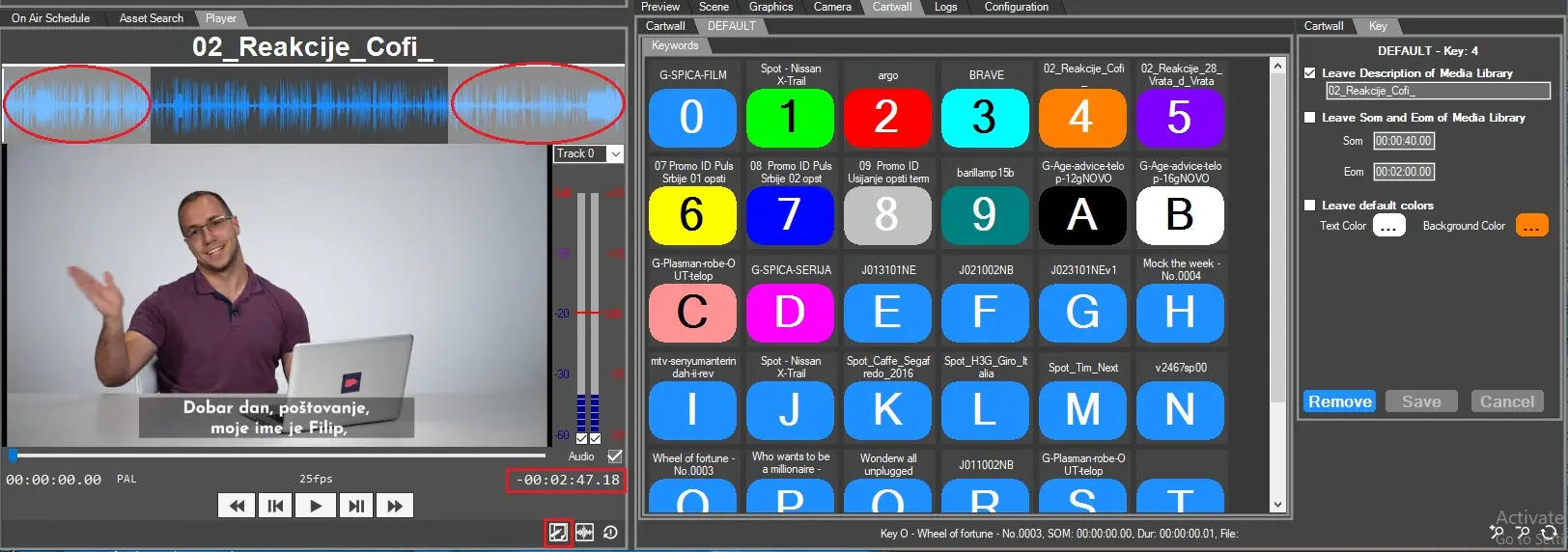
Enabling the Edit option, instead, the player shows different timecodes, which include the whole physical file. If the waveform is enabled and generated, the additional parts of the file that are outside the logical marks, would be highlighted with a lighter background.
edit_2
Wave Form - When enabled, the file is scanned to generate the waveform, then it's displayed above the player.
Reset - Reloads the file previously in play.
Play speed - When the file is in play, at the bottom-left corner of the player is displayed how fast is the file being played. Its range go from 1x (default value when the play begins) up to x16, with 2 times increments (x2 \ x4 \ x8 \ x16) and it can be changed clicking on the FAST FORWARD button. Pressing the REWIND button the file proceeds backwards following the same increments progression: -2x \ -4x \ -8x \ -16x
To come back to the normal speed (x1) click the PLAY/PAUSE button.
Frame back\forward - These buttons allow to move the cursor of 1 frame per click, in forward or backward direction. It's useful when the user needs to set SOM or EOM with the function Read the device position.
Audio and Vumeters - Beside the preview window, it's possible to enable or disable the Audio flag, to mute or unmute the file playing. Above it, the vumeters allow to see the audio level on the scale (in dB) and to mute or unmute the audio channels detected in the file. In the droplist at the top, the user can choose which audio track wants to play.
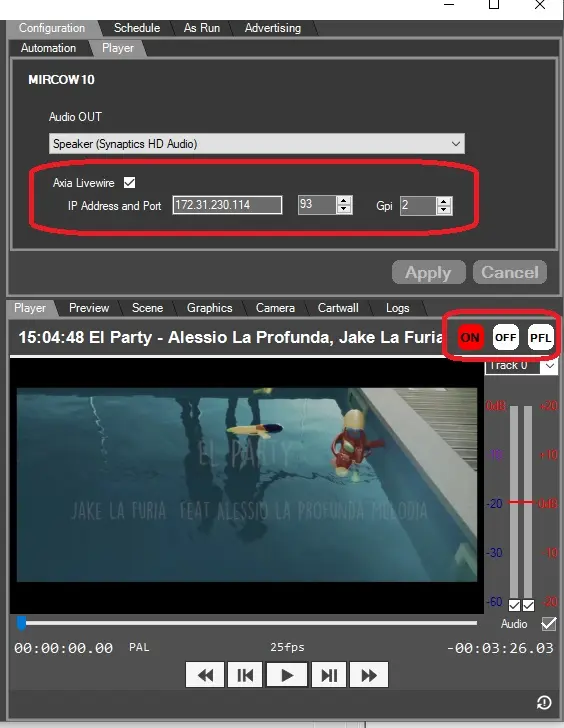
NOTE: The preview can be started by mouse or by GPI(when the button on the mixer is pressed), GPI is enabled under Configuration > Player by enabling Axia Livewire
7900_Radio-Playout--preview-Liveware-Axia-gpi-settings.jpg
the Cartwall section share the same settings, but the GPI of the Cartwall must be different than the GPI of the schedule.
 preview_cartwall
 preview_schedule
 preview_assetsearch
 RL_player
 edit_2
 edit_1
 Radio-Playout--preview-Liveware-Axia-gpi-settings