59.2.39.1 Connecting Routing Channels
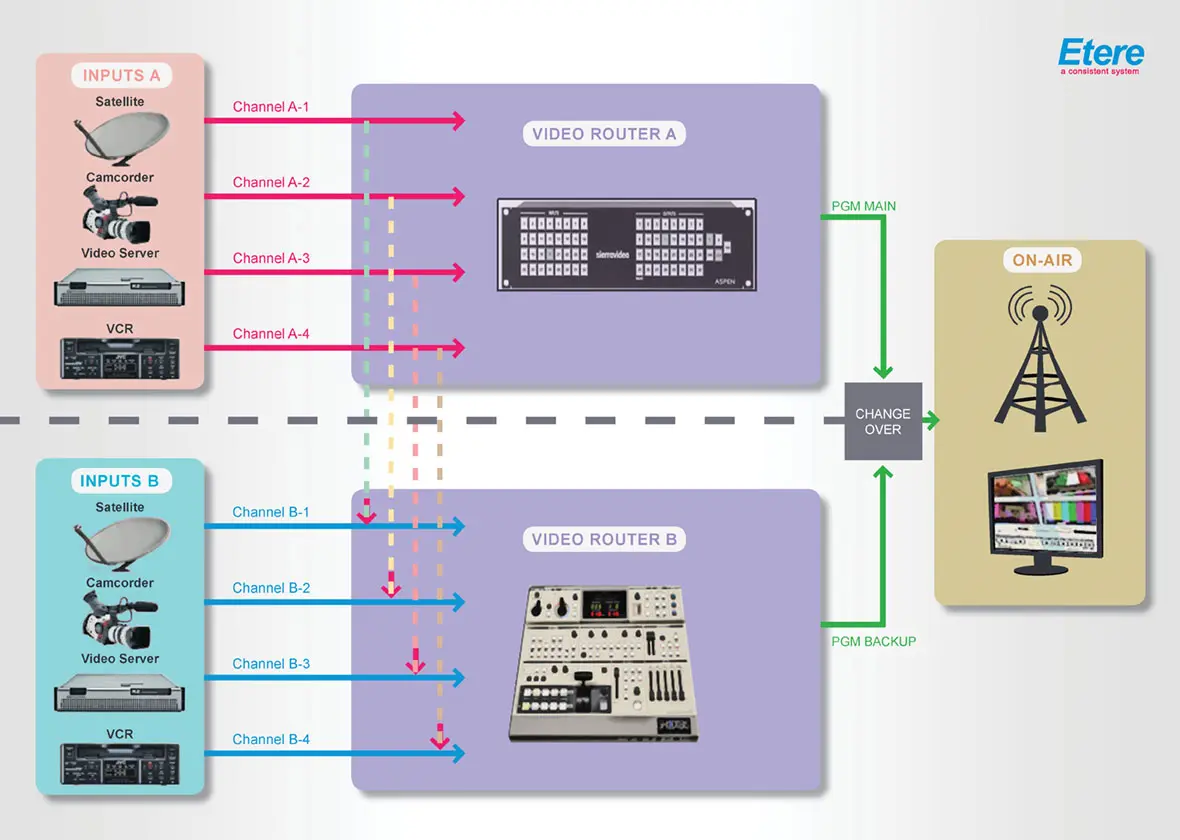
Etere allows improving fault tolerance by binding a second routing device (e.g. backup router) to the main routing device (e.g. main router) to achieve redundancy. Connecting an input channel from one router to another would trigger when the input channel is switched in the first router. The second connected router is also automatically switched, as illustrated in the following diagram:
Connecting_Routing_Channels
Connecting channels is needed when automation needs to switch two routers at the same time to increase the playout reliability; configuring the main automation and repeating this setup on the backup automation would ensure a cross redundancy in both main and backup operations:
Router A: Main
(source, destination)
Switch input A3 -> output A2
Switch input A5 -> output A2
Router B: Backup
(source, destination)
Switch input B1 -> output B2
Switch input B3 -> output B2
Connection procedure
Connections between main and backup channels are stored in a table within the database; follow the steps described below to create a routing table:
1. Navigate to the Etere Configuration > Settings > Executive Editor > On-Air section and type the Automation Main and Backup Path.
2. Under the Etere Configuration > Resources module, add and configure the video routers, then assign them to the related Main and Backup automation.
3. Launch Etere Automation from both the Main and Backup automation computers; this action will update the automation configuration file (i.e. auremote.ini).
4.In the Etere Configuration > Settings > Devices Configuration > Video Routers section, all switcher devices (e.g. video routers, master controls) will be listed by pressing the [Update routers table] button:
Update_routers_table
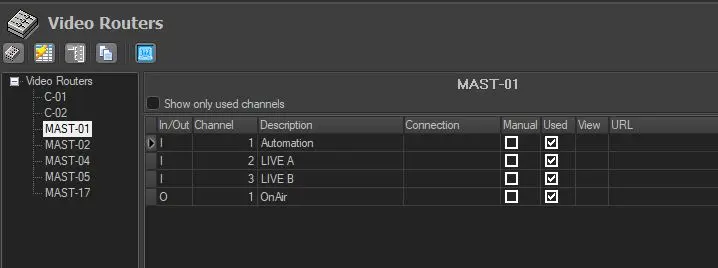
5. Choose the device for the Main Automation (e.g. C-01) and start naming in/out channels. It is possible to connect them to the switcher device for the Backup Automation:
Backup_Automation
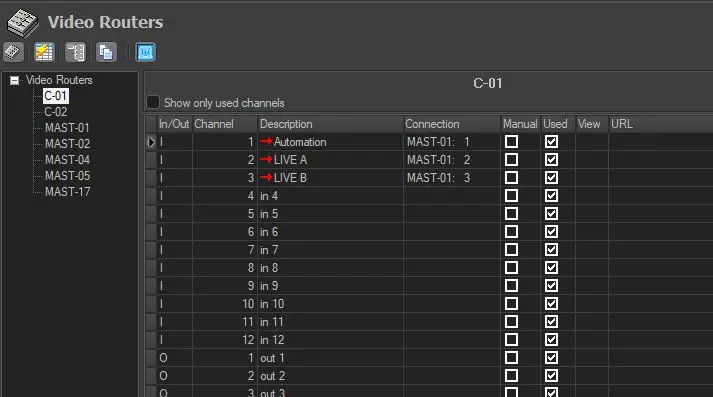
6. Select the device for the Backup Automation (e.g. C-02) and connect the channels. To connect input channels, right-click on their "connected" column, select the "Link to..." option and specify the main router channel to be linked to the backup router:
Link_to
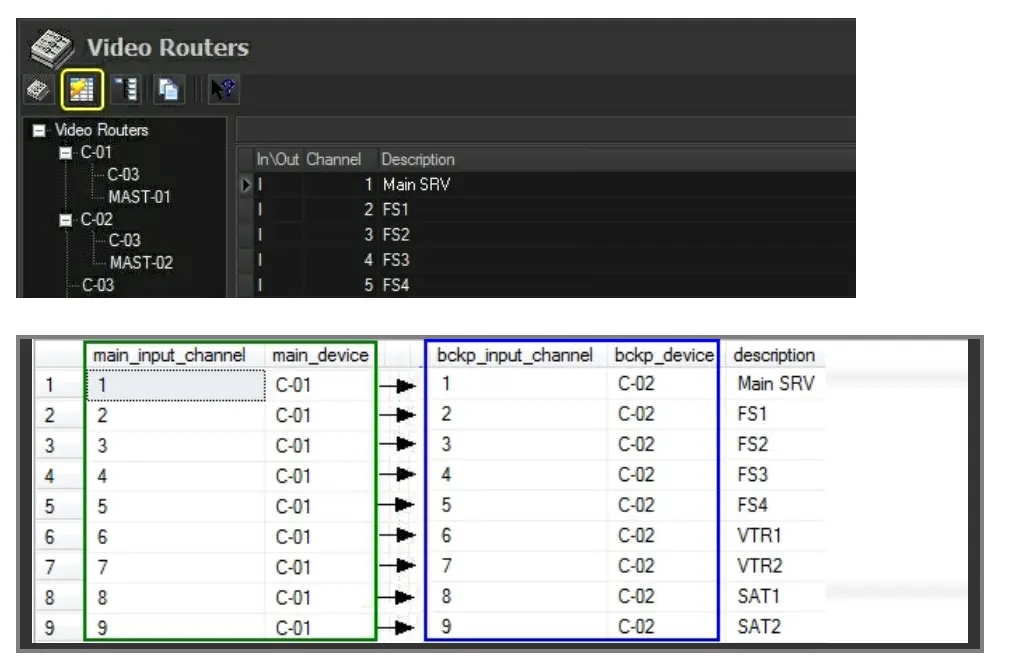
7. Once all channels are linked, press the [clickHereGenerate the routing table] button:
Generate_the_routing_table
8. Each time a switch is performed on the main router, it is also performed in the backup router.
Note
Changes performed to a router (e.g. C-03) used within virtual routers (e.g. C-01) will be extended to its sub-router instances (e.g. C-03 within C-01).
 Connecting_Routing_Channels
 Update_routers_table
 Backup_Automation
 Link_to
 Generate_the_routing_table