59.2.33 Codecs
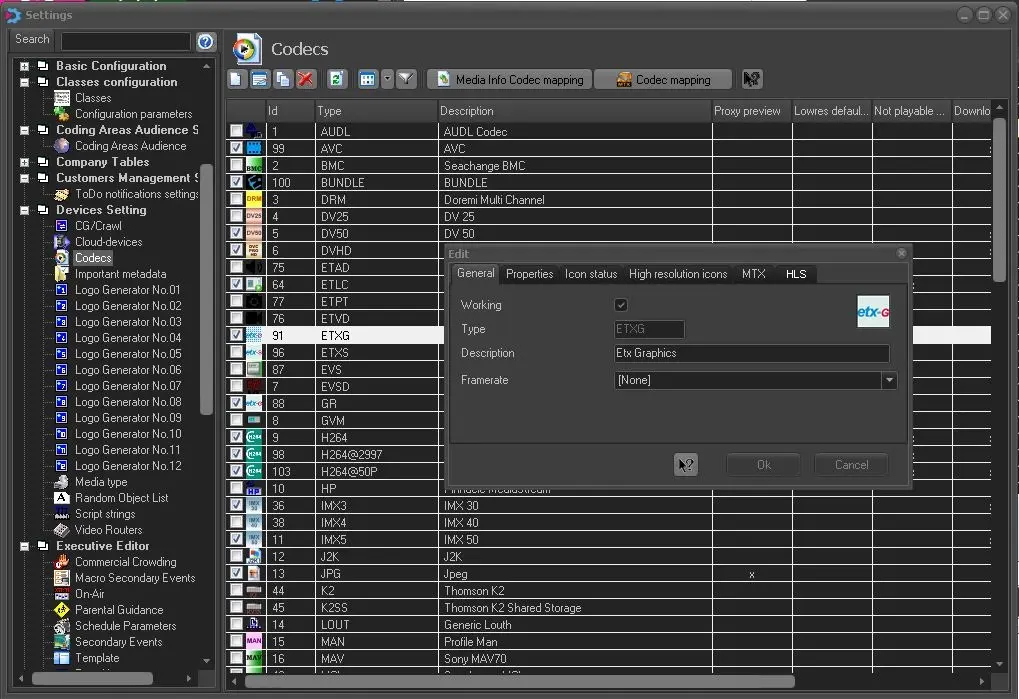
The Codecs section permits to manage the codecs within the system for both hires and proxy media files, allowing to activate/deactivate the codec as required and set the key media management features.
Codecs
Predefined codecs
The "Predefined Codecs" provided by Etere can be freely added, modified and removed by users according to their requirements.
Language-specific codecs
In case the system is intended to handle multiple files (e.g. audio) for different languages, it's highly suggested to use different codecs for each language (e.g. WAVE ENG, WAVE ITA, WAVE THA, etc.), this will allow a language-based media management (e.g. via T-workflow).
Available management functions
This section provides multiple functions for the management of codec, all of them available in both, the toolbar and the right-click contextual menu. Available functions present in this section includes:
New - Creates a new codec, allowing entering all its information as per the "Edit" function (e.g. working, type, icon, etc.).
Edit - This function (also available making double-click on a codec) allows to configure the following parameters:
General
Working - If checked, the codec will be enabled for being used across Etere.
Type - Displays the format type (e.g. IMX50) of the codec.
Description - Displays the default description of the codec.
For example, if the codec type is MTX’s T012, the default description would be displayed as "XDCAM HD 422".
Icon (button) - Click the image to change the codec icon.
Framerate - Displays the video standard for the codec. This is for customers who are using multi-framerate, as it displays the video standard for the codec.
Properties
Content -type
Specify if the type of content to which the codec is related:
Type - Video
Description : The file is related to video material.
Type - Audio
Description : The file is related to audio material.
Audio content linked to an asset can be loaded during its proxy preview.
Type - ETX-G Graphics
Description : The file is related to graphical objects.
Type - ETX Scenes
Description : This file is related to Radio Live for managing ETXVideo scenes.
Type - Subtitles
Description : The file is related to subtitling material.
Type - Image
Description : The file is related to picture material.
Type - Image Sequence
Description : The codec represent a sequence of image files.
Type - Other
Description : The file is related to other material types (e.g. pdf, etc.)
Preview
Indicate whether the codec will be available or not for preview across Etere modules:
Full - Files with this codec will be considered as HiRes.
Proxy - Files with this codec will be considered as LoRes.
None - Files with this codec won't be available for preview.
Etere Player
Specify here the player to be used by default for this codec. Available players include:
Player - Etere Player
Description : Playback hires and lores files (MXF, etc.) using Etere Player.
NB: Set by default when full preview is enabled.
Usage : Auto
Player - DirectShow
Description : Playback major formats (WMV, AVI, etc) using MS DirectShow.
NB: Set by default when proxy preview is enabled.
Usage : Auto
Player - QuickTime
Description : Playback media files encoded in MOV and MPEG-4 format.
NB: Requires QuickTime to be locally installed.
Usage : Open with
Player - WMP9
Description : Playback all major formats (WMV, AVI, etc).
NB: Requires Windows Media Player 9 to be locally installed.
Usage : Open with
Player - WMP6
Description : Playback all major formats (WMV, AVI, etc).
NB: Requires Windows Media Player 6 to be locally installed.
Usage : Open with
Player - External application
Description : Playback of files using an external application (e.g. VLC) set in windows as the default for opening this codec type.
NB: See chapter: "changing default applications on Windows"
Usage : Open by
Player - XDCAM
Description : Playback files stored on XDCAM discs (MXF, etc).
NB: Automatically used, it cannot be chosen by user.
Usage : Auto
Player - Image preview
Description : Browsing image files (JPG, BMP, PNG, etc).
NB: Automatically used, it cannot be chosen by user.
Usage : Auto
Player - ETX-G Player
Description : Preset or preview of graphical objects.
Usage : Auto
NB: More information on proxy preview is found on Preview section of Media Library chapter.
Lowres default codec - If enabled, allows specifying that the current codec should be used for proxy preview (when an asset has two or more files with "proxy" codec).
Not playable by Automation - If enabled, indicate that video files encoded with the selected codec are not suitable for being transmitted by the automation.
Download - If enabled, video files encoded with this codec will be available for download from the media section of EtereWeb.
NB: If you are using Google Chrome browser, the experiment feature “Enable support for FTP URLs” must be set to Enable in browser settings in order to fulfill the download. You can locate the feature in Chrome browser by entering “Chrome://flags” in textbox when open a new tab in browser. If the “Enable support for FTP URLs” feature is displayed as “Default”, set it to “Enabled”.
Tapeless - If enabled, this codec will be displayed during the upload via Etere Tapeless Reception, that is, to allow media belonging to this codec to be delivered to Etere via web.
Ancillary data - If enabled, the codec will be considered as a container of ancillary information (e.g. documents), and not as a media intended to be broadcasted.
EDL from asset - If enabled, indicates that media belonging to this codec will be used (e.g. transmitted) according to the EDL defined for their related asset.
P2 codec - If enabled, indicates that files belonging to this codec have been acquired from a P2 camcorder.
This property is used by the multi-file import to import files from P2 cards maintaining the structure of their file system.
Upload list priority - Set here the priority (default is 0) with which codecs will be displayed in the "codec selection" when uploading media files via web. The lower value, the higher the priority. For instance, a codec with a priority of 1 will be displayed first than other with a priority of 2.
NB: Codecs with the same priority will be sorted alphabetically.
Flexi- metadata - Select here the metadata template to be associated to metafiles belonging to the selected codec, it can be either the default Flexi-metadata profile or another Flexi-metadata profile.
This information will be used to determine which kind of metadata will be associated to metafiles from the Media Library > Media tab and Media Library > Technical data.
VOD codec: If enabled, it indicates that the files belonging to this codec can be used for the VOD project.
Icon status
Click on the empty box to define custom icons for each possible status of the asset, that is:
oonline, offline, cache, not available, requested, queued and downloading
High Resolution icons
Click on the empty box to define icons for high resolution video files. You can specify up to 15 different icons to be shown on high-resolution video file versions.
MTX
Here will be possible to assign an MTX template (e.g. AVI MPEG-2 IBP HD 4:2:2 50/Mbs, MXF PEG-2 IBP HD 4:2:2 50/Mbs, etc) to a certain codec (e.g.: MPG, MXF, etc). See MTX supported profiles.
Note: If a MTX template is already associated to another codec, when the user will attempt to save it (pressing [ok]) he will be asked to replace it or not. Moreover, if a codec is deleted, the related MTX template will be also deleted.
HLS
This tab enable the HLS metadata transcoded via Apple HTTP Live Streaming (HLS) protocol, and define the HLS codec properties to be used by workflow action.
Copy- Creates a copy of an existing codec, thus allowing to define a new codec based on an existing one.
Delete - Removes the selected codec from the system, definitively.
If you attempt to delete a codec with media files linked to it, a warning message would be prompt to alert user and deletion would be denied.
Refresh - Updates the list of codecs and all their data.
View - Select the view for displaying codecs: large icons, small icons, list or lines.
Show active only - This useful button allows to either show all codecs or filter only those which are active (i.e. which "working" property is enabled). Please note that clicking on the first column will sort codecs by "active" status.
Codec mapping - This tool allows defining the encoding information (container, bitrate range, surface format, profile) of the codecs managed by the station. Please refer to the Codecs Mapping chapter for detailed information on this tool.
See also:
Replacing codecs - Replace a codec across the entire system.
See "Etere Configuration > Settings > Codecs > Replace".
Grouping by tuples - Group codecs in tuples (i.e. sets of device-specific codecs).
See "Etere Configuration > Resources Editor > Tools > Media Type Editor".
 Codecs