How To...
58.3.14.4 Export Clip
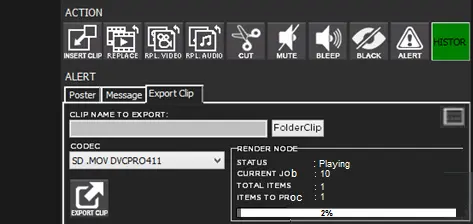
You can export a clip from Timeline using the “Export Clip” function in the menu. First, set the MarkIn and MarkOut in the clip to be exported and trigger the “Export Clip” function; enter the file name to be exported and click the “Export Clip” button to start the export.
Censormx_alert_exportclip_task
The export process can be monitored with the information displayed on the screen:
- Status: The available status displayed are Playing, Pause, and Stop.
- Current Job: It shows the job ID assigned to the current job.
- Total Items: It displays the total items to be exported.
- Items to Proc: It displays the total items to process.
- The processing bar indicates the percentage of the completed process.
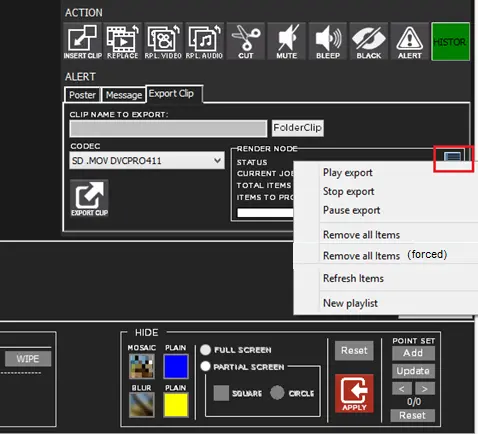
A user menu positioning in the render node frame allows the user to manage the export process.
Censormx_alert_exportclip
When you click on the user menu, the following functions are available:
- Play export file
- Terminate the export process (the process would be stopped and removed from the job queue).
- Pause the export process
- Remove all items in the export list (if recording is completed).
- Remove all items in the export list by terminating all recording process
- Refresh and update all items in the list
- Create a new playlist
When exporting files, you can export only one file at a time.
 Censormx_alert_exportclip_task
 Censormx_alert_exportclip