ETX-G Live Playout
66.9.2 Create a Crawl News Ticker without ETX-G
Without ETX-G, creating a crawl News ticker in Nunzio on the Automation layers is also possible. Follow the steps described below to build a News ticker.
- Create a template containing the crawl ticker.
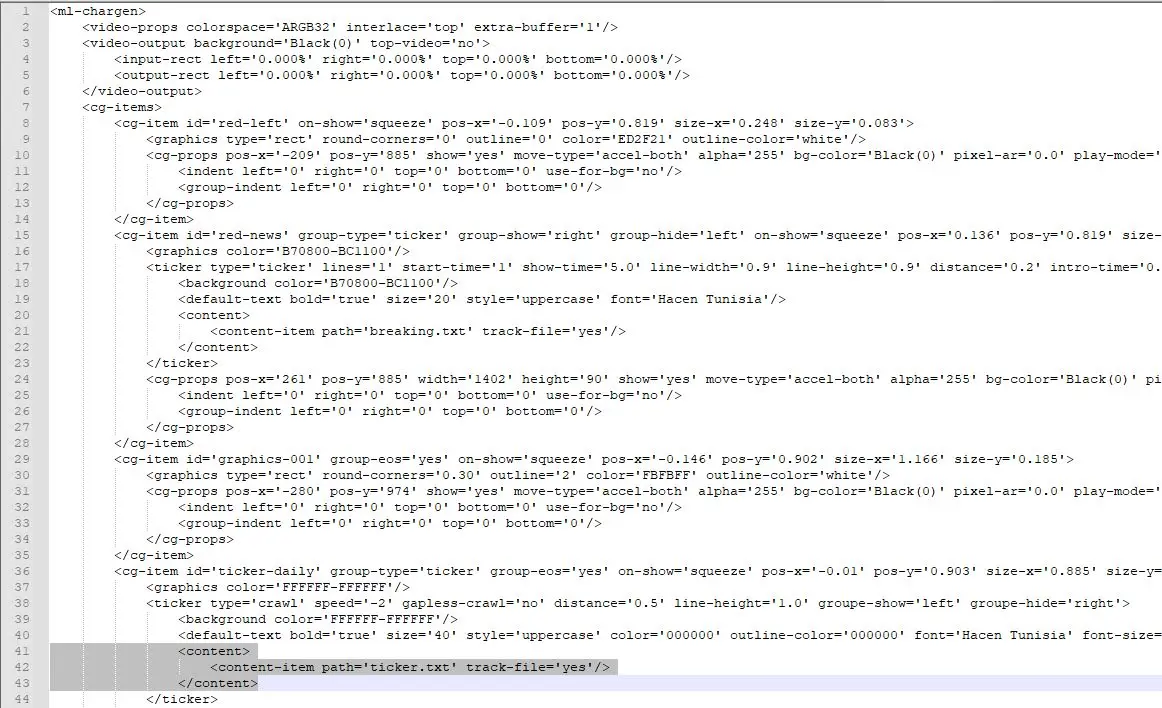
First, create a template file that determines how the crawl ticker would display on-air. The extension of the template file must be .ml-cgc (i.e. Ticker. ml-cgc). A sample of the template file is captured below for reference.
ticker_xml
Upon creation, save the template file “Ticker.ml-cgc” in the Automation graphic folder (\\etx1\ETX\Grafx). - Create a ticker text file.
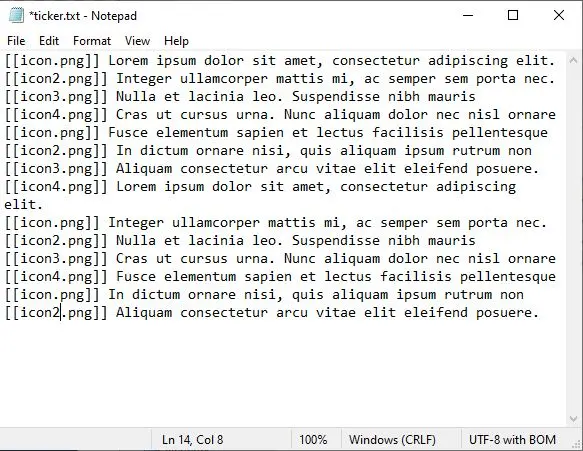
Next, create a ticker text file (i.e. Ticker.txt) that contains the text to be displayed on-air, as shown in the sample below.
ticker_news_content
Save the “Ticker.txt” file in the same folder as the template file. You can also create a sub-folder (i.e. News) under the Automation graphic folder just for the crawl ticker. In this case, write the new path in the template file.
<content>
<content-item path=’News\Ticker.txt' track-file='yes'/>
</content>
When the template file and ticker file are created in the Automation graphic folder, rename “Ticker. ml-cgc” to “003. ml-cgc” to correspond to the Logo described in the next step.
NB: The ticker file will be created in UTF-8 Plain Text format.
- Add a new Logo.
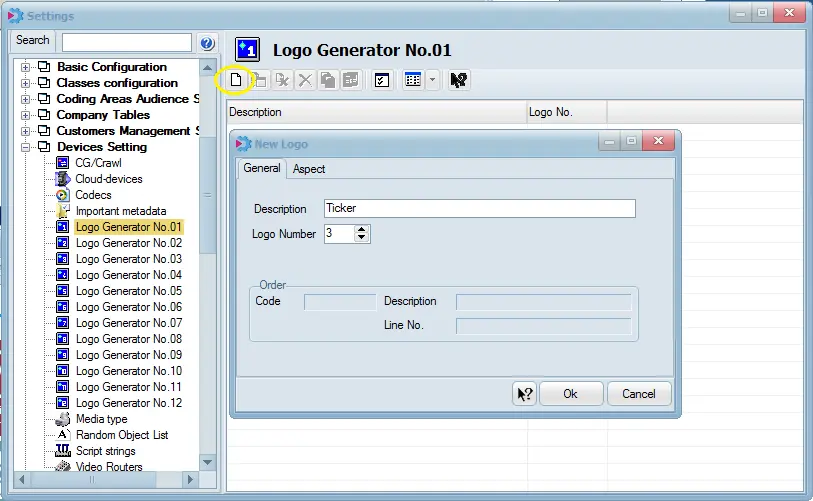
Launch the Etere Configuration module and access Settings > Device Settings > Logo Generator No. 01
Nunzio_main_news_ticker_logo
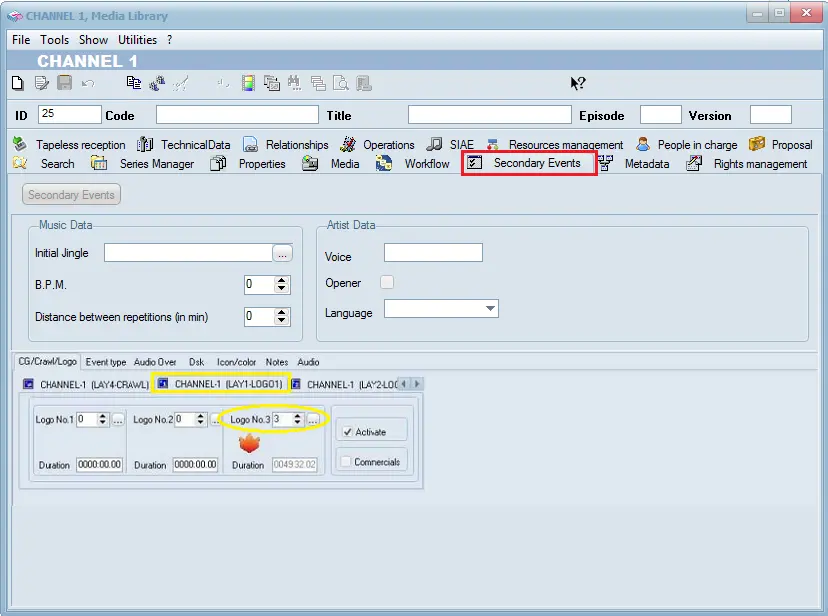
Click the <New> icon to create a new logo, enter the logo description and select Logo Number “3” corresponding to the template filename (003.ml-cgc) created in the previous step. Click <OK> to confirm the creation of the new Logo. Next, add the new logo number to the Secondary Events tab in the Media Library, as shown in the image below. The new Logo is set as Logo No. 3 in Layer 1.
Nunzio_main_news_ticker_ml - Display crawl News ticker
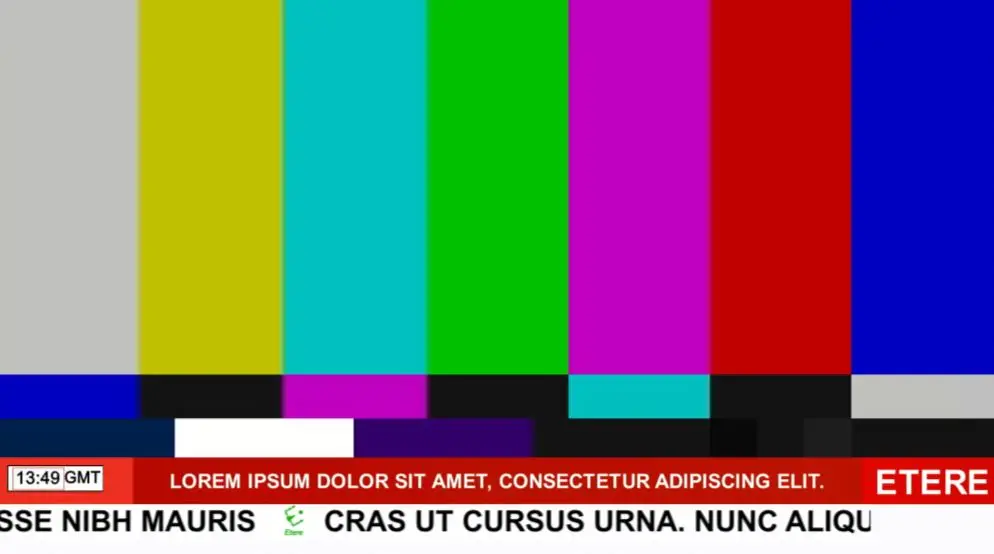
When Automation starts, the new crawl ticker will be displayed on-air immediately at the appropriate position defined in the template file.
ticker_news_2
ticker_news
 Nunzio_main_news_ticker_ml
 Nunzio_main_news_ticker_logo
 ticker_news_content
 ticker_news
 ticker_xml
 ticker_news_2