72.2.2.16 Annotations - EDL Conforming T-Workflow
The T-workflow-based conforming capabilities of Etere enables users to automatically conform an asset EDL to a video file associated to either the source asset or a new asset (i.e. source's version, source's child or standalone). Through this chapter it will be explained how to configure and use Etere to conform video files from the Media Library.
Suggestion
▪ The EDL conforming feature is useful to, for example, create a "censored copy" of an asset based on a predefined EDL.
▪ Please refer to the "Conforming" chapter for information on this an other conforming methods (e.g. Etere Story Creator).
1. CONFIGURATION
In order to configure the parameters required for the EDL conforming it's enough to follow the procedure below:
1.1. Configure the conforming profiles
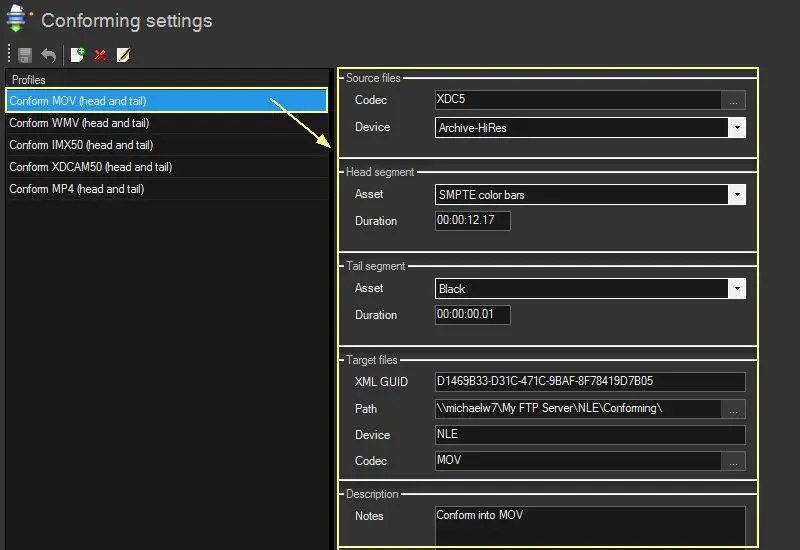
Open the "Etere Configuration > Configuration Editor > Conforming > Conforming settings" module and set the profile to be used for the conforming, that is, the codec to be conformed, the cloud-device from which take files, the head/tail assets to be appended, the Rhozet profile to use and the path on which place conformed files:
Conforming settings
1.2. Create the "version conforming" T-workflow
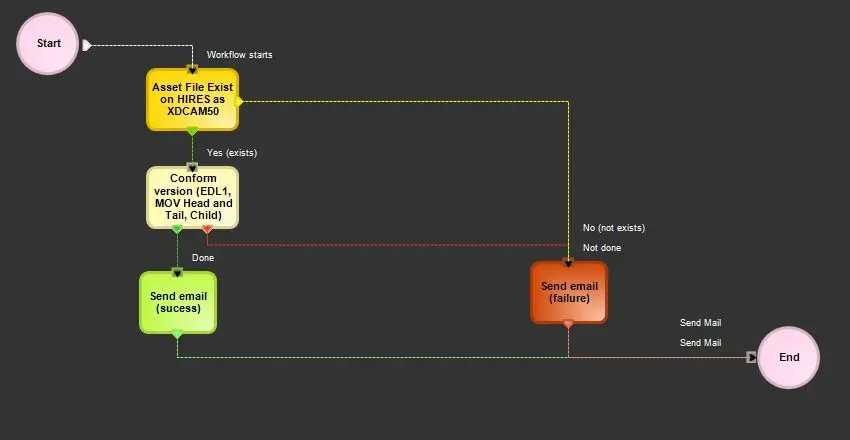
Open the "Etere Configuration > Configuration Editor > T-Workflow > Designer" module, create a new T-workflow (e.g. CC - Conform Censored EDL) and add the following action:
▪ Conform version: This action specifies the EDL to be conformed, the profile to be used and the target asset for the conformed media.
Conform Censored EDL
Note
This T-workflow conform files in a new asset, to keep the conformed file in the source asset omit this step and jump to the next one.
1.3. Create the "conforming" T-workflow
Still in the "Etere Configuration > Configuration Editor > T-Workflow > Designer" module, create a new T-workflow (e.g. MM - Conforming) and add the following actions:
Conforming
▪ Conforming profile check: This action determines the profile to be used for the conforming
▪ Conforming video files check: This action check if all files required for the conforming are available (restoring them if not).
▪ External mover exe (etconform.exe): This action execute the actual conforming, based on the given EDL, profile and asset.
Note
In case you want to keep the conformed file in the source asset rather than in a new asset you need to configure the "External mover exe” (etconform.exe)"action specifying the EDL and profile parameters.
1.4. Set the "conforming" T-workflow as default
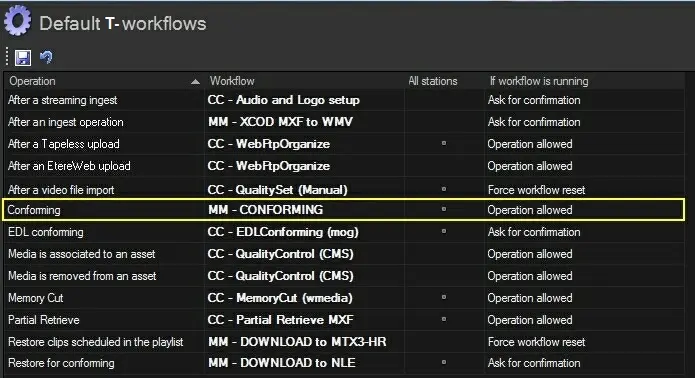
In order to allow the automatic execution of the "conforming" T-workflow (by the "version conforming" T-workflow), it's required to go to "Etere Configuration > Configuration Editor > T-Workflow > Default T-workflows" and set the "conforming" T-workflow as the one to be used by default for conforming:
Conforming T-workflow
2. USE
Conforming an asset EDL is an easy task that can be completed as following described:
2.1 Trigger the "version conforming" T-workflow
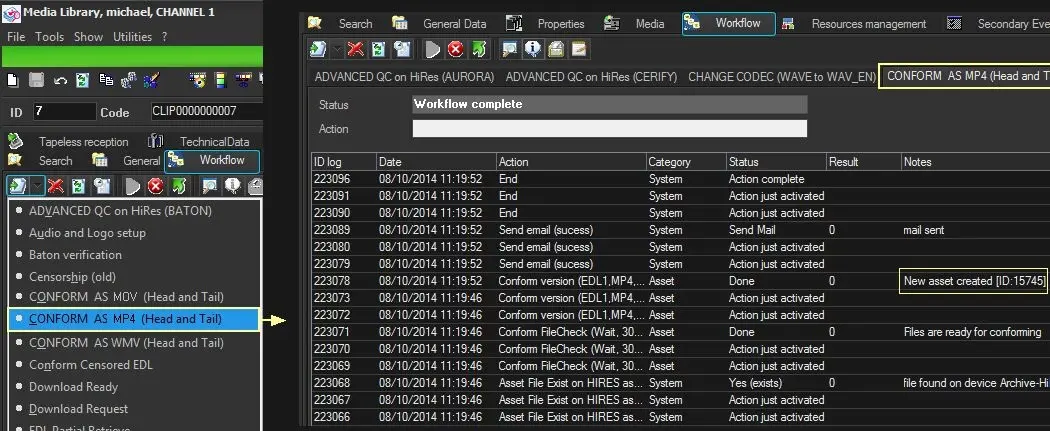
Go to the "Media Library > Workflow" section, attach to the source asset the “version conforming” T-workflow and launch it:
Version conforming T-workflow 1
The "conform version" action present in the "version conforming" T-workflow will automatically perform the following operations:
2.1.1 - Create a new asset copy from the T-workflow's attached asset. The new asset will feature the same data as the original asset (e.g. title, metadata, subtitles, etc) but with a different ID, Code and Media (conformed video).
2.1.2 - Add into the EDL 77 the source files to be conformed (according to the codec and device set in the conforming settings).
2.1.3 - Add into the EDL 77 also the ancillary segments (head and tile segments specified in the conforming settings).
2.1.4 - Attach and launch the default T-workflow for conforming (see details in the next step).
Note
In case you want to keep the conformed file in the source asset rather than in a new asset just jump to the next step.
2.2 Execution of the "conforming" T-workflow
The "EtConform.exe" action present in the "conforming" T-workflow automatically executed by the "version conforming" T-workflow will perform the conforming as requested by the "conform version" action (Asset, EDL and Profile):
Version conforming T-workflow 2
ID
Note
In case you omitted launching the "version conforming" T-workflow to keep the conformed file in the source asset, you need to launch the "conforming" T-workflow manually.
 Conforming_settings
 Version_conforming_T-workflow
 Conforming_T-workflow
 Conform_Censored_EDL
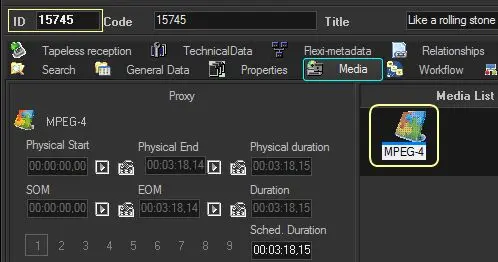 ID
ID
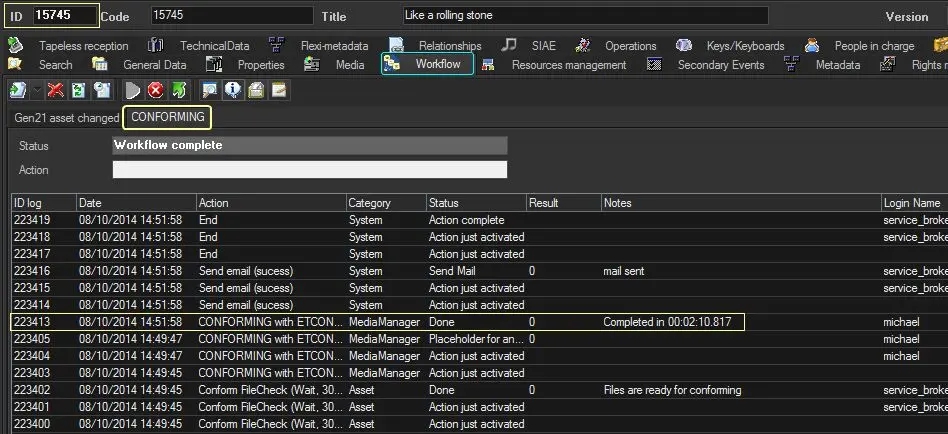 Version_conforming_T-workflow_2
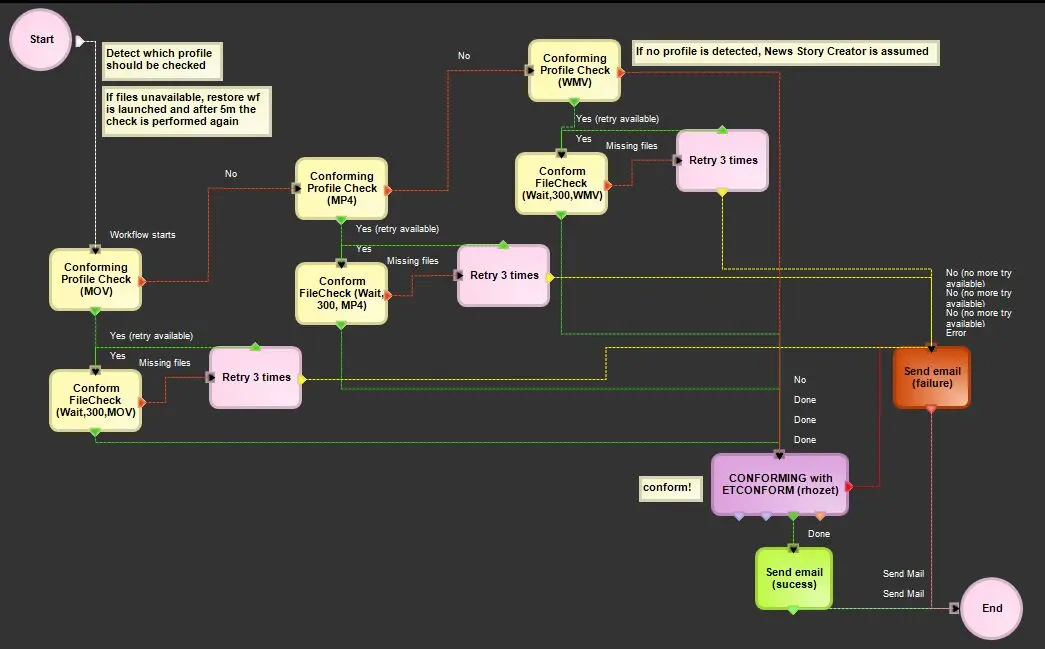 Conforming