9.2.1.10 Images Management
In Etere MAM is possible to manage Images and have them rendered in the Images galleries TAB of the web Application.
To start managing Images in Etere Ecosystem we must accomplish some prior steps:
Settings:
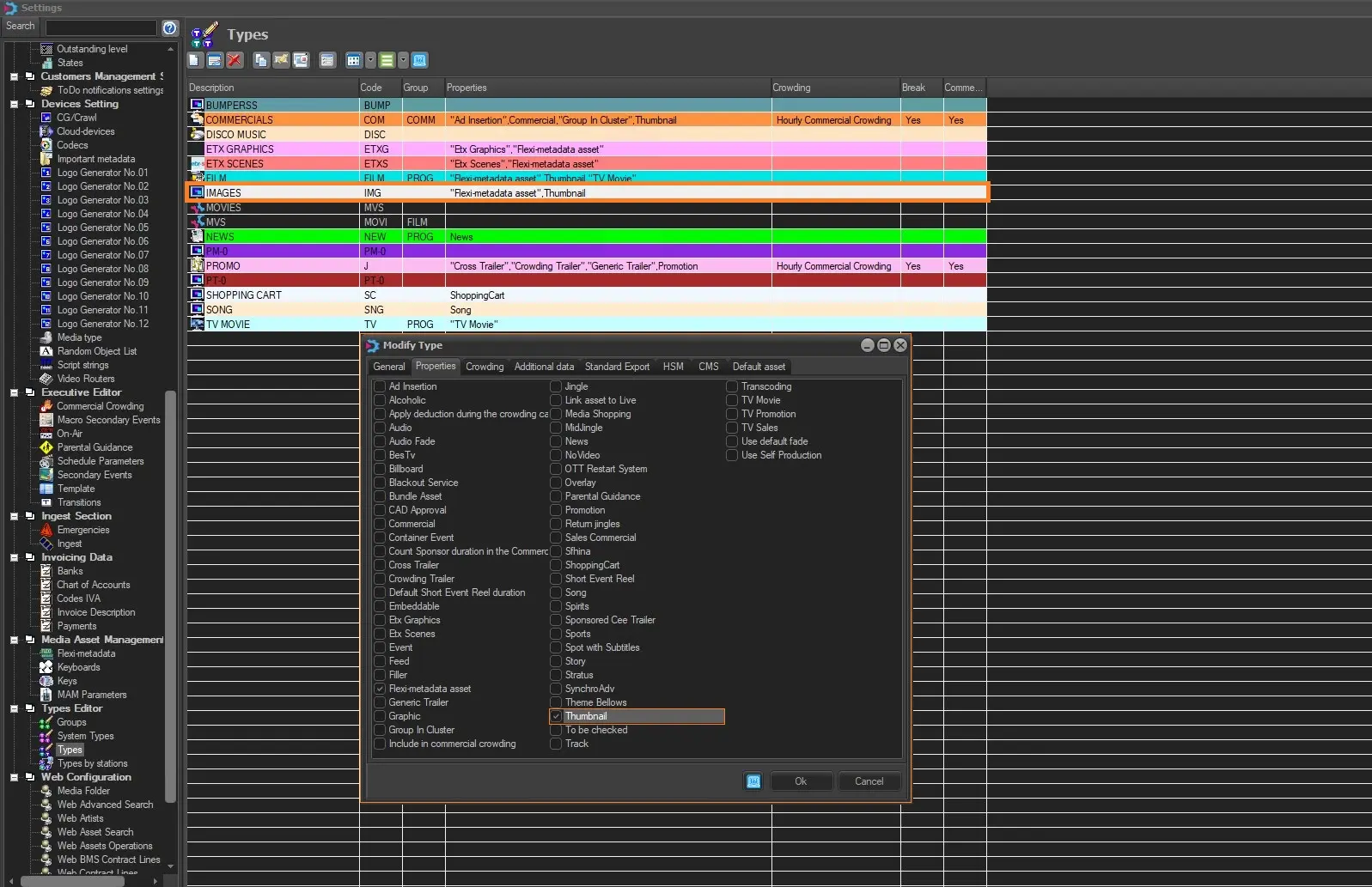
- In Etere Configuration > Settings > Types:
- Set types for images. Create a new Type or use an existing one and add the property Thumbnail;
set_thumb_prop_type
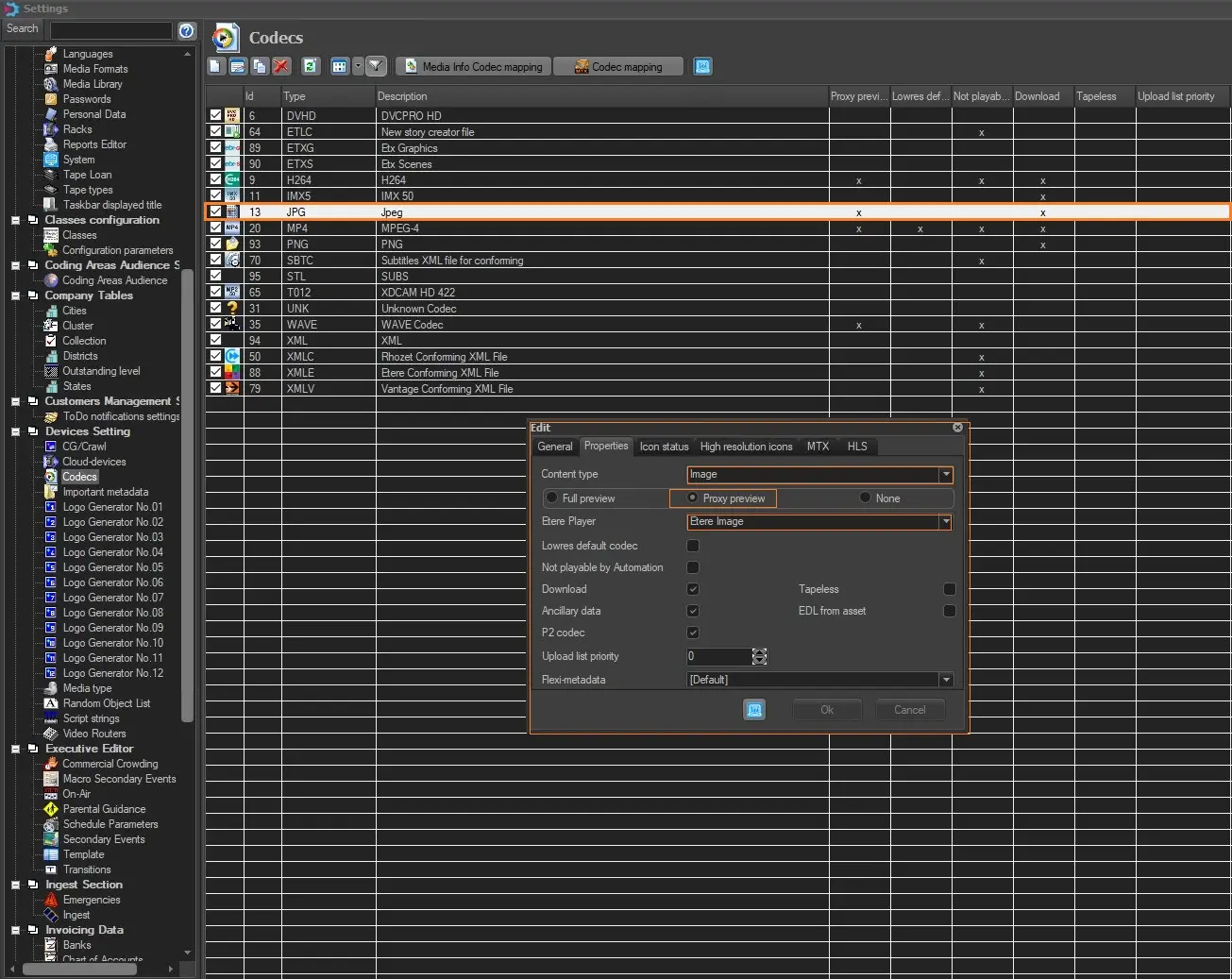
- In Etere Configuration > Codecs:
- Create a new Codec or use an existing one with Content-Type: Image or set Content-Type: Image;
- Choose Player Etere Image for this Codec.
set_codec_prop
- Set the workflow default on Configuration\Configuration Editor\T-Workflows\Default T-Workflows\ for After Asset Graphic File Import.
Start Importing Images into Etere MAM:
Once the above steps have been done, we can start uploading Images.
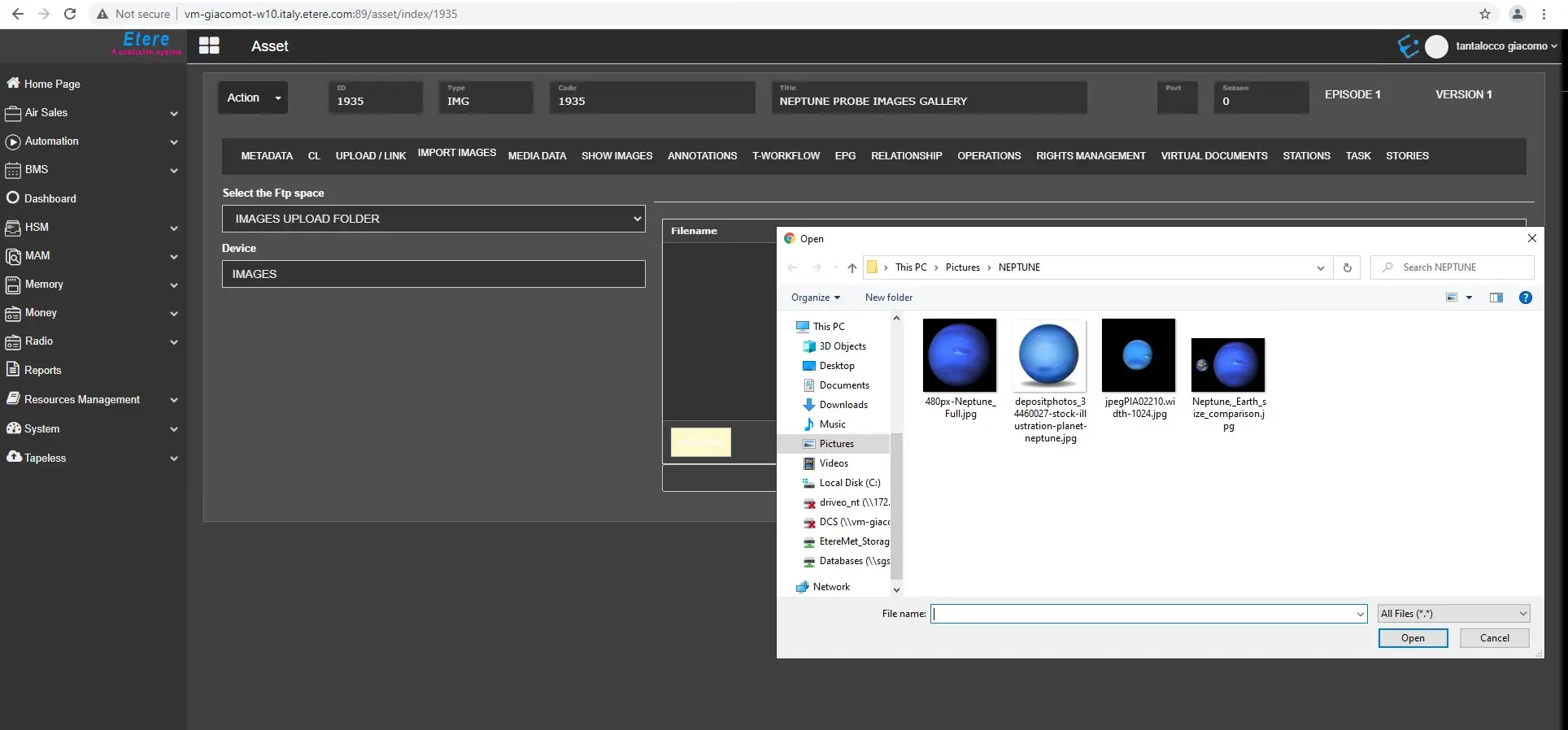
To start importing images, we need to:
- Login to Etereweb, open or create an asset form with Type for Images (with thumbnail prop);
- Go to Import Images, select Repository, drag and drop files and start uploading.
imprt_images
Show Images in Etere MAM > Show Images TAB
Once everything has been completed and the images import/upload is done, the default Etere T-Workflow assigned to Asset Graphic File Import will eventually start, giving each image the proper Codec.
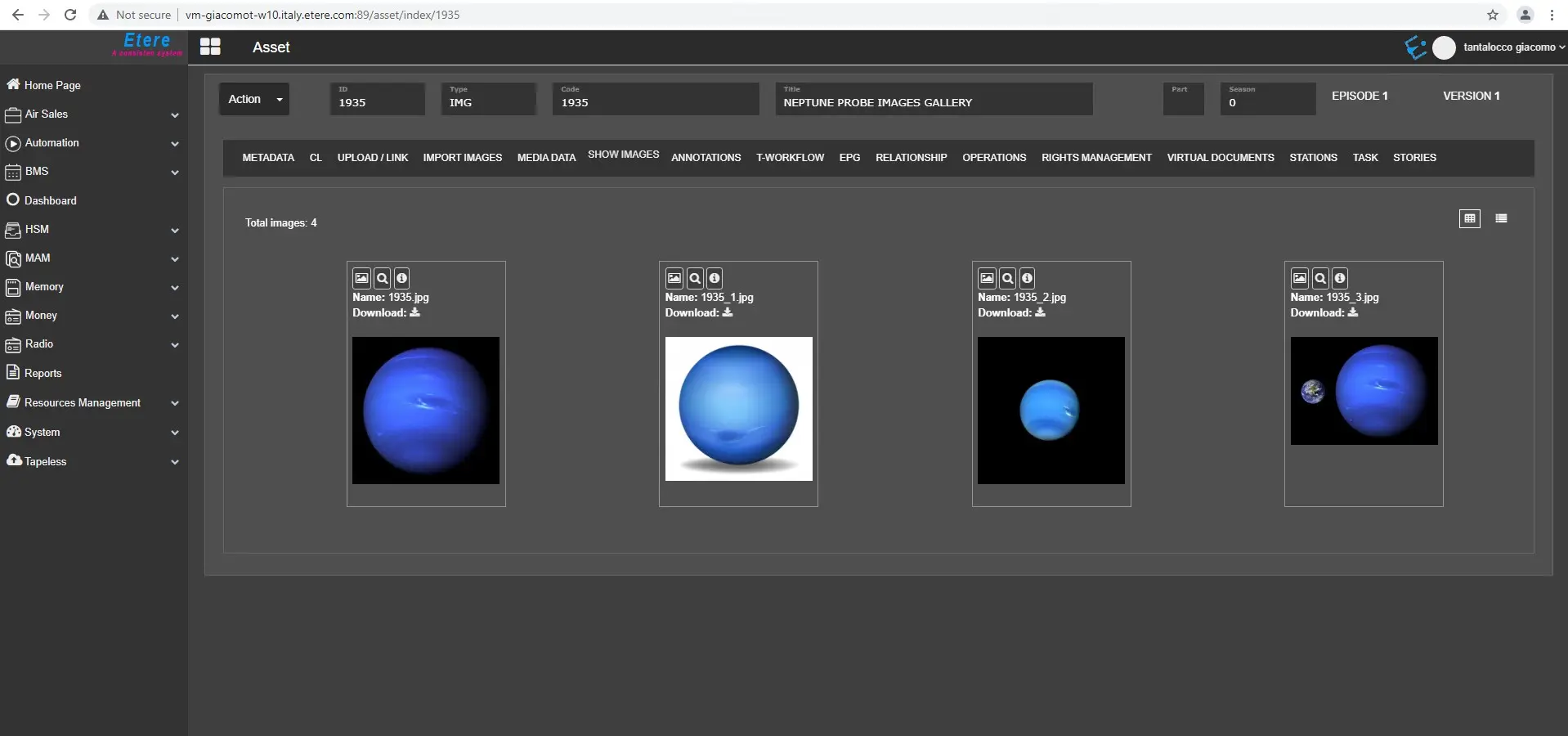
If everything has been accomplished correctly, all the loaded images will be eventually displayed in the:
Etereweb > MAM > Media Library > Show Images
show_images_gallery
Where is it possible to:
- set Image as Thumbnails for the given asset;
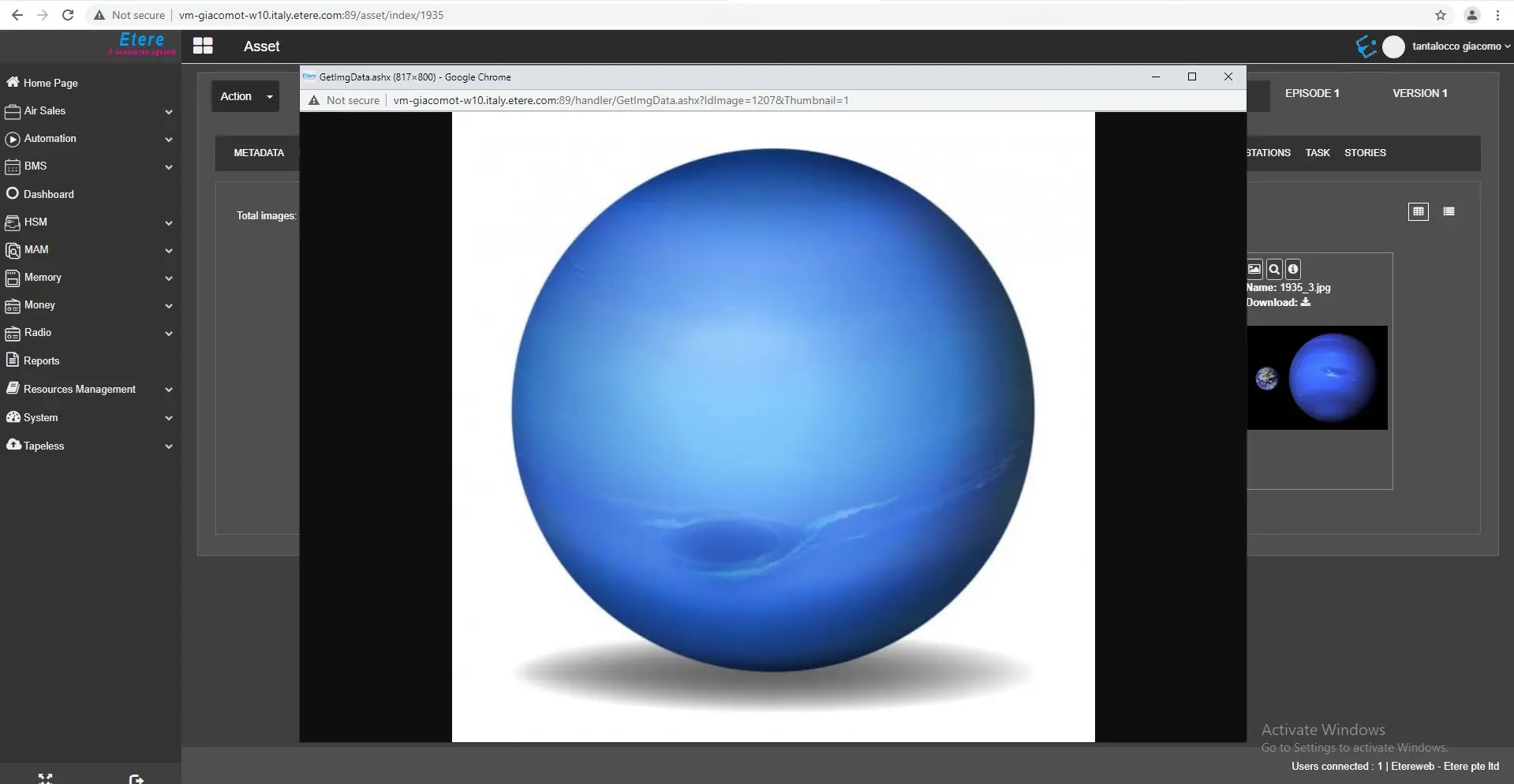
- open images in full screen;
images_full_screen
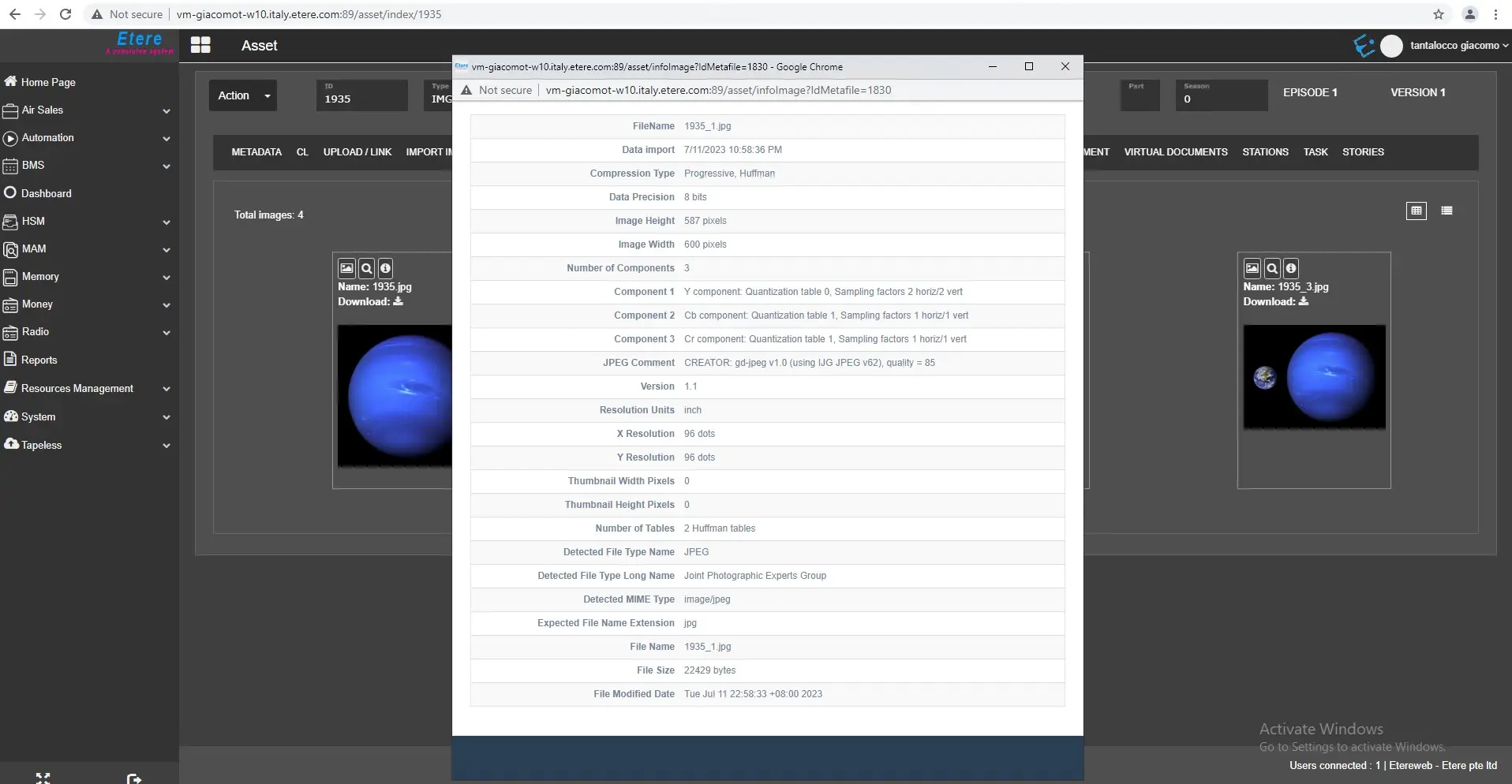
- open images metadata
images_metadata
Extra Metadata
You can see the photo metadata written by the camera on the tab annotation besides the usual tab metadata.
Notes on the Workflow (wf)
See the attachment. The photo should at least read all the files and run medianfo check to set the format automatically. Use action type Set current metafile List before MediaInfo.
images_metadata
This is the basic Workflow; you can add other steps.
 images_full_screen
 show_images_gallery
 images_metadata
 set_thumb_prop_type
 set_codec_prop
 imprt_images