205.1 Enabling Counters
To configure the automation for sending counters, simply follow the procedures below:
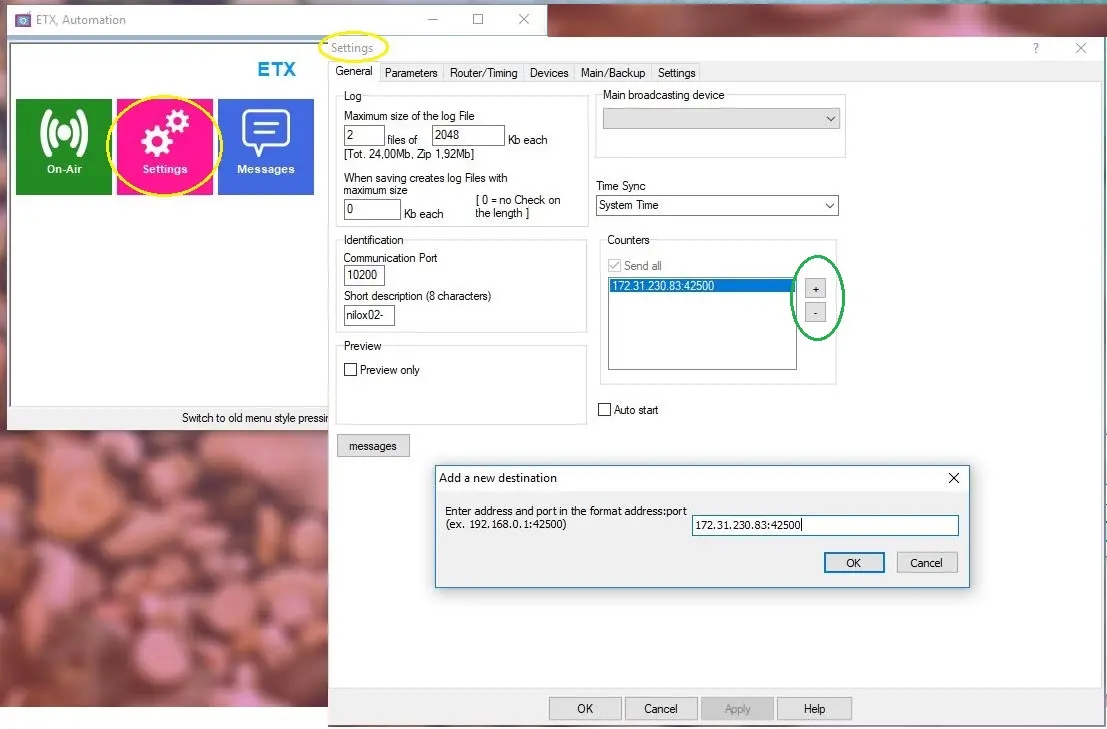
1. Enter the menu Etere Automation > Settings > General > Counters and insert one or more destination hosts by pressing the " + " key to add a new destination address or the " - " key to remove the highlighted address.
In the "Add a new destination" display, enter an IP address and port number in the text box and click <OK> to confirm the action. After configured, restart the Automation module for the new configuration to take effect.
Counters display automation settings.
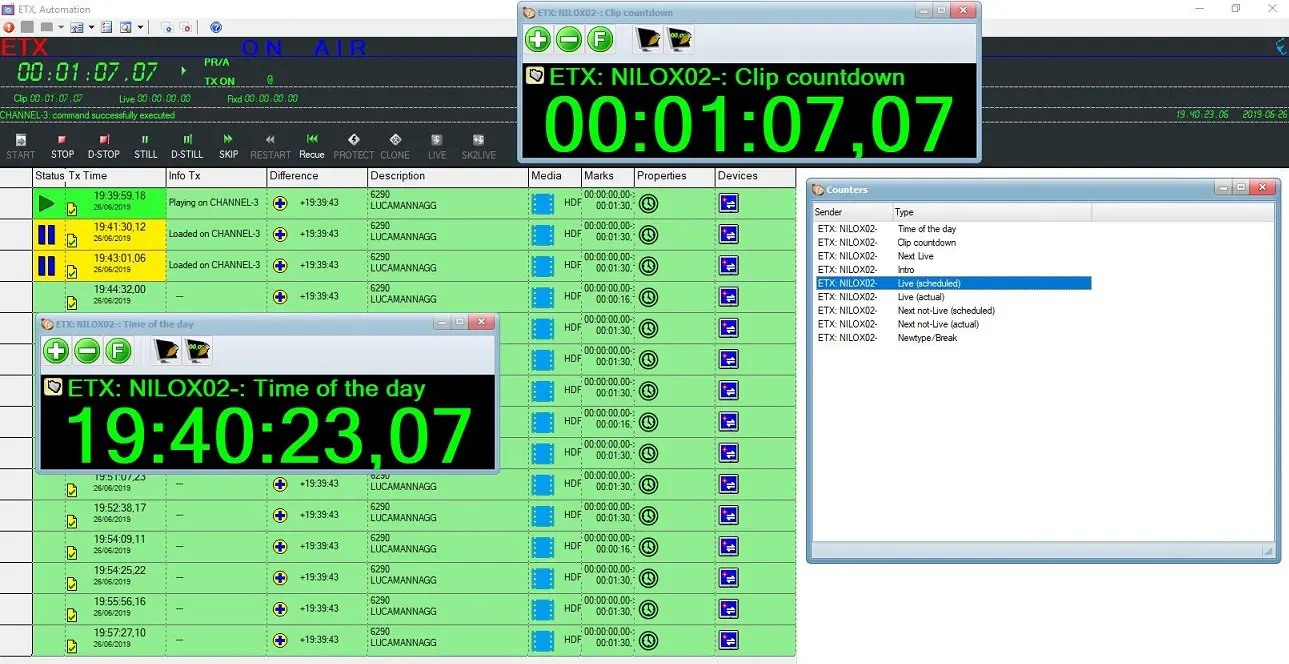
2. As soon as the "On-air" has started in the Etere Automation module, the Counters Display application can visualize all the counters received on that computer in real time. The visualization format of the list of available counters is given by the "transmitter name + the short name of the automation + type of counter" available, e.g. "ETX: NILOX02- Live (scheduled)", as indicated below.
Automation module Counters Display
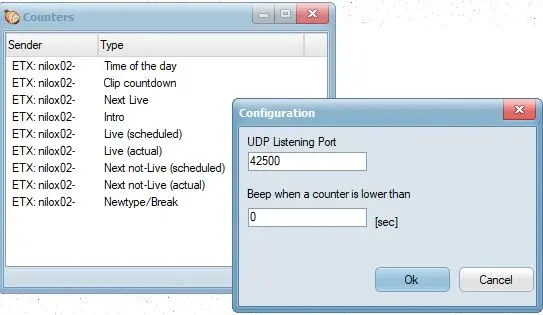
3. To configure the application of counter visualization, right-click on the counter and select "Configuration." Enter the UDP port number to be used to receive the counter data. In addition, set a value (in seconds) to monitor the running counters and trigger the beep sound when the running counters fall below the specific matter. Click <OK> to complete the configuration.
Counters display properties
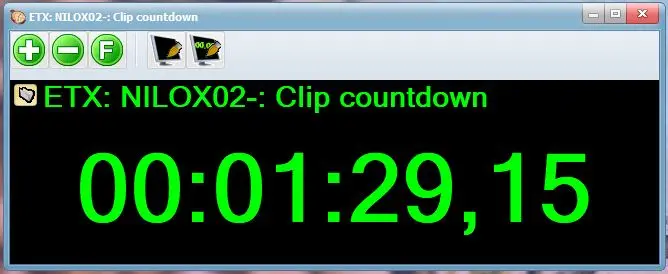
4. By right-clicking one of the list's counters, a window that visualizes the counter itself opens. In the upper part of the window, you can configure the counter as follows:
Counters display clip countdown.
•Increase the font size.
•Decrease the font size.
•Select a theme fonts.
•Select a background color.
•Select a counter colour.
 Counters_display_automation_settings
 Counters_display_properties
 Automation_module__Counters_Display
 Counters_display_clip_countdown