59.5.10.1 Hourly Count of Broadcast Contents (Australian Law)
Report Description
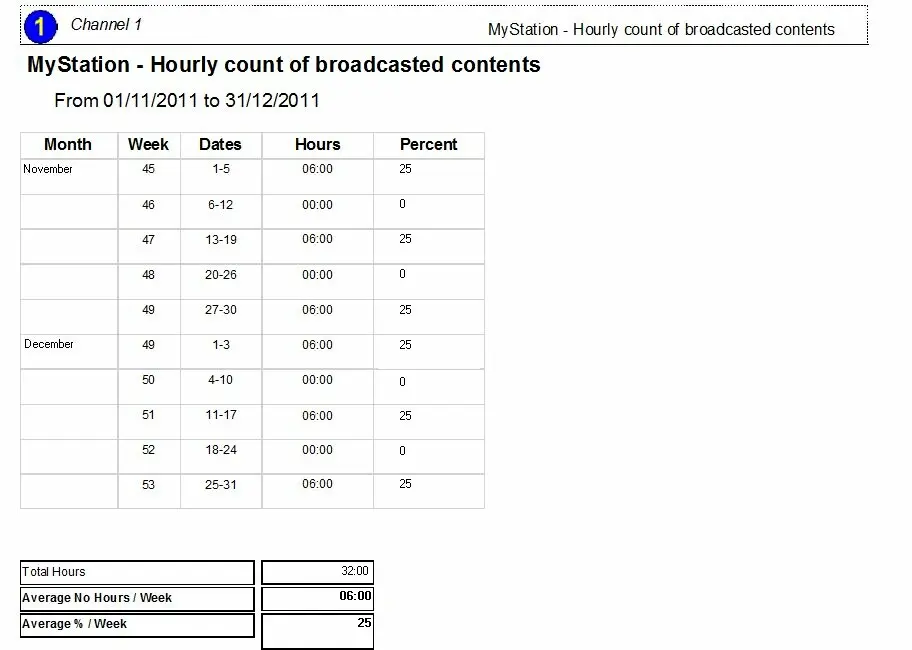
The "Hourly count of broadcast contents" report allows to generate a summary of all events broadcasted within a certain time range where all transmissions are counted by hours and grouped by weeks (e.g. week #43, week #44, week #45). Under this section, the broadcaster will be able to customize the following data in order to produce an accurate and detailed report.
NB: Please refer to the Hourly count of broadcast contents [Details] (Australian Law) chapter for information on the extended version of this report where all single broadcasted events are detailed.
Report Filters
All the parameters that permits a detailed generation of the report have been spread across seven different tabs to allows an easier configuration. By default all filters are disabled (i.e.: they are either blank or unselected), to enable them it is enough to configure at least one parameters on their inside. Available filters includes:
•Time range to be checked
Indicate the period for which the report is intended to be produced, that is, the time interval from which data will be retrieved.
•Types/Genres
It permits to filter broadcasted contents by either their type or genre. If no specific type/genre is checked (by default) all types/genres will be included in the report, otherwise, only selected types/genres will be retrieved.
Making right-click on a certain type/genre and selecting the "Edit rules" option (or just making double-click on it), it will be possible to set the following parameters:
- Extra time: Time allowance for counting programs ending after the 24:00:00. For example, if a program belonging to a type/genre with a "2 hours" extra-time has been transmitted from the 22:00 to the 02:00 of the day after, it will be counted only for the first day (start time=22:00, end time=26:00).
Moreover, the two time interval boxes in the left part will allow to select the exact scheduling range from which events will be retrieved (e.g. from 09:00 to 22:00).
•Production Country
Use it to filter only those events produced in the selected countries, if no production country is checked, all countries will be allowed.
•Broadcast type
By default all events are retrieved independently of their broadcast status, however, it is possible to filter the events that will be retrieved according to their broadcast status:
- Premiere: The very first world/national/local on-air appearance,
- Prime: The first schedule appearance,
- Repeated: An event already broadcasted in past schedules.
•Transmission status
It is possible to filter events according to the status of their transmissions, that is, transmitted (certified, ok, in error, in clone mode, out of air, with pause), non-transmitted (idle), cueing, cued, playing, playing with error and warning.
•Other Settings
Specify here the following parameters regarding the broadcasting times to be used in the report:
- Time zone: Select if the report will be based in either, the main time (where Etere is installed) or the local time (where programs are transmitted). These values are set in the 'Etere Configuration > Settings > Basic > System' area.
- On-air time: Select to display events showing either a scheduled time (i.e. exact time at which they are expected to go on-air) or sharp time (i.e. rounded scheduled on-air time).
Display Active Filters
Moreover, in the middle of the form, a yellow area will display a summary of all the filters enabled for the current report:
Save Active Filters
Enter a Report Title to display it at the upper-left of the report, and also to use it as an identifier when using the 'Save filter' function to either save current report data layout (i.e.: currently active filters), saving filters helps to quickly re-use reports without re-entering data.
Report Preview
The [Settings] permits to configure the page layout of the outgoing document; once filters and settings have been set it will be possible to select between displaying a preview using the related [Preview] button or printing the document directly using the [Report] button. Please note that some reports permit to export the generated document in the most common formats (pdf, csv, doc, xls, xml, etc) just by using the [Export] button.
My_Station_Hourly_Count_of_Broadcast_Contents
Moreover, by clicking on the 'settings' button it's possible to set the format of the pages that will be printed.
NB: This print is only available for Etere systems which nationality is set to Australia (Etere Configuration | Settings | System).
 My_Station_Hourly_Count_of_Broadcast_Contents