72.7.3.4 Insert Closed Captions with ETX Inserter
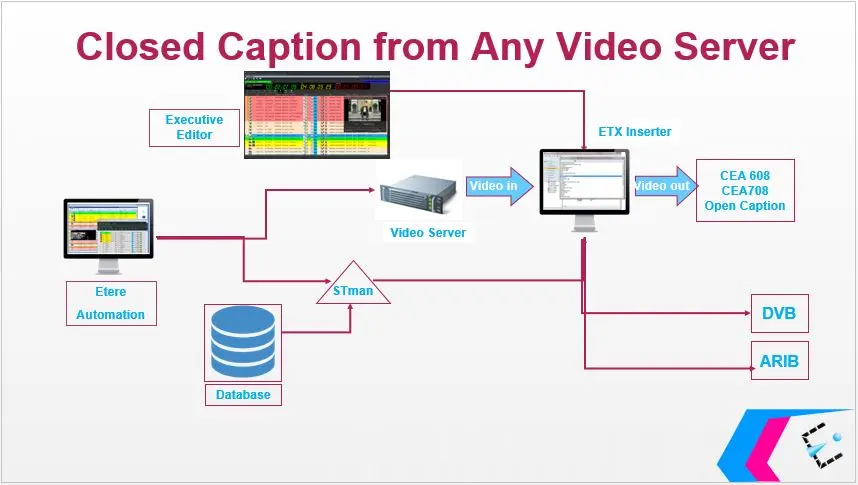
ETX Closed Captions Inserter can be used to insert closed captions into recorded media and Live playout. When using ETX Inserter it does not require playout from ETX Server, you can insert the closed captions in any legacy server or mixes of traditional master control switcher with ETX solutions.
ETX Inserter adopt CEA-608 and CEA-708 captions standard when inserting closed captions, it insert SDI captions and produce a digital stream to insert digital closed captions using ARIB (Association of Radio Industries and Business) and DVB (Digital Video Broadcasting) set of standards.
Basically, the ETX CC inserter can be functioned in 2 modes:
1.With Etere Automation and STMan
You can create a subtitles object with MAM’s Subtitles Tool and use the "Subtitles Tool" plug-in feature in STMan to transmit the subtitles to Automation. Refer to chapter “Connect STMan to ETX CC inserter” for more information.
Closed Captions from Any Video Server
2.With external automation
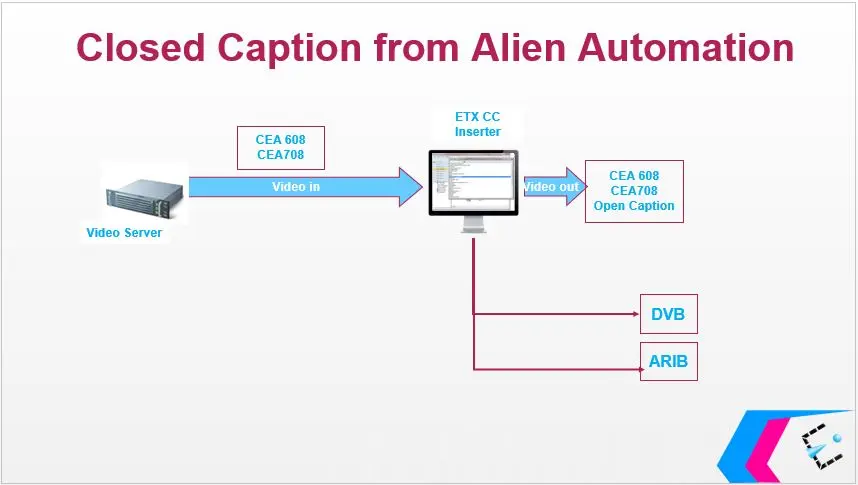
When CEA-608 and CEA-708 subtitles are presented in input video file, you can convert to ARIB B24 or DVB subtitles. The conversion would took place automatically. The CEA 608 and CEA-708 subtitles would be passed to video output and convert to ARIB or DVB subtitles and sent directly to the multiplexer.
Closed Captions from Alien Automation
Note: This mode requires a different license and setup on workstation.
The features of ETX Inserter includes the following:
•It has a full graphic capability, allowing you to insert Open captions
•You can configure as single channel or redundant pair
•It includes SNMP real time monitoring
•All operations performed would be saved into log files. (see description below)
NB: For Live passthrough of CEA 608 and CEA 708 subtitles in ETX Closed Captions Server, Etere license code “EA1231” is required to be installed and activated in station.
Closed Captions Configuration
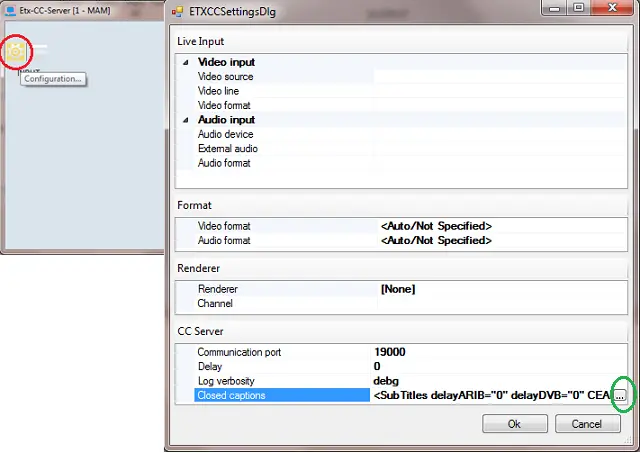
To configure the closed captions standards to be used in closed captions inserter, launch the “ETX-CC-Server” from the workstation and click on the “Configuration” icon to open the Setting dialog.
ETX-CC-Server 1
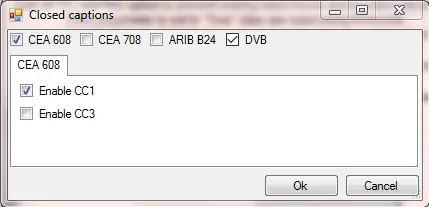
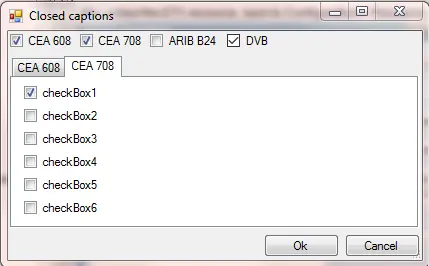
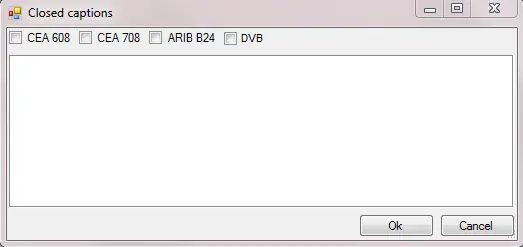
Next, click on the browse button of the “Closed Captions” parameter to open the Closed Captions dialog and view the available closed captions standards. Select one or more closed captions standards by click on the check-box beside the respective closed captions and configure the settings.
Closed Captions 1
CEA 608 Closed Captions
Sometime known as EIA-608. CEA-608 closed captions is transmitted on line 21 data are of the analog signal and viewable with a decoder. CEA-608 can be embedded in digital television, it supports up to 2 language at a time. CEA-608 is a streaming, character-based format that allows for the transmission of up to 4 simultaneous channels (CC1, CC2, CC3, CC4) of data.
Closed Captions 2
Refer to subtitles section in Transcoding for selecting the CEA 608 closed captions.
CEA 708 Closed Captions
CEA-708 is the primary format for in-band captions in digital ATSC transmissions. CEA-708 stream may carry closed captions via a practice commonly known as “608 over 708". CEA-708 requires that 708 decoders must also be able to decode embedded CEA-608 closed captions. Digital to analog TV converters insert the embedded CEA-608 captions into the vertical blanking interval of the analog signal.
Closed Captions 3
Refer to subtitles section in Transcoding for selecting the CEA 708 closed captions.
ARIB B24 Standard
Stands for Association of Radio Industries and Businesses (ARIB), ARIB B24 is a standard data coding and transmission, specification for digital broadcasting. The ARIB B24 standard defines character encoding for use in Japanese-language broadcasting, it includes a number of extended characters not found in the base standards.
Closed Captions 4
Refer to Handling ARIB B24 Subtitles chapter for setting the parameter.
DVB Subtitles
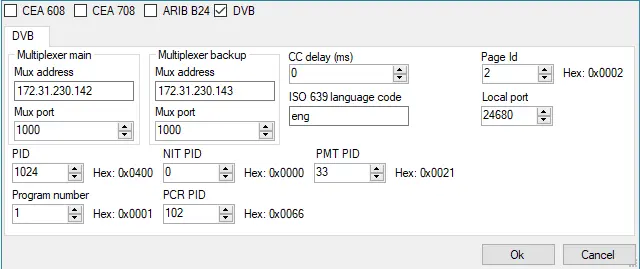
The Digital Video Broadcast (DVB) insert closed captions encoded with graphical images into transport stream and identified within the Packet Identifier (PID). DVB delivers the subtitles by rendering each character into a bitmaps format and incorporated into a multiplex signal with all video files, audio files, private data and service information to form a complete DVB signal including text and timecode.
DVB Subtitles
Refer to “Configuring DVB Subtitles” for above parameter settings.
Closed Captions Conversion Rules
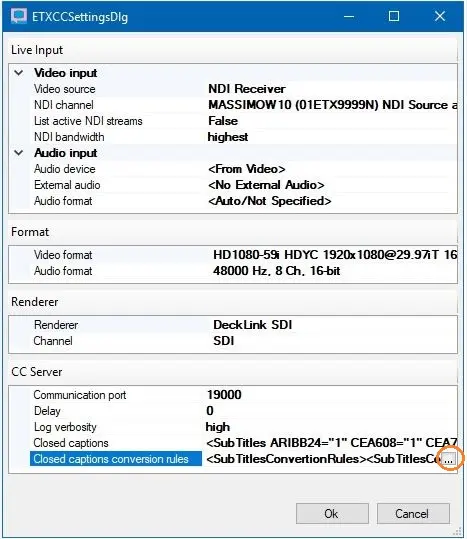
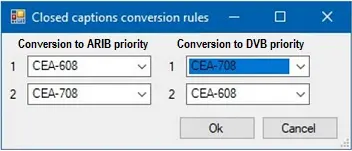
In the ETX Closed Captions Settings, you can define the closed captions conversion rules when converting from CEA-608 or CEA-708 standards to ARIB or DVB standards, and set the priority to use CEA-608 (which is the default) or CEA-708 standards in the conversion process.
From the “Closed captions conversion rules” parameter, click the browse button to launch the conversion settings dialog.
Closed captions conversion rules 1
Next, define the priority when converting to ARIB or DVB closed captions with CEA-608 or CEA-708 standards, where the “first” defined closed captions standard would be used in respective conversion process. It is not mandatory to set the conversion rule for both ARIB and DVB closed captions, for example, you can define the setting in “Conversion to ARIB priority” and leave the “Conversion to DVB priority” setting untouched (settings remains as “None”).
Closed captions conversion rules 2
After which, click <OK> to confirm the priority settings and return to ETX Closed Captions Settings.
NB: When converting CEA-608 or CEA-708 closed captions to ARIB closed captions, the conversion take place every second to ensure all closed captions are converted from the source.
NB: From Etere released version 29.3 onwards, during conversion if CEA-708 subtitles is placed in the PID (package ID) of CEA-608 subtitles in MUX address during ARIB configuration, if the CEA-608 subtitles does not exist, the conversion rule would applied to extract CEA-708 subtitles and transmit to CC inserter.
Moreover, you can perform a test on new settings to verify the selected closed captions standards before closing the application.
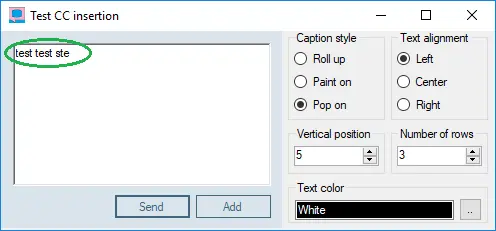
Click on Menu > Test to launch the test pattern.
Test CC insertion
In the Test pattern, define and verify various positioning of closed captions:
•The displayed closed captions style.
•Closed captions text alignment.
•Define vertical positioning.
•Display closed captions into number of lines.
•The color of the closed captions text.
ETX-CC-Server 2
Upon defined, type the closed captions text into the blank spot and click <Send> to display the closed captions in selected standards.
Save Logs in ETX Closed Captions Server
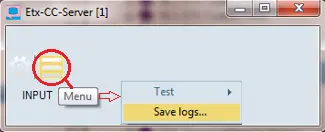
In ETX Closed Captions Server, you can extract log files for distributions by simply click on the Menu icon and activate the Save Logs feature.
ETX-CC-Server 3
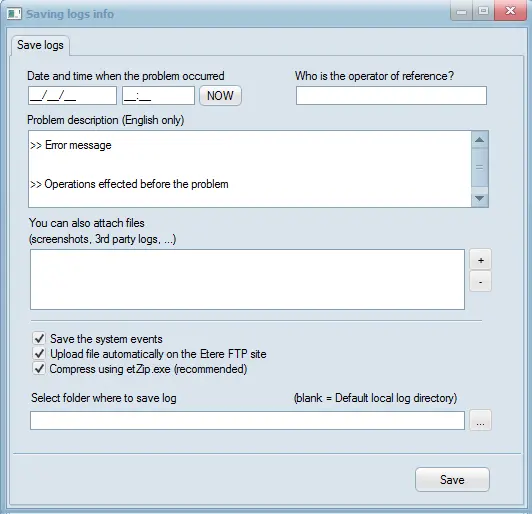
Complete the parameters to retrieve desired information from the log files.
Saving logs info
Parameter - Date and time when the problem occurred
Description : Enter the date and time to extract the activities from the log file. You can also click the <NOW> button to extract logs captured at real time.
Parameter - Who is the operator of reference
Description : Specify the name of operator who manage the problem during it occurrence.
Parameter - Problem description (English only)
Description : Type a short description in English to briefly describe the problem.
Parameter - You can also attach files
Description : Click the ‘+’ button if you wish to attach files or screenshots to better describe the problem.
Parameter - Save the system events
Description : Enable this option to include System Event log in the log file.
Parameter - Upload file automatically on the Etere FTP site
Description : Enable this option to automatically upload the log file to Etere FTP server upon completion.
Parameter - Compress using etZip.exe (recommended)
Description : It is recommended to compress the log file when transmitting over the network.
Parameter - Select folder where to save log
Description : Click the browse button and select a directory path to store the extracted log file. If leave blank, the log file would be created in the default log directory in local workstation.
When all parameters are confirmed, click the <Save> button to save the logs for distribution.
Select Closed Captions Standards
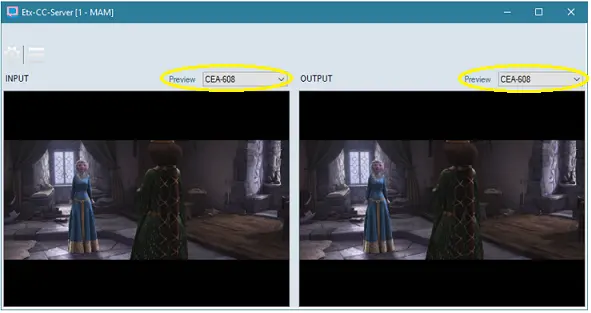
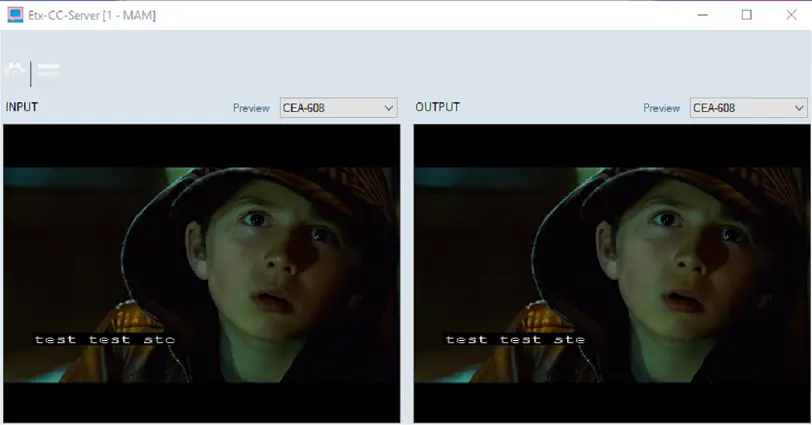
When the ETX Closed Captions Server is launched, you can select the closed captions standards CEA-608 or CEA-708 to be monitored in the Input and Output Preview window, respectively, by click on the closed captions standard from the selection textbox.
ETX-CC-Server 4
When you exist from the Preview window, the selected closed captions standard would be saved. The saved settings would be present in Preview when the ETX Closed Captions server is launched.
NB: If the selected closed captions standard is other than CEA-608 or CEA-708 (e.g. None), the closed captions would not be visible in the Preview window.
Closing ETX CC Inserter
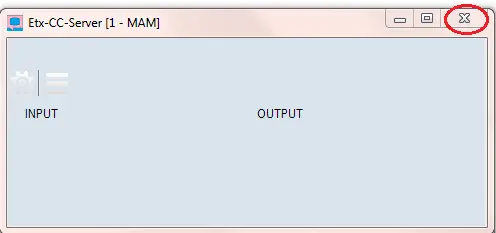
The ETX CC inserter can be closed by simply click on the “X” button.
ETX-CC-Server 5
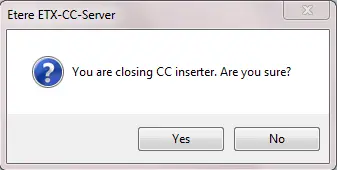
As an added precaution to prevent black screen during the On-air instance, a popup message would appeared to alert user and request for confirmation to execute the close action.
ETX-CC-Server 6
You would need to response appropriately to the confirmation message in order to close the application in a proper manner.
Supported Devices
Among the card devices, Blackmagic cards support both CEA-608 and CEA-708 closed captioning standards.
 Closed_Captions_from_Alien_Automation
 Closed_captions_conversion_rules_1
 Test_CC_insertion
 Closed_Captions_2
 Closed_Captions_from_Any_Video_Server
 Closed_Captions_3
 Closed_captions_conversion_rules_2
 DVB_Subtitles
 Closed_Captions_1
 ETX-CC-Server_1
 ETX-CC-Server_4
 Saving_logs_info
 ETX-CC-Server_3
 ETX-CC-Server_2
 ETX-CC-Server_5
 ETX-CC-Server_6