59.2.9 Etere Skin
Etere's Skinning Feature
Etere provides a wide range of skins for customising the look and feel of your daily used applications. Skinning of all modules covers all elements of the graphical interface.
A separate mark should be made on the dark theme of the Etere Skin; it has been improved to present a professional interface with fewer distractions and more focus; its high contrast will help to work on any condition from dark master control rooms to enlightened editing rooms. Besides dark skin, many new skins provide various choices to meet user requirements.
Setting your skin
The Etere Skin section allows selecting and configuring the graphical skin of Etere's displays. Only administrators can change all parameters available in this section; all other users are allowed to change only their skins.
The parameters that permit to customise the use of skins across applications are described below:
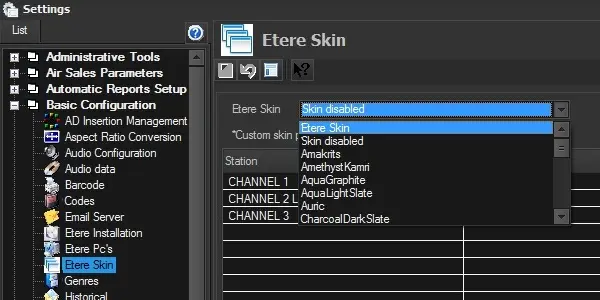
Etere Skin
Parameter: Global skin
Description: Select the global skin with which Etere modules will be displayed. The most common skins include:
Etere Skin - Use the default Etere's dark theme to get a colour-rich graphical user interface:
Etere_Skin
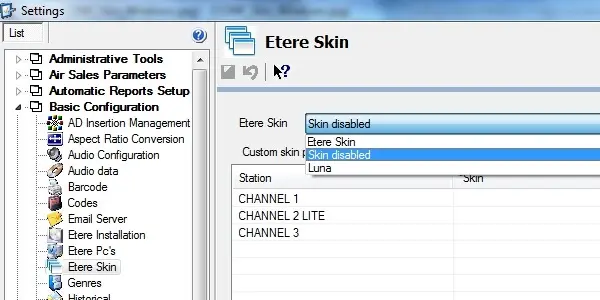
Skin disabled - Use the current Windows GUI theme:
Skin_disabled
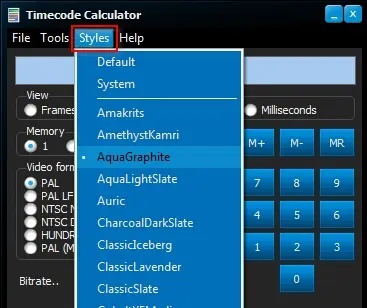
Previewing skins is possible by pressing the [ Preview ] button, a small window would be displayed for preview before applying changes:
Previewing_skins
Parameter: Custom skin per station
Description: Set the skin to be used for a certain station instead of the global skin.
Please note that the global skin will be used if no skin is specified.
Parameter: Custom skin per user
Description: Set the skin to be used by a certain user instead of the station and global skins.
Please note that the station (if set) or the global skin will be used if no skin is specified.
Once the selection is completed, press the [Save] button and restart the Etere application to make changes take effect.
 Etere_Skin
 Skin_disabled
 Previewing_skins