201.7.2 Schedule the Program
Once the program is selected, proceed to compile the Scheduled parameters to determine its automatic scheduling. The compilation process is an easy task and it has been detailed step-by-step in the procedure described below:
1.SCHEDULED
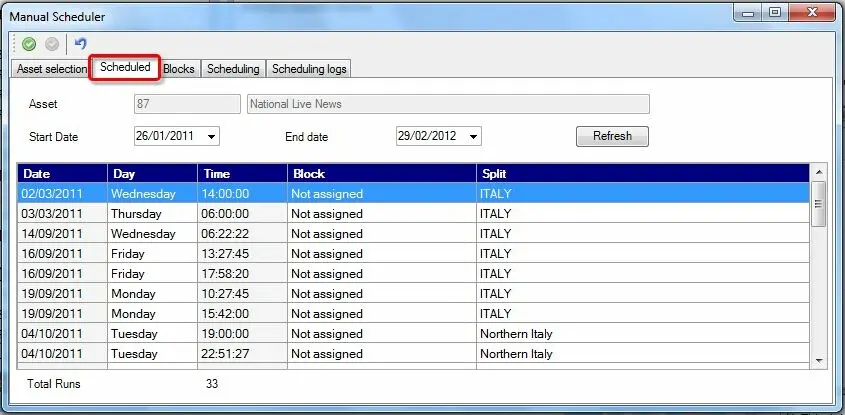
The Scheduled tab display a list containing all the schedule appearances of the selected asset over the selected period. For each scheduled asset it display the date, day, time, block, and split network on which it has been programmed.
This section provides some functions for managing scheduled asset runs, these functions includes:
Airsales_manualscheduler02
Period - Change the displayed period by modifying the start date or end date, click the [Refresh] button to update the changes.
Contextual menu - Right-click on the scheduled run(s), the operator will be allowed to:
•Select all (Ctrl-A): Select all the asset runs present in the list.
•Deselect all: Deselect all the previously selected asset runs.
•Advanced selection: Select only those asset runs scheduled on specific weekdays.
•Delete (DEL): Remove all selected program's performances from the playlists.
In case the selected performance(s) have been copied to other stations' playlists (e.g. ch02, ch03), the operator will be prompted to delete across all stations.
2.BLOCKS
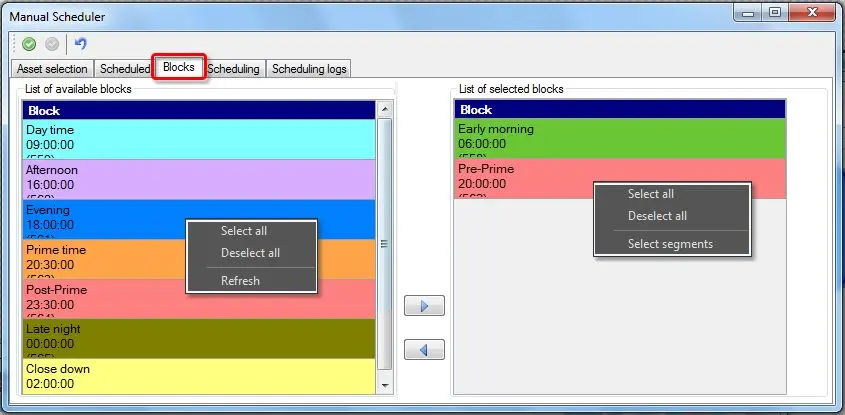
The Blocks section allows to specify the target blocks on which the asset will be scheduled. This section is mainly divided by two panel, the left panel displays all available blocks (i.e. present on the period's schedule structure and valid for the asset's type), and the right panel display all the blocks added by the operator to hold scheduled asset runs. Both lists can be managed through the following functions:
Airsales_manualscheduler03
=> - Add the selected block(s) to the list of blocks to be used for scheduling. Alternately, double-click on the related block to add to the list.
<= - Remove the selected block(s) from the list of blocks to be used for scheduling. Alternately, double-click on the related block to remove from the list.
Contextual menu (available blocks) - Right-click on the available block(s) will allow to:
•Select all: Select all blocks present in the list (i.e. available) for being added.
•Deselect all: Deselect all previously selected blocks.
•Refresh: Update the list of blocks (availability, description).
Contextual menu (added blocks) - Right-click on the added block(s) will allow to:
•Select all: Select all blocks present in the list (i.e. added) for being removed.
•Deselect all: Deselect all previously selected blocks.
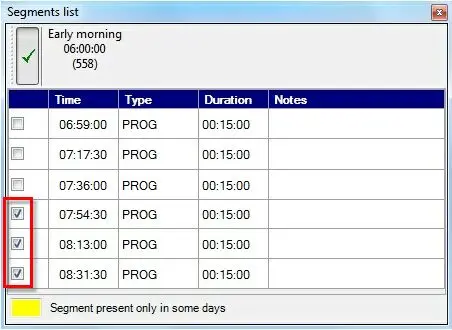
•Select segments: Specify the exact segments on which the asset will be scheduled:
Airsales_seriesscheduler_06
3.SCHEDULING
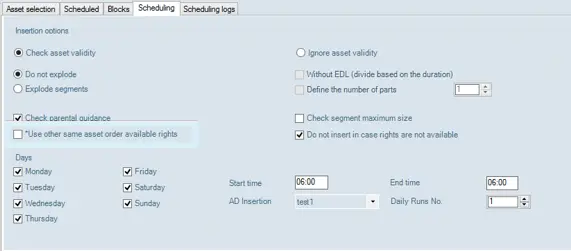
The Scheduling tab define the scheduling criteria that will be used for programming the selected asset:
Program_scheduler
Insertion options - Define actions to be performed during the scheduling operation:
•Check validity/Ignore validity: If enabled (checked), the asset will be scheduled only on those days where it is valid. If disabled (unchecked), the asset will be scheduled on any day without taking into account its validity. In this case, once scheduled, a warning message will be displayed for all scheduled appearances for which the asset is not valid.
Please note that assets' validity is based on the expiry date set either under the Asset Form | Rights Management section.
•Explode segments/Do not explode: If enabled, the asset will be automatically exploded into the schedule according to their asset's EDL breakpoints. If unchecked, assets won't be exploded into the schedule once scheduled.
•Check parental guidance: If enabled, the selected asset will be scheduled only on those blocks where its 'parental guidance' classification is permitted.
•Use other same asset order available rights: Enable only if the contract row is under BMS management. If checked, it can use other BMS rights order lines, but only with previously selected option.
•Check segment's maximum size: If enabled, the entire or exploded program will be scheduled only if their duration doesn't exceed the maximum duration of the segment.
•Do not insert in case rights are not available: In case the asset is subjected to a purchase order which doesn't has rights for scheduling more Runs/ReRuns, the asset won't be scheduled.
Days - Specify the days of the week the selected asset will be scheduled.
Start/End time - It allows to specify the exact time slot where selected asset will be exclusively scheduled.
Split - It indicate if the scheduling will be performed on a split network. By default the main network is selected.
Daily runs no. - Set the maximum number of times the selected asset is allowed to be scheduled on the same television day (i.e. once a day, twice a day, thrice a day, etc).
4.TOOLBAR
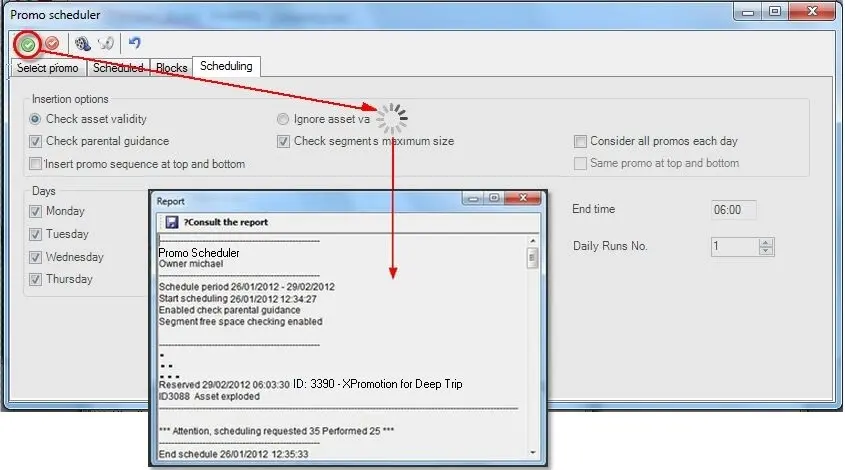
At this point, the scheduling process is ready to be performed by using the functions available in the top toolbar:
Airsales_manualscheduler05
[Start scheduling] - Launches the scheduling process that will schedule the selected asset over the given period, across the selected blocks and based on the dictated criteria.
Once the process ends, a detailed report will be provided, being possible to save it as a simple text-file.
[Abort scheduling] - Interrupts the current operation, the operator will be prompt to confirm the action.
[Undo scheduling] - Clears all the sections for a new scheduling. Please note that all previously performed changes (e.g. select asset, set dates, add blocks, configure scheduling) will be lost.
5. SCHEDULING LOGS
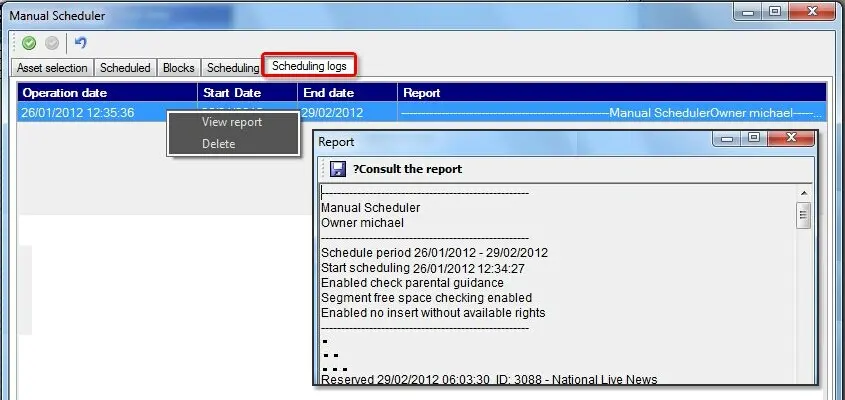
Under the Scheduling logs tab, it captured all the scheduling operations performed from the Programs Scheduler module, it captured the execution date and the timeframe of the execution. In the log, the date and time format is captured as dd/mm/yyyy, hh:mm:ss.ms.
Airsales_manualscheduler06
Contextual menu - Right-click on a certain scheduling log to trigger the following functions:
•View report: Show a detailed log of all the operations (e.g. insertions, warnings, errors) related to the selected scheduling operation.
•Delete: Removes the selected log from the list and all the scheduled runs from the related on-air schedules.
 Airsales_manualscheduler03
 Airsales_manualscheduler05
 Airsales_manualscheduler02
 Airsales_seriesscheduler_06
 Program_scheduler
 Airsales_manualscheduler06