59.5.4.35 Grid Situation by Segments
Report Description
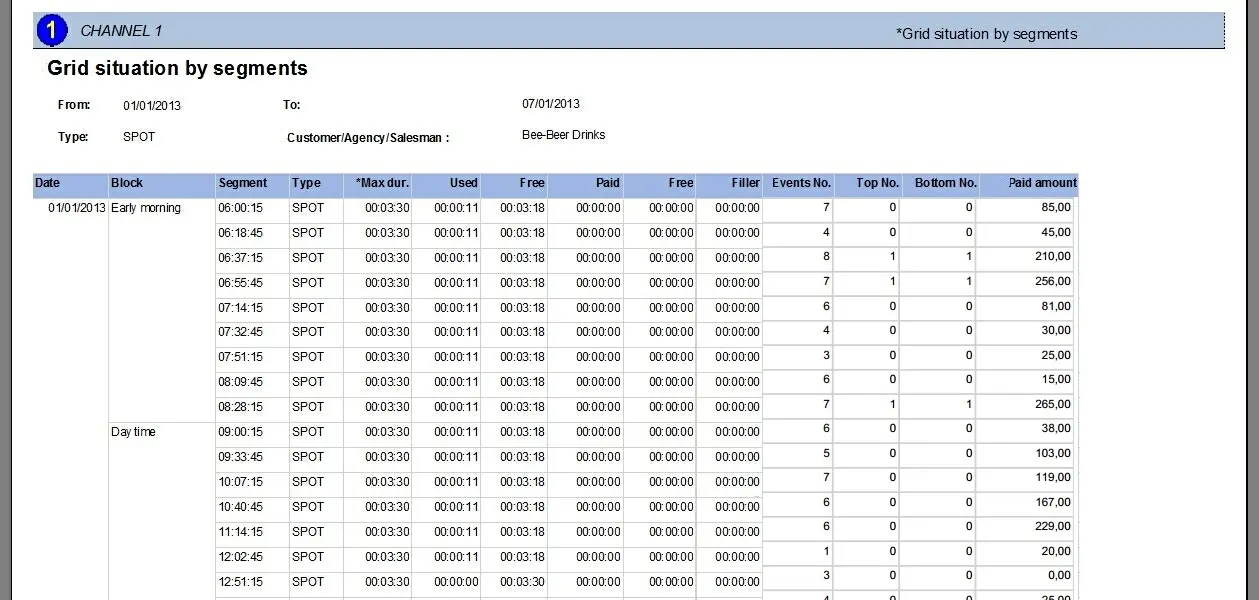
The Grid Situation by Segments report allows the generalisation of a document containing all the scheduling segments within the period matching a selected type (e.g. spots), displaying for each segment key information related to the events scheduled on them for customers (either all or a specific one), segments information includes:
Day - The date on which the segment is scheduled
Block - Block in which the segment is contained
Segment - The time at which the segment is scheduled
Type - The type of events that the segment is intended to hold
Max. duration - Maximum scheduling duration of the segment
Used - Total space occupied by any events
Free - Total space which is free for scheduling events
Paid - Total space occupied by paid events
Free - Total space transmitted for free
Filler - Total space occupied by filling events
Events No. - Total number of events scheduled in the segment
Top no. - Total number of "top" events scheduled at the top of the segment
Bottom no. - Total number of "bottom" events scheduled in the bottom of the segment
Paid amount - Total amount paid for events scheduled in the segment
This report is helpful to, for example, get an overview of the scheduling costs of segments present on a given period, whether free or occupied.
Report Filters
All the parameters that permit detailed report generation have been distributed across seven different tabs to allow for a more straightforward configuration. By default, all filters are disabled (i.e., either blank or unselected); it is enough to configure at least one parameter inside to enable them. Available filters include:
•Period: Specify the date interval from which scheduling data will be retrieved.
•Customer: Select an entity (i.e. customer/agency/account executive) to narrow retrieved data to only its events. Please leave it blank to include all.
•Type: Select the type (e.g. spots) of the segments to be included in the report. Please leave it empty to include all.
Report Preview
The [Settings] permits the configuration of the page layout of the outgoing document; once filters and settings have been set, it will be possible to select between displaying a preview using the related [Preview] button or printing the document directly using the [Report] button:
Please note that some reports permit the export of the generated document in the most common formats (pdf, CSV, doc, xls, XML, etc) just by using the [Export] button.
Grid_Situation_by_Segments_preview
 Grid_Situation_by_Segments_preview