72.2.2.73 Operations - Standard Logs
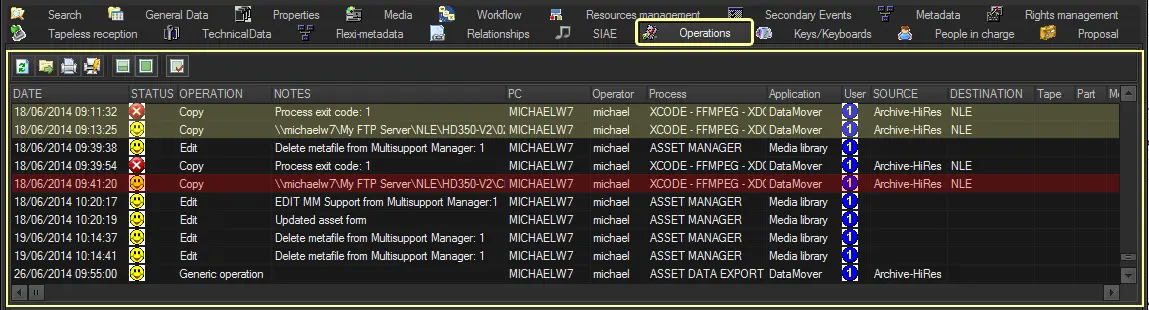
The "Standard Logs" panel, located in the top part of the operations tab, provides a list of all performed operations ascending sorted based on their execution date:
Standard Logs
Columns
Date: Date on which the operation was performed, as mentioned before, the entire list is sorted by date.
Status: Final status of the operation, which can be one of the following ones:
(red arrow) - The operation was aborted
(smile) - Operation successfully done
(red circle with white cross) - Operation ended with errors
(green arrow) - Operation currently running
Operation: Scope of the operation, among the most common functions the following ones can be listed:
Copy - The asset has been copied from a device to another.
Edit - Any of the asset properties has been edited and saved by the operator.
Retrieve - The asset has been restores from a long-term storage device.
Archive - The asset has been archived to a long-term storage device.
Segment - Some frames of the asset has been detected as black, scene changes, etc.
Tape, Part, Media: Information regarding the tape (in case the operation concerned one).
Field: Media type of the device on which the operation was performed, it could be:
M - Main
B- Backup
L - Low resolution
MA - Main archive
BA - Backup archive
LA - Low resolution archive
(blank) - Undefined
PC: Workstation from which the operation was launched.
Operator: User-login of the operator who executed the operation.
Source & destination: Source and destination metadevices involved in the transfer (in case the operation concerned one)
Process: Shows the application that carried out the operation (e.g: hsm action, T-workflow action, etc).
User: Station on which the operation has been performed.
Notes: Brief description on operation result (e.g. duration, updated asset form, inserted, updated EDL, error code, etc).
Application: This column display the application used to trigger the operations, e.g. Data Mover action, Media Library function, or Web indicating a tapeless upload from EtereWeb, etc.
NB: Asset operations by F90 import would not be notified in the “Operations” tab, but the output of the F90 import operation can be traced. For example, when F90 import created a new asset, it would be logged as “Created asset form” in Operations tab.
Toolbar
Refresh: Updates the list of operations.
Export: Export the entire list of operations in either CSV or XML format, being possible to define the name and separator to be used for the exported file.
Print: Generates a printable report of all displayed operations (i.e. date, status operation, pc, operator, process, etc.).
Print resources manager operations: Generates a printable report of all Resource Management operations (i.e. worksheets) performed against the asset.
Show last 50 operations: Filters the operations list, displaying only the last 50 performed operations.
Show all operations: Restores the default view options, displaying ALL operations performed for the current asset.
Certification check: Shows the certification status of listed operations, using the following colors to differentiate them:
Not certifiable (Yellow) - Operation log not certified because performed when certification wasn't supported
Not certified (Red) - Operation log altered by hand or by a non-Etere application
Certified (No color) - Operation log is correct as it's the same as the original record
Note: Please note that columns can be moved just by dragging and dropping them.
 Standard_Logs