87.1.1.3 Tape information
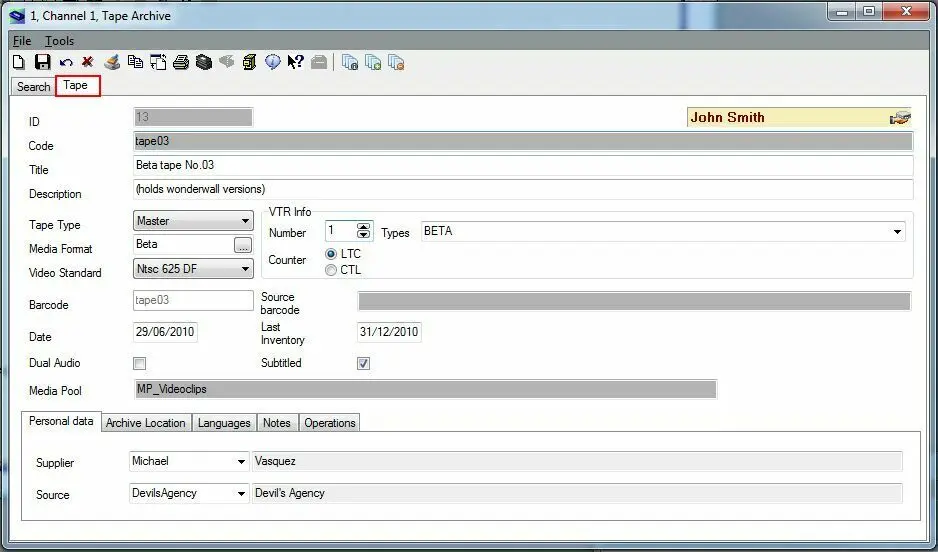
Once a tape have been either searched or created, it will be possible to modify its main information under the Tape tab which is mainly formed by the following areas:
Sched_tape_archive
Main area
Information displayed here includes:
Field - ID
Description : The unique and not editable number used by Etere to identify the tapes within the library.
Field - Code
Description : The editable (making double-click) code used by the operator to identify one tape from the others.
Field - Title
Description : A brief text that will help operators to identify the type of content within the tape.
Field - Description
Description : Insert a further text for describing the tape and its content.
Field - Tape type
Description : Indicate if the type to which the tape belongs among those created under Etere Configuration > Settings > Basic > Tape Types.
Field - Media format
Description : Select the media format (among those created under Etere Configuration > Settings > Basic > Media formats) which corresponds to the tape.
Field - Video standard
Description : Specify the standard of video of the tape content (e.g.: PAL, NTSC, etc).
Field - VTR info
Description : Indicate here some VTR related information including:
•VTR number: The number of VTR on which the tape is inserted for use.
•VTR type: The tape of the VTR used for reading/writing the tape.
•Counter: The type of counter used by the VTR on which the tape will be used.
Field - Barcode
Description : The barcode associated to the current tape.
Field - Source barcode
Description : In case the current tape has been created from another tape already existing in the library, the barcode of the latter will be indicated here.
Field - Date
Description : The date at which the tape has been inserted into the library.
NB: The display format is based on the date format defined in Regional Settings.
Field - Last inventory
Description : The date in which the tape was inventoried for the last time.
NB: The display format is based on the date format defined in Regional Settings.
Field - Dual audio
Description : This flag indicates if either the tape has dual audio or not.
Field - Subtitled
Description : If enabled, the tape (and their content) will be considered as a subtitled material.
Field - Media Pool
Description : In case the tape forms part of a media pool (see Etere Configuration > Media Pools), this media pool will be indicated here.
Fields enabled only for "Data" tapes (e.g. LTO4):
Field - Read-only
Description : Sets the current data tape to read-only mode, thus avoiding any write on it.
It's worthy mentioning that this option is usually set by Etere HSM each time it encounters a writing error on a tape.
Field - Unusable
Description : Indicates that the current tape must not be used for any operation (neither writing not reading).
This parameter is automatically set each time Etere Data Pump founds a read error when accessing the tape, this, for avoiding future unsuccessful reading (and writing) attempts.
Moreover, in the top right of the window, a warning box will be displayed in case the tape has been loaned but not yet returned, either, internally or externally (or to the automation) .
Personal Data tab
This tab, only available for video tapes (e.g. beta), allows to insert the agency and source from where the tape comes from.
Archive Location tab Specify the Rack and its exact slot where the tape is located. In case the tape is a data tape, it will be possible to assign it to a rack location only if its tape status is offline.
The archive location is automatically updated with the tape library used by Etere HSM to archive assets into data tapes.
Note: Please refer to the Racks module for detailed information on the management of Racks.
Languages tab
This tab, only available for video tapes (e.g. beta), allows (in case the selected tape type support multi-language) to set up to 3 languages for each track of the tape, being possible to set the "m&e-Music and effects" value in case the track doesn't correspond to any language but to a music effects.
Notes tab
Enter additional notes regarding the tape.
Operations tab
List all the operations performed on the current tape (e.g. tape creation, EDL update, etc).
NB: In the Tape Info view, assets marked with red “X” indicate that file assets has been logically deleted from database but the file assets remains present in the tape.
 Sched_tape_archive