79.9.1 Etere Nunzio Videoserver Playout Management
Following all the related configurations available once we run Etere Nunzio Videoserver playout.
FUNCTIONS OVERVIEW
Following all the major available function provided by Etere Nunzio Playout:
MAIN MENU
- File: It only contains the Exit function to close Nunzio Playout.
- Playout: The Playout menu contains the same commands of the toolbar, which are:
- Go On-Air: Send the rundown onair.
- Put off-Air: Stop the playout of the active rundown and set it off-air.
- Send on-air next story: Start the first clip of the next story.
- Send on-air previous story: Play again the previous story.
- Load objects to playout: Execute the cue of the clips and stories and prepare them to be played.
- Play on-air objects to playout: Play the cued object on the Primary player.
- Play on-air Video Over to playout: Play the cued object on the Secondary player.
- Show: The Show menu allows to perform some actions in the Etere Nunzio Rundowns such as:
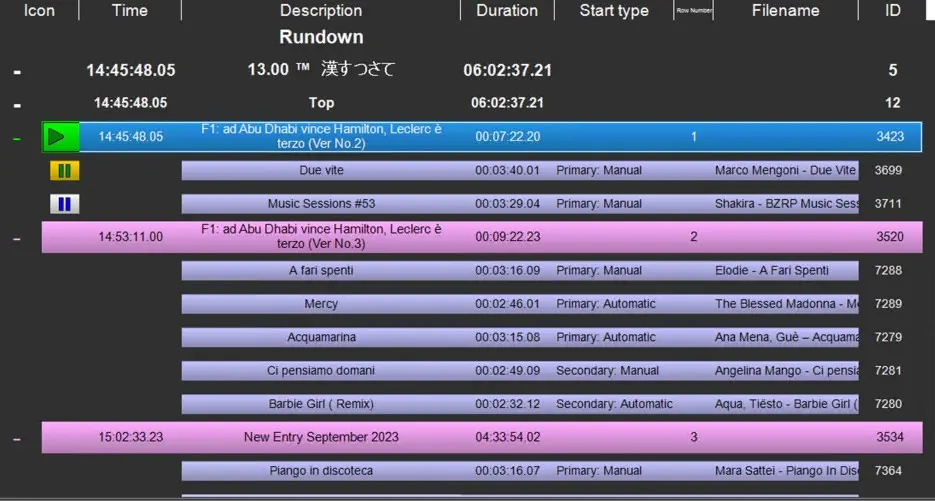
- Go to the On-Air event: Set the Rundown focus on the On-Air event.
- Segments: Rundown separators which separates stories in categories. It's possible to collapse or expand them, hiding or showing the stories.
- Stories: It's possible to collapse or expand Etere Nunzio Stories, hiding or showing the associated videos.
- Refresh: Refresh the active rundown.
- Settings: The Settings menu allows the configuration of Etere Nunzio Playout:
- Toolbar: Set the appearance of the Playout Commands in the toolbar:
- None: Hide the Playout Commands toolbar from Etere Nunzio Playout GUI;
- Icon: Show the Playout Commands icons only in the toolbar;
- Icon and Name: Show the Playout Commands icons with the related descriptions in the toolbar;
- Restore Default Values: Restore the Etere Nunzio Playout toolbar to its default appearance.
- Counters: It allows to add, select or modify up to 10 counters, which are located right beside the toolbar:
- Off: No counter displayed.
- Current time/day: The current system time and day. These data are displayed according to the system's regional settings.
- Station Name: The name of the station which Etere Nunzio Videoserver Playout is launched for.
- Rundown Countdown: It displays how much time remains until the end of the rundown.
- Rundown Elapsed: It displays how much time is passed since the start of the rundown.
- Countdown to scheduled start of rundown: Indicates how much time is left until the rundown's scheduled start.
- Countdown to scheduled end of rundown: Indicates how much time is left until the rundown's scheduled end.
- Rundown % Progress: The amount of time expressed in percentage, that indicates how much time is passed for the current rundown.
- Difference from Total Dur vs Sch. Dur: The time difference between the total duration and the scheduled duration of the rundown.
- Story Countdown: It displays how much time remains until the end of the current story.
- Story Elapsed: It displays how much time is passed since the start of the current story.
- Auto: This counter can show different information according to the rundown status. For example: if the module has not started playing the rundown yet, it shows how much time remains until the scheduled start. If no rundown is loaded for the current day, it shows the current time.
- Playout Configuration: as mentioned ealry on this topic, Playout Configuration allows to configure the related playout channels and their behavior.
- Num channels: Specify here the number of channels configured for Etere Nunzio Videoserver Playout. Each channel will be used for a different player.
- On-Air Player Cue Delay: When a clip ends, before switching the router to the next player to play the next clip, the module waits the amount of time specified here. This allows the router to have the time to perform the switch, without unloading the clip that just ended, therefore avoiding black on air.
- Short description: A brief description of the player, displayed in the top bar, right above the player's status bar.
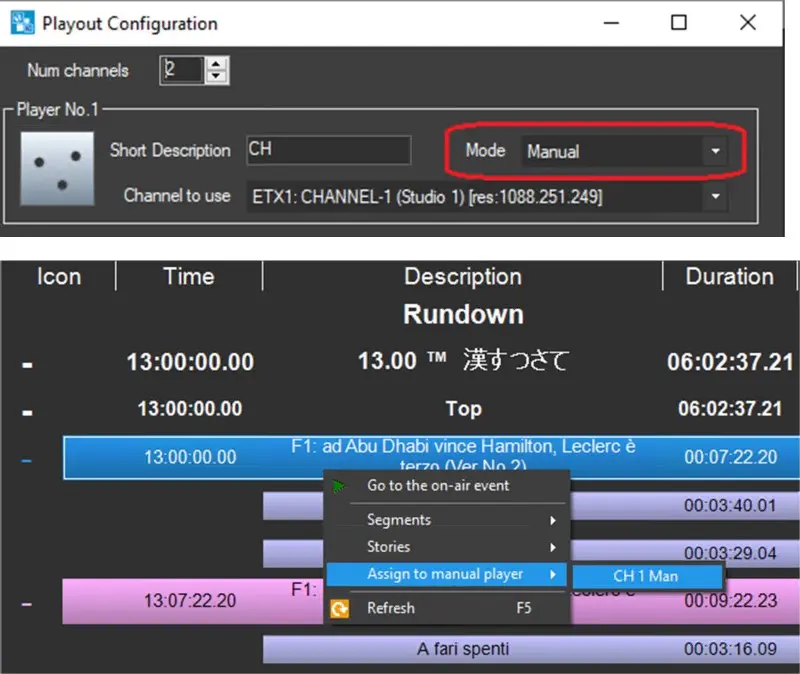
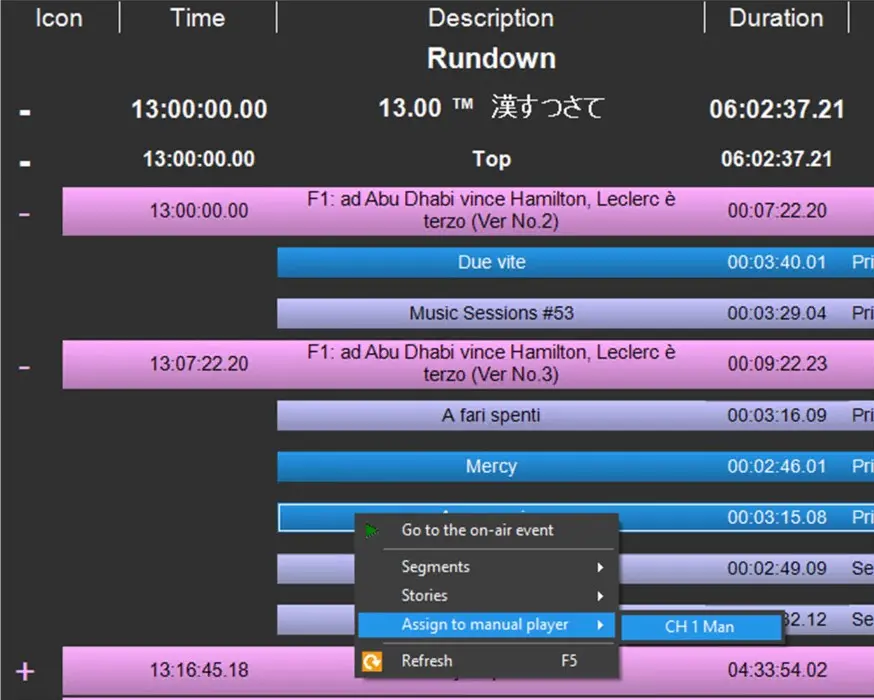
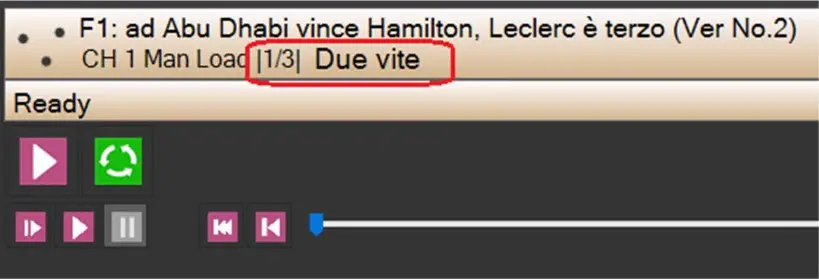
- Mode: Define which kind of clip should be played, among ABC auto (Primary), Secondary and Manual. If at least one player is set as Manual, a new option in the contextual menu will be available: "Assign to manual player". It allows to manually load a clip in Manual player.
- Channel to use: Select the resource channel to be used for the player, among the ones configured in the resource. In order to be displayed here, Playout channels must have the "News Playout" role assigned.
- Players: Display Options: This menu provides several functions in order to enhance playout usability for each Video Channel previously configured.
player_display_options
For each player configured the following options are available:
- View Story info: Display the story text in the player panel.
- View live video: Display a video preview of the currently playing clip.
- Audio: Enable or disable the audio preview.
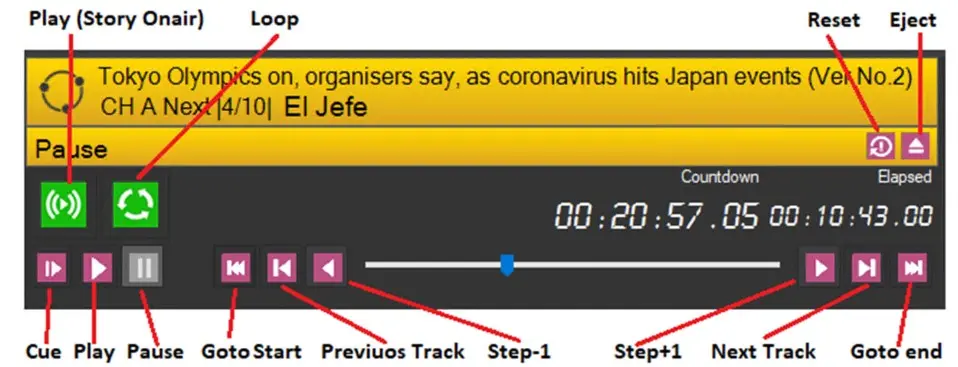
- View Jog/Shuttle Controls: Enable or disable the Shuttle bar right below the Playout Commands.
jog_shuttle
- Standard/Large Buttons: Set the size of the playout controls icons.
- Counter 2: Add a second counter beside the player's countdown. It can show how much time of the clip is passed (Elapsed) or the clip duration.
counter_2 - Alignment: Select the posistion where the players should be displayed: Top, bottom, left or right.
- Players per line: According to the number of players configured, select how many players should be displayed in a single line.
It's worth mentioning that counters configuration is totally customizable and counters can be added, removed and placed according to the user's needs.
- Toolbar: Set the appearance of the Playout Commands in the toolbar:
Depending on the selected Channel mode and the provided Channel Description, players will be named as:
Channel 1 ABC A
where:
Channel 1 ABC is the Channel Description provided during the player configuration;
A stands for the first Channel on the list. The following ones will be identified as B, C and so on.
playout_channels_config
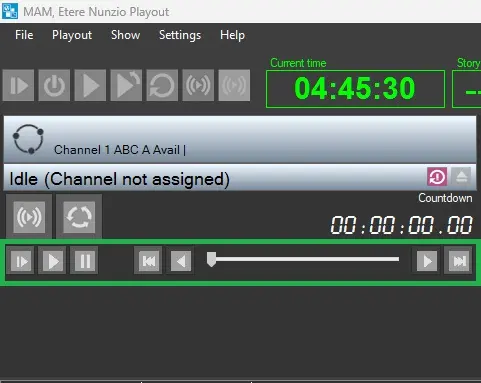 jog_shuttle
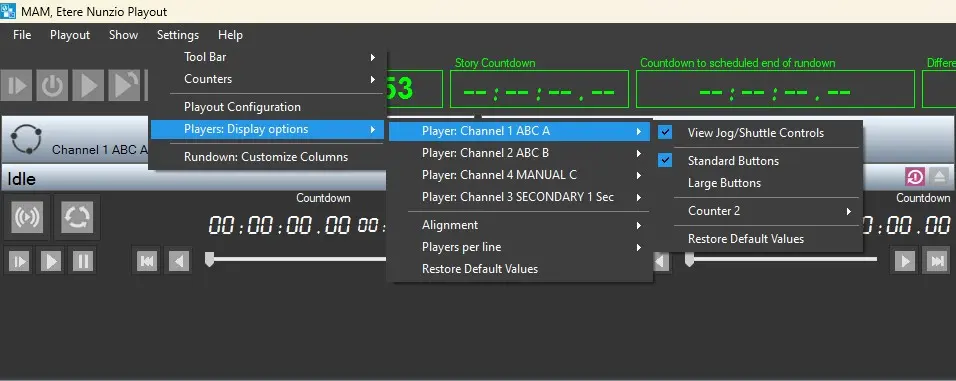 player_display_options
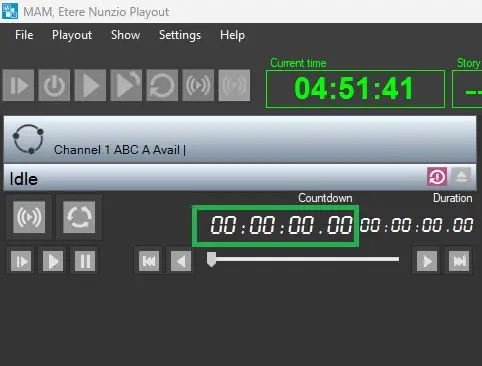 counter_2
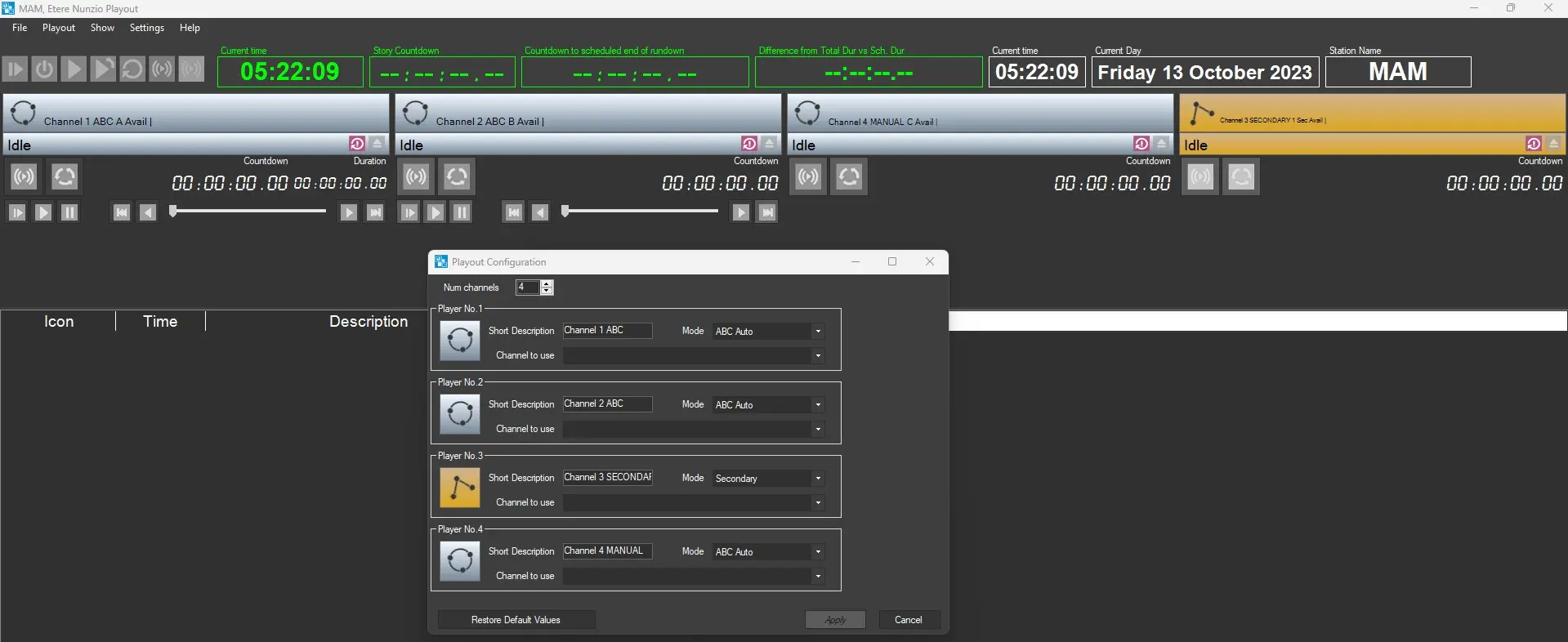 playout_channels_config
 toolbar
 nunzio_player_details
 nunzio_player
 nunzio_rundown
 manual_player
 assign_to_manual
 running_element