59.3.10.22 Schedule
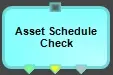
Asset Schedule Check
Asset_Schedule_Check
Compares the EDL of scheduled events against their actual values, updating the planned event's data with the real asset's data in case a difference is encountered.
Results:
• Updated
• Not updated
• Error
Is the asset scheduled for the next "x" hours
Is_the_asset_scheduled_for_the_next_x_hours
Check if the attached asset is scheduled to go on air shortly (e.g., in the next 24 hours).
Results:
• Yes: The assets are scheduled to go on air in the next 24 hours.
• No: The assets are not scheduled to go on air in the next 24 hours.
Notify Asset Changed
Notify_Asset_Changed
Reloads the broadcast schedules (i.e. refresh EE playlists) on which the asset is scheduled. Use this action, for example, after a file transfer action (e.g. restore file, delete file, copy file, etc) to update the location/existence of video files in the media library.
Note: From Etere version 36, this action is capable of updating also the status of ETX-G Secondary Events planned in the playlist. This action can therefore be inserted also in t-workflows for the restore of the graphics.
Results:
• OK: The reload notification has been processed.
Setup T-workflow deadline with on-air time
Setup_T-workflow_deadline_with_on-air_time
Set up the deadline of the T-workflow (and its eventual child and parent T-workflows) to the scheduled on-air time of the asset to which the T-workflow is attached.
The asset's scheduled on-air time will be retrieved from the current station playlists and will be the nearest future scheduled date and time.
Results:
• Yes: The T-workflow deadline has been correctly set.
• No: The T-workflow deadline could not be set.
Update duration
Update_duration
This function (the same available in Executive Editor through the F4 shortcut) allows updating an event over all its scheduled performances with the media data (File, SOM, EOM, Duration) retrieved from the media library.
Note: If the system is configured to avoid transmitting "not OK to broadcast" events, this T-workflow action must be launched after the "not OK to broadcast" action.
Results:
• Yes: The asset has been correctly updated.
• No: The assets cannot be updated.
Update duration and secondary events
Update_duration_and_secondary_events
This function (which is the same available in Executive Editor through the F6 shortcut) allows updating an event over all its scheduled performances with the media data (File, SOM, EOM, Duration) and secondary data (e.g. Logo, Character Generator, GPI, Transitions) retrieved from the media library.
Note: If the system is configured to avoid transmitting "Not OK to Broadcast" events, this T-workflow action must be used after the "Not OK to Broadcast" action.
Results:
• Yes: The asset has been correctly updated.
• No: The assets cannot be updated.
 Asset_Schedule_Check
 Is_the_asset_scheduled_for_the_next_x_hours
 Notify_Asset_Changed
 Setup_T-workflow_deadline_with_on-air_time
 Update_duration
 Update_duration_and_secondary_events