59.5.4.77 Monthly Revenues
Report Description
The Monthly revenues report allows the generalisation of a document containing the revenues of the last twelve months starting with the month specified by the operator, making it possible to filter retrieved data by customer and account executive. Moreover, the account executive can organise the data for a more customised result.
Report Filters
All the parameters that permit a detailed report generation have been distributed across seven different tabs for a more manageable configuration. By default, all filters are disabled (i.e., either blank or unselected); it is enough to configure at least one parameter inside to enable them. Available filters include:
•Start by Specify the month and year from which to start retrieving data,
•Customer: It allows the customer to be specified for which the analysis will be generated.
•Account Executive: Indicate the account executive that must be present in the orders to be taken into account by the report.
•Report type: Indicate the type of events to be analysed analysed
From orders - Calculate revenues for all events expected from orders (i.e. contractual runs).
Scheduled - Calculate revenues only for those events already scheduled in playlists (i.e. used runs).
Not scheduled - Calculate revenues only for those events not yet scheduled in playlists (i.e. remaining runs).
NB: For all orders, the number of events from the order represents both the scheduled events and the events not scheduled yet.
Only on Etereweb:
Use month date range from broadcast calendar: A broadcast calendar runs M-Su weeks, and the first week of a month is the first week that has "1" in it. So, if that is in the middle of the week, the report will start before, on the Monday of that week, even if it is in the previous month.
Media center - Narrow the search only to orders related to a certain media center.
Report Preview
The [Settings] permits configuring the page layout of the outgoing document; once filters and settings have been set, it will be possible to select between displaying a preview using the related [Preview] button or printing the document directly using the [Report] button. Please note that some reports permit the export of the generated document in the most common formats (pdf, CSV, doc, xls, XML, etc) just by using the [Export] button.
Monthly_Revenues_preview
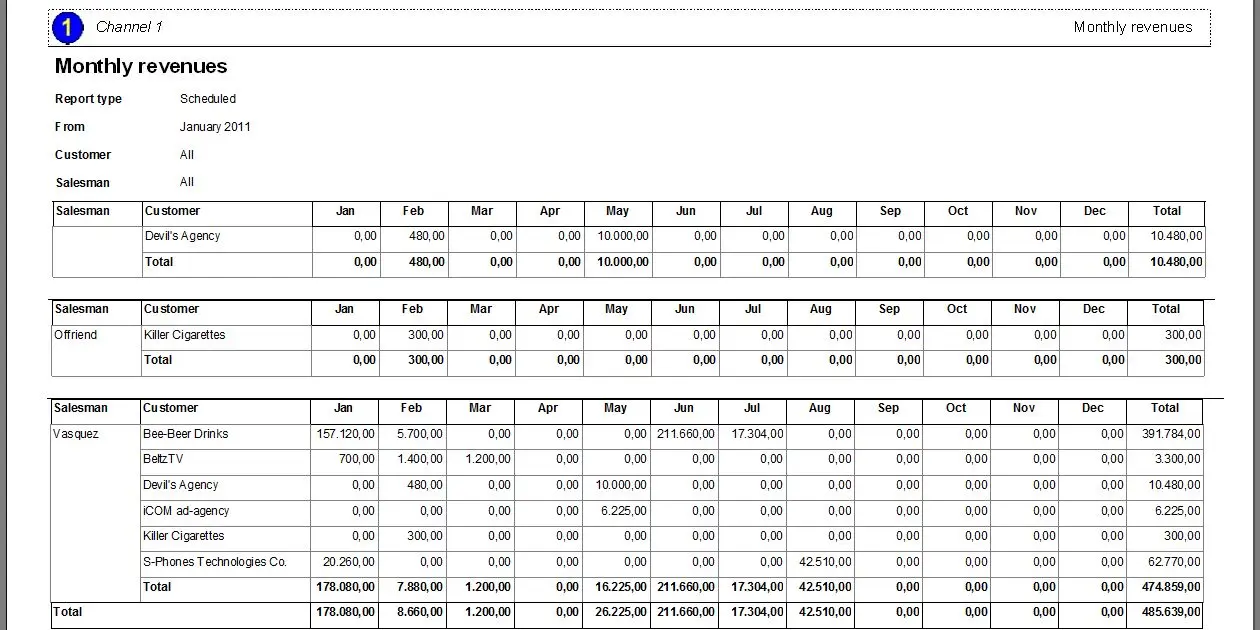 Monthly_Revenues_preview
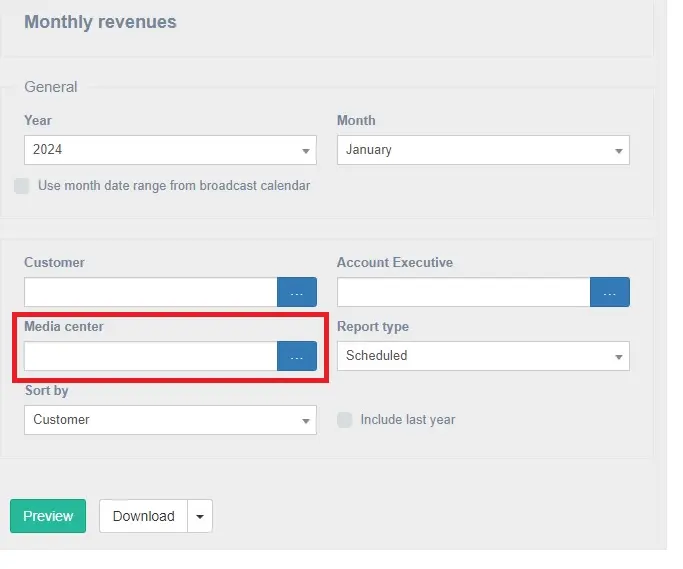 MediaCenter