92.1.4.2 Setting Connection Parameters
The configuration window of the Automation controller allows to set up all parameters regarding its connection with an EA1790 Control Panel. Under this window the following parameters would be available:
Automation_Controller_Setup
•Host that will receive notifications: By using the [+ add] and [- remove] buttons, specify the hosts (i.e. IP address and UDP port) to which notifications would be sent. Please note that every time an automation is selected it trigger a notification.
•Com port where the control panel is connected: For the EA1790 Control Panel (ethernet version) set the IP address and port used by the device for communication (see First time configuration).
•Local UDP/TCP Port where to use: Indicate the local (i.e. current PC) UDP port to be used to receive the message.
•Remote Controller on the other serial port: Insert the hostname of PC where the second Automation controller is connected, allowing both automation controllers to communicate with each other (see Main/Backup Functioning).
•Beep on Key Press: if activated, the EA1790 Control Panel will play a sound each time a button is pressed.
•Ping device: if the option is selected, the application sends testing commands to the EA1790 Control Panel test with regular frequency, these commands would be shown as light signals on the Remote 1 and Remote 2 led to confirm the communication between the Automation controller and the EA1790 Control Panel.
•Send Skip using new automation ad-hoc command: if this option is selected, the skip command is sent using a dedicated connection with the automation (it would be considered by the automation as a GPI skip) for which it follows all its cueing and execution rules. Otherwise, the command would work in the same way as Etere Executive Editor skip.
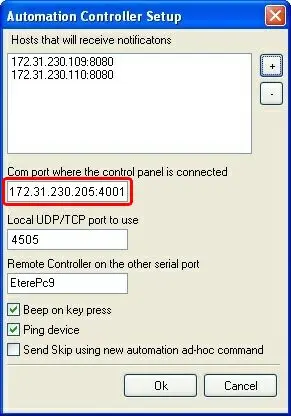 Automation_Controller_Setup