59.8.2.21 Contextual functions
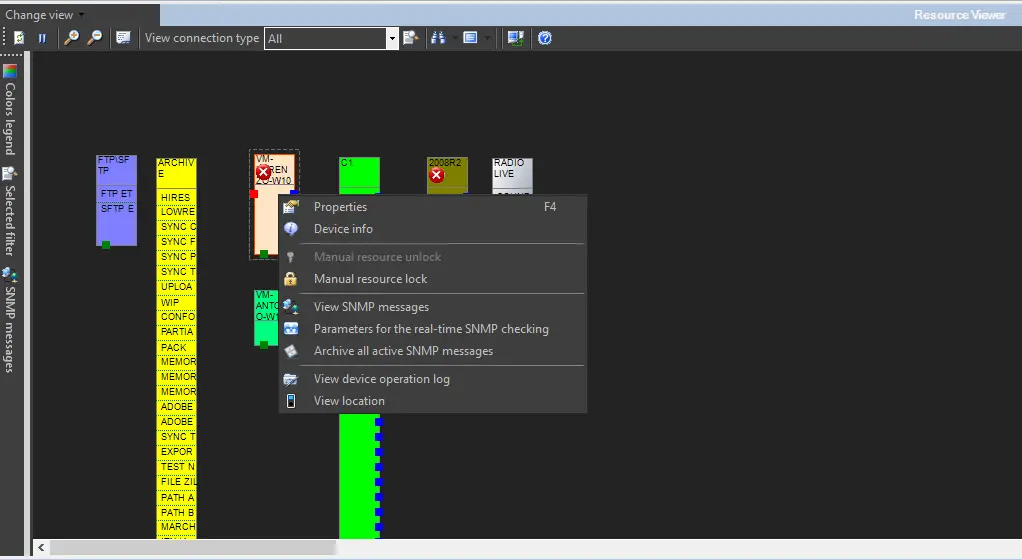
Each time you right-click on a certain device on the resource map, you gain access to the following functions regarding this device:
resource_map
Properties (F4) - This option lets you view the device's properties. However, unlike in Resources Editor, these parameters are not editable.
Device Info - Use it to display all essential information about a device: the device type, its assigned name, IP address and if it is Pingable.
Manually resource unlock - This option is the reverse of the next one; it releases the resource so that other users can use it.
Manually resource lock - This option allows you to lock a resource manually, making it unavailable for other users. By closing it, all relevant connections from the device show as being 'in use' so no one else can use it.
View SNMP messages - It allows you to view all SNMP messages associated with the device. The window shows a list of all messages in the top section. You can double-click on any message to see it in more detail. The bottom section allows you to search for specific messages related to the message type, the period, etc. Please refer to the Monitoring SNMP Messages chapter for more details.
Archive all active SNMP messages - Set all the messages of the selected device as archived, thus cleaning any visual warning from the resource view.
View Device operations log - A window listing all the operations the device has performed in question, a log of its operations.
View location - Allows you to call up information on the device's Room, Rack and Row column to identify its physical location. A checking mechanism is in place to verify the number entered is within the maximum rack units.
 resource_map