59.7.3.5 Set a space limit for a cloud-device
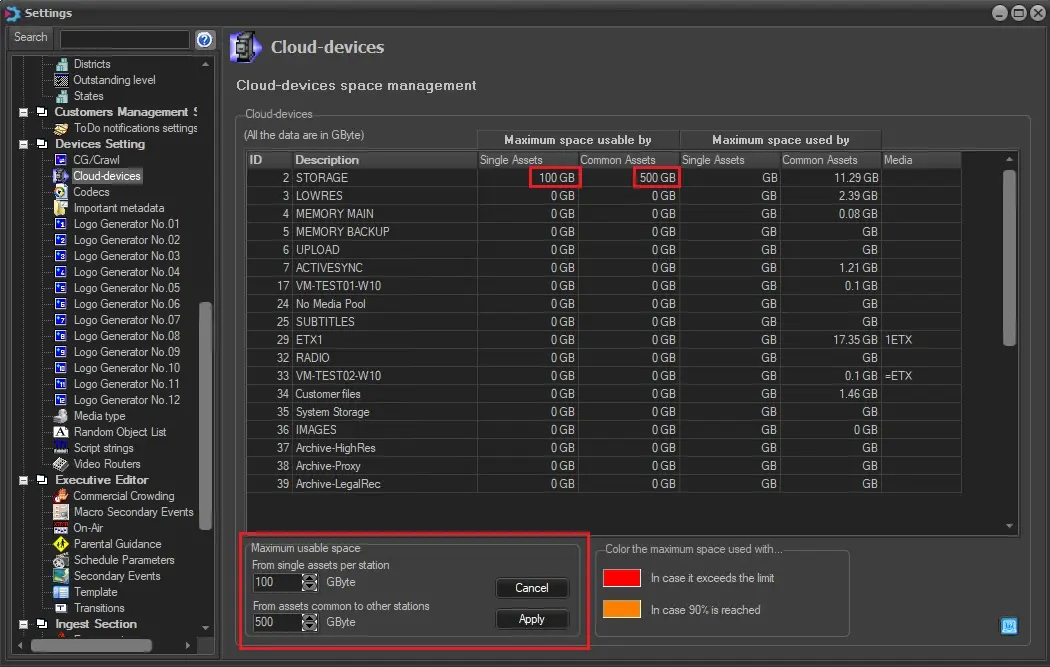
Etere Configuration allows you to set the maximum space that a meta device can use for storing data; this feature is helpful if you want to prevent undesired capacity-related issues. By selecting the limits, the user would be warned when the storage device is reaching its assigned capacity and when it exceeds the capacity.
To enable this option, go to Etere Configuration > Settings > Devices Setting > Cloud-devices, select the meta device you want to set the space limit on, right-click on it, and select the Modify maximum space option. The Maximum usable space parameters would be enabled.
List_of_metadevices
Now, you can set two types of limits:
• From single assets per station: Establish the space limit related to assets used exclusively by the current station.
• From assets common to other stations: This option is related to the space limit for assets other stations share.
NB: You can constantly refresh the list by right-clicking and selecting the 'refresh' option to view the storage status in real-time.
Also, in the section Color, the maximum space used with... is possible to define a custom colour to highlight the cells under the "Maximum space used by" columns when the space used has reached 90% of the total and exceeded the limit. By default, the cells are highlighted in orange and red, respectively.
 List_of_metadevices