79.8.4 Manage Graphic Insertion
In order to starts airing GFX in Nunzio Graphic Player, we need:
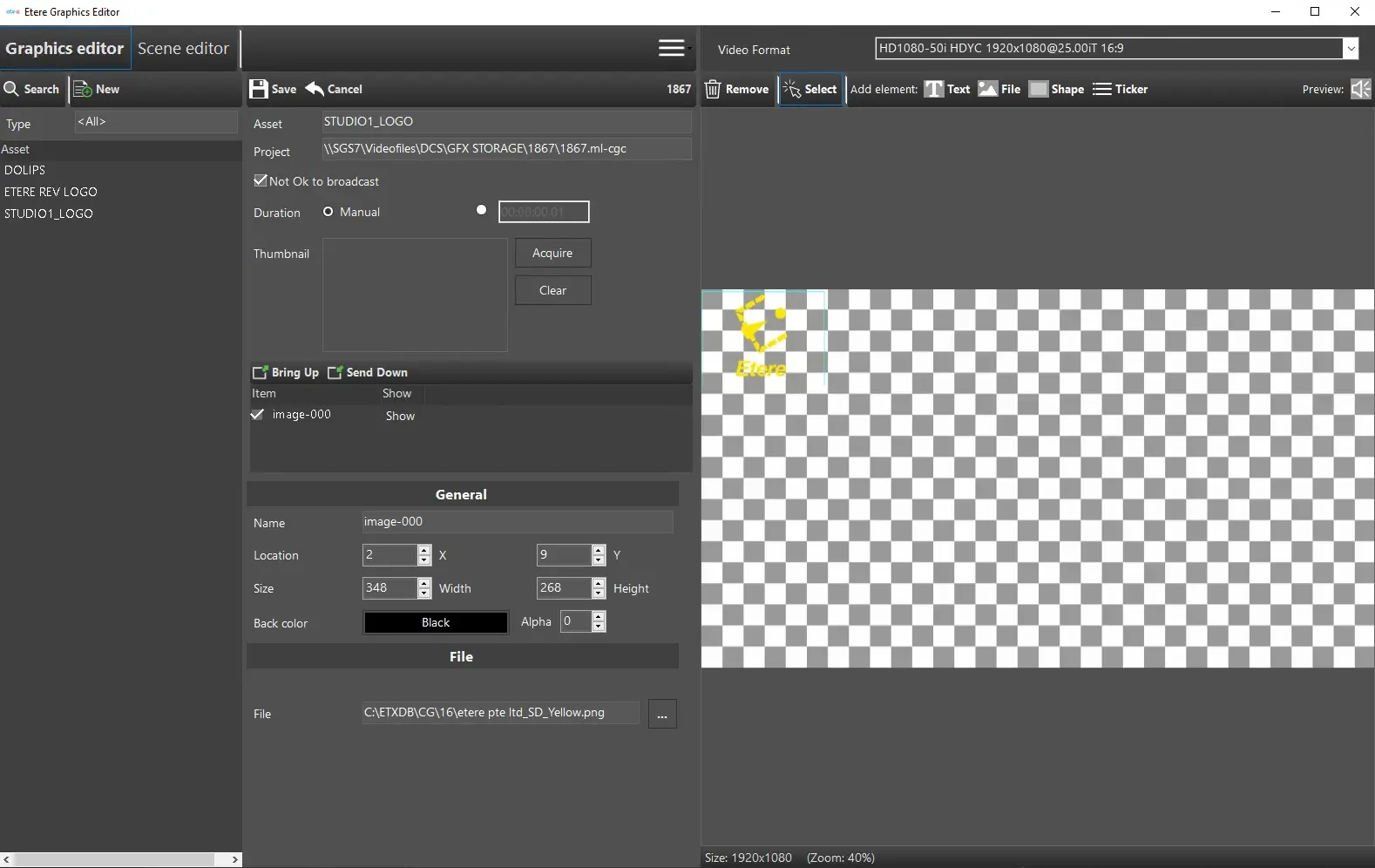
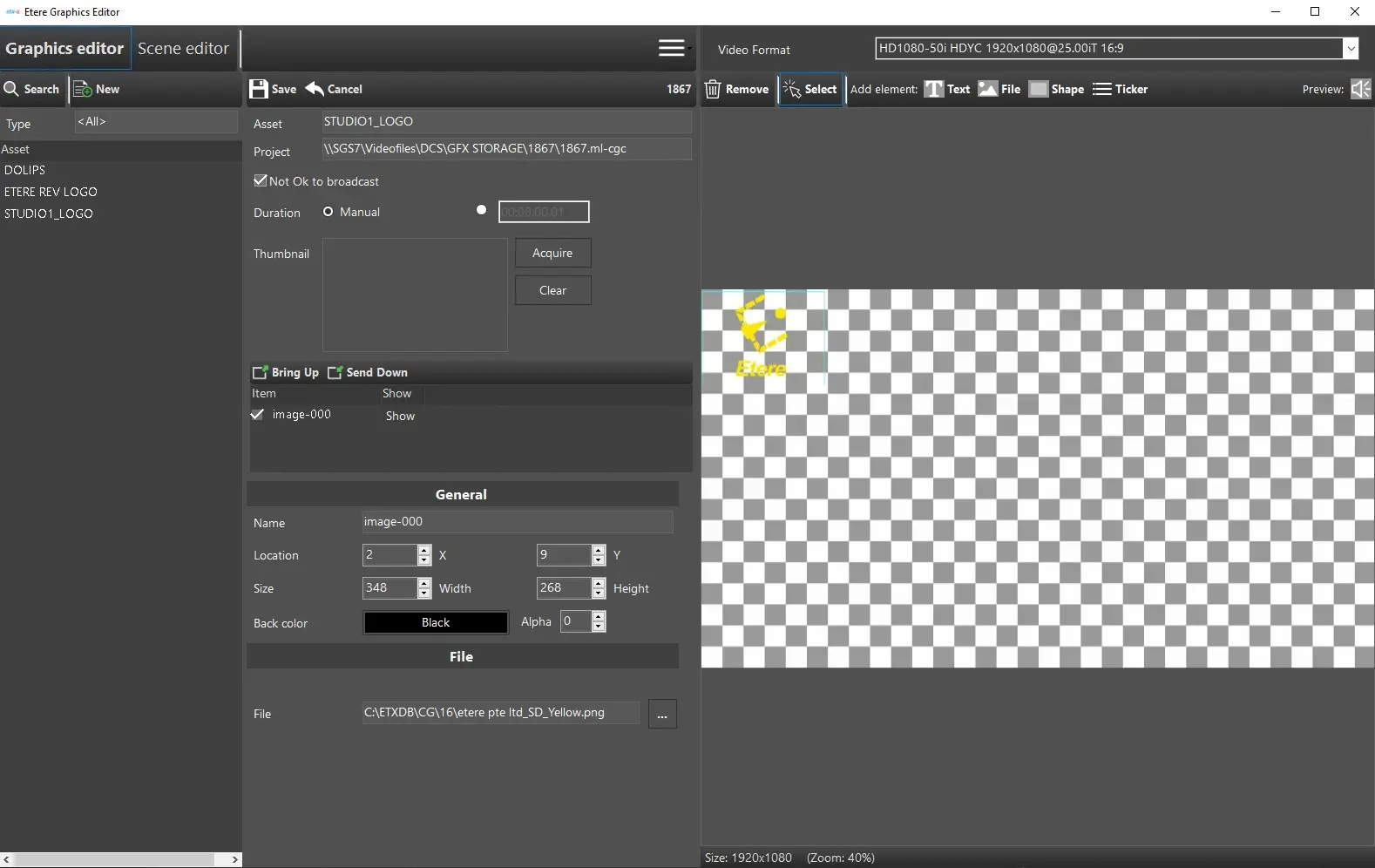
1. Creating them by relying on the Etere Graphic Editor;
studio1_logo
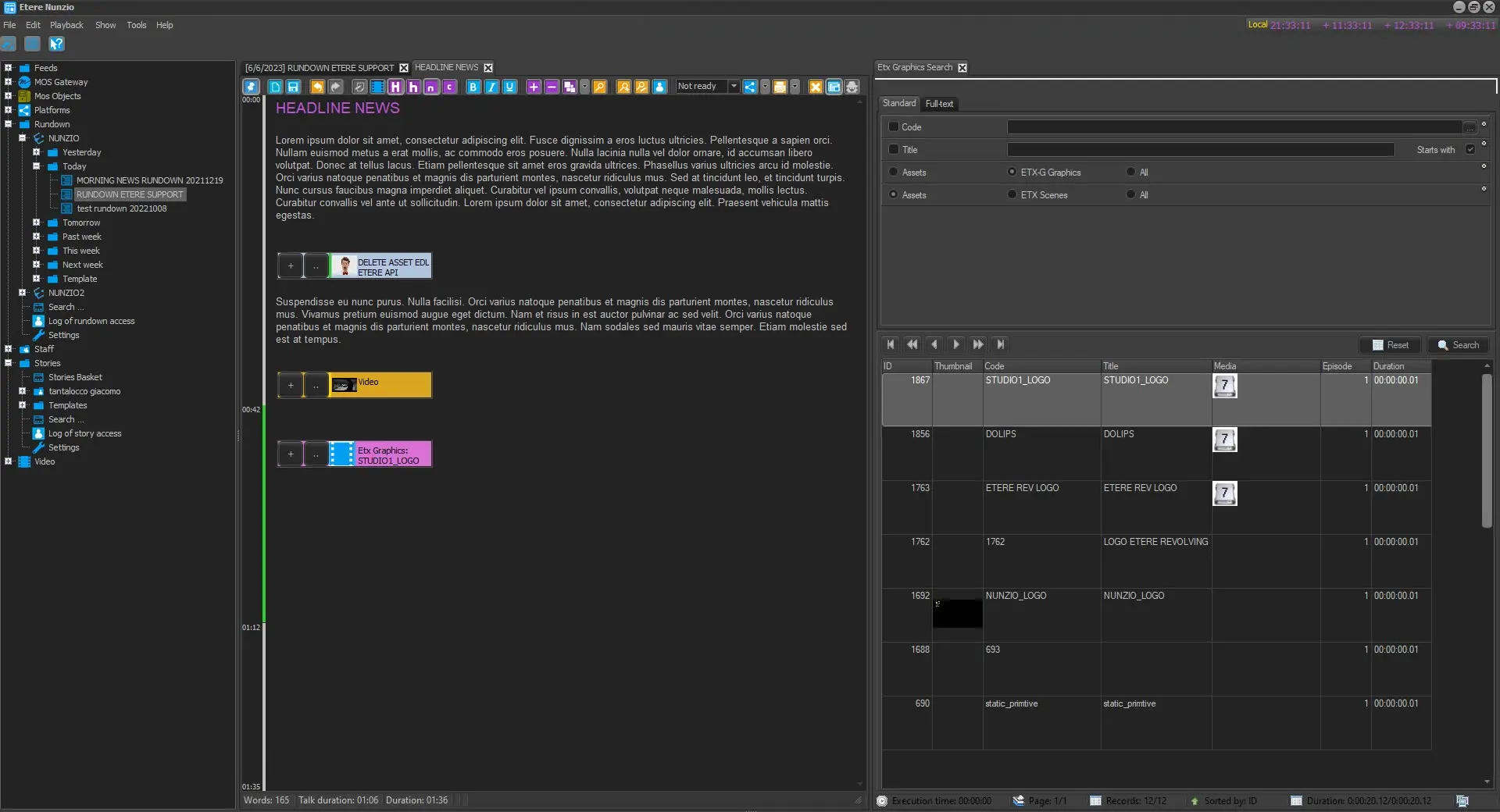
2. Insert them into the wanted Nunzio Stories;
insert_studio1_logo
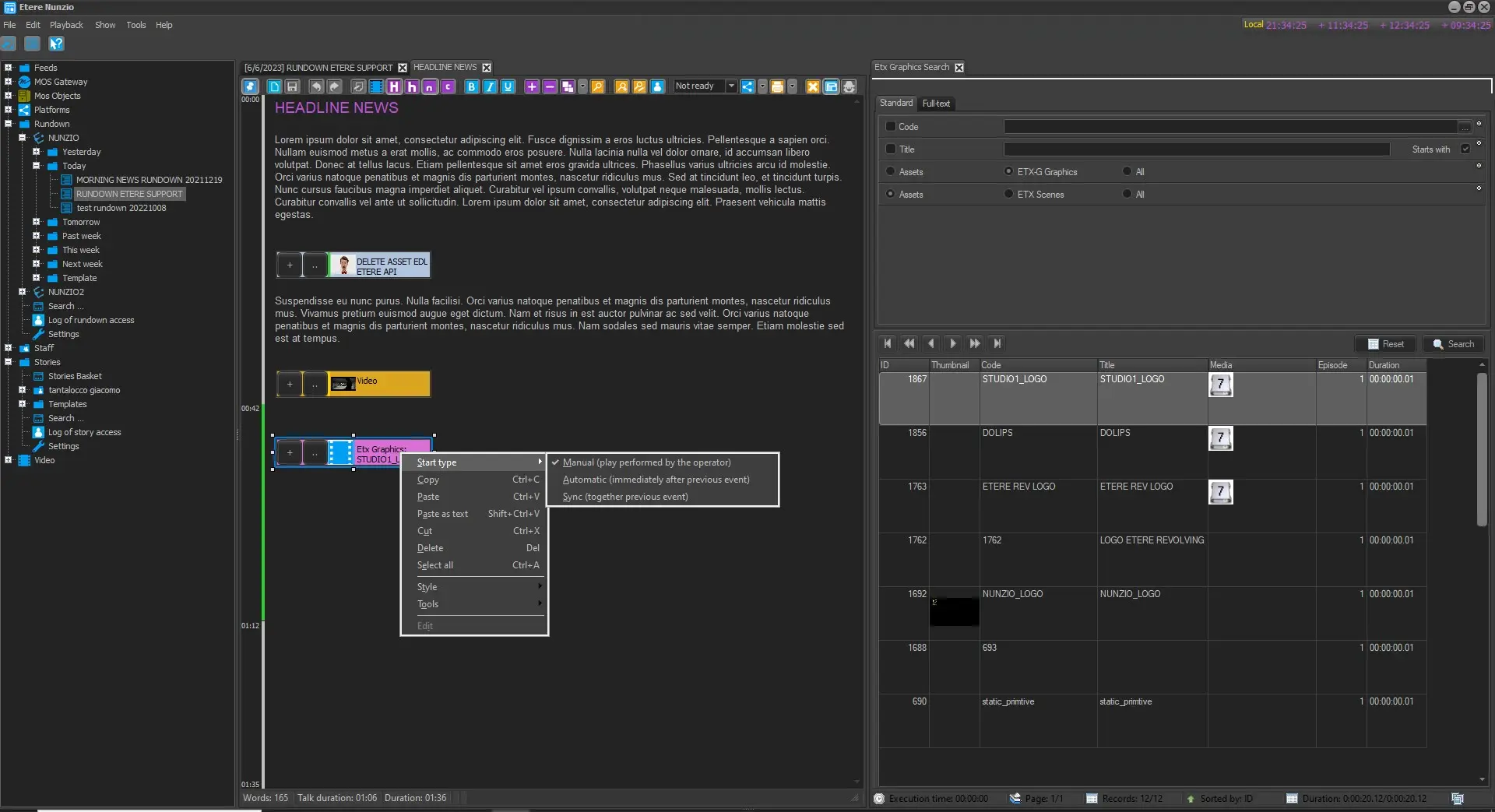
3. Set the given start type:
. Manual: GFX play would be performed by human interaction;
. Automatic: GFX would be played automatically, after the previous event;
. Sync: GFX would be played in SYNC with the previous event.
start_type
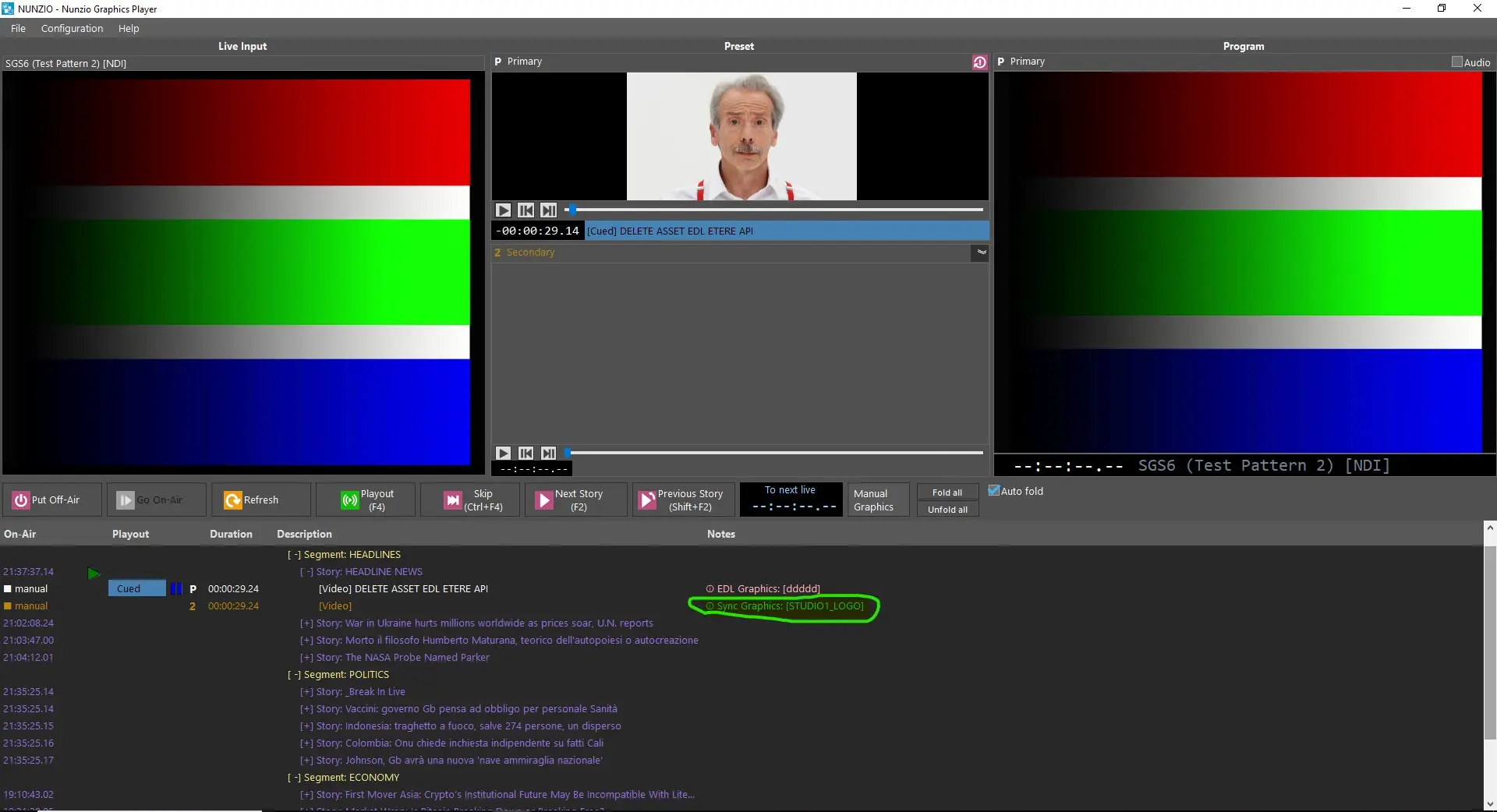
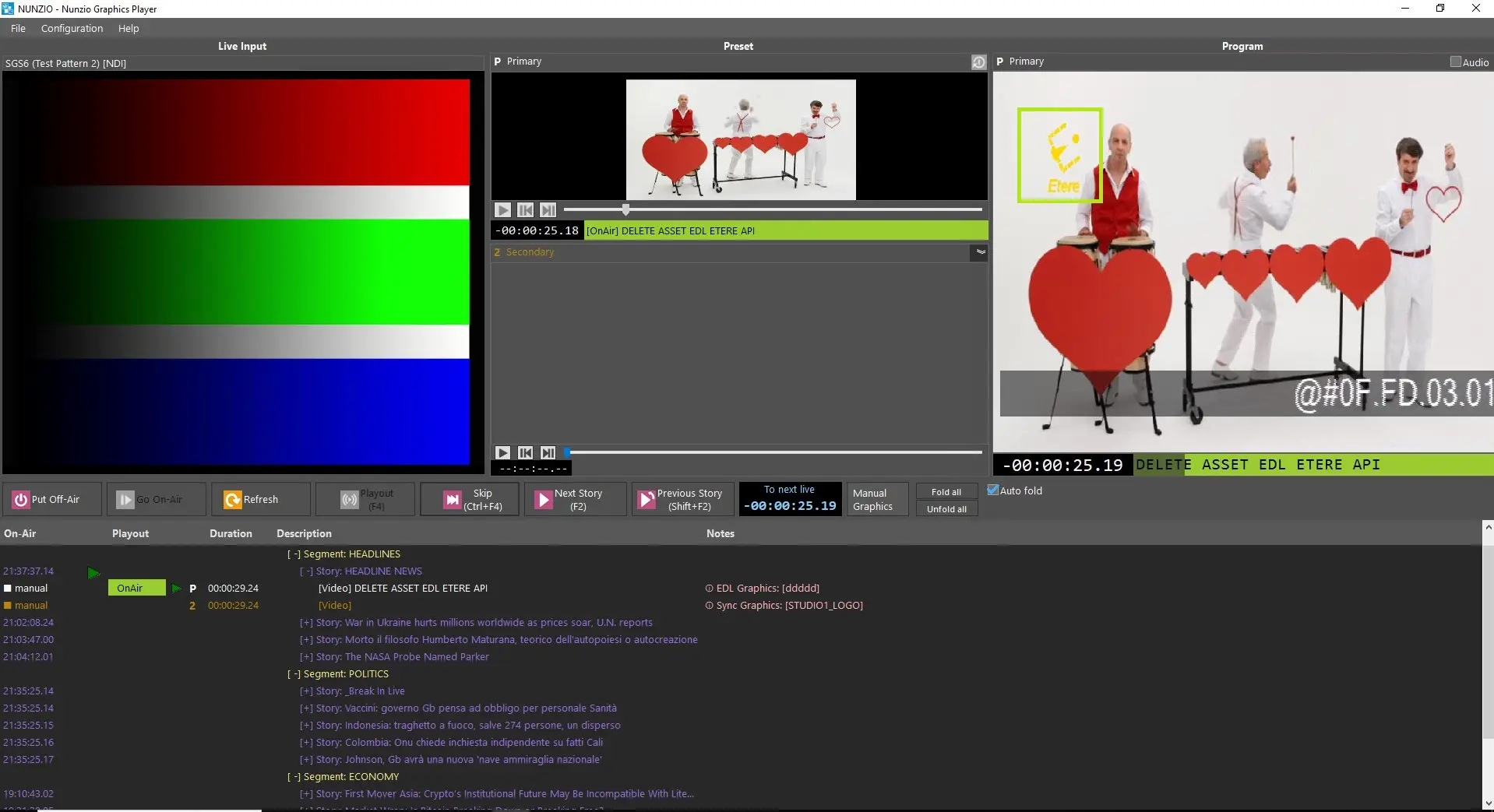
4. Air them relying on the Etere Nunzio Graphic Player (ETX-Graphic).
gfx_ready_nunzio_player
gfx_onair
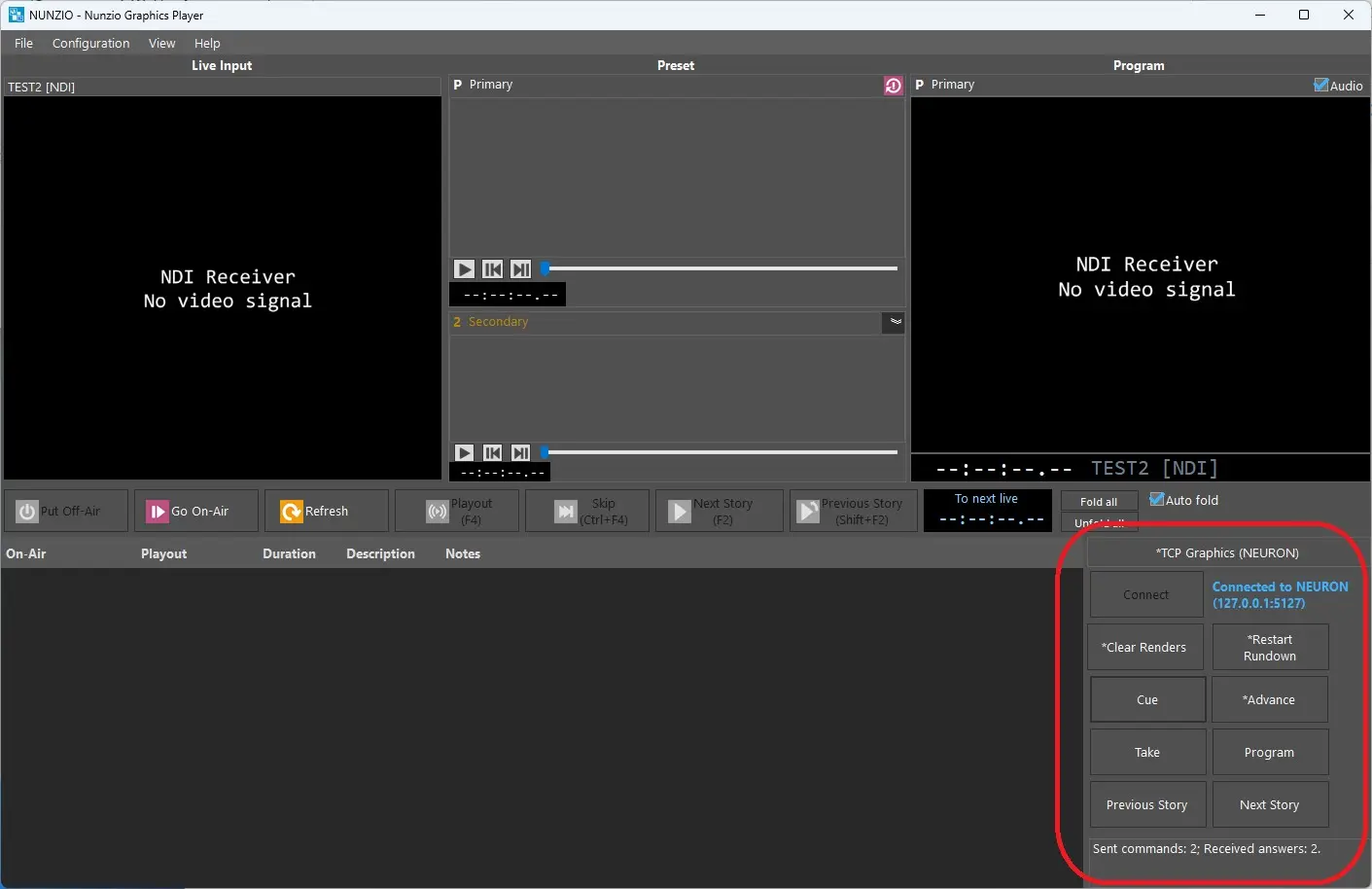
Manual use of External Graphics Machine (NEURON) from Etere Nunzio Graphics Player.
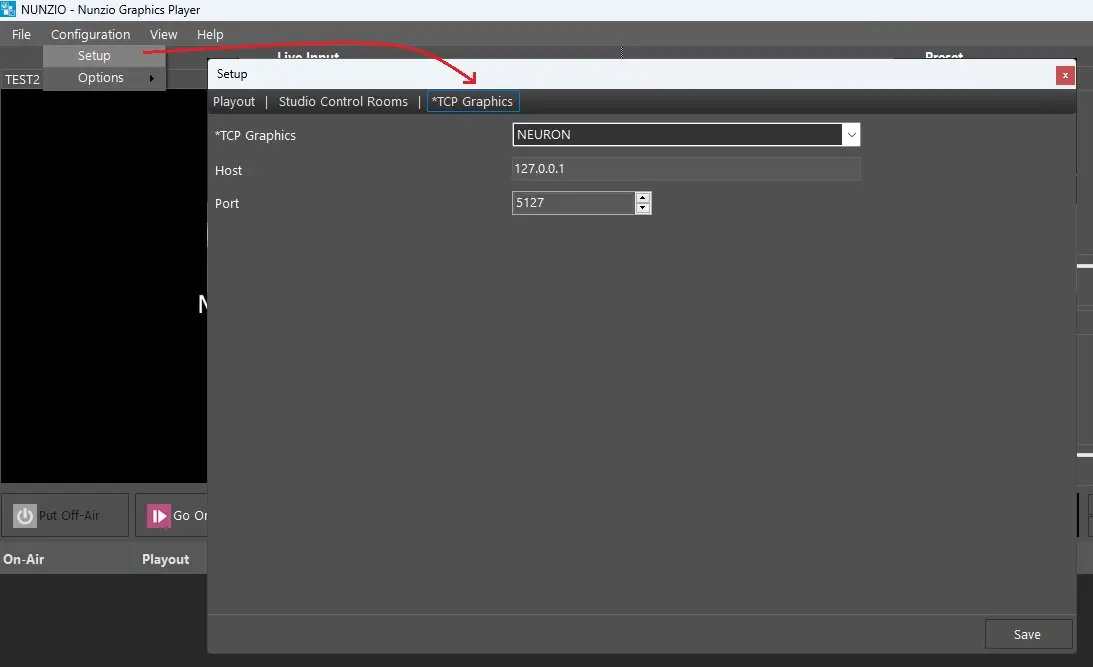
1) Set up the NEURON as graphics machine to be controlled via TCP
- Select NEURON as TCP Graphics
- Set the IP and the Port to communicate with the graphics machine
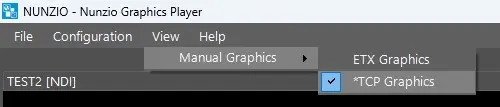
2) Make the Manual TCP Graphics panel visible
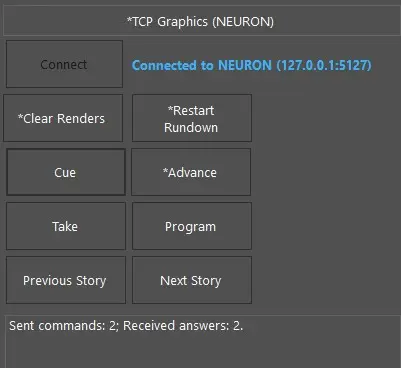
3) Connect to the graphics machine and send command via TCP using the Manual TCP Graphics panel
It shows the status connected/not connected and the count of commands sent and received by the graphics machine.
 studio1_logo
 start_type
 gfx_ready_nunzio_player
 insert_studio1_logo
 studio1_logo
 gfx_onair
 TCP_Graphics
 Graphics_panel
 Graphics_location
 Graphics_form