71.18.15.2 Delete
The "Delete" module (which doesn't require being configured in the parameters section) allows to select some assets and remove all the linked hires/lowres metafiles (and also the asset forms) from the metadevices on which they are stored.
Can I delete any asset?
In order to be allowed for deletion, the requisites listed below must be accomplished for all assets:
▪The asset must not be linked to a tape (e.g. it's archived on a LTO cartridge)
▪The asset must not be linked to a file (e.g. it's stored on a video server)
▪The asset must not be scheduled (e.g. it's scheduled for on-air transmission)
▪The asset must not be associated to sale proposals (e.g. it's a contractual spot)
▪The asset must not be in historical schedules (e.g. it's featured in archived on-air playlists)
▪The asset must not have child assets (e.g. it forms part of a project).
- If the parent assets were deleted, the child assets would became single asset.
▪The asset must not have related costs (e.g. it has performed worksheets)
NB: Please note that some of the requisites mentioned above can be manually bypassed using the filters available in this module.
NB: Users must be granted access rights in the “Ingest\Delete” function in Rights Management in order to perform deletion of video files from destination path.
Once launched, the main window will be displayed allowing the operator to -sequentially- define the delete operation through the following tabs:
1) SELECTION - Narrow the asset search by specifying the filters (e.g. ingested, expired, etc).
2) DELETE OPTIONS - Indicate the deletion criteria (e.g. delete also asset form, automatic answers, etc) to be applied.
3) CLOUD -DEVICE - Specify the metadevices on which the deletion will be performed.
4) ERRORS - See all the errors (e.g. unable to delete, unreachable device) encountered during the deletion process.
5) DELETE - Press the [start deleting] button to launch the deletion.
6) REPORTS/LISTS - Generate a detailed report of either, the deleted assets or the metadevices space occupying.
NOTE:
This module is a dismissed product which is not supported anymore by Etere. For deletions it's possible to use the "Operations by workflow" module which allows to automatically delete video files associated to an asset from a specific metadevice.
Selection
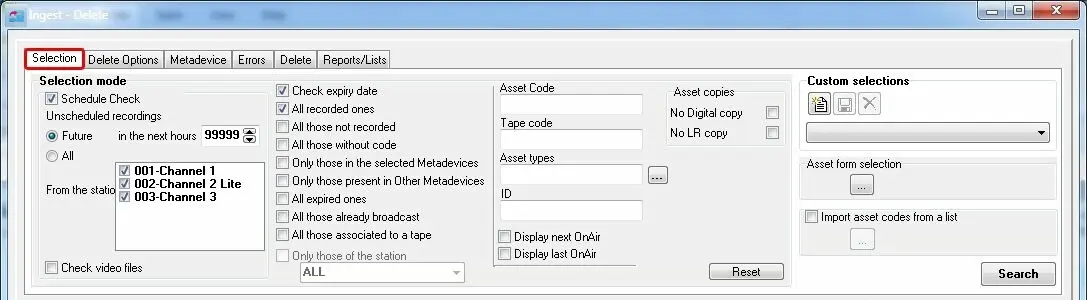
The "Selection" tab permits to set all the searching parameters that will be used to list the assets, the most relevant parameters are:
Igest - Delete
Filter- Schedule check
Descriptions: If enabled, it will be possible to set some parameters regarding the filtering of scheduled assets:
•Future in next 'x' hours: Show all assets which are not scheduled in the next 'X' hours.
•All: Show all the unscheduled assets (no scheduled assets will be listed).
•Check video files: Extend the search to single files to avoid selecting video files linked to scheduled assets.
If not enabled (default), assets will be listed without caring about its scheduling status.
Filter- Check Expiry Date
Descriptions: If enabled, all those assets which have an expiry date beyond the current day won't be displayed.
Filter- All ingested ones
Descriptions: If enabled, only assets that have been ingested will be listed.
Filter- All those not ingested
Descriptions: If enabled, only not ingested assets will be displayed.
Filter- Only those without code
Descriptions: If enabled, only assets without a code will be shown.
Filter- Only those in the selected cloud-devices
Descriptions: If enabled, only those assets that contains a video file stored in the cloud-devices will be listed, metadevices are specified in the 'cloud-device' tab.
Filter- Only those present in other cloud-devices
Descriptions: If enabled, only those assets which contains a video file which is not stored in the metadevices will be listed, metadevices are specified in the 'Metadevice' tab.
Filter- All the expired ones
Descriptions: If enabled, only expired assets will be shown.
Filter- All those already broadcasted
Descriptions: If enabled, there will be listed only those assets that have already been broadcasted.
Filter- Only those associated to a tape
Descriptions: If enabled, only those assets which are linked to a tape media will be listed in the results.
Filter- Asset Code
Descriptions: Insert a string that assets must contain on their codes to be listed.
Filter- Tape Code
Descriptions: Enter the number of the Tape which contain the only assets to be shown.
Filter- Asset Type
Descriptions: Select from the list the only asset types to be listed.
Filter- Display next/last On Air
Descriptions: This option does not influence the filtering, just sets the data to appear on the 'ON AIR DATE' column.
Filter- Only those from the installation
Descriptions: If enabled, there will be listed only files assigned to a certain Etere site (i.e. installation).
Filter- Asset Copies
Descriptions: If enabled, there will be only retrieved those assets which are expressly set to not be archived in either Hires (No Digital Copy) and Lowres (No LR Copy) copies, for example, live assets.
Filter- Custom Selections
Descriptions: Save your filtering profiles to use them when required.
Filter- Import asset codes from a list
Descriptions: This option allows you to import a list of assets to be deleted from a text file with the capacity to import a list of asset by code or id. You are able to launch multiple T-workflow to the result list after selection. This option is useful if, for example your department (e.g.: Ingest Department) receives the list of assets to be deleted from another department (e.g. Assets Administration Department).
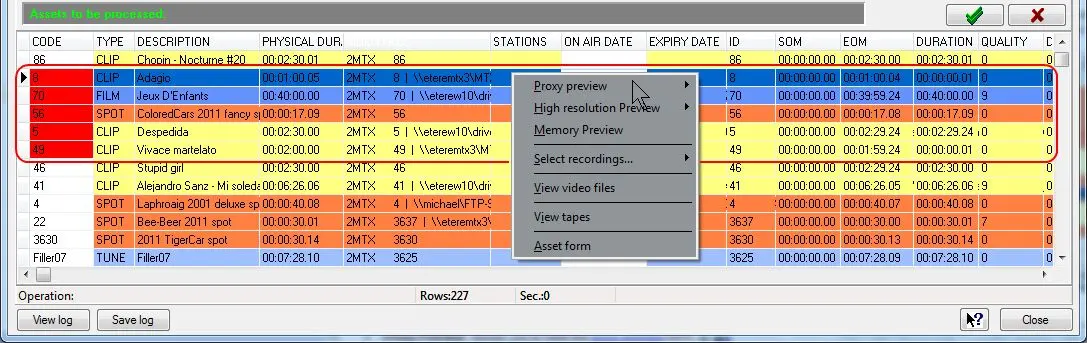
Once you have set all the relevant parameters, click on the 'Search' button and all the assets which match with your specifications will be listed, after then, you can select all the assets to be deleted or just some of them, the selected codes will be highlighted in red (i.e. assets to be deleted from the 'Delete' tab):
Assets to be deleted from the 'Delete' tab
Moreover, as shown in the figure above, by making right-click on a certain asset it will be possible to:
Proxy Preview - Show the proxy preview form, a lowres version of the video file through a simple window (with playback controls enabled)
High Resolution Preview - Open a small window (with SOM, EOM and playback controls enabled) which allow to view a high resolution version of the video file.
Memory Preview - Shows an 'On-Air Review' of the selected asset, that is, it shows the ingested version of its last on-air transmission.
Select media... - Facilitate the selection of assets, allowing you to use the more common selection options as 'select all', 'unselect all', 'from here till the start', 'from here till the end'.
View Video Files - Shows all the video files linked to the current asset.
View Tapes - List the tapes currently associated to the selected asset.
Asset Form - Open the asset form of the current selected asset, so you will be able among various things to control the asset T-workflows and the video files associated to it.
NB: If the Selection parameters is written in assembly query, the maximum selectable asset types can be selected is 500. If the query exceed the threshold, notification error would be prompt.
Delete Options
The "Delete options" tab is where there can be defined some extra options related to the deletion of assets' media files. These options includes:
Delete subtitle files - If enabled, besides video files, also the subtitles linked to the selected assets will be deleted.
Delete also asset forms - If enabled, there will be deleted (besides from video files) also the asset forms linked to them, being possible to select to delete from the system database:
•Only those asset forms without linked tapes,
•Also those asset forms with linked tapes.
Please note that there won't be deleted those assets which meets one of the following cases:
✓Ingested on a tape,
✓Ingested on a metadevice,
✓Scheduled on a broadcast playlist,
✓Scheduled on an archived playlist,
✓Assigned to a commercial order.
Automatic answers - Use these option to automate the deletion process, this, by setting a predefined answers to the following questions:
•Always answer YES to the request to delete linked assets,
•Always answer NO to the request to delete assets present on future schedules.
Note
In case the "Delete scheduled media without any warning" parameter is enabled in the "Ingest > Parameters > General > 2" section, media linked to assets scheduled in future playlists will be deleted without any warning.
If said parameter is disabled (default), the operator will be warned every time he attempts to delete a media linked to an asset scheduled in a future playlist which is currently open by another user, indicating that said playlist must be closed to allow the deletion to proceed.
CLOUD -DEVICE
The "cloud-device" section allows to select the cloud-devices (video servers) and the criteria with which files will be deleted:
Cloud-devices - The operator can select here the cloud-devices on which files (associated to previously selected assets) will be deleted.
NB: Here will be displayed all cloud-devices related to video servers, storage volumes and media pools.
Selection logic - Specify the logic operator to be used, that is:
•OR : There will be deleted those files which are in any of the selected devices.
•AND : There will be deleted those files which are stored in all selected metadevices.
•ONLY : There will be deleted only those files which are the unique media linked to an asset.
Codecs - Specify the media codecs to be deleted. Only media files related to a selected codec (e.g. wmv) will be deleted, even if they are present in a selected metadevice.
NB: Please note that the system doesn't remember the "last used" configuration, this sensitive action must be set every time by the operator.
Making right-click on a certain metadevice will allow to perform the following actions:
Activate / Deactivate / Deactivate all - Use this options to select a metadevice, deselect a metadevice or even to deselect all the metadevices which are currently selected.
Requested space - Set here the "free space" to be reached when deleting video files from a metadevice, once the requested space is achieved, the deletion will be interrupted for the metadevice in question.
Please note that in order to be used, this option needs the "take into account the desired free space" parameter to be enabled under the "Delete" tab.
Logical deletion - Removes all links between the selected device and assets. Please note that this function only deletes files links and not physical files themselves.
This function is useful, for example, to make a metadevice offline during a maintenance time, in this case, once the metadevice return online it will be possible to re-associate files through Etere ActiveSync.
NB: Please note that there will be deleted only those files stored on consistent cloud-devices (i.e. which media folder is correct and its path is reachable).
Note
In case the "Allow deletions on inactive VS with a configured path" parameter is enabled in the "Ingest > Parameters > General > 2" section, it will be possible to manually select for deletion those inactive video servers with at least one configured path.
If said parameter is disabled (default), it won't be possible to select inactive video-servers (i.e. which resources are not assigned to the current Ingest user) for deleting media on them.
Errors
In the "Errors" tab there will be listed all the issues encountered during the deletion process. Please note that a detailed and complete log of all the performed operations is available by clicking on the [View Log] button.
Delete
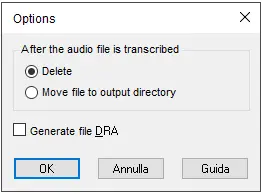
The "Delete" tab permits setting all the search parameters, you have to execute the deletion from this tab, you can perform two types of deletion:
Delete
Assets to delete - Here will be indicates the total number of "assets" selected for deletion as well as their overall duration (i.e. the sum of all their single durations).
Automatic deletion - If enabled, the assets to be deleted will be automatically selected according to the deletion aims (e.g. reach the minimum free space on the selected metadevices). Moreover, by enabling the "loop" option, the deletion will be automatically and recurrently performed based on a user-defined interval (in minutes).
Please note that in case a "requested space" has been specified in the "cloud-device" tab, it will be required to enable here the 'take into account the desired free space' option in order to process that criteria.
NB: Deleting files automatically is a very sensitive task, therefore, Etere strongly suggests to be careful on using this feature since useful video files may be undesirably deleted.
Simulation - Use it to "preview" the results of a possible deletion based on the currently set parameters.
Once all parameters have been set, just press the [Start deleting] button in order to launch the manual or automatic (if enabled) deletion.
Prints/Lists
The "Prints/Lists" section allows to create, view, print and also save custom reports related to deletion operations:
Reports - Specify if the report will be referred to either specific assets (i.e. selected assets) or metadevices space (i.e. used space per type).
Save selected assets as - Reports can be saved in both .txt and .csv formats, by default the file will be stored within Etere's installation folder (e.g.: C:\Program Files\ETERE\).
 Igest_-_Delete
 Assets_to_be_deleted_from_the_'Delete'_tab
 Delete