52.2.4 Resource Configuration
Once we've correctly configured the Ad Insertion ETX Stand-Alone channel, we can assign the given channel to the Ad Insertion GUI.
Firstly open:
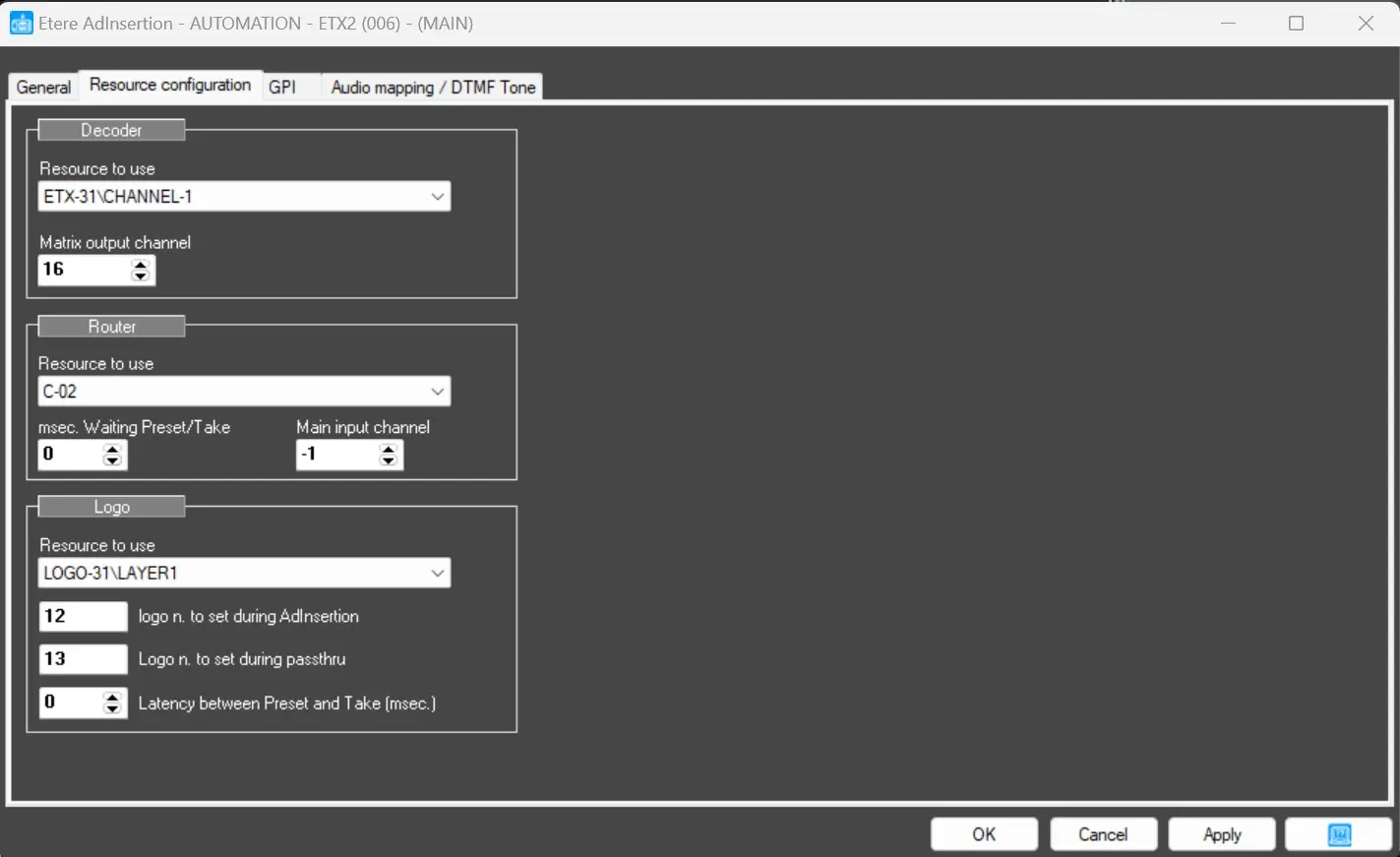
Etere Ad Insertion > Settings > Resources Configuration (TAB)
From here, we can start assigning all the previously created resources, such as Output Channel, Video Router and Logo generators.
res_configuration
Decoder
• Resource to use: We can select the previously created channel from here, which will be used as the MAIN Resource for the PC. We can create one channel for each available PC.
• Matrix output channel: if we have a Video Router configured in our system, we can select it here to let Etere Ad Insertion pilot Routers IN and Routers OUT.
Note: If we want to deactivate it (default), we only need to insert the "-1" value in the Matrix output channel field.
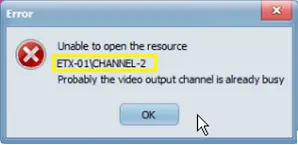
Note: Assigned resources must be available for the given Station only. An error message will appear if the same resource is used somewhere else.
ad insertion etx resource error
Router
If we have previously configured a Video Router, we can insert it here just by selecting it from the drop-down Menu:
• Resource to use: Select the available router resource.
Note: If we want to use a Video Router in our system, we must assign it the SPLIT role in the Resource creation phase.
• msec. Waiting Preset/Take: Enter the time (in milliseconds) to pause between the Preset and Take commands to ensure that the router executes both commands.
• Main input channel: Type the Router Input that will indicate the video feed from the router. To deactivate it, set the parameter to "-1".
Logo
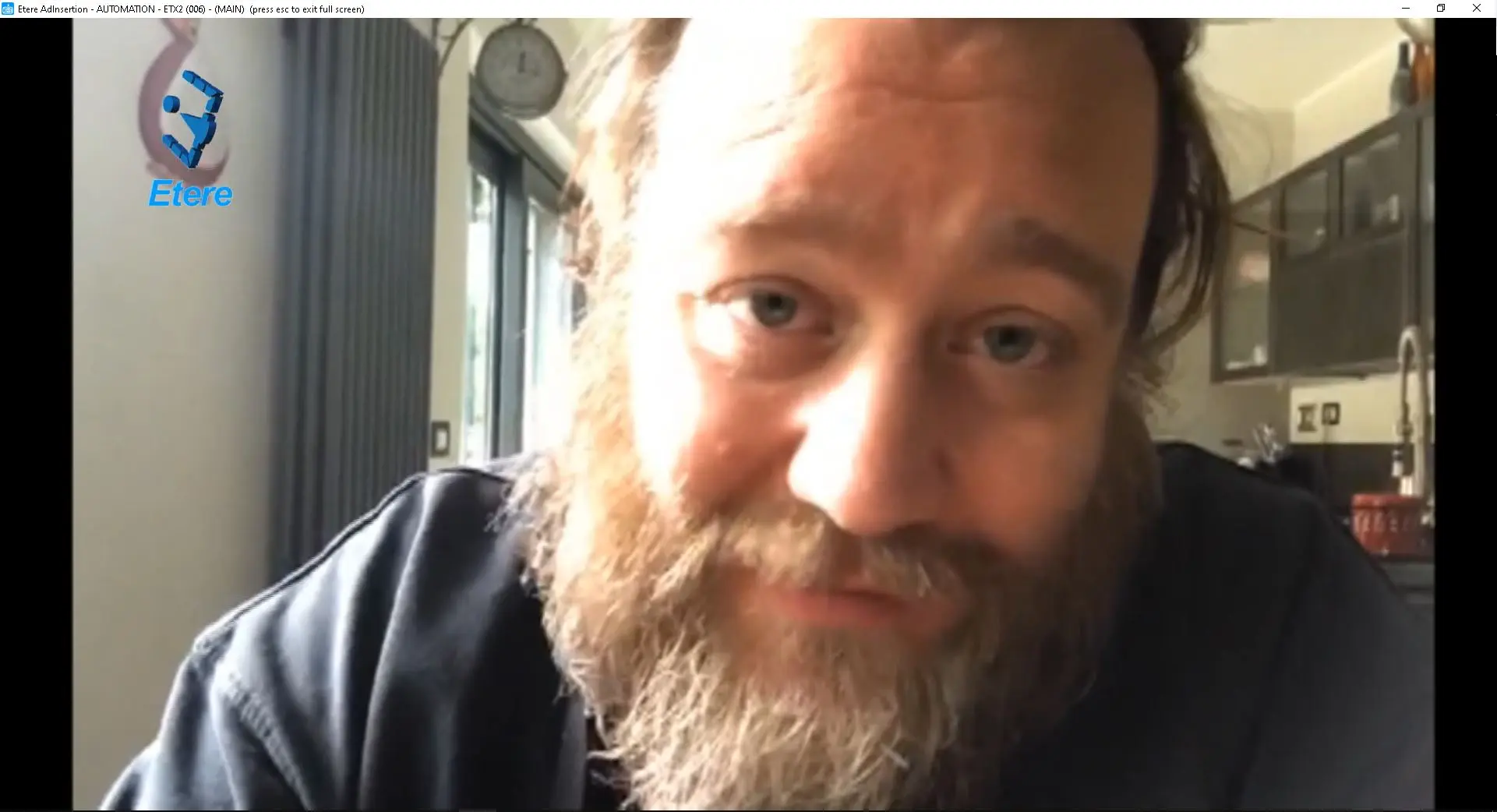
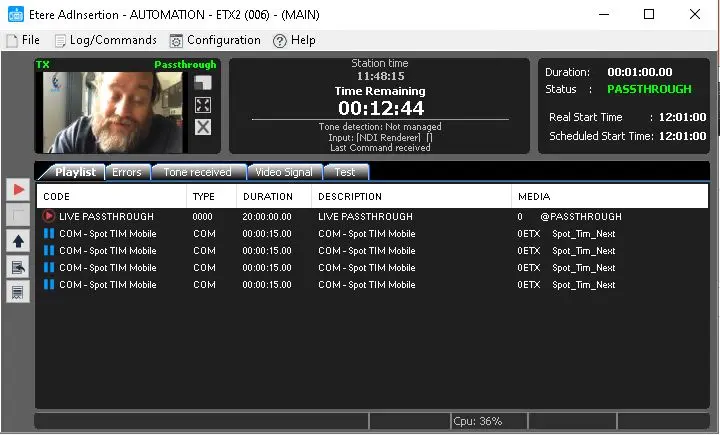
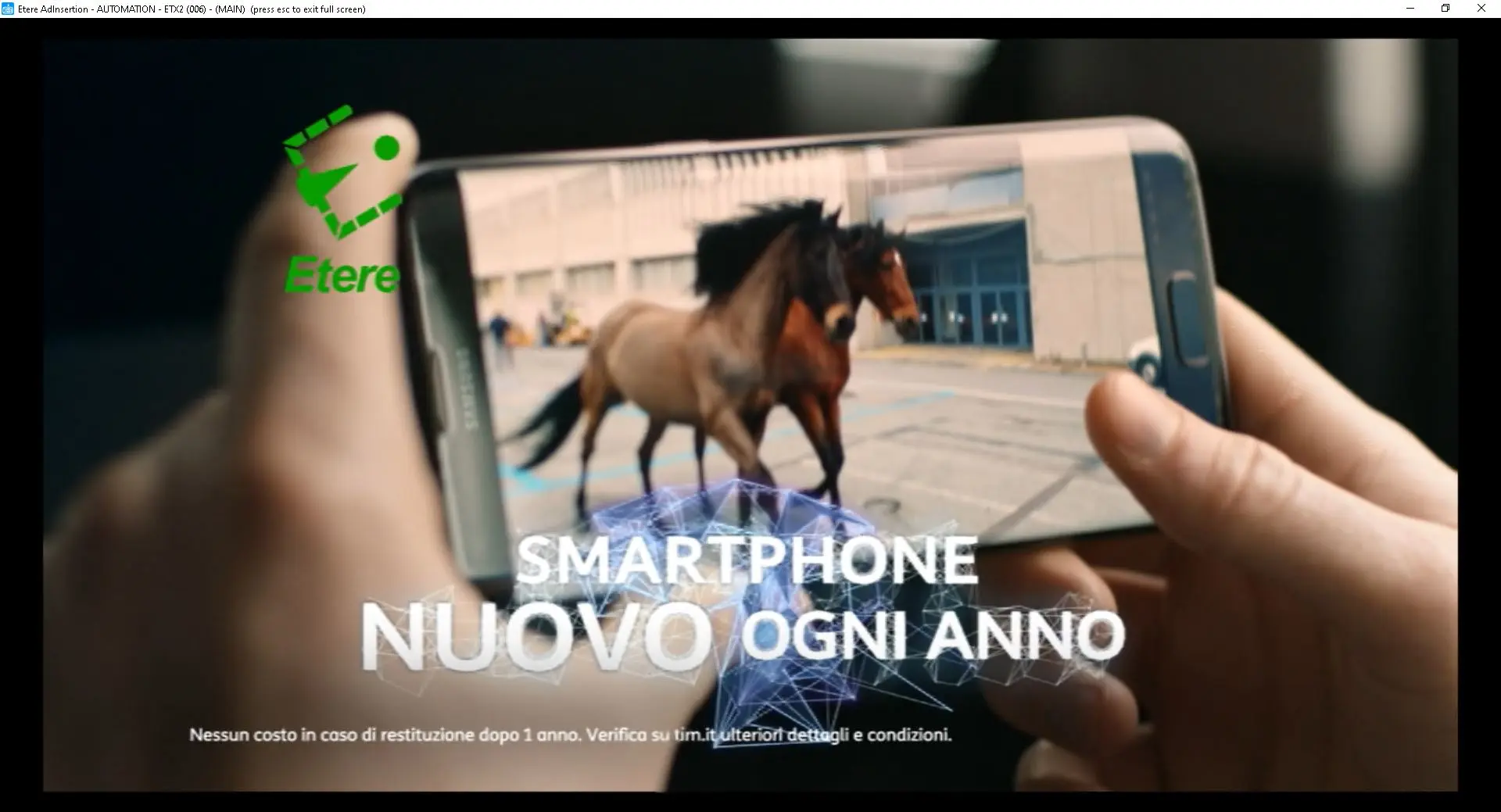
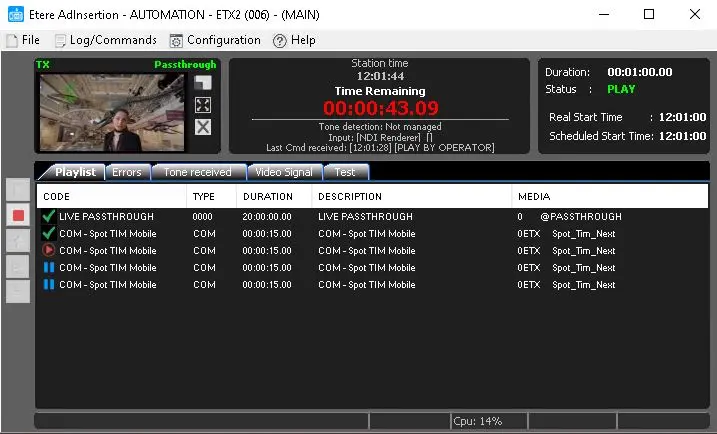
The Logo panel allows us to select the Logo generator we want to use in Etere Adinsertion. They will be used while Etere Ad Insertion is in Passthrough Mode.
Provide the required parameters below to add a logo/graphic:
• Resource to use: Select the available Logo resource from the resource list.
• Logo n. to set during Ad Insertion: The name of the logo/graphic to be inserted during Ad Insertion.
ad_insertion_logoad_insertion_logo_full_screen
• Logo n. to set during Passthrough: The name of the logo/graphic to be inserted during Passthrough.
ad_insertion_logo_full_screen
• Logo n. to set during Passthrough: The name of the logo/graphic to be inserted during Passthrough.
• Logo n. to set during Passthrough: The name of the logo/graphic to be inserted during Passthrough.
passthrough_logo
passthrough_logo_full_screen
• Latency between Preset and Take (msec): Specify the time delay (in milliseconds) between the execution of Preset and Take commands.
When the parameters are set, and the Logo resource is configured for Ad Insertion, the logo will be activated when Passthrough is aired.
Note: You can insert up to 3 secondary event logos into the same main event; the inserted logos will go on air simultaneously throughout the event.
 ad insertion etx resource error
 res_configuration
 passthrough_logo_full_screen
 passthrough_logo
 ad_insertion_logo_full_screen
 ad_insertion_logo