72.2.4.1 Set Asset as Read-Only
Etere provides a series of T-workflow actions for managing the read-only property of assets, the capability of avoiding assets to be modified by users. When an asset is set as "read-only", the Media Library will only allow to search and view the asset but all the "modification" functions (e.g. change data, add media, launch T-workflows, insert metadata, manage EDL, etc.) would be disabled:
Media Library
Set Assets as "Read-only"
To set assets as “Read-only”, you can design T-workflow actions from the Configuration Editor > T-Workflow Action to first check the asset status followed by setting the appropriate access rights to the asset.
The following pre-defined T-workflow actions can be considered:
Check if asset is “Read-only” - This T-workflow action would return asset status whether it has been set to Read-only.
Set read-only - This T-workflow action set the asset status to “Read-only”, all its data (e.g. properties, Flexi-metadata, media edl, workflows, etc.) would be protected against changes from the following modules: Media Library, Quality check, Multifunction ingest and Easy ingest (in all these modules a label would indicate the read-only status of the asset. See image below).
Set read/write - This T-workflow action set the asset status to allow modification of the asset, users would be allowed to view and also modify the asset from the Media Library (e.g. change data, add media, launch workflows, insert metadata, manage EDL, etc.).
NB: In order to set a read-only asset back as read-write, supervisors needs to launch the proper T-workflow from the "Search" tab using the launch workflow contextual function.
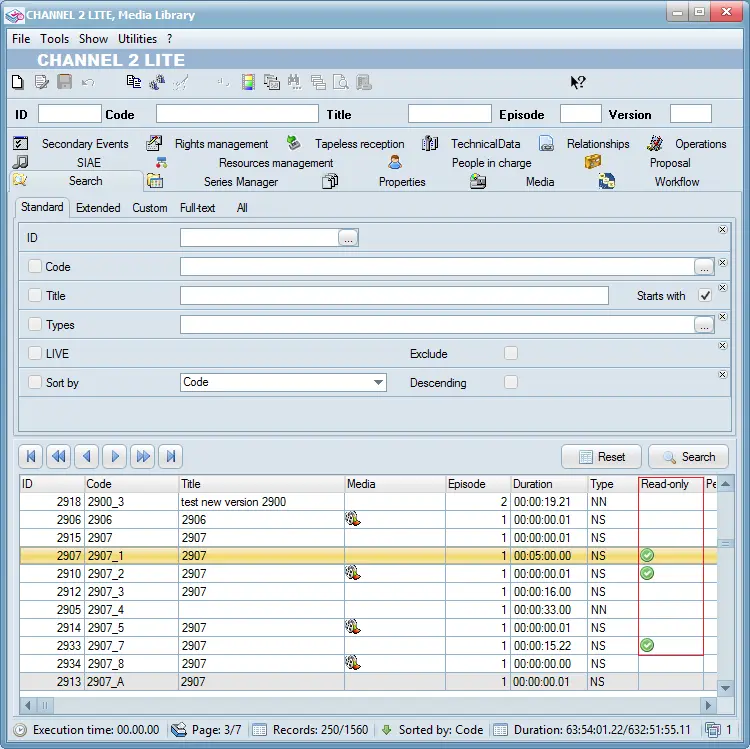
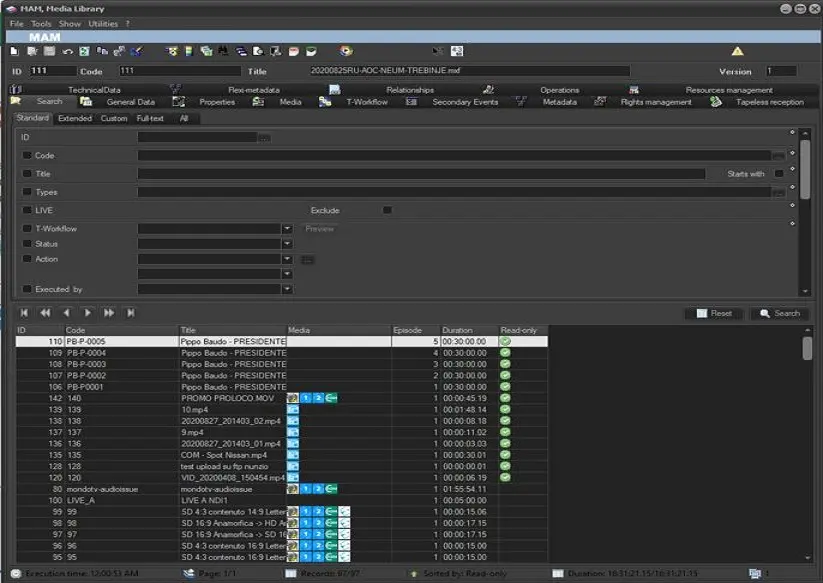
When accessing the Media Library, the assets are marked as "Read-only" in the column.
Read-only
NB: Please note that in case an asset is set as read-only, it will be however possible to access it proxy preview unless it's specifically denied to the user.
 Read-only
 Media_Library