93.2.1.25 MMS - Live Conforming
The Live Conforming action allows to transcode in a single file, all the recordings of a broadcasted live asset. This feature works together with Etere Time delay service, which, in this case, is the module responsible to record the live event (see chapter 95.0.0.0 Etere Time Delay Service for more detailed information).
HOW DOES IT WORK
The whole process starts with the Time delay service parameters, which must be set in Etere Time Delay Setup interface and which are also saved in the database.
Etere Time Delay Service records then the live event in several files, each one with a predefined duration, and saves them in the predefined folder, naming them with the following notation:
TDXXXR-YYYYMMDDZHHmmsscs
where:
- TD is a fixed prefix.
- XXX stands for the station number (001, 002, 003...).
- R is the role of the service (M for main, B for backup).
- YYYYMMDD is the date when the recording started.
- HHmmsscs is the time when the recording started, expressed in hours (HH), minutes (mm), seconds (ss) and hundredths of second (cs).
Note: the date and time are referred to UTC time, so the recording date could not match with the local one if UTC time falls before/after midnight.
Once the live event is recorded, the action can be launched on the live asset. At this point the action can automatically retrieve all the needed information from the database (e.g. the location of the files to merge) and perform the transcoding according to the action configuration.
PARAMETERS
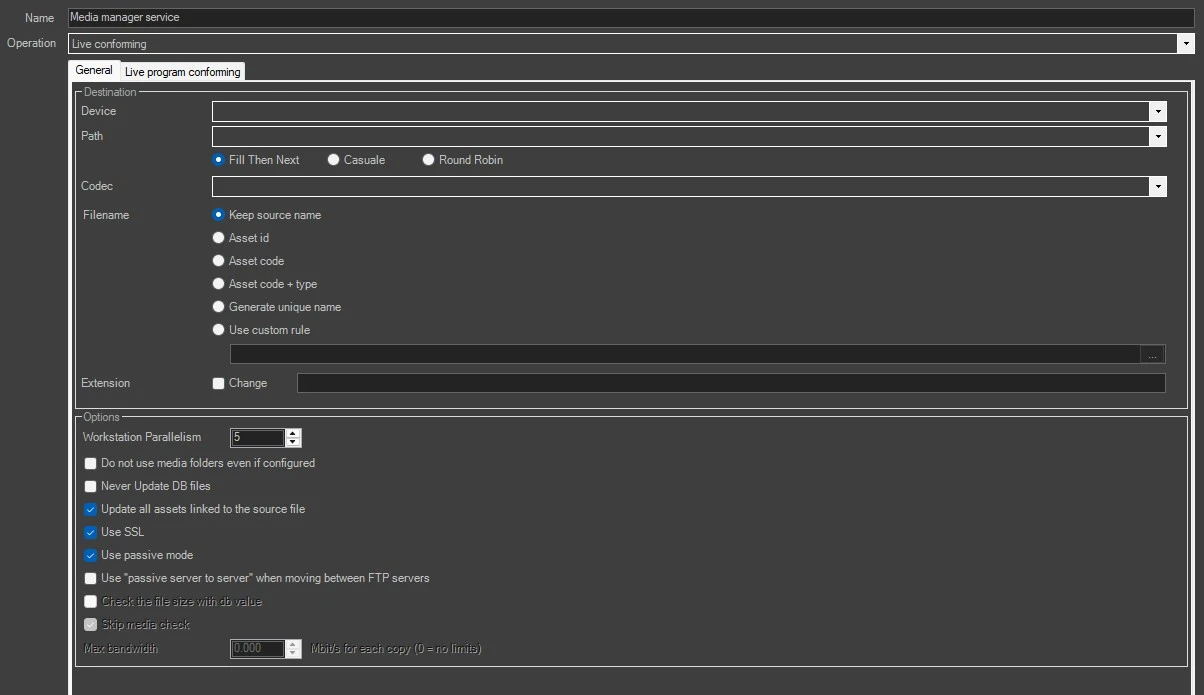
live_conforming_general
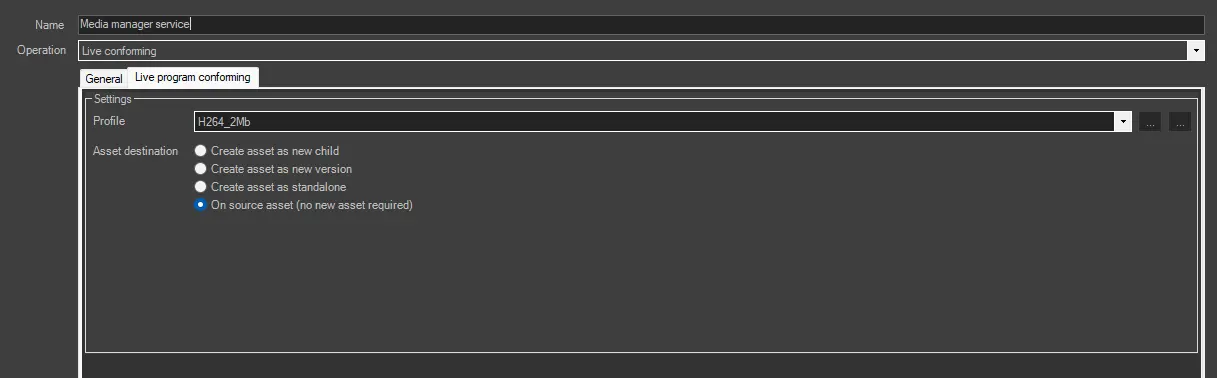
live_conforming_conform
GENERAL TAB - DESTINATION
Device: Select the destination device to which the files would be copied.
Path: If the selected cloud device contains more than one path, this parameter allows one to choose one of them as the destination path.
Codec: Select the destination codec of the copied files.
Filename: Choose, among the following options, how the destination filename should be managed:
• Keep source name - Enable this option to maintain the source filename for the destination file. This option is enabled by default.
• Asset ID - Rename the file as the ID of the asset to which the wf is attached.
• Asset code - Rename the file as the asset code to which the wf is attached.
• Asset code + type - Rename the file as the code and the type of the asset to which the wf is attached.
• Generate a unique name - The physical file will be named using a unique identification (UID) automatically generated by a system algorithm.
• Use custom rules - The file will be named with a custom filename based on database references (e.g.: Flexi-metadata, asset data...) and free text.
Extension: This parameter allows the modification of the destination file's extension, activating the "Change" flag and typing it in the field.
GENERAL TAB - OPTIONS
Workstation parallelism: Indicate the maximum number of actions that can be taken at the workstation simultaneously.
Do not use media folders even if configured: Enable this option to ignore the translated path, even if it's configured.
Never update DB files: The file won't be updated in the Database.
Update all assets linked to the source file: If enabled (default), the copied file will be associated with all the asset forms linked to the source file.
Enabling this option is useful, for instance, when a single file is used by multiple assets (e.g. which transmit it overlaid with different logos); in this case, every time the file is copied, the new copy will be updated across all linked assets.
If disabled, the copied file will be associated only with the asset form which the T-workflow has been launched for.
Disabling this option is useful, for instance, when a single big file (e.g. a live feed recording) is used by multiple assets which partially retrieve a smaller file; in this case, only the support from which the partial retrieve has been executed will be updated.
Use SSL: Enable this option to use SSL (Secure Socket Layer) when saving the file in a destination path over the network. If enabled, the service media manager would attempt to complete the action using the following authentication steps in sequential order:
- FTP over TLS (Transport Layer Security)
- FTP over SSL (Secure Socket Layer)
- Plain FTP (without encryption)
If the FTP server supports SSL encryption, the Media Manager service will use a new set of libraries for copying files. Else, Plain FTP would be used.
Use passive mode: If checked, the FTP client will try to use passive mode for all file transfers (upload/download/move); otherwise (if disabled), the standard active way will be used.
Use 'passive server to server' when moving between FTP servers: Enable this option if both source and destination devices use the FTP protocol and support 'passive mode'.
LIVE PROGRAM CONFORMING TAB
Profile: Set here an existing encoding profile to be used by the transcoding process. It's also possible to select <New profile> to create a new one. Select one from the list and click the first button beside it to edit.
Asset destination: Choose on which asset the conformed file should be linked to.
- Create asset as new child: The action creates and links the file to a child of the live asset where the workflow runs.
- Create asset as new version: The action creates and links the file to a new version of the live asset where the workflow runs.
- Create asset as standalone: The action creates and links the file to a new asset, not linked to the source live asset.
- On source asset (no new asset required): The action links the conformed file to the same asset where the workflow runs.
Notes:
- For any of the described options (except for "On source asset") the newly created asset id is specified in the workflow logs.
- In case the live conforming action is set to "On source asset", once the file has been linked the LIVE flag of the asset will be disabled and it won't be treated as a live asset anymore.
 live_conforming_general
 live_conforming_conform