70.3.4.5 Manual database backup
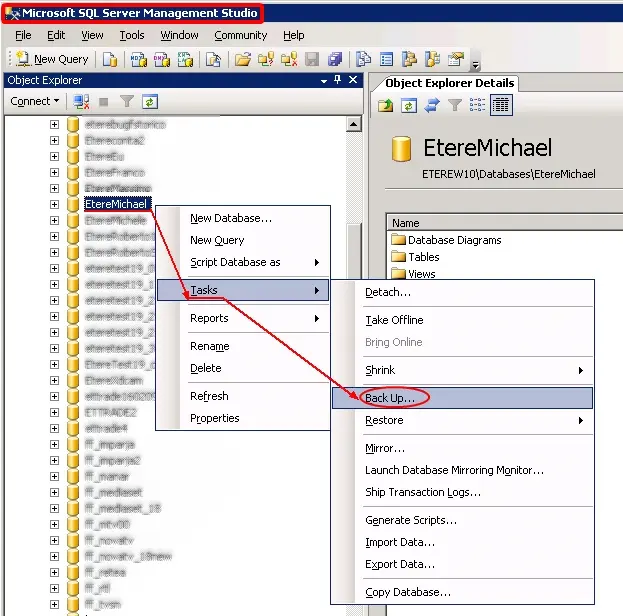
1.Launch the SQL Server Enterprise Manager, connect to the server and choose the database for which the backup will be created:
Microsoft SQL ServerManagement Studio
Backup your database by using SQL Server Enterprise Manager.
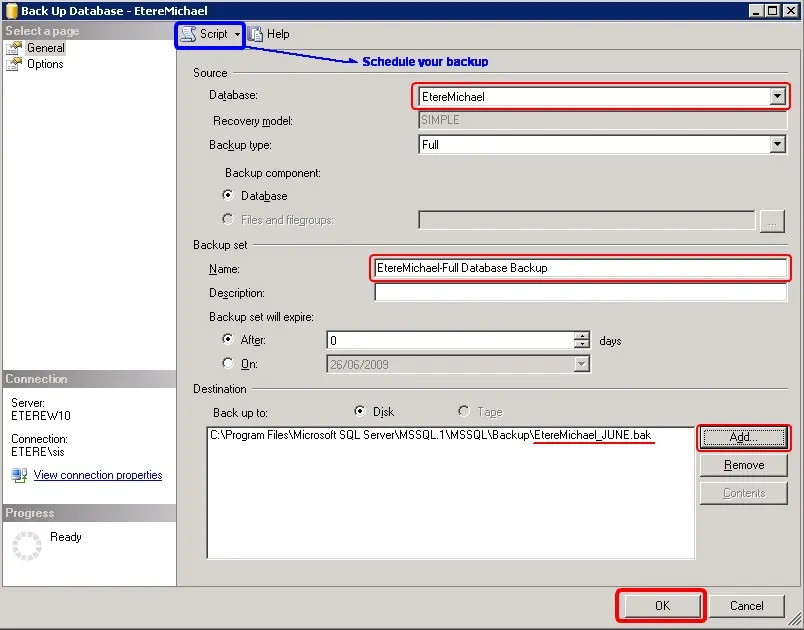
2.In the new opened window you must select the destination path by clicking on the 'Add' button. It is recommended to set the same path used in the copies path field in Etere HSM, otherwise you will have to move the file manually to it.
Back Up Database
3.At this point you can choose between create the backup file or schedule it for future creations:
•Single Backup
If you want to create a unique backup only once, just press the 'OK' button and the operation will start.
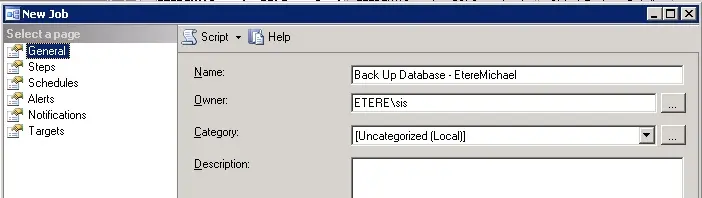
New Job
•Scheduled Backup
Instead, if you wish to schedule the just created 'database backup operation', select 'Script action to job' from the 'Script list', the next window will appear:
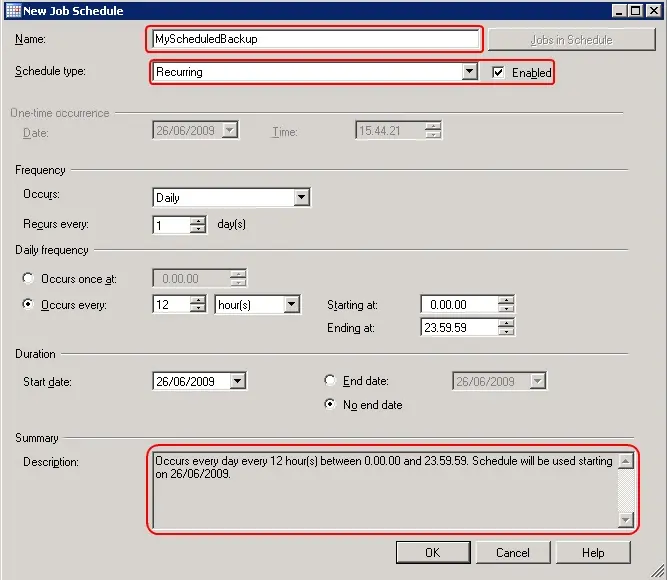
Go to the 'Schedules' section and click 'New'. In the 'Job Schedule' dialog box you will have to type the job name and specify the job schedule (type, frequency,duration, etc):
New Job Schedule
Finally click 'OK' three times, and your backup will be programmatically created according to your specifications.
4.At the end of the process, the following message will appear "The backup of your database was completed successfully", indicating the success of the operation.
 New_Job_Schedule
 Microsoft_SQL_ServerManagement_Studio
 New_Job
 Back_Up_Database