72.2.2.23 Annotations - Media File Import
The Media File Import allows a fast file-based ingest of a single media file by linking it to a certain asset. Besides to this function, Etere also provides the Media File Multi-Import (to upload multiple files, for instance, from P2 devices).
In order to import a media file it is enough to follow the next procedure:
1. Browse for the digital file (e.g. from a P2 device) and select it,
2. Select the cloud-device on which the file will be stored.
NB: In order to view cloud-device, ensure that the “Not available” option in Web Configuration > Media Folder is Disable.
Note: In case the "perform 2 copies on import operations" option is enabled in "Etere Configuration > Settings > Basic > Media Library", it will be possible to select a 2nd destination where to import the file.
3. Specify the codec with which the file is encoded,
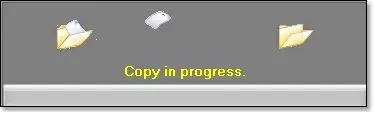
4. The selected file will be automatically copied to the metadevice (if the file already exists in the metadevice a message will be displayed):
Media File Import
5. Once copied, the imported file will be automatically added to the asset's technical data.
NB: When MXF file is imported into Media Library, the index file with extension “.mxf.idx” would be deleted from system, only “.mxf” can be linked to asset.
6. Once imported, the default T-workflow (i.e. "after media file import") will be automatically launched for the asset.
NB: The file import and T-workflow copy function support standard format files, including MPEG Transport Stream (.TS) format.
Note
Since the "Media File Import" uses a default T-workflow its execution will depend on the whether the default T-workflow is currently running or not on the asset. Before starting with this operation, the system will check the asset to determine if the default T-workflow is:
▪ Not attached: The operation will be allowed and the T-workflow will be started.
▪ Attached but not running: The operation will be allowed and the T-workflow will be attempted to be restarted (depends on workflow properties).
▪ Running: The operation will be denied, allowed (without workflow restart), allowed (force workflow restart) or asked to be allowed (without workflow restart), this, depending on what set in "Etere Configuration > Configuration Editor > T-Workflow > Default T-workflow".
 Media_File_Import