66.4 Create Graphics with ETX CG Editor
Etere ETX CG Editor allows you to work with ETX-G and create configurations with a friendly GUI. ETX CG Editor is currently based on Microsoft Windows Presentation Foundation (WPF), so the WPF Playlist Sample is included.
To activate Etere ETX CG Editor, launch Etere ETX Toolbox Player, check the <CG Enabled> tile button and click on <CG Editor> to start the editor menu.
etere_etx_gc_editor
To add an item, simply drag and drop from the Toolbox into the Preview area.
When importing graphics files into CG Editor for editing, the origin font type in the graphics file is loaded and remains intact.
In the Preview area, Changing the position and size of any items is possible. All properties of the selected item are displayed in a ribbon panel divided by categories. In addition, you can select multiple items and change all items in one go. You can select items on Preview or in the Items List Form panel.
Moreover, you can modify the XML description of any selected item and click the <Apply> button to apply changes by importing the XML.
cg_editor_stage
WARNING: The CG can be used by Automation and Ad Insertion in different modes:
- In Automation mode, a black screen would appear in the preview when there is no clip in the timeline.
- In Ad Insertion mode, the inserted logo would be loaded in the preview.
The Properties tool in ETX CG allows you to select, modify and delete the items you have created.
To select an item, first, choose the selected item from the categories in the ItemListForm:
cg_editor_items
cg_editor_layers
Delete Item
To delete an item, select/highlight the item and press the <Delete> button on your keyboard.
cg_editor_layers
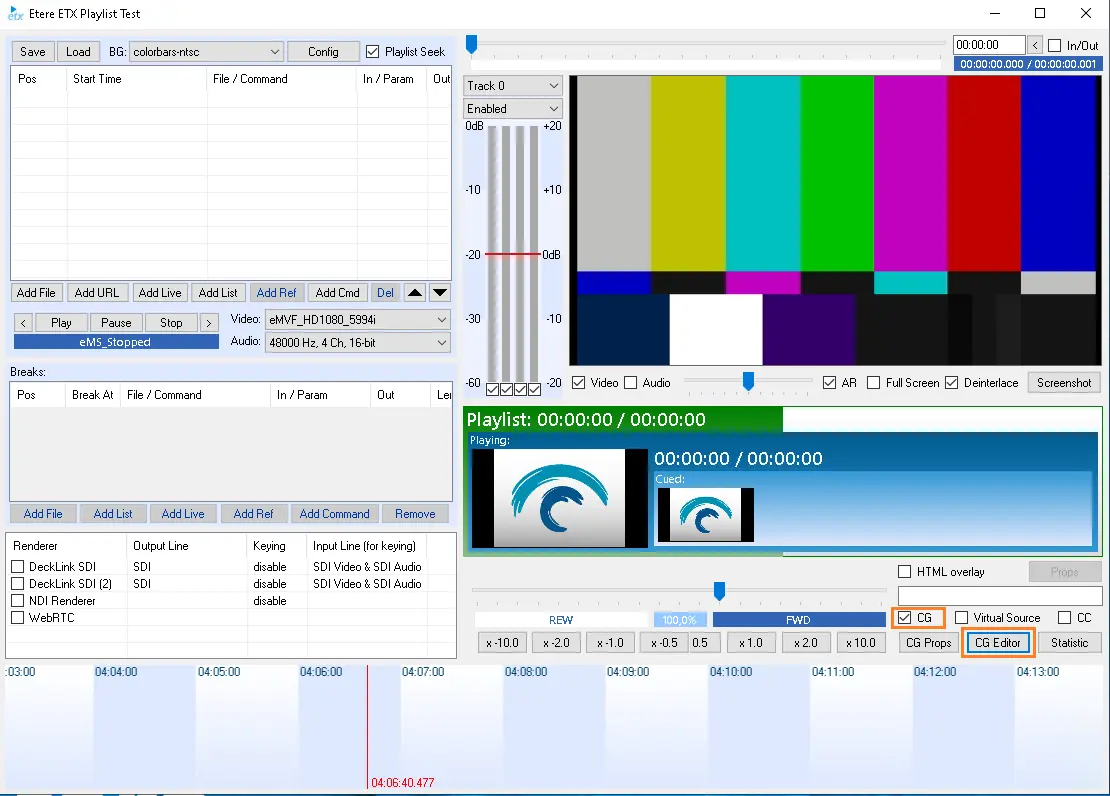 etere_etx_gc_editor
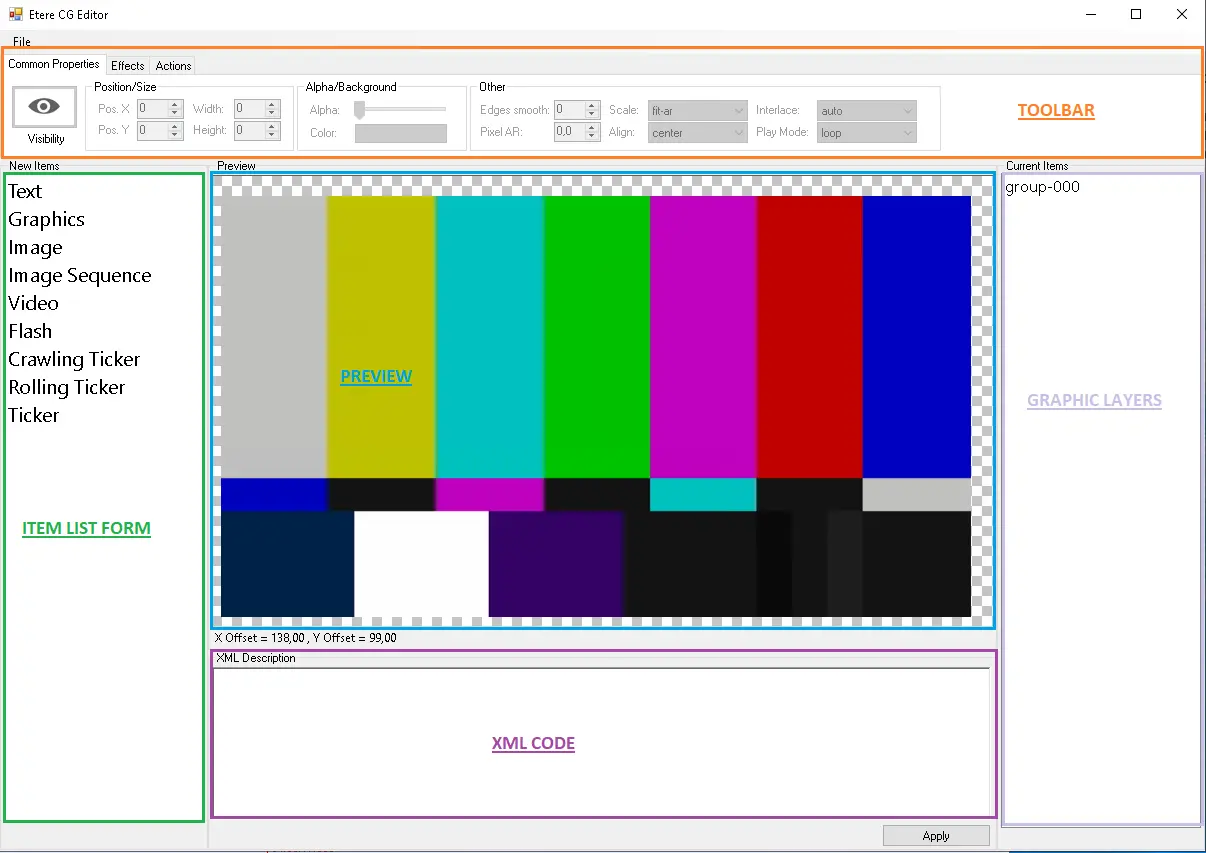 cg_editor_stage
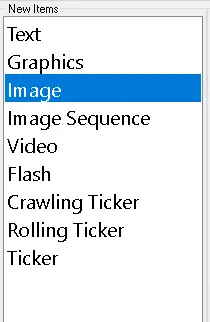 cg_editor_items
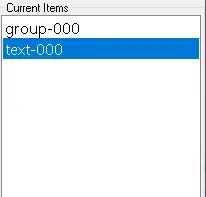 cg_editor_layers