206.1.1 How to use
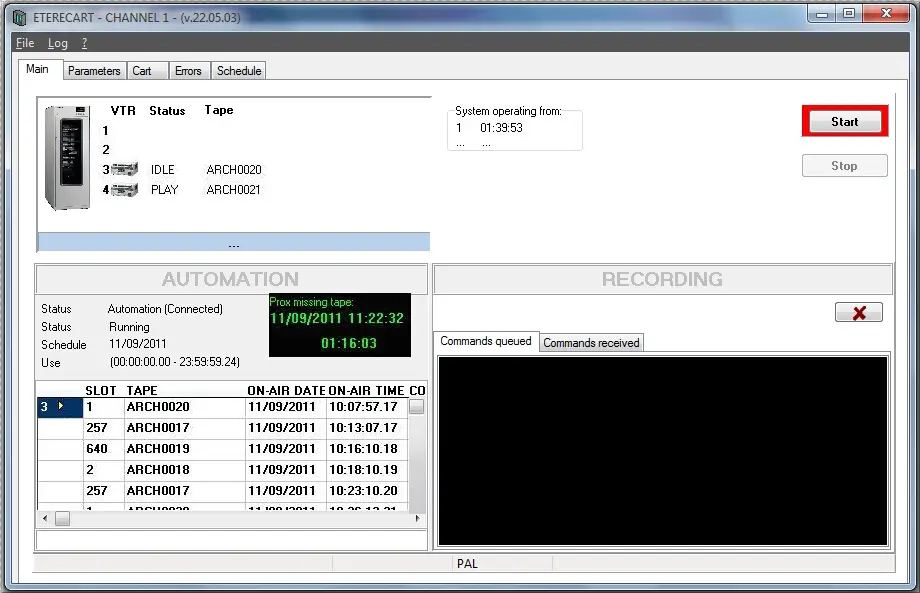
Once the Cart (e.g. XDCam device) is switched ON, launch Cart Manager and press the [Start] button to start the INIT (initialization) process. During the INIT process Cart Manager read the details and status of the Cart's content, includes the disc codes and their location in the various slots (bins) and in the VTR. The Cart's progression bar appeared in the Main Cart Manager window throughout the initialization process. Cart Manager would be ready for use upon completion of the initialization process.
NB: After Cart Manager has been installed, make sure that the automation has been launched at least once before start using it.
Main
The main tab allows you to see the status of the XDCAM Cart and the various VTRs it holds. Both Automation and Recording are visible from this front screen depending on the function chosen for the relevant VTR in use:
cart_manager
Parameters
The parameters tab allows setting the following data:
General
Rack resource used: specify in which FLEX represents the XDCAM Cart in question.
Roll-over time: shows the end time of the TV day as configured in Configurations/Settings.
Rack port Polling: specify the time (in seconds) the Cart port must be checked after opened.
Type of support…: automatically generates information regarding the VTR type and tape type. This is used when new discs are inserted into the Cart with a printed barcode and a code that is not yet present in the Tape Loading module. Cart Manager will create new code, a disc with the characteristics specified in this field and the code that it reads off the disc.
Ingest
Information regarding the local port and IP address of the current PC can be found in this section.
Automation
Use the Cart for Automation: Allows the Cart is to be used for Automation. If unchecked, the Cart would be used for Recording only ('Recording' refers to asset form operations and asset forms on the web). In the 'From' and 'Until' fields, specified a timeframe where the Cart is used for Automation, the Cart would be used for Recording beyond the timeframe.
Automation Main: the export path is automatically generated when automation is launched the first time after configuring the XDCAM cart as a new resource. Likewise with the IP address and Local Port.
Max number of events to be listed: specify the maximum number of events to be listed in the Cart Manager main screen.
No. of VTRs in the Rack: the value is automatically generated, this tells you the number of decks available in the Cart.
Alarm port open…: if the Cart is not ready for playout, specify a timeframe in minutes (from playout) when a buzzer will go off to alert the user.
Wait after tape ejection: specify wait time (in seconds) after the ejection of the VTR to be available for insertion in the slot (bin) – default is 4 seconds.
Reset at start: if activated, when Automation starts the Cart will put all discs back into the respective slots so that at the start of use, the VTRs are empty and ready (Eterecart needs to be open) .
Final reset: if activated, when Automation stops all discs will be put back into their relevant slots to present a "clear" system for the next user (Eterecart needs to be open)
Cart
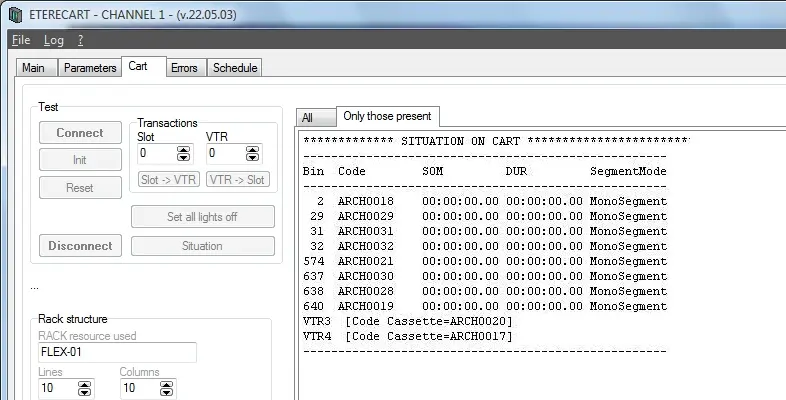
In the Cart tab you can visualize either all or only those discs that are present in the Cart as well as which discs are in which VTRs:
Hmfile_hash_068dbe67
Debug is allow in this section. The test parameters are active when the [STOP] button is pressed in the Main tab. Click the [Connect] button to trigger the test.
Init: allows manually trigger the initialization process.
Movement: allows to test the movement of a disc from a particular slot into the VTR (Slot à VTR) and vice versa (VTR à Slot).
Reset: tests the reset process.
Upon complete the test, click [Disconnect] button to exit the debug mode.
Errors
The Errors tab shows all errors encountered by the application.
Schedule
The Schedule tab display a selected published schedule.
 cart_manager
 Hmfile_hash_068dbe67