70.3.6.15 Create Backup Tapes
This chapter describe the steps to perform in order to create offline backup tapes in HSM.
Prior to the Archive Operation
Before planning for archiving operation, the following tasks must be taken into considerations:
1.HSM Archive T-workflow
A user-defined T-workflow or template-based T-workflow must be in place to archive assets into HSM backup tapes. Etere provides some template-based T-workflow actions that cater for this purpose.
T-workflow - HSM Archive
Objective : Enable HSM Headquarters to upload all assets from the selected asset form to a specific metadevice in the Tape Library.
In Addition, you can use other template-based T-workflow actions to determine the HSM related assets and media.
T-workflow - HSM File Online
Objective : This T-workflow action check the HSM tapes present in Tape Library, whether they are online or offline, or does not exist in HSM.
T-workflow - HSM File Exist
Objective : Use this T-workflow action to determine whether assets has been archived in HSM.
T-workflow - HSM File Delete
Objective : This T-workflow action delete the assets archived in HSM.
T-workflow - HSM MD5 Checksum
Objective : Use this T-workflow action to deploy MD5 validity check on HSM tape media.
T-workflow - Set Current Metafile
Objective : This action set the reference metafile of a T-workflow instance for specific operation.
T-workflow - Set HSM Archive Media Pool
Objective : This action specify the exact Media Pool for the archive operation.
2.Set the Destination Media Pool
A Media Pool is a collection of archival tapes having the same common properties, e.g. Offline backup. It is a “virtual location” in HSM where all the tape media are organized according to the specific needs.
Refer to Configuration > Settings > Basic Configuration > Media Pools on how to configure the Media Pool for Offline Backup Tapes.
NB: Etere recommend setting a dedicated Media Pool for Offline Backup Tapes to separate the Media Pool from other Media Pools.
3.Setting the Archiving Rules
You can define certain rules to control the archive operation simply to ensure that the offline backup tapes are created in accordance to your requirements, e.g. delete assets after archive, number of offline tapes copies to be created in Media Pool, etc.
Refer to Configuration > Settings > Types Editor > Types > HSM for setting the rules.
Automatic Archive
The Automatic Archive use the template-based T-workflow action “HSM Archive” to archive assets in Media Library into HSM Tape media via HSM Headquarters.
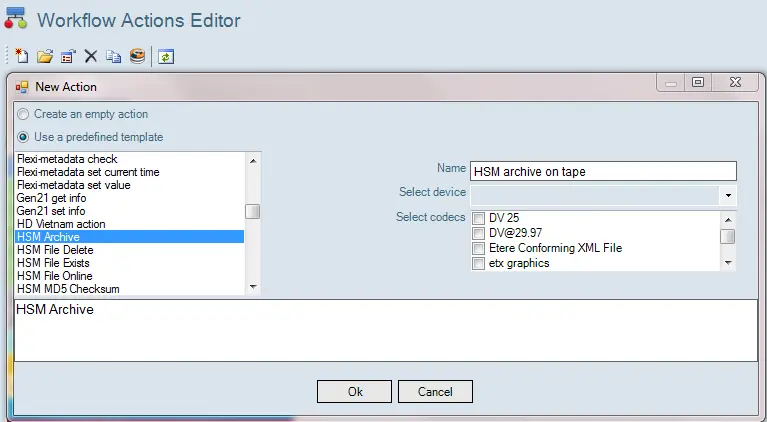
1.Launch Etere Configuration Editor and locate the “HSM Archive” action and complete the settings.
Workflow Actions Editor
In the “HSM Archive” action, give a name (e.g. HSM archive on tape) to identify the action, and select the device and codecs to be used for archive operation.
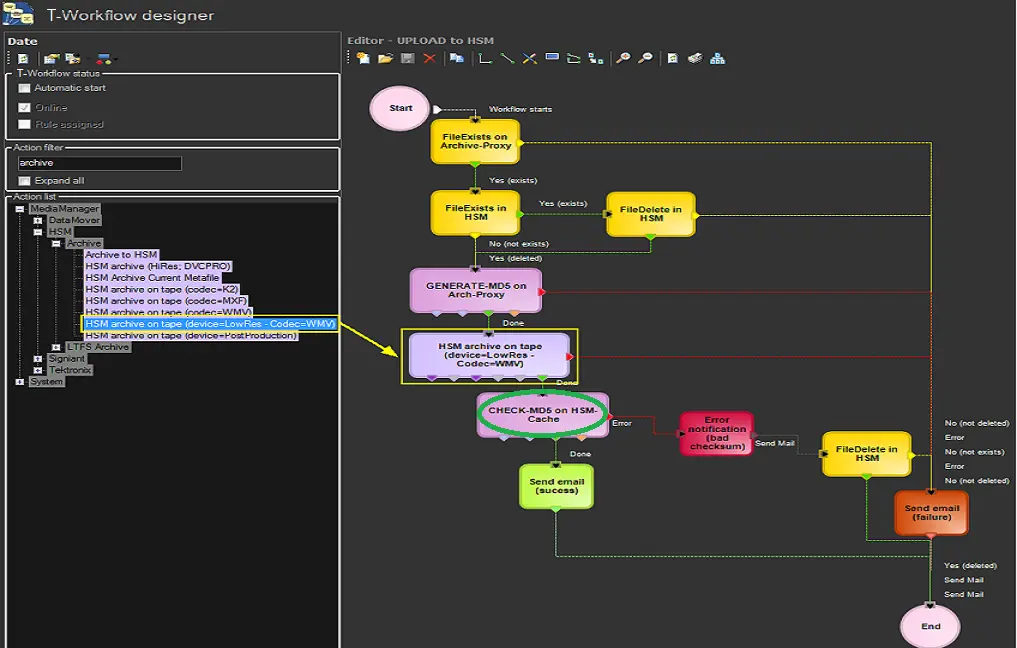
2.In Configuration Editor, launch T-workflow Designer and create an archive T-workflow “Upload to HSM” containing the “HSM archive on tape” action created in previous step.
T-Workflow Designer
In the T-workflow, you are advised to include “MD5 Checksum” action for data security during the archive operation. The MD5 would generate hash value on tape media before archive, and validate the hash value after the archive operation to ensure data integrity.
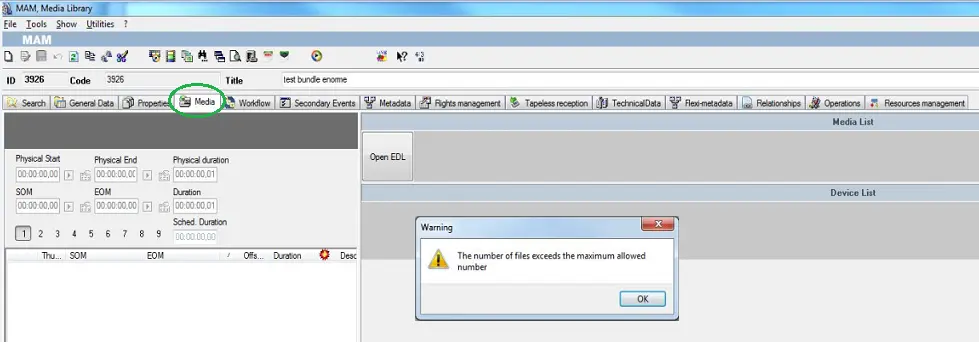
3.In Media Library, in the Workflow tab associate T-workflow “Upload to HSM” to the assets you are intend to archive into tape media, as shown in the image below.
Media Library
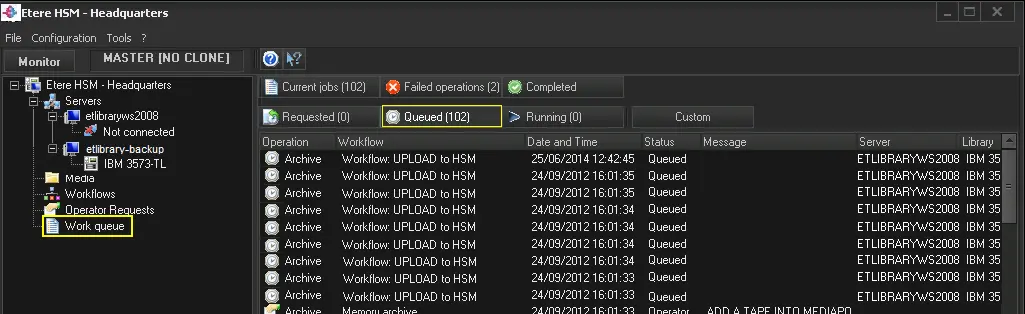
4.In HSM Headquarters, the submitted T-workflow would be reflected in the Work Queue under Monitor.
Etere HSM - Headquarters
5.The HSM Robotics would than triggered to archive the assets into the designated Media Pool defined for the Offline Backup tape media. The archive operation would adhere to the archiving rules set in the HSM section of Types Editor to create the backup tape media.
Predefined Archive
The Predefined Archive operation uses combination of Etere template-based actions to achieve the archive operations.
1.Launch Etere Configuration Editor and start T-workflow Designer. Click the <New> button to create an empty template and named it as, for example “Predefined HSM Archive”.
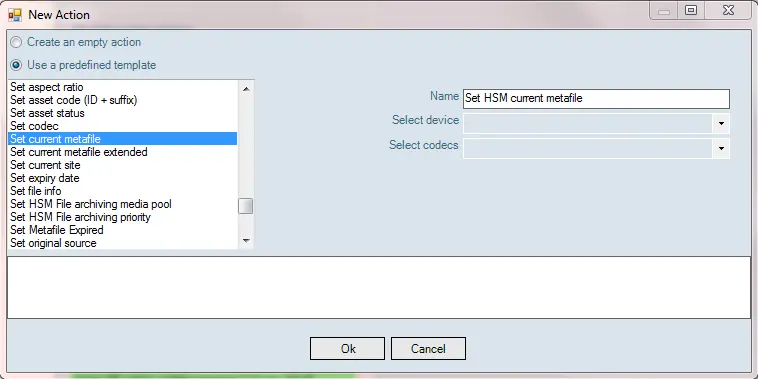
2.Locate T-workflow action “Set Current Metafile”, provide a name to identify the action and indicate the device and codecs from the drop down list to archive the assets.
New Action 1
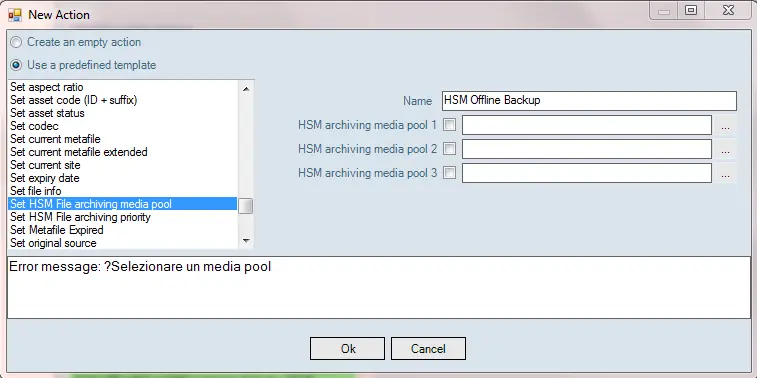
3.Locate the next T-workflow action “Set HSM File Arching Media Pool”, provide a name to identify the action and select the Media Pool dedicated for the archive operation.
New Action 2
NB: You are advised to select the Media Pool defined for the Offline Backup Tapes.
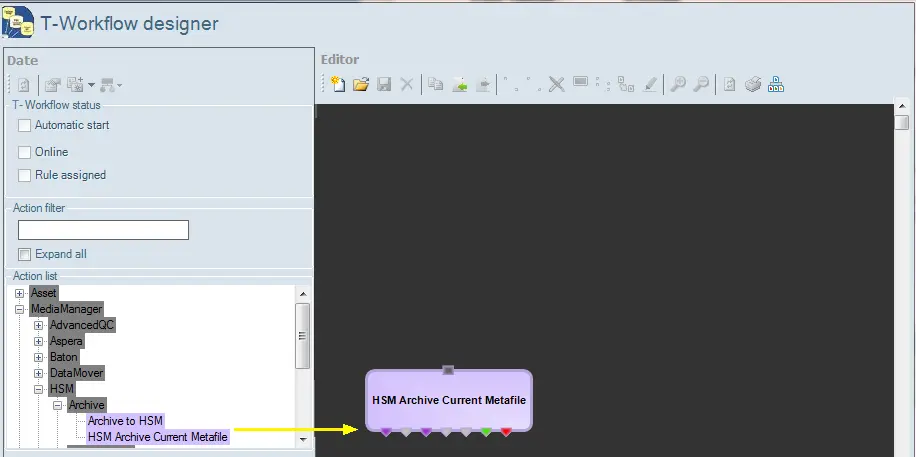
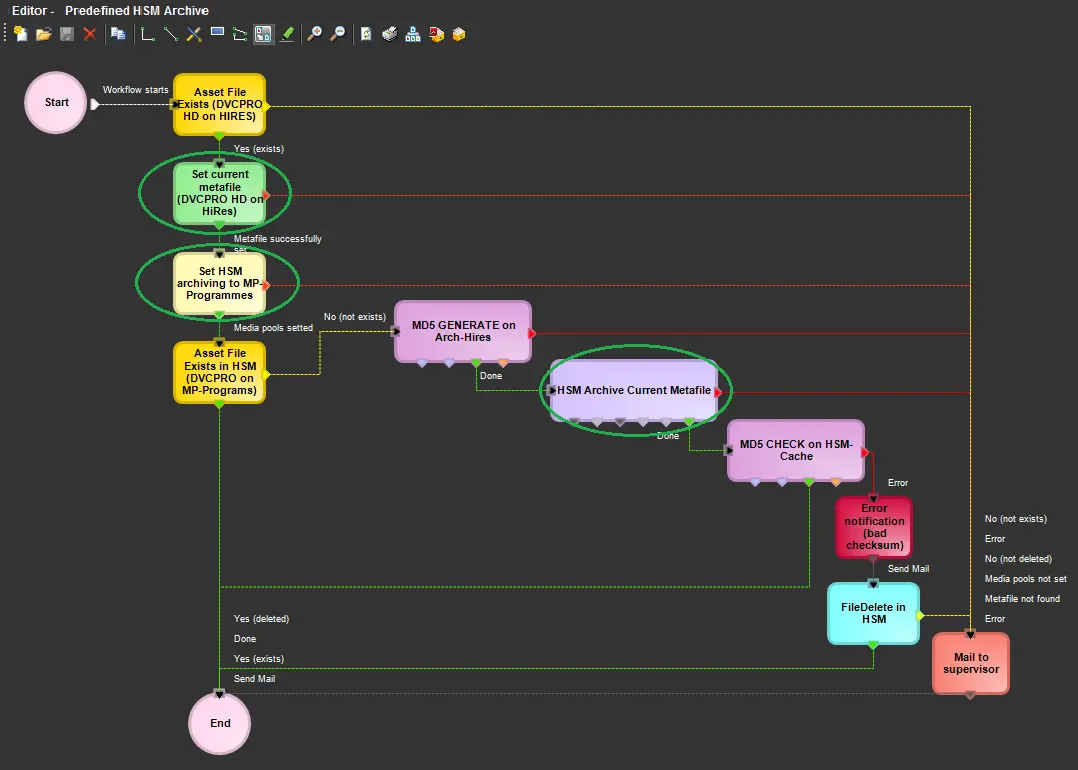
4.Return to T-workflow Designer, add the “HSM Archive Current Metafile” action to the empty T-workflow “Predefined HSM Archive” you had created in step 1.
T-Workflow Designer 2
5.Next, add the T-workflow action “Set Current Metafile” and “Set HSM File Archiving Media Pool” you had defined in previous steps to the T-workflow. You can includes other actions in the T-workflow to complete the archive operation.
Editor
In the T-workflow, you are advised to include “MD5 Checksum” action for data security during the archive operation. The MD5 would generate hash value on tape media before archive, and validate the hash value after the archive operation to ensure data integrity.
6.Once the T-workflow is created and saved, each time the “Predefined HSM Archive” T-workflow is launched, HSM Headquarter would archive the requested assets to the Media Pool indicated in the T-workflow action.
How to “Offline” Backup Tapes
When the archive operation is completed successfully, the backup tapes should be unmount from the drive for safekeeping, prior to that, the following validity check process should be in place.
1.Check Free Space in Backup Tapes
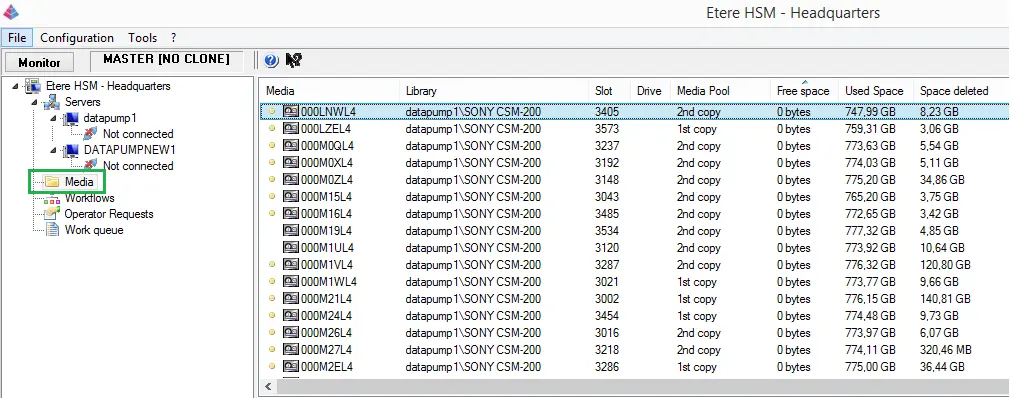
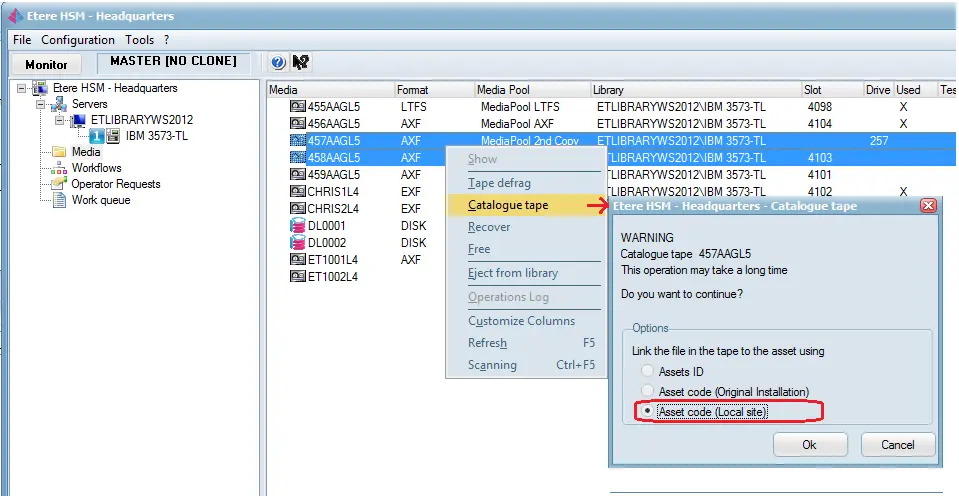
You need to take note/record the number of backup tapes used for the archive operation and the remaining free space in the backup tapes, these information can be obtained from HSM Headquarters.
Etere HSM - Headquarters 2
In the Media section, locate the dedicated Media Pool for the archive operation and determine which backup tape is fully utilized and the remaining free space in the backup tape.
In addition, you can generate the “HSM Tapes List” report containing all the tape media used for all HSM archive operations for filing purposes.
2.Check File Existence Across Backup Tapes
You can create a SQL stored procedure to query the asset files in Database to determine if same asset files are backup into different tapes in the Tape Library.
Alternatively, you can deploy approached 3rd-party software to perform the validity check across all backup tapes.
3.Set Backup Tapes “Offline”
When backup tapes are set to “Offline” the tapes would not be accessible in HSM library. In the event if you need to retrieve asset file from the backup tapes you must set the backup tapes to “Online” to re-present the tapes in HSM library.
To set tape “Offline” simply right-click on tape media and select “Eject from library” function.
Etere HSM - Headquarters 3
The ejected tape would appeared as “Offline” in the Media list.
 Etere_HSM_-_Headquarters
 T-Workflow_Designer_2
 T-Workflow_Designer
 New_Action_2
 Workflow_Actions_Editor
 Etere_HSM_-_Headquarters_3
 Editor
 New_Action_1
 Etere_HSM_-_Headquarters_2
 Media_Library