59.5.4.78 Order Implementation
Report Description
The Order implementation report allows the generation of a document containing all spots belonging to a specific order scheduled within a given date range, thus allowing the consultation of the period-specific revenues derived from that order.
Listed below are some criteria for generating the report:
•The "Break" column should specify the break types in the segment; it should consist of SB (start break), CB (centre break, e.g. CB1, CB2, etc) or EB (end break). The Breaks are calculated based on fiction (program-content) segments rather than paid segments, for example:
•Block with one fiction segment: SB - EB
•Block with multiple fiction segments: SB - CB1 - CB2 - CB3 - EB
•Within a block, there should be only one EB captured in the report
•The "Program before" and "Program after" would capture the program name (not the elements) scheduled before or after the current program. For the last program of the day, the "Program after" should capture the first program name schedule for the next day.
•The report generation should cater for all channels.
Note
Please note that this report retrieves data from the production and historical databases (if it exists). This feature will allow more information to be included in the report but may cause more time to be generated.
Report Filters
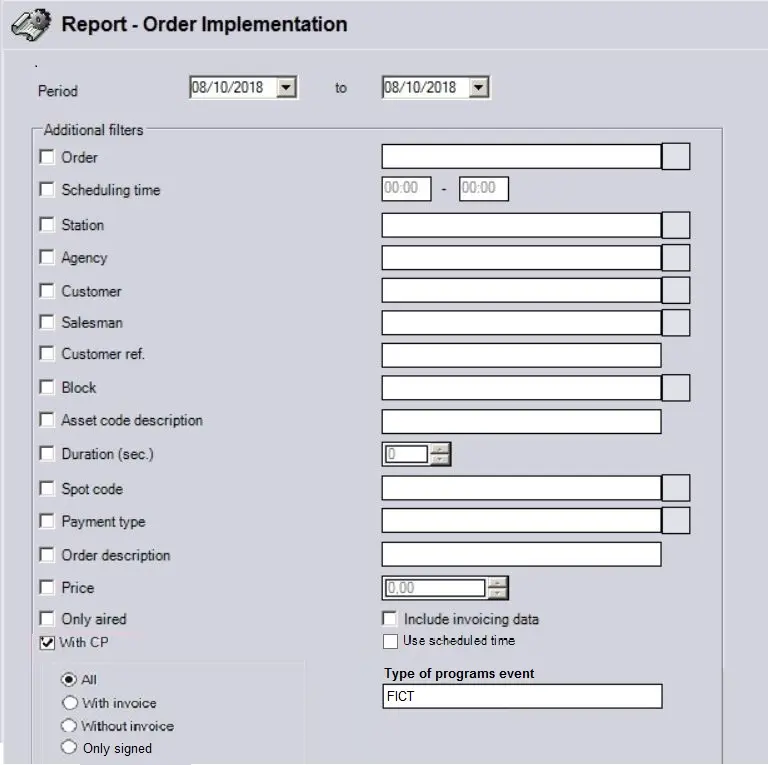
All the parameters that permit detailed report generation have been distributed across seven different tabs to allow for a more straightforward configuration. By default, all filters are disabled (i.e., either blank or unselected); it is enough to configure at least one parameter inside to enable them. Available filters include:
•Period: Specify the period from which data will be retrieved.
•Order: Specify the order in which the report will be generated, that is, the order in which scheduled items will be calculated. Leave unselected to include all orders.
NB: Please note that only those orders valid for the selected period will be shown.
The report program extracts the master orders, including the child orders that are linked to the master orders.
In the report view, the master order is appended to its child order, indicated by its master order number within the square bracket [ ].
NB: After Preview, you can "uncheck" and "check" the Order checkbox to refresh the report module and search for another Order without closing and reopening the report module.
•Only aired: Only items that have already been transmitted will be included in the report if enabled.
•Include invoicing data: If enabled, its currently invoiced value will be included for each order line.
NB: Please note that the availability of this parameter depends on whether the user has or not the "Air Sales\View invoicing data" right.
•Use scheduled time: The report captured the commercial spots scheduled to go on-air on a specific date within the date range; if enabled, the report will include the date and time the commercial sport was scheduled.
•Type of program event: By specifying the program event type(s), you can filter the specific event type (e.g. FICT) associated with the programs to avoid extracting incorrect events in the report. To includes more event types in filtering, separate the event types with semicolon (;). (e.g. FICT; PGM)
NB: If the "Preview" function is activated to view the generated report after entering the type of program event(s), the event type(s) specified in this parameter will be saved when you exit from the Report module. The same program events would be present when you launch the Report module.
Additionally, other filters are also available to allow filtering orders by specific data, such as:
•Scheduling time
•Station
•Agency
•Customer
•Account Executive
•Customer ref.
•Block
•Asset code description
•Duration
•Spot code
•Payment type
•Order description
•Price
•With CP -
All
With Invoice
Without Invoice
Only signed
Report Preview
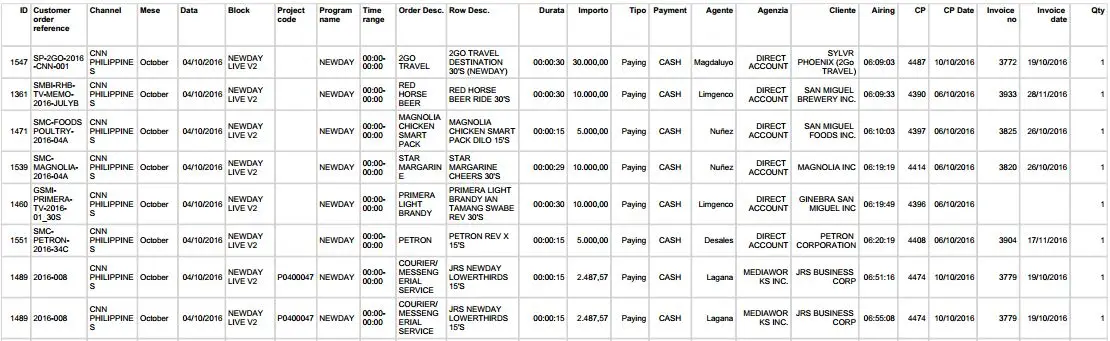
The [Settings] permits the configuration of the page layout of the outgoing document; once filters and settings have been set, it will be possible to select between displaying a preview using the related [Preview] button or printing the document directly using the [Report] button:
Order_Implementation_preview
Columns legend
ID - Identification number of the order
Customer Order Reference - The order reference number is derived from the "ID" column of the same row in the report.
Channel - The Channel on which the order item is related
Month - The month on which the order item is scheduled
Date - The date on which the order item is scheduled
Block - Programming block on which the order item is scheduled.
Project code - Specify the project code. The value is derived from the Commercial Note tab of the Season Manager.
Program Name * - The program name must be the same program name specified in <Breakdown Spot per Program from Invoice> report; it must also coincide and be consistent with the generation of CP where the asset description is used.
Period - Time interval on which the order item is expected to be transmitted.
Order desc. - Description of the main order.
Line Desc. - Description of the order line.
Duration - Duration of the scheduled order item.
Amount - The amount collected.
Type - Indicates if the order item is paying or not.
Saleman - Sale person responsible for selling the order
Agency - The agency involved in the sale of the order.
Customer - The customer to whom the order is directed.
Airing - The time at which the order item was transmitted.
CP * - Specify the actual CP number if the event is already included in a generated CP. Otherwise, please leave it blank.
CP Date - Indicate the date the CP was generated.
Invoice number - indicate the invoice number of the corresponding CP number in the CP management module.
Invoice Date - Indicate the date the invoice was generated.
Qty * - The quantity is based on a row; thus, its value is always 1. At the end of the report, it would sum up and display a total quantity at the bottom right.
By enabling the "With CP" option at the bottom of the report module, you can include the scheduled events from the CP report module based on the following selection:
•All: Includes all events, with or without invoices, in the report.
•With invoice: Only CP with invoice would be included in the report.
•Without invoice: Includes CP without invoice in the report.
•Only signed: Only CP with signatures would be included in the report.
Please note that some reports permit the export of the generated document in the most common formats (PDF, CSV, doc, xls, XML, etc) just by using the [Export] button.
report_order_implementation_filters_new
 Order_Implementation_preview
 report_order_implementation_filters_new