59.5.4.10 Statement Multi
Report Description
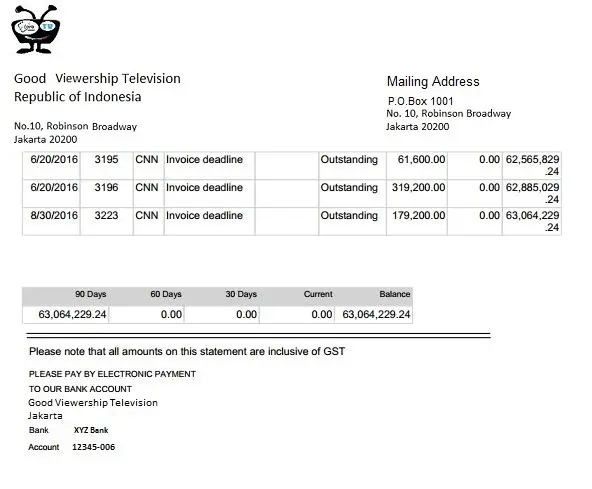
The Statement Multi report summarises various outstanding invoices and the overdue amount. Unpaid invoices in this report will be divided into four monthly periods: 0-30 days (current), 30-60 days, 60-90 days and over 90 days; this report is a useful document for invoice tracking and customer account management.
Report Filters
All the parameters that permit a detailed report generation have been spread across seven different tabs to allow a more manageable configuration. By default, all filters are disabled (i.e. they are either blank or unselected); to enable them, it is enough to configure at least one parameter on their inside. Available filters include:
•Reference date: Specify here the issue date that will appear in the statement,
•Inactive customers in the month of the reference date: Select to include inactive customers (i.e., without events scheduled on that month) related to the specified reference date.
•Active customers in the month of the reference date: Select to include the active customers (i.e., events scheduled on that month) related to the specified reference date.
•Show only customers with a non-zero balance: If enabled, only those customers whose balance (i.e. the difference between paid and owed amounts) is different from zero (i.e. with pending payments) will be included in the report.
•Based on: Select here the entity (i.e. customers, account executive or agencies) for which the statements will be generated, then press the [...] button to search and select the Code of one of them.
•Payments: Press the [...] button to search and select the payment method to which the report will be narrowed. Leave this field empty to include all methods.
•RDL module name: Indicate the name (without the .rdl extension) of the reporting service module to be used for generating the report. Modules are managed in the Etere Configuration > Configuration Editor > Reporting Service > Management section.
After filters are compiled, press the [Search] button to retrieve all order lines matching the filtering criteria (i.e. date, payment, activity) into the Outstanding list. The Outstanding list will allow the manual selection (tick) of the customers for which the statements will be generated.
Once customers are selected, press the [Print all selected statements] button to generate and directly print the reports for all selected customers. Moreover, for each selected customer, it will be possible to access the following contextual right-click functions:
•Select all: Select all customers displayed in the list.
•Deselect all: Deselect all customers in the list.
•Print: Choose one print option between:
"Preview" (generate the single statement for the selected customer and show its Preview)
"Pdf" (generate the single statement for the selected customer as a pdf file into a user-defined location)
"Send email" (generate the single statement for the selected customer as a pdf file into a user-defined location and send it as an attachment via email)
Besides the filters mentioned above, upon report generation, the report also contains additional data retrieved from the customer's personal data form (see descriptions below) and station name configured in the Air Sales Parameter.
•On the top portion of each page, a header logo with the Issuer's name and address is on the left, and the mailing address is printed on the right.
•The Issuer's Bank name and credit account number for electronic payment are printed on the last page of the report.
The Issuer's name and address, header logo, mailing address, credit account number and bank name are retrieved from the Personal Data form in the Air Sales Configuration:
•Header Logo: retrieved from Air Sales's Configuration > Parameters > Proposal tab where a logo image was inserted.
•Issuer's name and address were retrieved from the Personal Data Form tab.
•Mailing address: retrieved from the shipping address in the Other Data tab.
•Credit account number and bank name were retrieved from the Banks tab.
Report Preview
The [Settings] allows the user to configure the page layout of the outgoing document; once filters and settings have been set, it will be possible to select between displaying a preview using the related [Preview] button or printing the document directly using the [Report] button.
Please note that some reports permit the export of the generated document in the most common formats (pdf, CSV, doc, xls, XML, etc) just by using the [Export] button.
Statement_Multi_preview
 Statement_Multi_preview