59.7.3.1 Metadevices management
What is a meta device?
A cloud device is a logical representation of a physical storage resource within an Etere system, which can be a group of volumes (individual disk storage areas) represented on a system as a single, logical disk.
Metadevices are virtual devices used as physical slices. Etere fully supports the use of meta devices, and it significantly improves the storage process on its various levels when used for either join or divide physical devices; its most relevant advantages include the following:
➢ Reduction of cost - Allows use of a single storage device as multiple devices (distribution) or vice versa (expansion).
➢ Enhance reliability - By distributing media between different locations, its security is improved.
➢ Flexible configuration - Use selective meta devices to fit specific needs.
➢ Improved access times - Using a single device makes access times shorter.
➢ Functional organization - Use meta devices for specific tasks and media types.
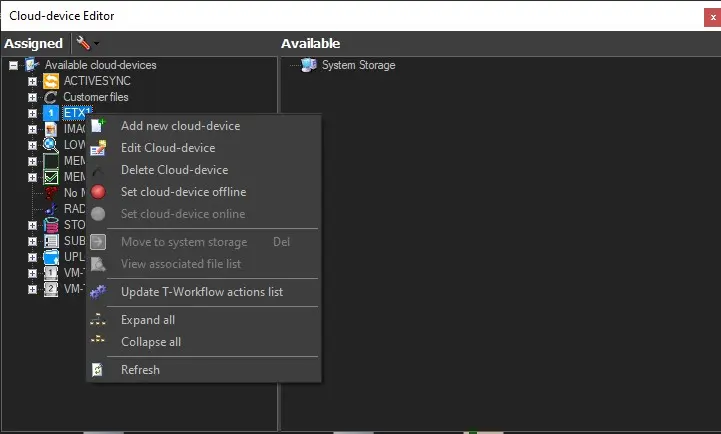
Cloud-device editor
Etere Resources Editor provides the following functions for the management of meta devices within the system:
management_of_metadevices
Add new cloud device - Creates a new meta device.
Edit cloud device - Modify the selected meta device.
Delete cloud device - Removes the selected meta device from the system.
If the meta device contains metadata, you must first copy the metadata to another location and perform a logical deletion of metadata before removing the meta device from Resource Editor.
NB: If a resource is removed, all its associated paths belonging to other devices will be automatically placed in the System Storage.
Set cloud device offline - Set the selected meta device as offline and set all its volumes and metafiles stored as "unavailable" (e.g. unable to be used).
Metadevices with offline volumes will be displayed as follows:
• Completely offline: All paths of the meta device are set as offline.
• Partially offline: Only some paths of the meta device are set as offline.
Set cloud-device online to "online" and set all its stored paths available.
Move to system storage - Removes the selected path from the meta device, making it available for association.
View associated files list - Displays a list of metafiles currently linked to the selected meta device.
Update workflow actions list - Updates all the workflows related to the selected meta device with the new/changed properties.
Expand all - Show all the paths within all the meta devices.
Collapse all - Show only all the meta devices, hiding all the paths.
Refresh - Updates the list of meta devices.
Note: The button at the top of the window allows opening the "Media Folders" configuration section.
 management_of_metadevices