72.2.2.49 T-Workflow - View Workflow Canvas
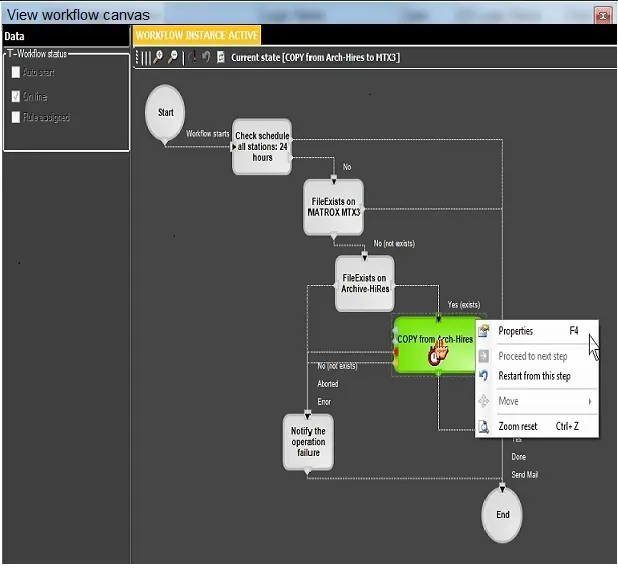
The View Workflow Canvas tool provides a step-by-step graphical view of the execution of a T-workflow, allowing also -by making right-click on a certain action- to perform any of the following functions:
View Workflow Canvas
Contextual functions
Properties - View the friendly name, local name, code and description of a certain action. This function can be also accessed by making double-click on the action.
Proceed to next step - Make the T-workflow pass to the next step manually.
Restart from this step - Restart the T-workflow and make it starts from the selected action.
Move - Allows modifying the appearance of the action block.
NB: This function is not available in runtime but only in design time.
Zoom reset - Resets all zoom changes performed using toolbar functions, this, by restoring the zoom percentage to its default value (100%).
Toolbar functions
Zoom in - Increases the size of the displayed T-workflow.
Zoom out - Decreases the size of the displayed T-workflow.
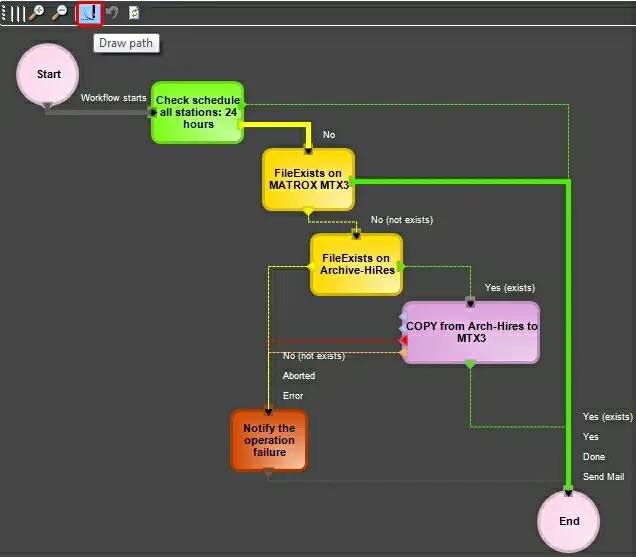
Draw path - Highlights the execution path of the T-workflow until its current state (block):
T-workflow
Restart workflow - Restarts the T-workflow execution by making it start again.
Refresh - Updates the displayed T-workflow by retrieving its current state from the database.
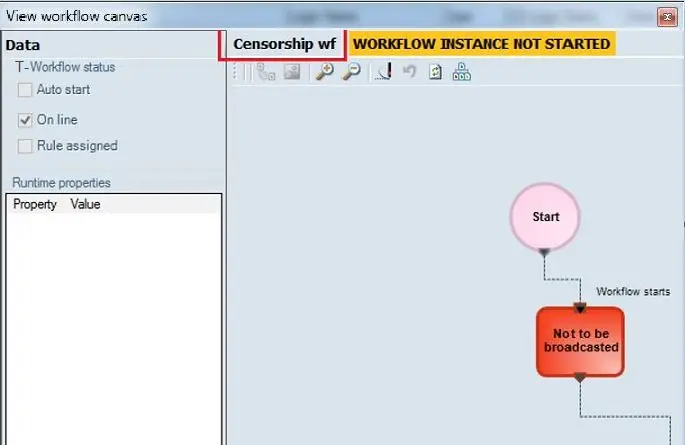
In the View Workflow Canvas window, the name of the T-workflow that is currently active is displayed on top of the toolbar.
Censorship wf
 View_Workflow_Canvas
 T-workflow
 Censorship_wf