66.4.6 Image Sequence
In order tos tart using the Image Sequence and tools, perform the following straightforward steps:
- Start ETX Toolbox Playlist, tick on <CG Enabled> checkbox and select <CG Editor>;
- To input text, go to ItemListForm;
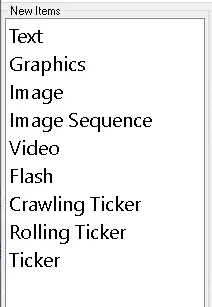
Cg_editor_new_item
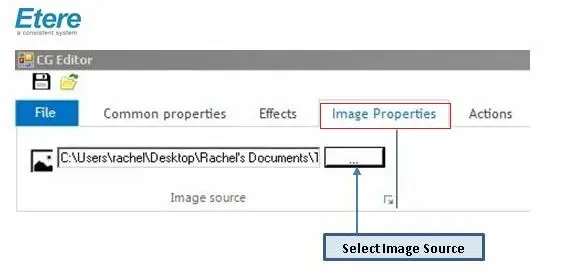
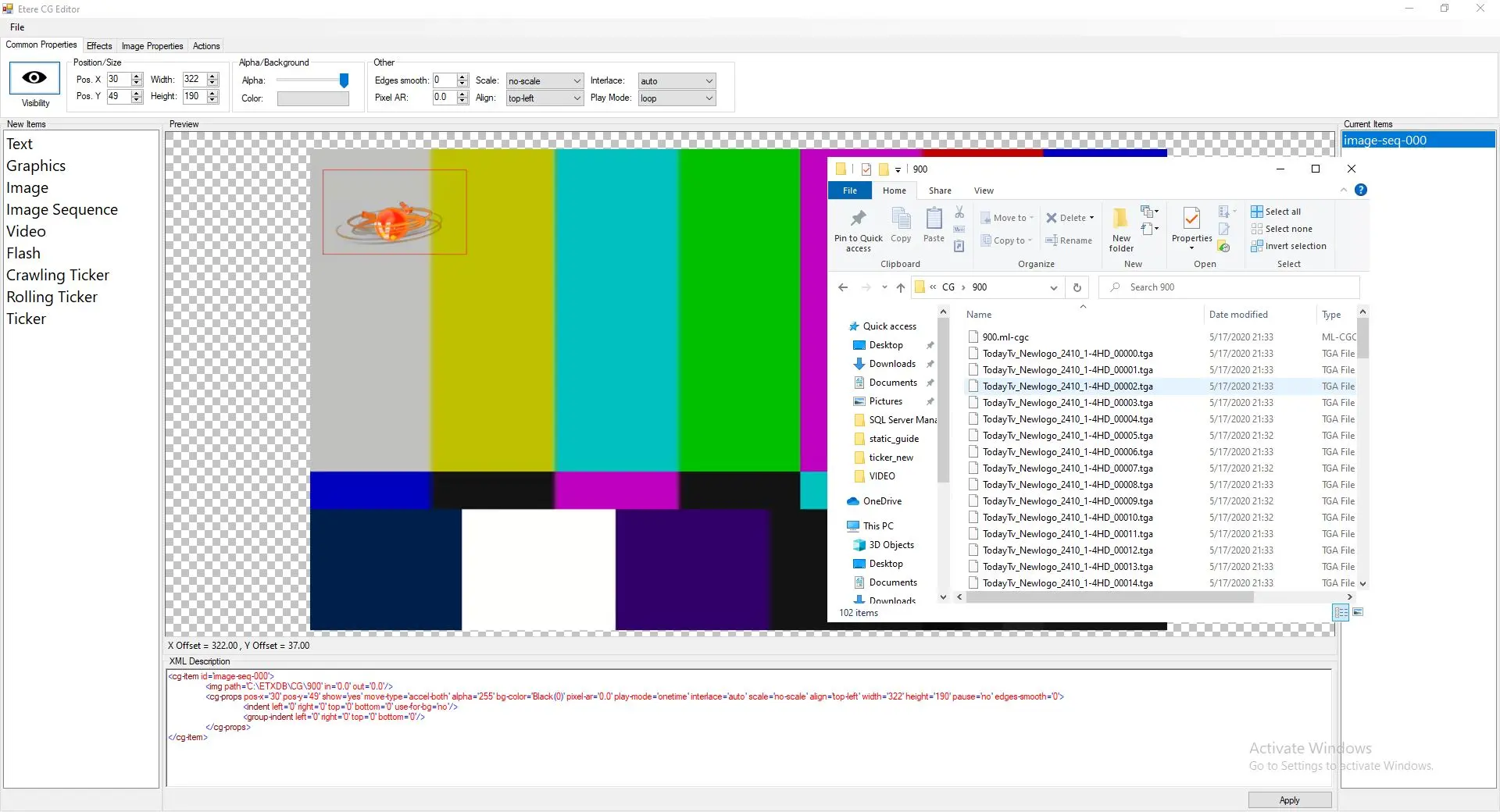
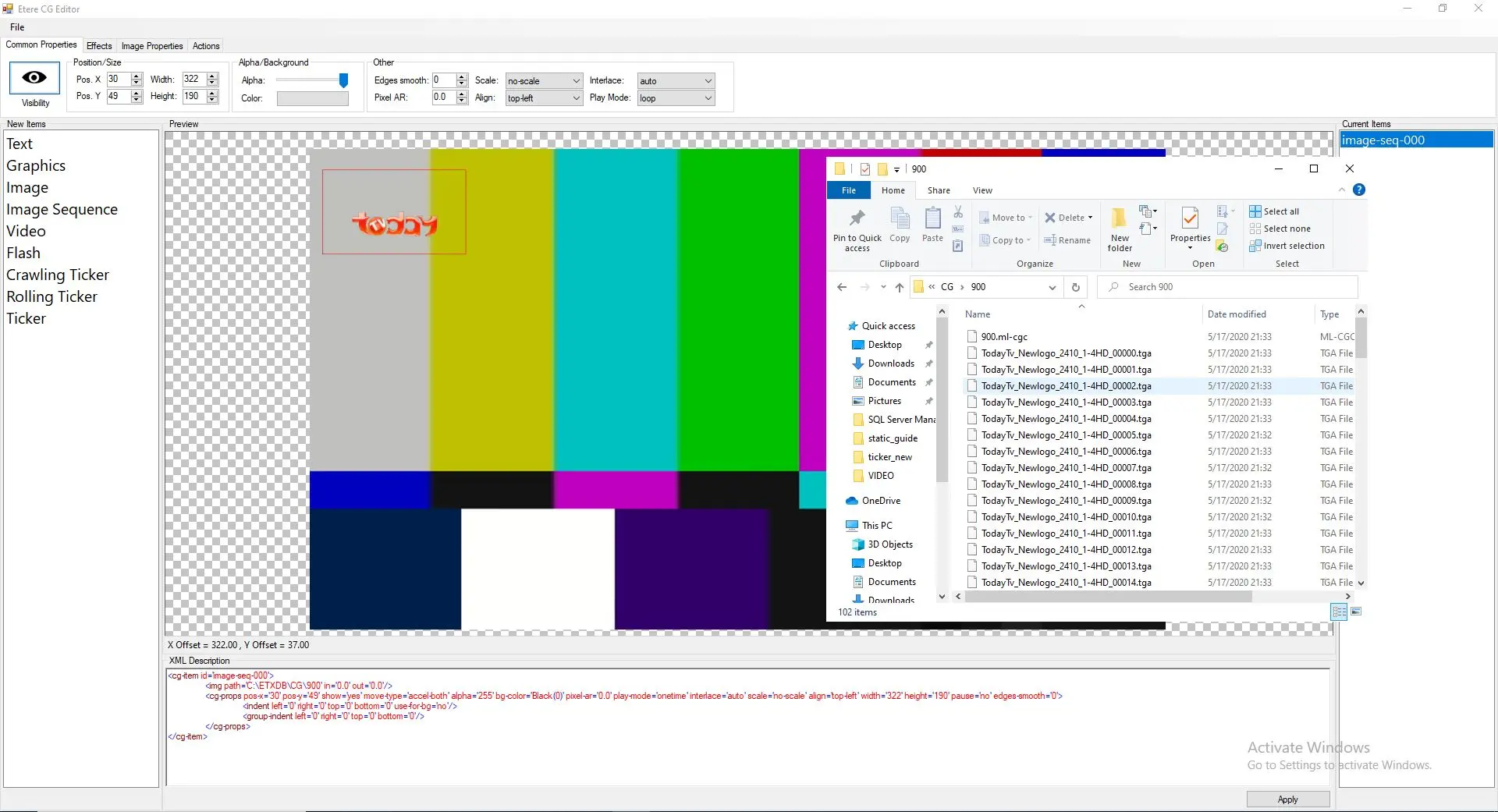
- Next, select 'Image Sequence', drag and drop to Preview window and open the folder containing the images. To make changes to the image source, go to 'Image Properties' toolbar;
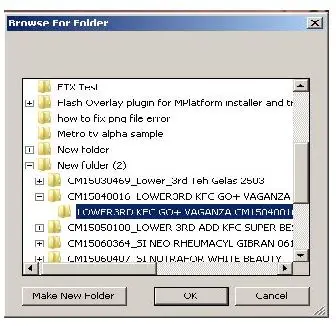
- Select folder containing image files to create image sequence and select <OK> to add files to image sequence.
Test215
- Preview of image sequence:
- Dolorem ipsum
img_seq_logo
img_seq_logo_2
You are also able to add more than one image sequence by repeating the steps above.
image_seq_multi
image_seq_multi_2
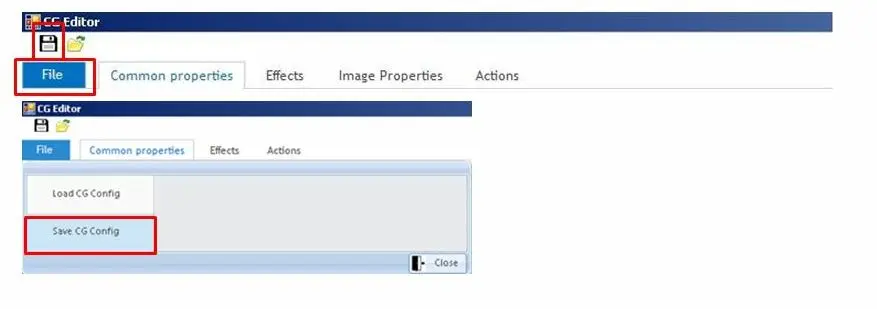
- You can save or load the preset that you have created by selecting the Save icon or by clicking File>Save CG Config.
Test218
You are also able to edit the image sequence using various tabs.
- Common Properties
common_prop_toolbar
- Effects
effects_toolbar
- Actions
actions_toolbar
Following all the related Tools and Properties available on the Etere CG Editor Toolbar:
Following all the behavior related to the Actions Toolbar Buttons:
- Group
Group button allows you to group more than one item types as one selection. Item type can be text, graphic, image, flash, image sequence or tickers. Grouping of items allows you to modify them with a single action.
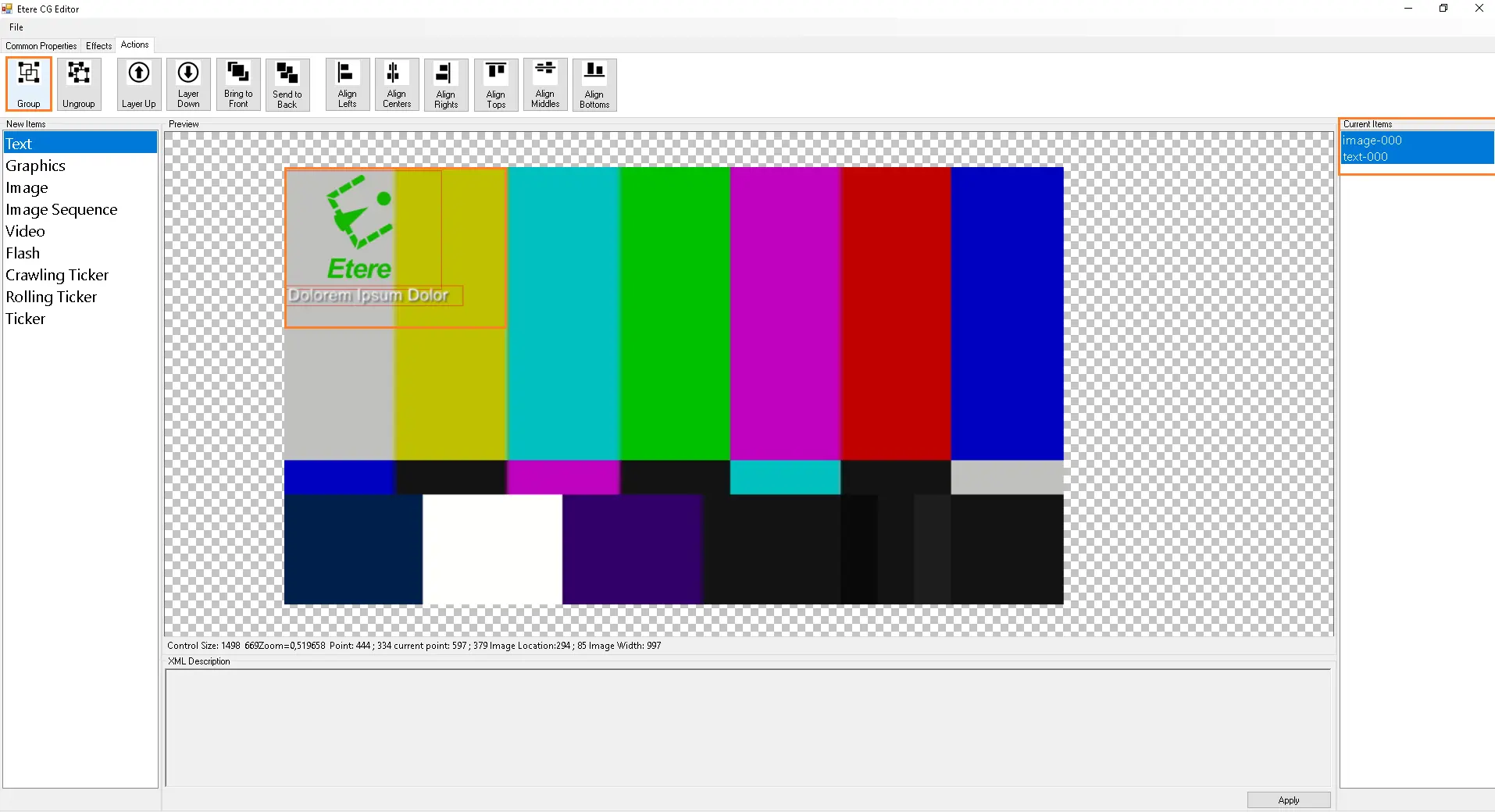
To group items, select "Group" on the Actions task bar. Next, click and drag your mouse cursor to create a selection box over the items.
The first time you group a set of items, you will be able to make modifications to the selected list but the items will still be displayed separately under the Properties toolbar, see below:
To merge the selected items as a group, select the "Group" button again.
group_btn
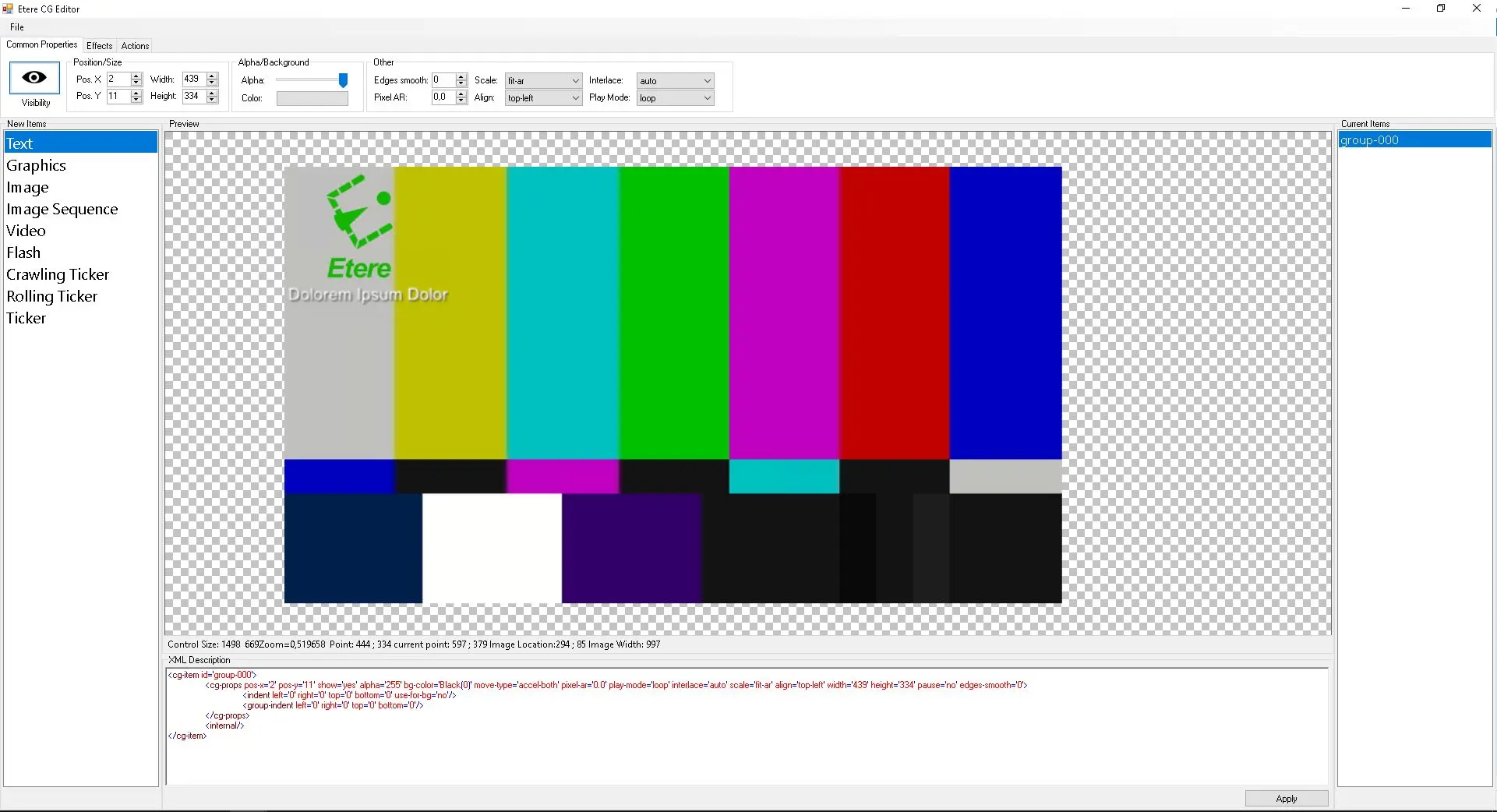
Once the selected items are grouped, it displayed as single item under the Properties toolbar. You can make modification to the group by selecting the required group under the Properties toolbar.
grouped_layers
- Ungroup
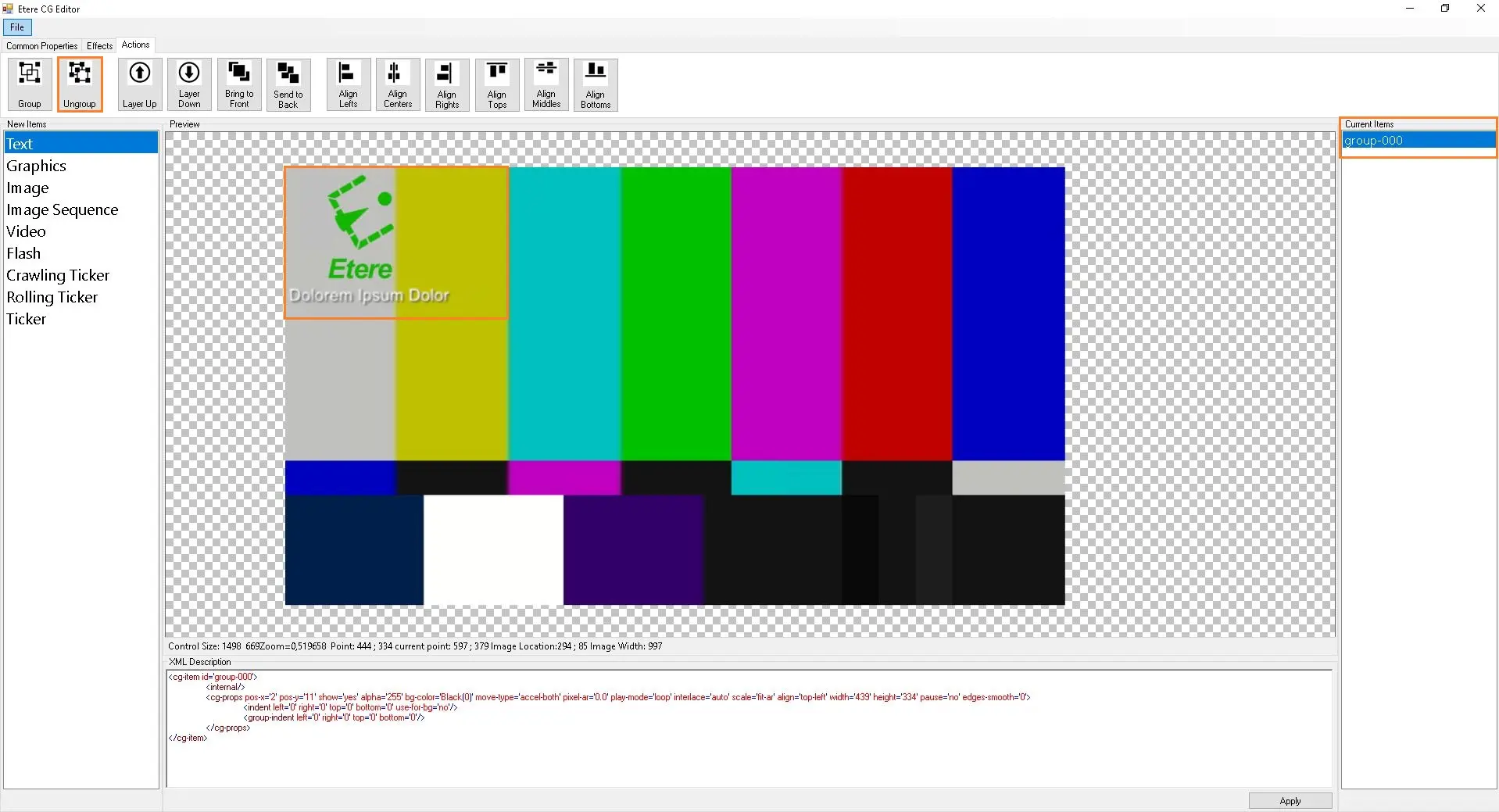
Ungroup button allows you to separate items inside a merged group. Ungrouping of items allows you to modify the items individually.
To ungroup items, select "Ungroup" on the Actions task bar, click and drag your mouse cursor to create a selection box over the group.
ungroup_btn
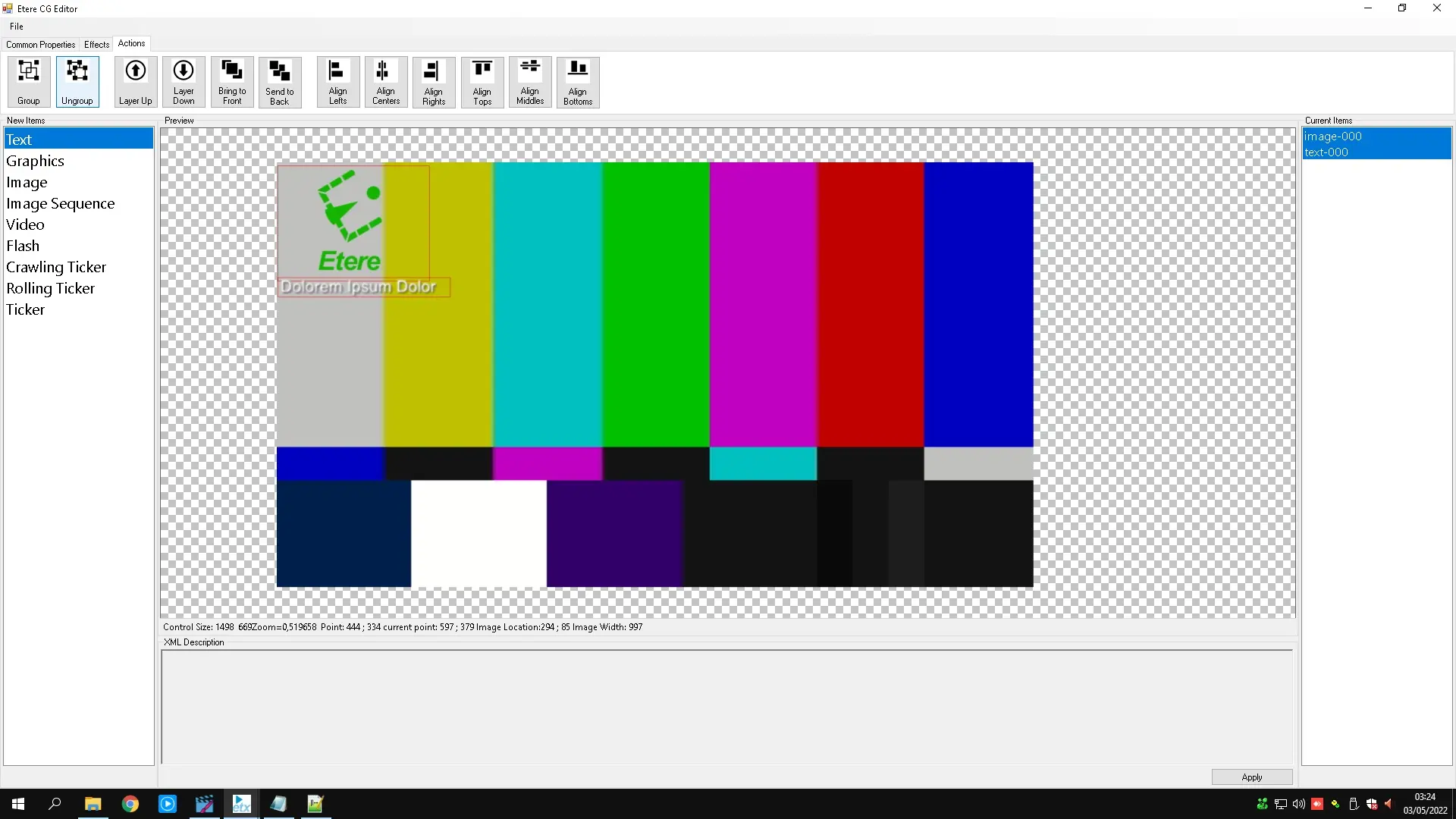
Once the items are ungrouped, you are able to modify them individually under the Properties toolbar.
ungrouped_layers
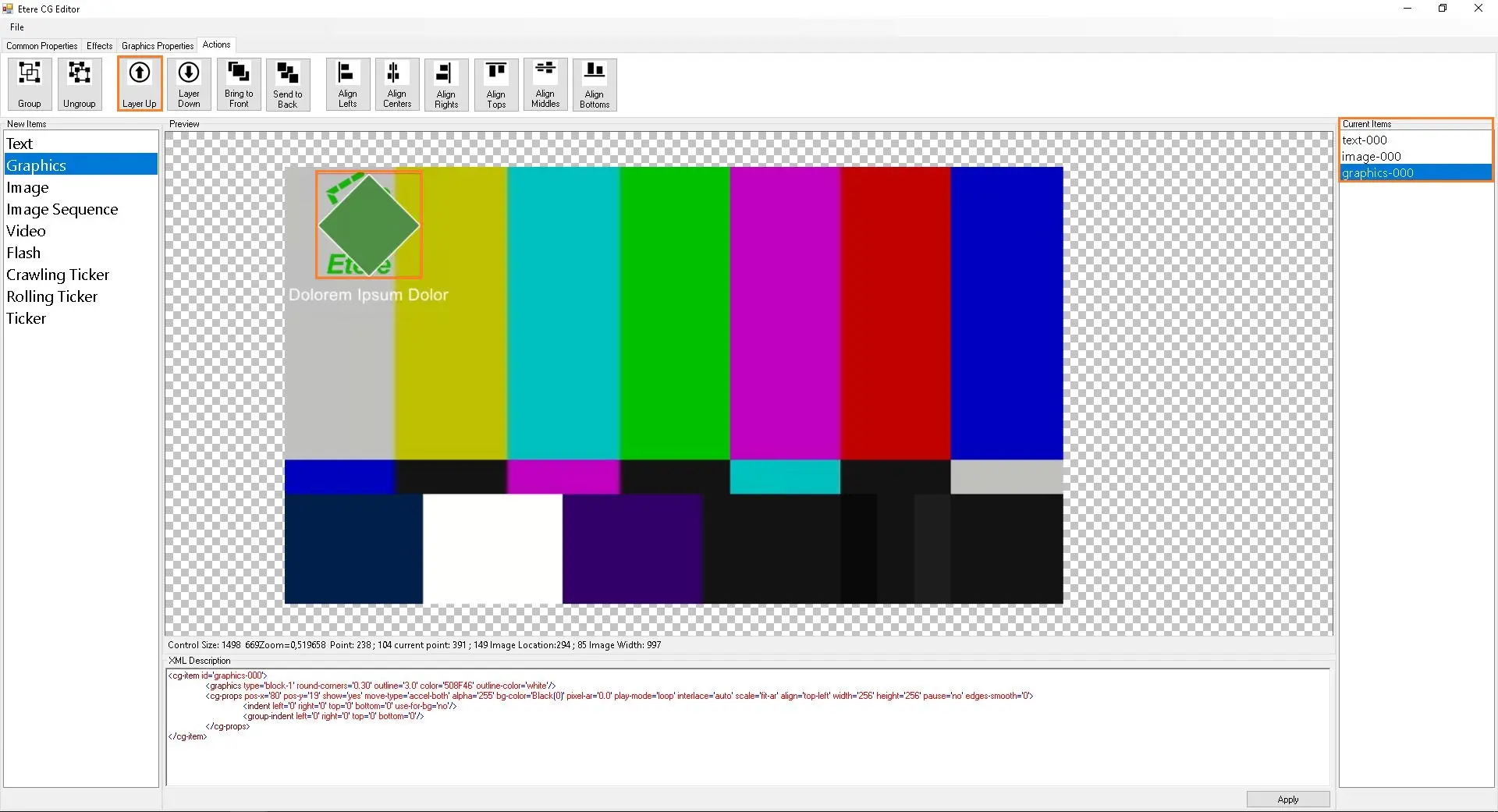
- Layer Up
Layer Up button allows you to move items up to the next layer when there are more than 2 layers.
To execute Layer Up feature on item, select Layer Up on the Actions task bar. Next, click and drag the mouse cursor to create a selection box over the item. Select Layer Up to move selected item on top of the next layer. Continue this step if you would like to move another layer up. The diagram below shows the Layer Up effect on the text item.layer_up_btn
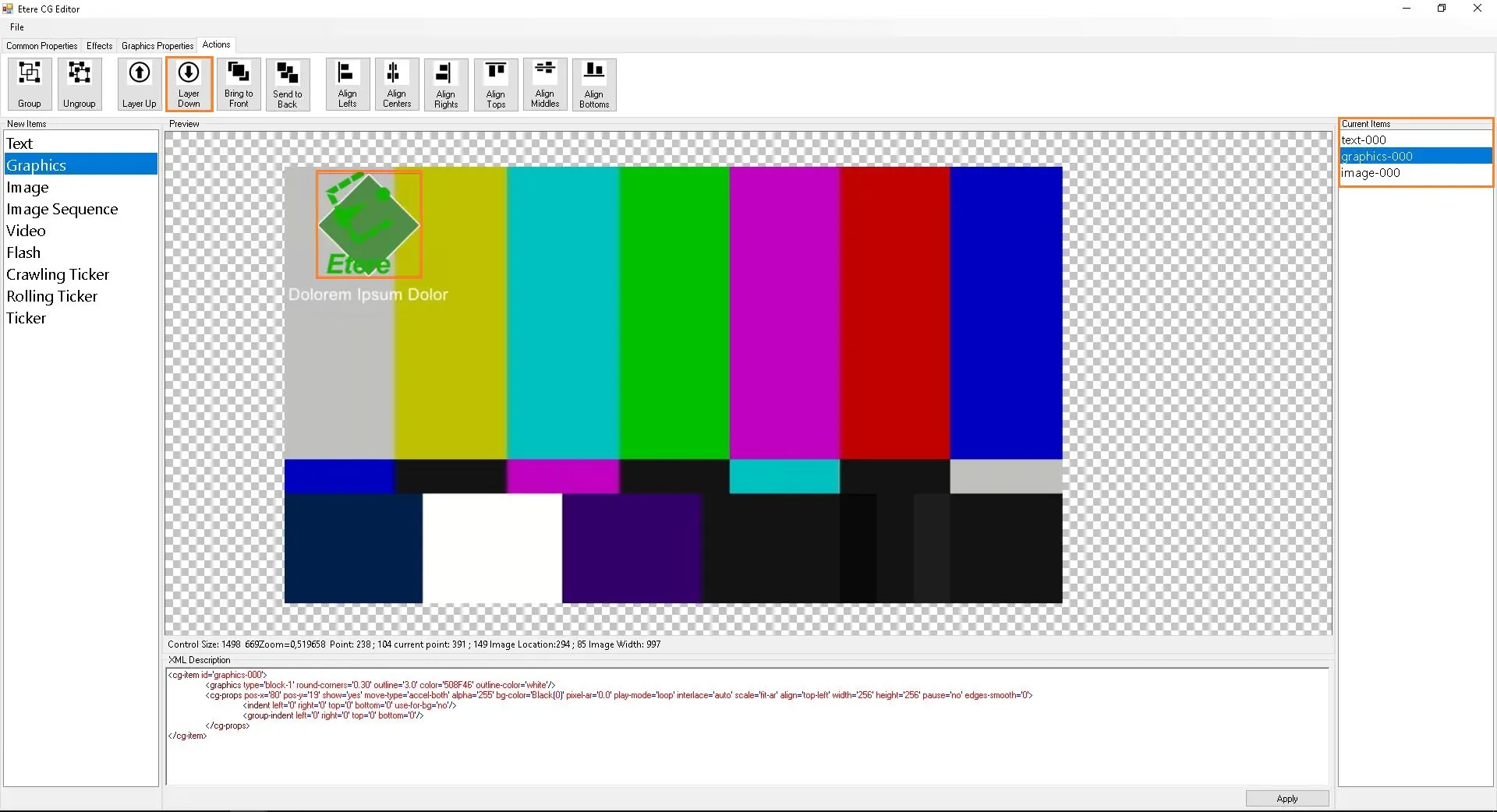
- Layer Down
Layer Down button allows you to move items down to the next layer when there are more than 2 layers.
To apply Layer Down feature on item, select Layer Down on the Actions task bar. Next, click and drag the mouse cursor to create a selection box over the item. Select Layer Down to move selected item on top of the next layer. Continue this step if you would like to move another layer down. The diagram below shows the Layer Down effect on the text item.
layer_down_btn
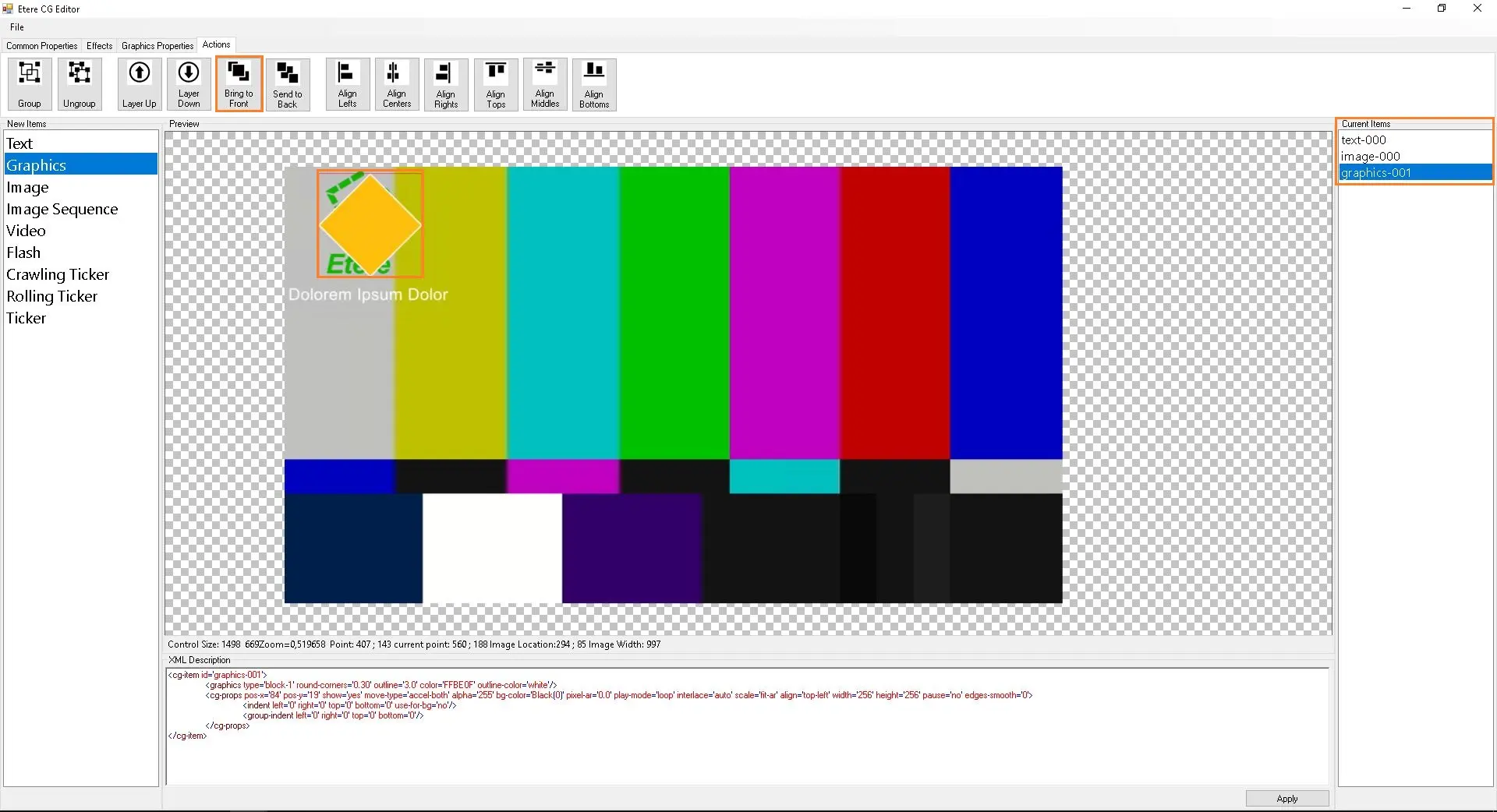
- Bring to Front
Bring To Front button allows you to move items to the topmost layer. The difference between this feature and the Layer Up feature is that this feature only allows you to move items to the topmost layer and not to the next available layer.
To execute Bring To Front feature on item, select Bring To Front on the Actions task bar. Next, click and drag the mouse cursor to create a selection box over the item. Select Bring To Front to move selected item to the topmost layer. The diagram below shows the Bring To Front effect on the text item.
bring2front_btn
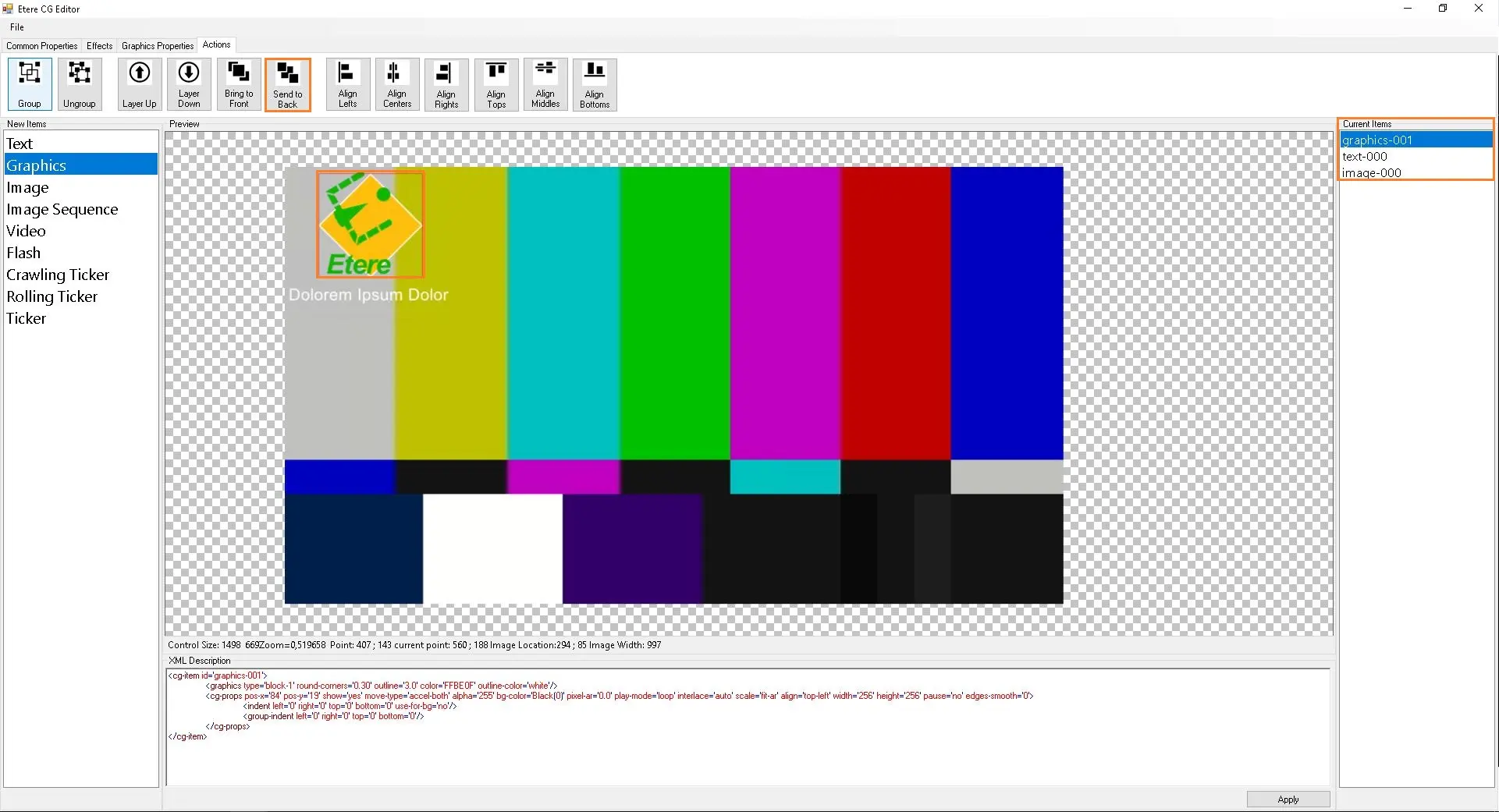
- Send To back
Send To Back button allows you to move items to the bottommost layer. The difference between this feature and the Layer Down feature is that this feature only allows you to move items to the bottom most layer and not to the next available layer.
To execute Send To Back feature on item, select Send To Back on the Actions task bar. Next, click and drag your mouse cursor to create a selection box over the item. Select Send To Back to move selected item to the bottom most layer. The diagram below shows the Send To Back effect on the text item.
send2back_btn
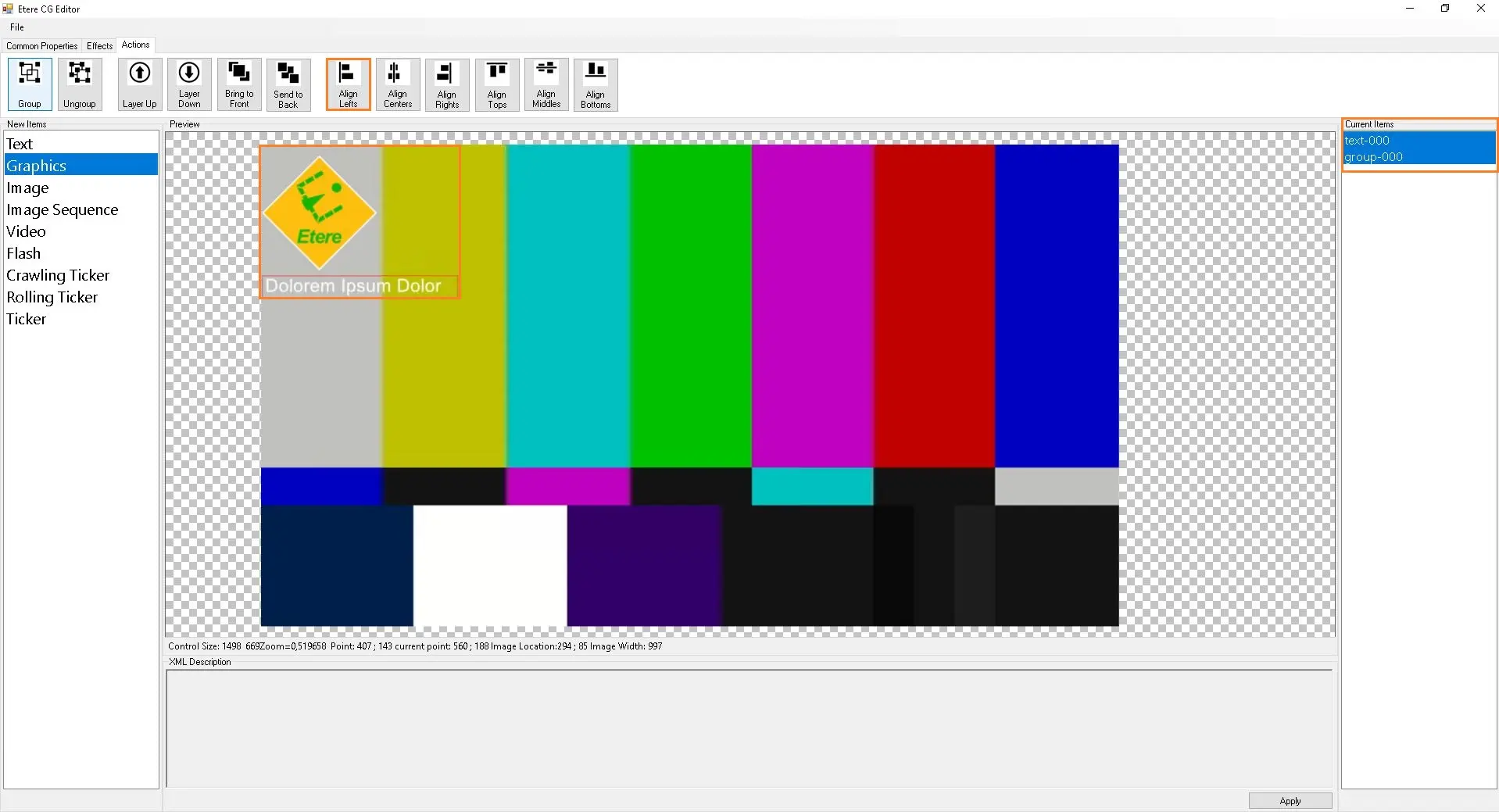
- Align Lefts
Align Lefts button allows you to adjust the alignment of selected item(s) to the left of the frame. The diagram below shows the Align Lefts effect on the text and graphic items.
align_left_btn
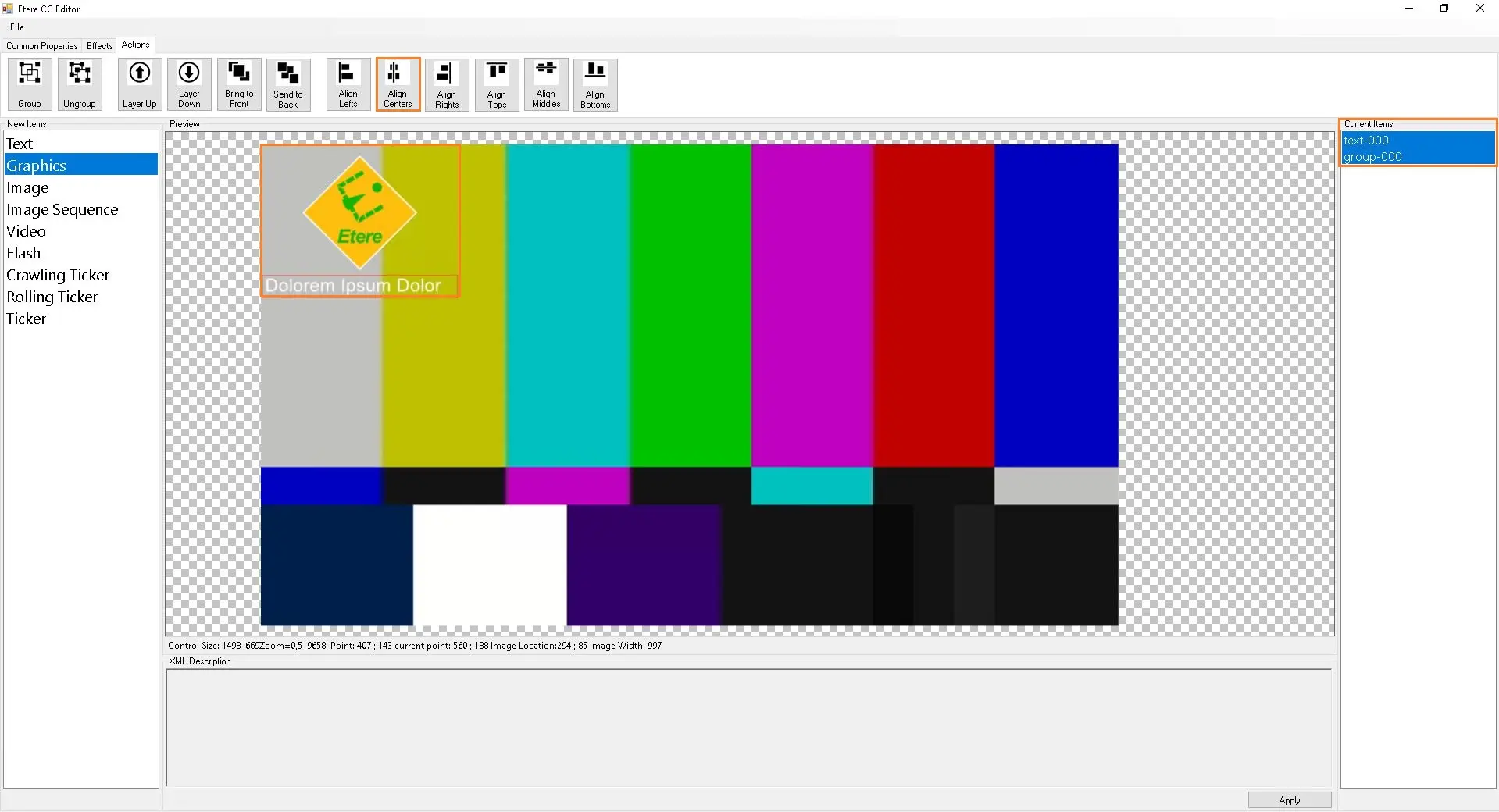
- Align Centers
Align Centers button allows you to adjust the alignment of selected item(s) to the Center of the frame. The diagram below shows the Align Centers effect on the text and graphic items.
align_center_btn
- Align Rights
Align Rights button allows you to adjust the alignment of selected item(s) to the Right of the frame. The diagram below shows the Align Rights effect on the text and graphic items.
align_center_btn
Alternatively, Text selection can also be modified using the XML Description, and click the <Apply> button to import changes.
 Test218
 Test215
 Test214
 cg_editor_new_item
 common_prop_toolbar
 effects_toolbar
 actions_toolbar
 group_btn
 ungroup_btn
 grouped_layers
 ungrouped_layers
 layer_up_btn
 layer_down_btn
 bring2front_btn
 send2back_btn
 aligne_left_btn
 aligne_center_btn
 img_seq_logo_2
 img_seq_logo
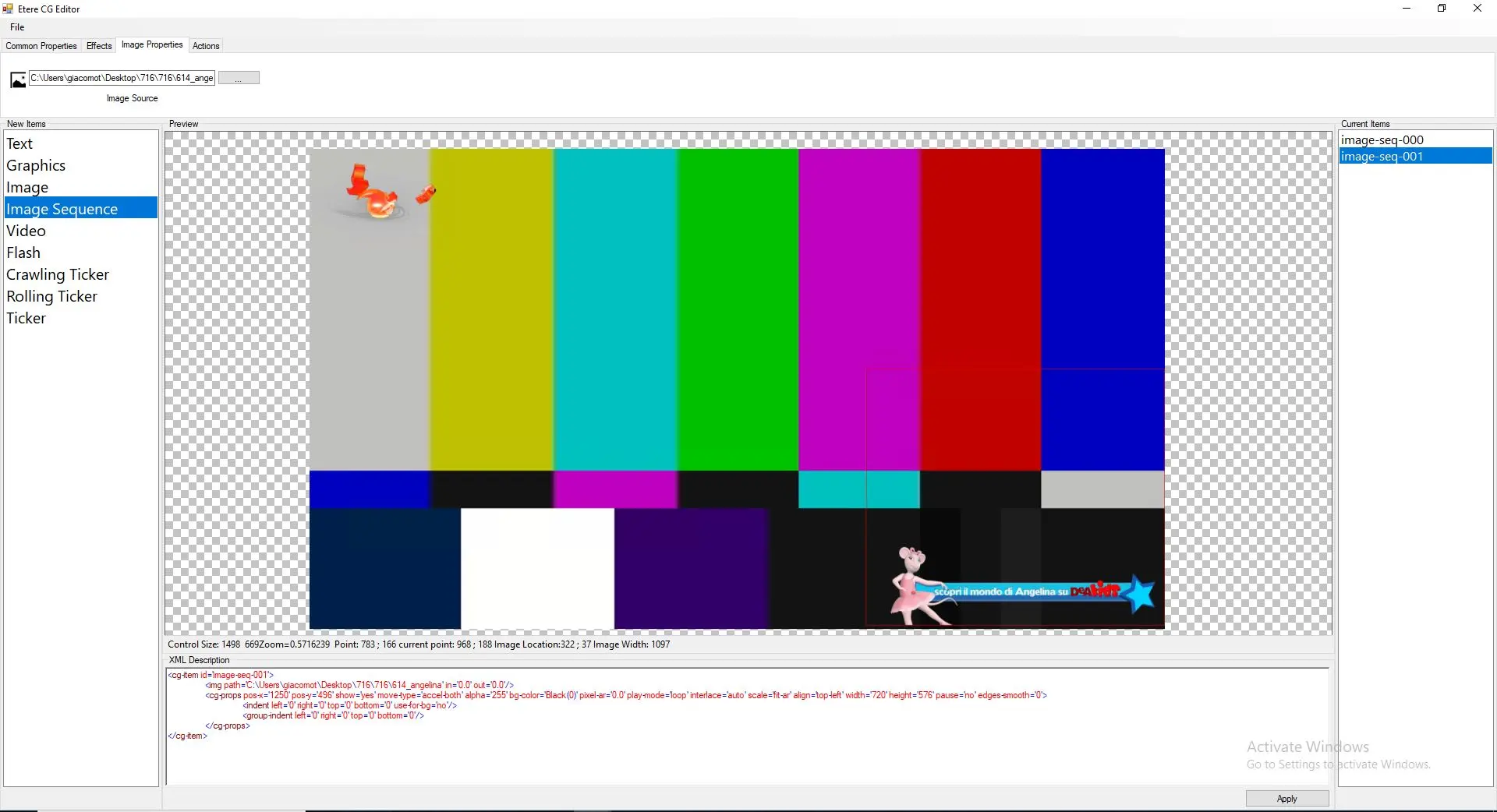 img_seq_multi
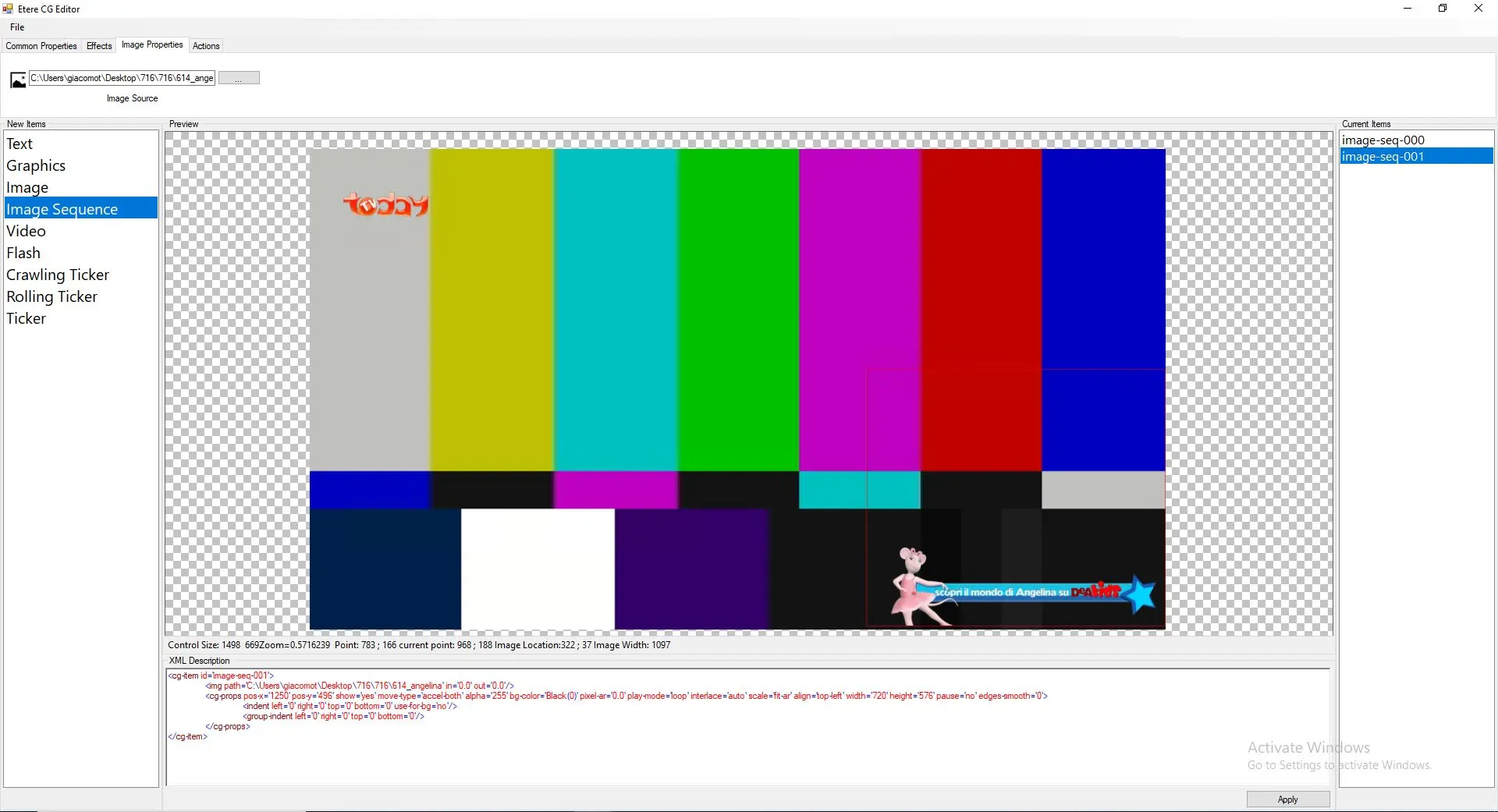 img_seq_multi_2