51.2.1 Synchronization
Under the Synchronization section, the operator can customize the synchronization between video files and asset forms, as well as monitor the entire process:
synchronization
System status: Indicate the real-time status of the application (i.e. running, stopped).
Functioning since: Show the time elapsed since the synchronization process started.
Main/Backup: Indicate whether the current application runs in "Main" or "Backup" mode.
Sync files stored in a video server: If enabled, all high-resolution video files stored in the video server would be processed according to the parameters set in the relative Sync Files Stored in a Video Server tab under the parameters section.
Sync files stored in a meta device: If enabled, all high-resolution video files stored in the path set in the related Sync Files Stored in a Cloud-device tab under the parameters section would be processed according to the criteria defined.
Note: From ActiveSync version 29.1 onwards, files not linked to the asset but residing in the FTP path would not be considered during synchronization.
Loop Creation: By enabling this option, the synchronization operation would be performed automatically at every interval of 'n' minutes. You are not allowed to enter a specific time to start the synchronization.
Note: To prevent ActiveSync from scanning the duplicate asset files in the folders during the looping process, a "Move" or "Delete" workflow should be in place to remove the scanned asset files from the folders.
Check Only the current station: The synchronization is performed only for the current station if enabled. If deactivated, synchronization would be performed for all the stations (according to their specific parameters).
Note: The Test Duration tab would be hidden in the ActiveSync interface. You can unhide the Test Duration tag using the combination of control keys "Ctrl + Alt + Shift + E".
Start the Synchronization
1. This button can launch the synchronization once all options have been correctly set
If the parameter "Check only the current station" is enabled, during the ActiveSync Startup, the application will check for active instances in the station started by the current user; if there is an ActiveSync application running in the station, the Startup process will terminate and trigger a warning message to alert the user. This eliminates duplicate ActiveSync processes in the station under the currently logged-in user.
second instance
• If the asset exists and the video file is already linked to it, ActiveSync would only update the video file duration.
• If the asset exists and the video file is not linked to it, ActiveSync would associate the video file to the asset.
• If the asset doesn't exist, ActiveSync will create it and associate the video file to the asset.
• If the asset is linked to a Live event, the event will be disabled. This would prevent missing SOM and EOM in assets when Live events already exist in Media Library.
- It is worth mentioning that whenever Etere Active Sync is about to manage any FTPS or SFTP stored files, their actual file size will be updated on a database level.
- If the "Frame_count" and duration were missing in the file, as well as not found in MediaInfo, the file duration would be calculated by division of file size and bit rate "((File_size * 8) / Bit_rate) * 0.915" as a workaround solution. The duration issue would be logged In the ActiveSync log as an error for further investigation.
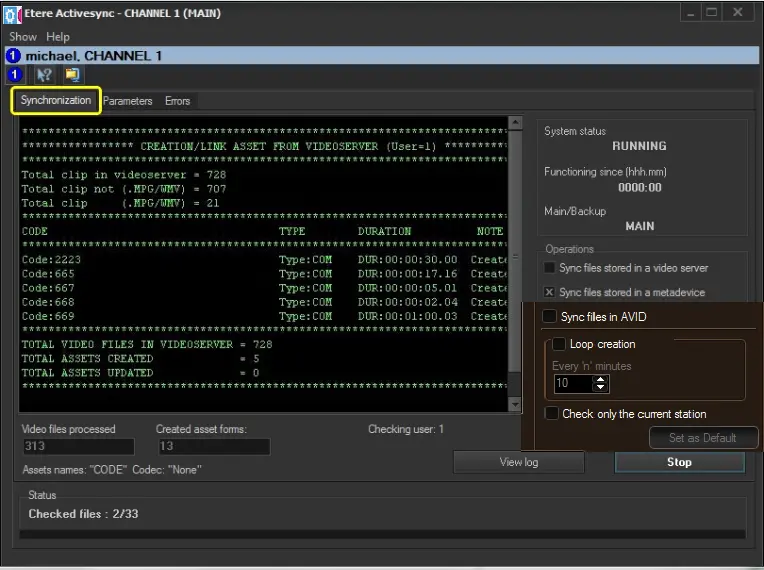 synchronization
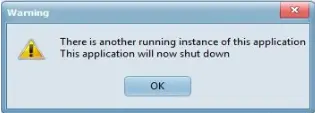 second instance