70.3.9.2 Install and Configure HSM Disk Library
To install HSM Disk Library on Server or Client workstation simply double-click on “EtereInstall.exe” to launch Etere installation process.
Etere Install 1
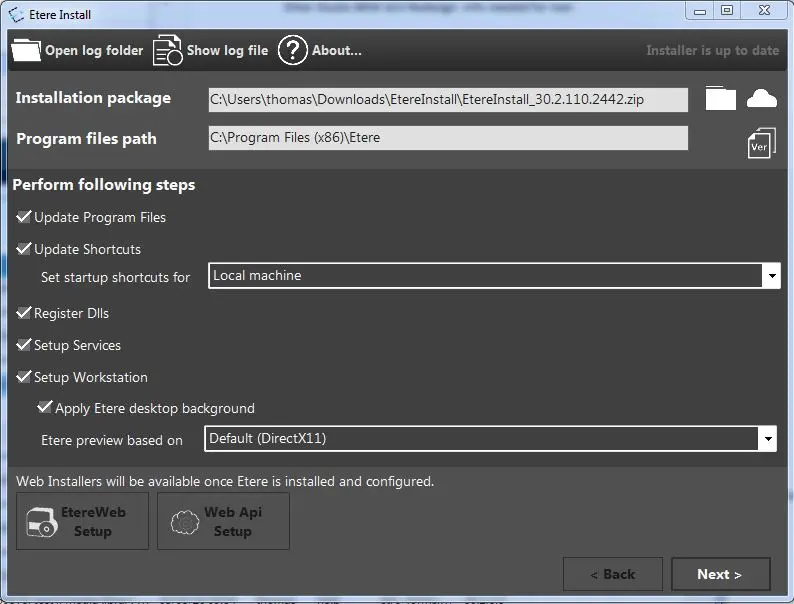
Select an installation package released by Etere that includes the HSM Disk Library application, click <Next> to continue.
Etere Install 2
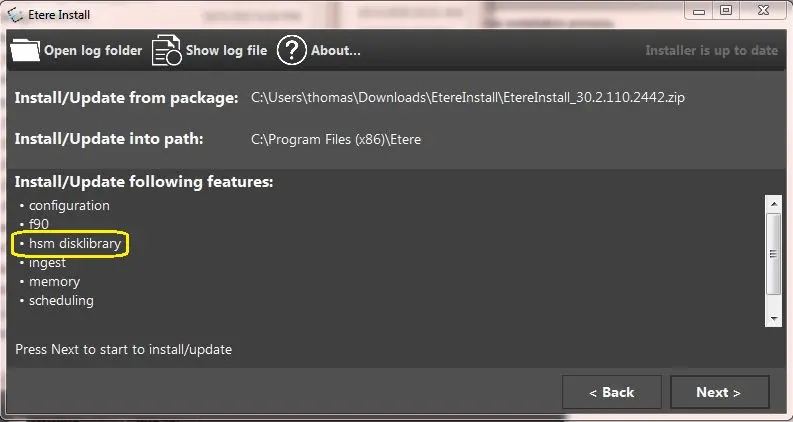
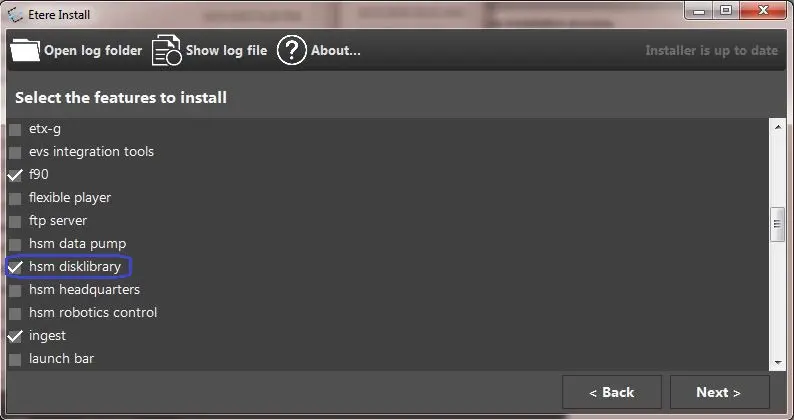
Among the list of applications, select “hsm disklibrary” and other Etere applications that you intend to install on the machine. Click <Next> to continue.
Etere Install 3
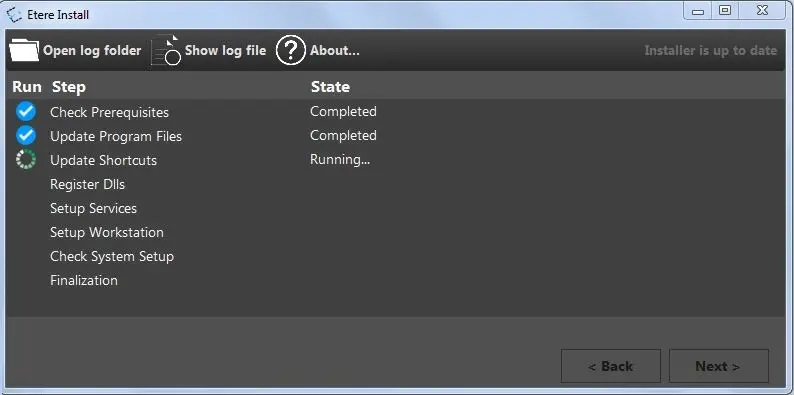
If all the selected applications are displayed correctly, click <Next> to start the installation process.
Etere Install 4
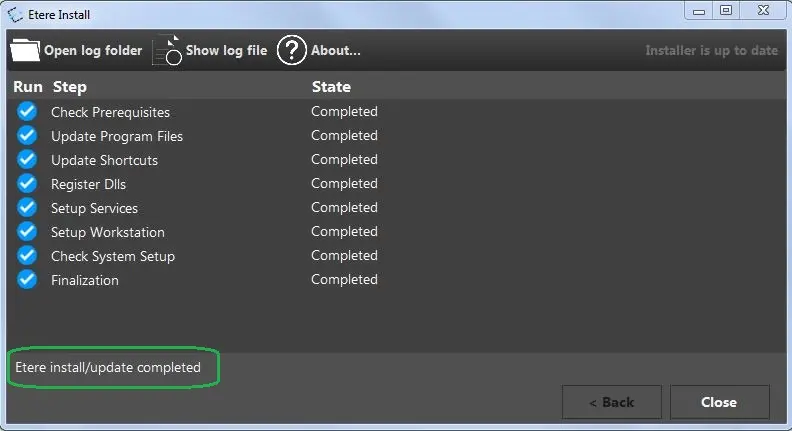
Upon successful installed, an informational message would be displayed.
Etere Install 5
A shortcut would be deployed in Windows Start Menu and Windows Desktop to launch “HSM Disk Library” on the machine.
HSM Disk Library
Configure the Disk Library
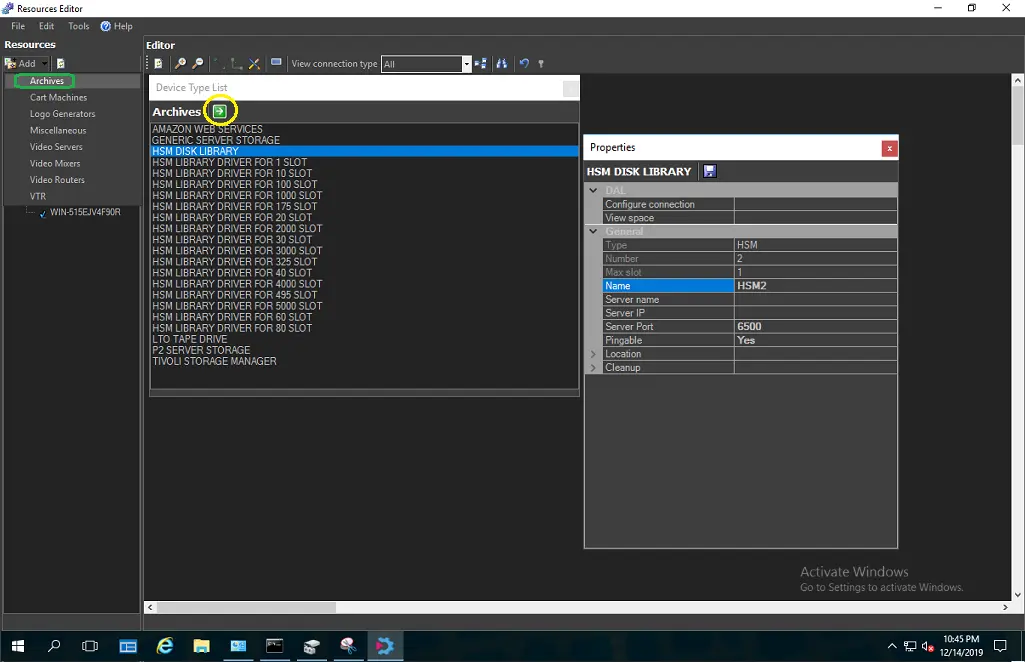
You can add HSM Disk Library resource to the resource list from Resource Editor module, simply click “Add > Archives” to display a list of available archival resources. From the list of resources, select “HSM Disk Library” and click the green arrow button to open the resource properties dialog box.
Resource Editor 1
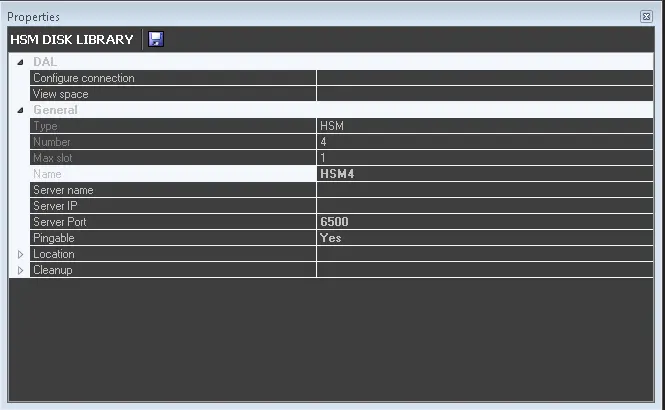
In the resource properties dialog box fulfill the following parameters:
Resource Editor 2
•Name: Provide a name to the HSM Disk Library to identify the new resource.
•Server name: Provide the name of the server where HSM Disk Library is associated.
•Server IP: The IP address of the server.
•Server port: Specify port number "6500" to be used to communicate with other resources.
Save the properties settings and exist from dialog box. The HSM Disk Library would be displayed in Archives resource list.
From the Resource list, drag-and-drop the HSM Disk Library (e.g. DISKLIBRARY01) into Editor window and use the connector to link the disk library to the Server previously created.
Resource Editor 3
 Etere_Install_3
 Disk_Management
 HSM_Disk_Library
 Etere_Install_5
 Etere_Install_2
 Maintenance_Mode_2
 Maintenance_Mode_1
 Etere_Install_1
 Resource_Editor_1
 Etere_Install_4