79.8.2 Nunzio ETX Playout first Configuration
Once the installation process has been completed, we can start Etere Nunzio ETX Playout for the first time.
Once the module has been opened, the configuration form will appear above any other one. It can also be opened from Configuration menu > Setup.
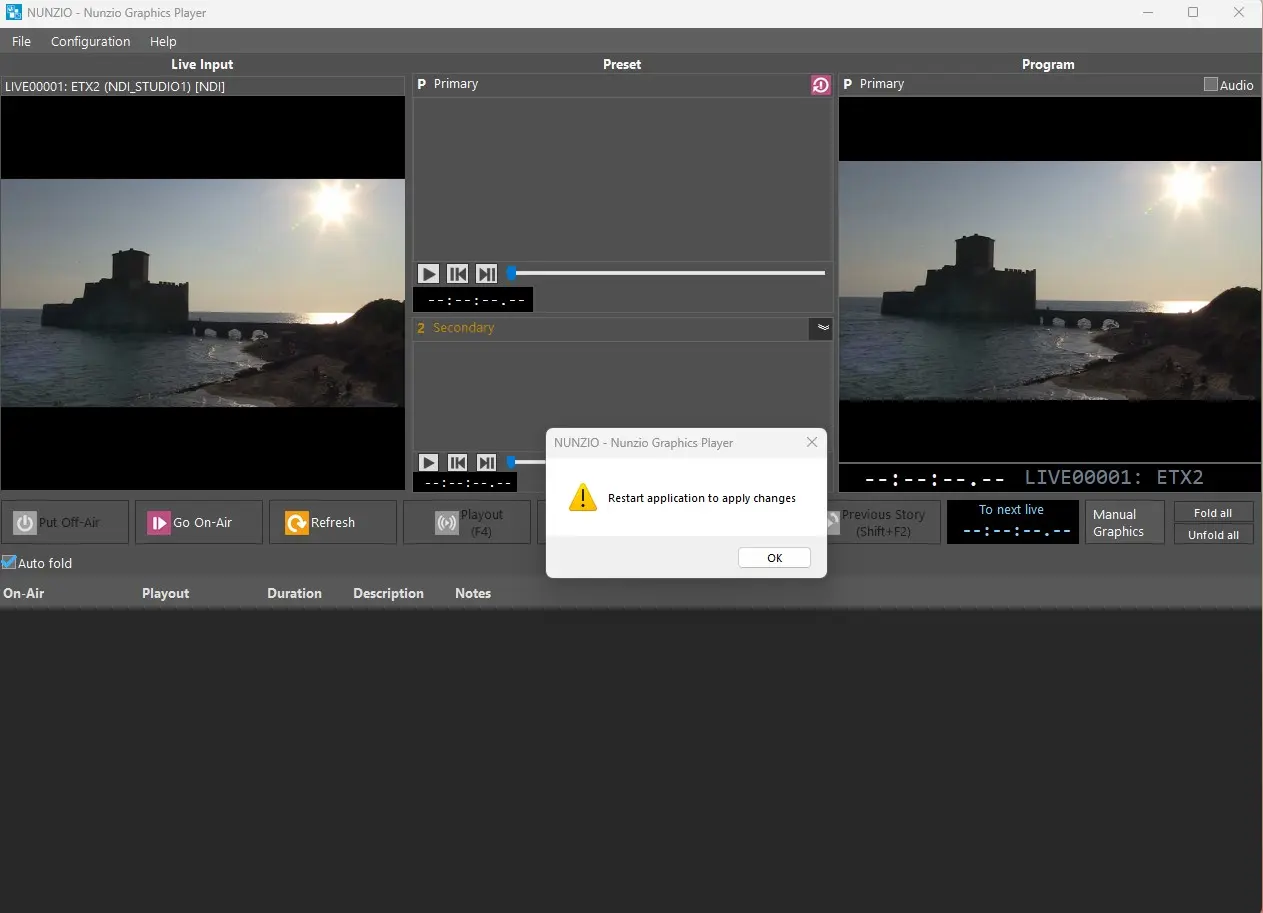
The module requires a first configuration in order to be used and, once done, it needs to be restarted.
restart_app_after_mod
The module's settings are divided in 3 tabs, explained below and in the next chapters.
PLAYOUT
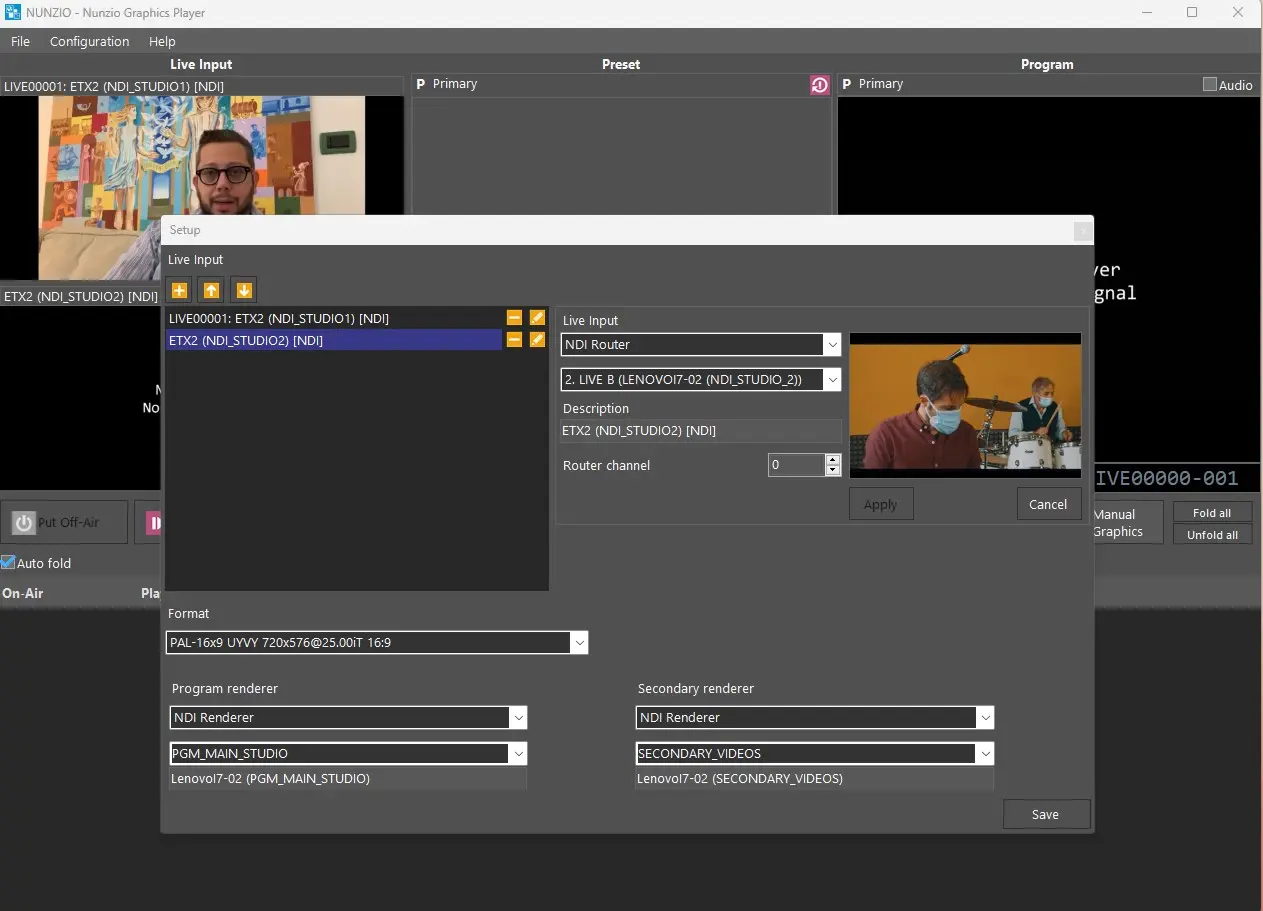
1. Add as many LIVE inputs as needed to be managed in the Newsroom:
In the Live input section we can assign multiple live feeds, either SDI or NDI. The preview of the selected input will be immediately displayed (if available).
multiple_feeds
Once the modification of the LIVE feeds has been done, press the Apply button.
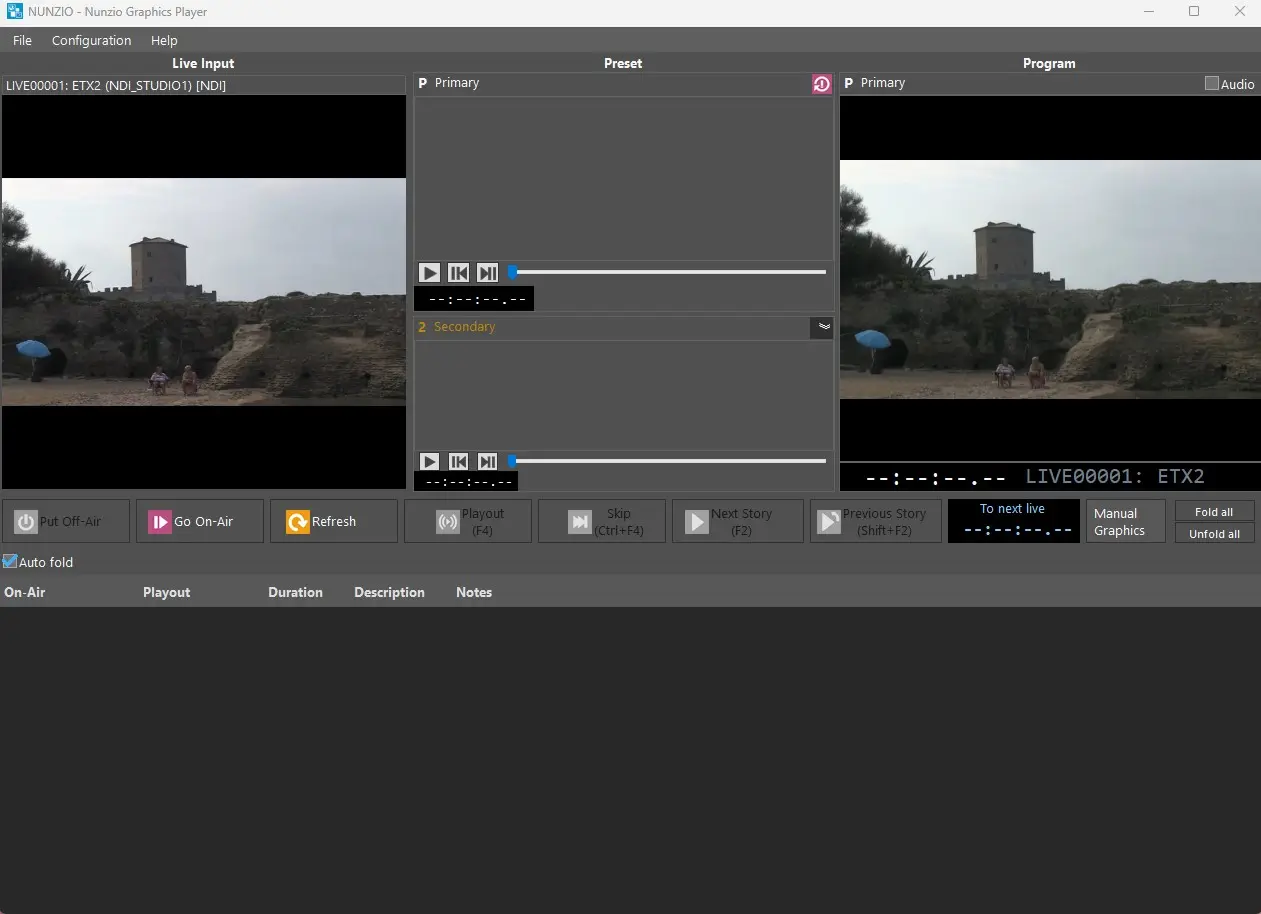
Once the module has been restarted, all the configurations just made will be applied.
previews_lives_main_gui
2. Select the main video output format:
In the Format section it's possible to assign to the main output one of the supported video formats, like:
HD1080-50i HDYC 1920x1080@25.00iT 16:9
PAL-16x9 UYVY 720x576@25.00iT 16:9
NTSC-16x9 UYVY 720x486@29.97iB 16:9
2K-DCI-50p HDYC 2048x1080@50.00p 256:135
and many others.
3. Select the Program Render:
In this section it's possible to assign an output, either SDI or NDI, which will function as output Program for Nunzio ETX Playout. Ths would be our MAIN output signal.
4. Select the Secondary Video Render:
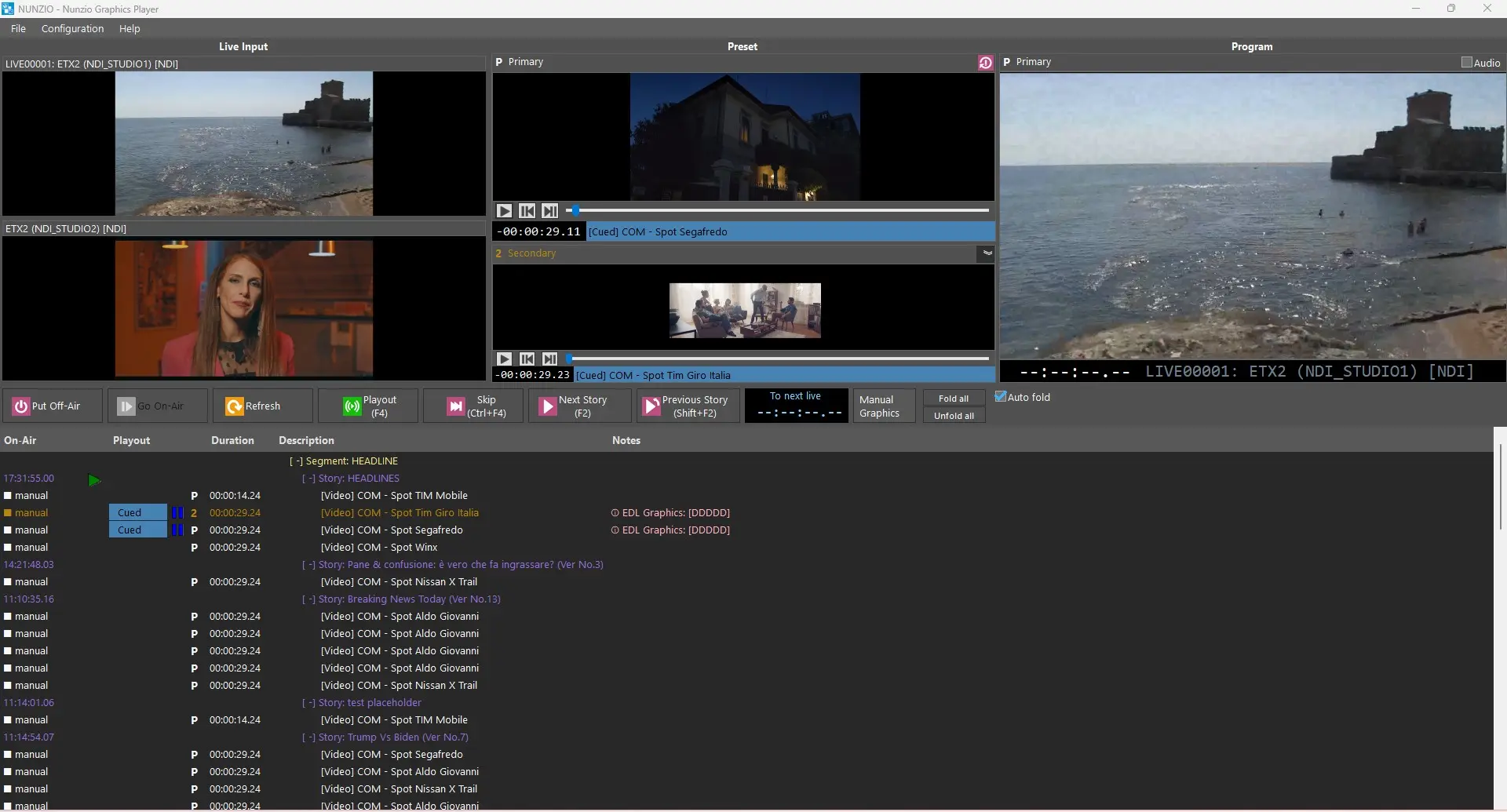
Assign an output for the secondary videos played by Nunzio ETX Playout. It's also possible to set a custom image (even by drag&drop) or color as default output, to be displayed when the secondary video is not available (if not set, the default output is black).
Secondary Videos are often used in Etere Ecosystem to send video signals in separated outputs, such as Video Walls, External Feeds, PIP video Mixing.
secondary_video
5. Set the parameters for graphics keying if needed:
Enabling the flag Send the ETX graphics on a keying output, it will be possible to edit the parameters below, to manage the graphics keying. Refer to chapter 79.8.6.0 Graphics Fill and Key for detailed information.
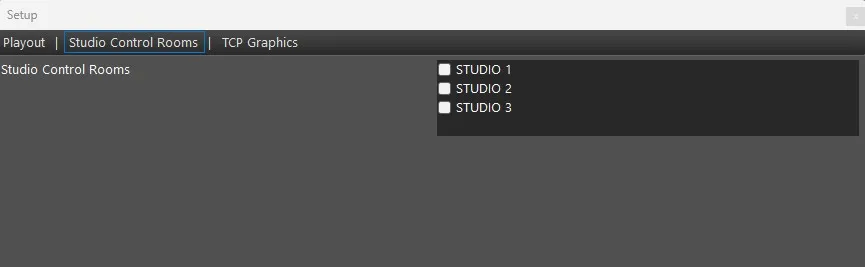
STUDIO CONTROL ROOMS
control_rooms
Select the Studio Control Room on which the Etere Nunzio Rundown information have to be sent. Etere Nunzio Rundown will be sent to the selected Studio only.
Studio control rooms must be first defined in Etere Nunzio > MOS Gateway > Settings > Newsroom > [station name] > MOS Gateway Main, along with the related MOS devices.
Then, the rundown must be assigned to the studio control room through the Functions menu.
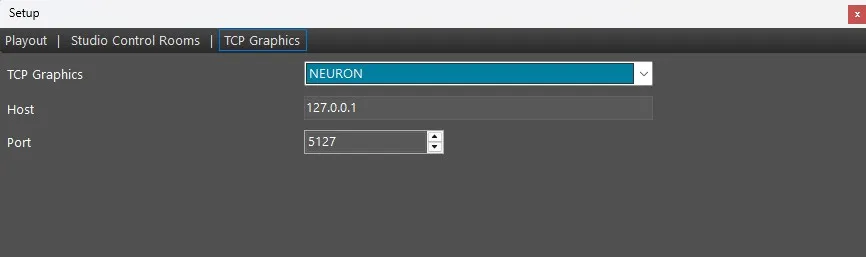
TCP GRAPHICS
tcp_graphics
Set the parameters to control an external graphic machine through Nunzio ETX Playout. See chapter 78.8.4.0 Manage Graphics Insertion for more information.
Once the set up is complete, click on SAVE button to go back to the main playout form.
 restart_app_after_mod
 multiple_feeds
 previews_lives_main_gui
 secondary_video
 control_rooms
 tcp_graphics